|

Bromcom Assessment- Error Occured While Saving Result

When attempting to save assessment results in Bromcom, you may receive the message “Error occured while saving result” is displayed.
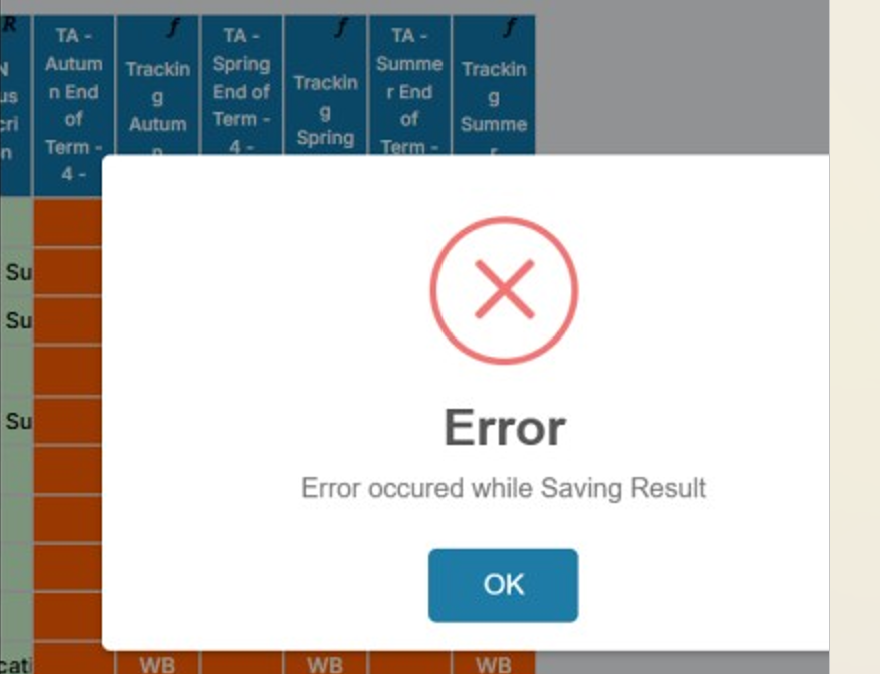
This is typically caused by duplicate entries within the assessment template, where multiple terms have been incorrectly named with the same label.

Resolution:

Navigate to the assessment template that is generating the error.

  1. Review the term names within the template.
  2. Check for duplicate term names.
  3. Amend the terms so that each is named correctly, eg:
    • Change Autumn to Spring for the Spring term.
    • Change Autumn to Summer for the Summer term.
  4. Save the template changes and then try entering the results again.

Example:
Incorrect:

  • Autumn
  • Autumn
  • Autumn

Correct:

  • Autumn
  • Spring
  • Summer

Once the duplicate term names have been corrected, results should save successfully without the error message.


How useful was this article?

Click on a star to rate it!

Average rating / 5. Vote count:

No votes so far! Be the first to rate this post.

Similar Posts

  • Bromcom Finance: How do I process Non-Invoiced Income

    You have two options on how you record Non-Invoiced income as follows: Navigate to Modules > Finance > Accounts Receivable (Note: you will need to setup a receipt book and paying in book if not already done so for accounts receivable via Modules> Finance> Maintenance > Books) To record a receipt, click the “non-inv receipt”…

  • Bromcom: Why can’t I add a new room to Exams?

    In order for a room to appear within Exams it must first be added in Config > Administration > Rooms Once it has been added here you will then need to go to Config > Examination > Exam Rooms and click New. You will then need to click on the magnifying glass icon which will…

  • Bromcom Finance & DTSApps – PLYMOUTH SCHOOLS

    Bromcom Finance: How to process your invoices, in Central Authorisation and “Print & Export” Bromcom Finance: Raising orders on suppliers websites for example: YPO & Amazon Bromcom Finance: How to cancel “Passed for Pay” Invoices Bromcom Finance: I have clicked print and not print and export Bromcom Finance and DTSApps: How to process your invoice…

  • Bromcom Finance: How do I enter my budget into the new year ?

    Modules> Finance> Homepage>Budgeting> Cost Centre allocation. Top tip: When in Cost centre allocation, you can click “Edit Mode” located top right of screen, which opens all cost centres and ledger codes in one area for you to add your budget allocations. Please also see the following guide:Bromcom Finance guide – How to Enter Budgets  …

  • Bromcom: Parent only seeing one child in MCAS

    You may find that you receive queries from Parents as to why they can only see one of their children in MCAS.  This may be because “Grant access to student details on MCAS” is not ticked” within the contact record. Please go to “Others”, Type: “Contact” and open the contact record.  Within “Linked Students”, double…

  • Bromcom: Managing Communication Costs in Bromcom

    Overview Effective communication with parents and guardians can be much more cost-effective when the available communication methods are used appropriately. This guide outlines the options available in Bromcom and provides recommendations to help schools reduce communication costs. Bromcom Email Allowance By default, Bromcom provides 3,000 free emails per month, with the allowance resetting on the…