|

Bromcom: Access Arrangements – explanation of different categories of AA’s

In Bromcom, the different categories for Access Arrangements relate to how they are managed within the system, specifically concerning whether the list of available options is fixed (defined by exam boards like JCQ) or customisable by the school.

Here is the breakdown of the differences:

  • Online Arrangements: These are a fixed list of standard access arrangements that are pre-defined in the Bromcom system, corresponding to the common arrangements approved by examination bodies like the Joint Council for Qualifications (JCQ) (e.g., extra time, a reader, a scribe, modified papers). The school cannot add new types to this specific list.
  • Other Online Arrangements: This category allows for the recording of additional arrangements, with the key exception of “Temporary Arrangements”. The standard “Other Online Arrangements” are also part of a fixed list within the system, but the temporary ones can be defined by the school via a lookup table in Config > Administration > Lookup Tables > Exam Temporary Arrangements.
  • Discretionary Access Arrangements: This category is fully customisable. Schools can create their own discretionary arrangements via a lookup table in Config > Administration > Lookup Tables > Exam Discretionary Arrangements. These are for specific, less common, or school-specific arrangements that might not be on the fixed “Online” lists, or for internal school assessments, provided they align with the school’s policy and do not give an unfair advantage.

In essence, the main distinction lies in customisability:

  • Online: Fixed, standard JCQ arrangements.
  • Other Online: Fixed list, with the exception of ‘Temporary Arrangements’ which are customisable.
  • Discretionary: Fully customisable by the school’s admin team.

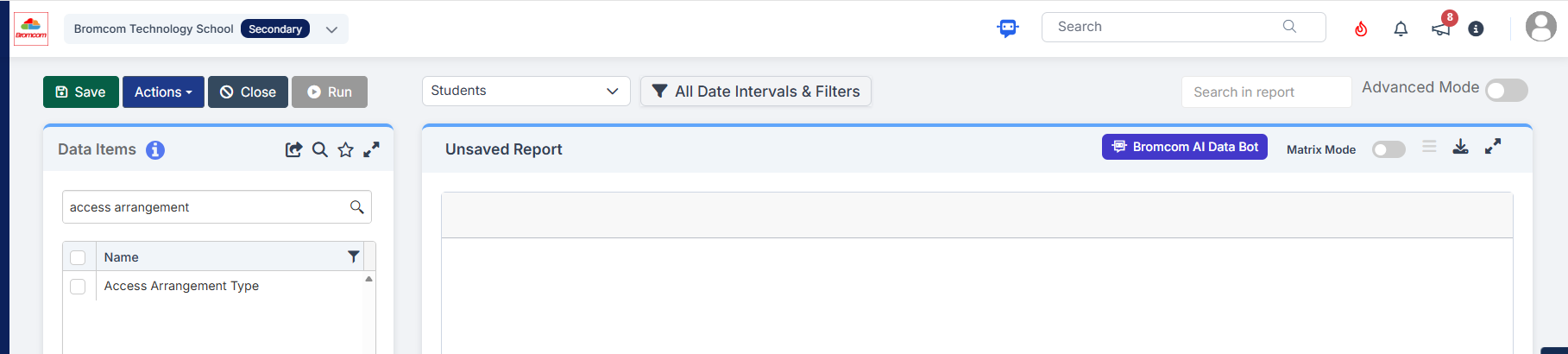
Should you wish to produce an Access Arrangements report, you would need to create a Quick Report with the domain as “Students” (not Student Basic), there will be a menu item on the left called “Access Arrangement Type”
How to Manage Access Arrangements – Bromcom – Documentation Centre

How useful was this article?

Click on a star to rate it!

Average rating / 5. Vote count:

No votes so far! Be the first to rate this post.

Similar Posts

  • Bromcom Finance: Accounts Receivable, receipt “Post Box is greyed out”

    If the post box is “greyed out” please ensure you do the following:   Record the receipt and ensure you click save and print.  If you don’t print, the receipt will not be available in “Paying in Slips” Browse to Modules> Finance>Accounts receivable> Paying in slips> Click the purple add button, you will see the…

  • Bromcom Finance: I have clicked print and not print and export

    When processing your payments file in central processing for county, you need to click “Print & Export” only. This is because it produces two files a text file and PDF file.  You will need the text file to process through DTSAPPS. If you have clicked print, this will produce a PDF file in central authorisation…

  • Configuring Clubs, Trips, and Wraparound Care in MyChildAtSchool

    It’s possible to display details on Clubs, Trips, and Wraparound Care in MyChildAtSchool. In giving parents/guardians access to these areas you’re enabling them to book, and pay for their children to attend these activities. The following KB will details the configuration settings available for these areas. Navigating to the Clubs/Trips Settings Page The Clubs/Trips Settings…

  • ARBOR – Quick Summary Guide – Pre-checks and Generating School Census

    This FAQ is a quick check list for updating information before Census.  For Schools wanting the latest documentation for Census and using Arbor – Click here  to jump to the relevant section. Thursday 1st of October is census day Wednesday 28th of October 2026 is your census submission deadline (unless otherwise advised by your Local Authority)…

  • BROMCOM: How to add ‘Configurations’ to a Role for Key Stage

    To set the configurations to access the setup of the Key Stage Assessment Marksheets in Bromcom you need to go to Config > Setup > Roles and Permissions. Select the role of the user carrying out these steps (Teacher/ SchoolAdmin – This will need to be decided in school for who is carrying out the…

  • Bromcom: Teacher Unable to change attendance mark that is not “Protected”

    The register to the far right now has a blue padlock, which by default is set to locked. The padlock can be toggled off to change a unprotected mark e.g “Present” mark to “Absent mark” and then toggled back onto preserve the marks. See example screen shot below:     How useful was this article?…