|

Bromcom Finance: Unable to search on Cost Centre & Ledger Code fields

When adding purchase orders it isn’t possible to use any of the accounting search fields.
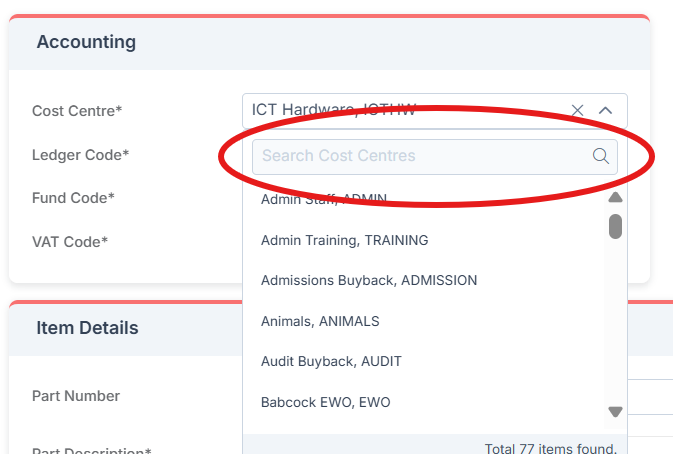
If this is happening please check that your browser and the PC display itself are not on more than 100% on zoom, as well as no half screen or stretched mode etc.

If this does not resolve the issue please contact the service desk.

How useful was this article?

Click on a star to rate it!

Average rating / 5. Vote count:

No votes so far! Be the first to rate this post.

Similar Posts

  • Bromcom Finance: How can I print my imported “Automatic Reconciliation file”

    Once in Modules > Finance> Homepage>Routines> Automatic reconciliation, please right click in the listing and then click export as shown in the screen shot  below.  This will then allow you to export to excel or csv and print as required.   How useful was this article? Click on a star to rate it! Submit Rating…

  • Bromcom Finance: How do I enter my budget into the new year ?

    Modules> Finance> Homepage>Budgeting> Cost Centre allocation. Top tip: When in Cost centre allocation, you can click “Edit Mode” located top right of screen, which opens all cost centres and ledger codes in one area for you to add your budget allocations. Please also see the following guide:Bromcom Finance guide – How to Enter Budgets  …

  • BROMCOM: EYFS Key Stage Return

    EYFS is for every child in the final term of the year in which they reach age 5 Please contact your LA for deadline date or see here if you are a Devon County Council school- BROMCOM: Devon County Council- Key Stage Upload dates – Frequently Asked Questions For more information please read the following…

  • Bromcom Finance & Budgets: How do I sort columns in my Budget Variance

    Modules> Finance> Homepage> Budgeting> Budget Variances You can click on any the heading e.g  Cost Centre Description and drag to above “Drag here to set row groups”   –  see example below before sorting Example after sorting to Cost Centre description Please also see Budget planning user guide     How useful was this article? Click…

  • BROMCOM: Assessment – How to give access to Assessment Sheets (Marksheets) for a Head of Department/Head of School/ Teachers

    When creating your Assessment Template, (via Modules>Assessment>Manage Templates>New) as per How to Create an Assessment Sheet – Bromcom – Documentation Centre – you will have the options to associate your Teachers/HoD’s/HoY’s by using the flowchart below.  This has been designed to help you understand how to use Assessment Template Associations to generate/create Assessment Sheets. Please note, It is…