Bromcom: Bulk Update Class Memberships

To bulk update class memberships go to Modules > Curriculum > Bulk Group Assignment
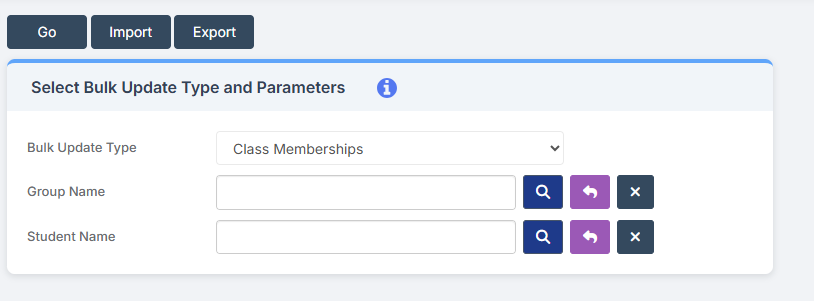
The drop-down menu allows you to choose Class, Tutor Group, Band and Block

In this example I am setting the Art students in Year 8

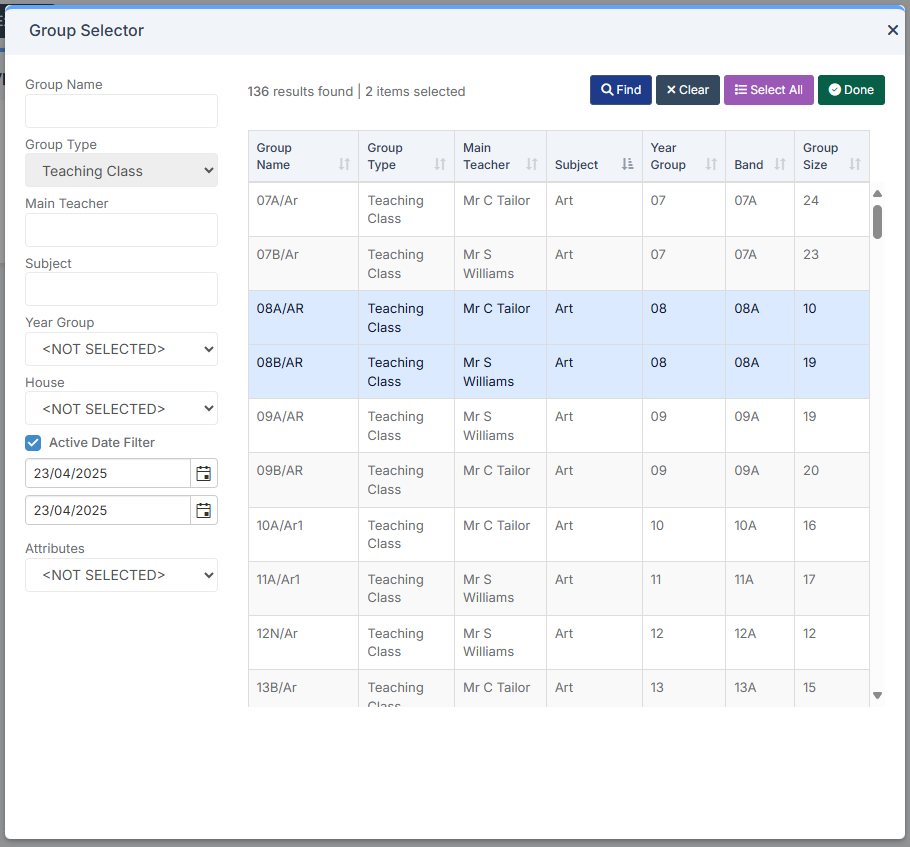
Next to the Group Name click the Magnifying glass and choose the required classes. Click Done.
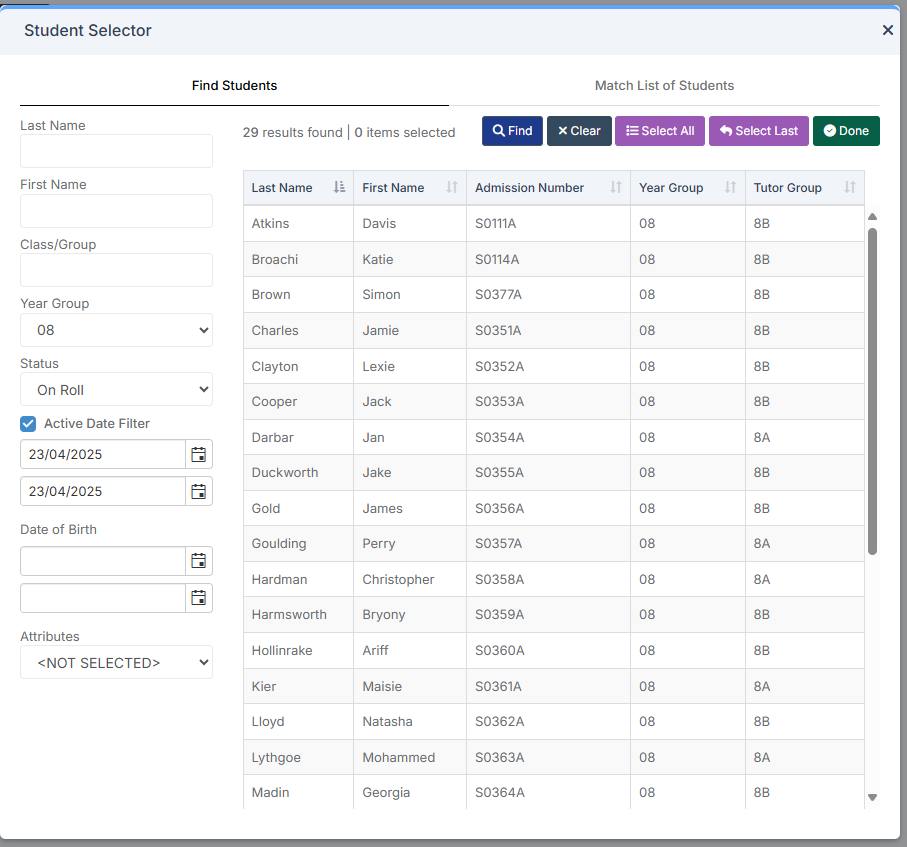
For the Student Name, click the magnifying glass and choose to look at Year Groups. Select all required students and click done.
The Groups and Students selected appear in two separate boxes.
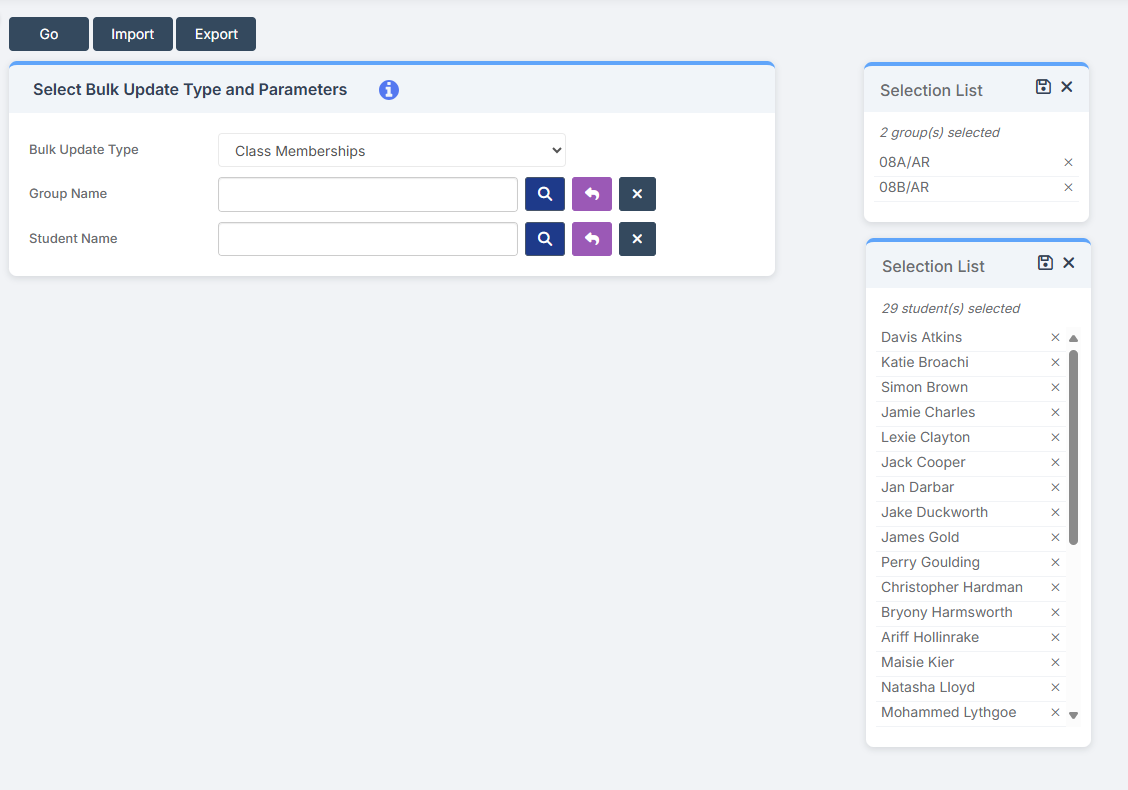
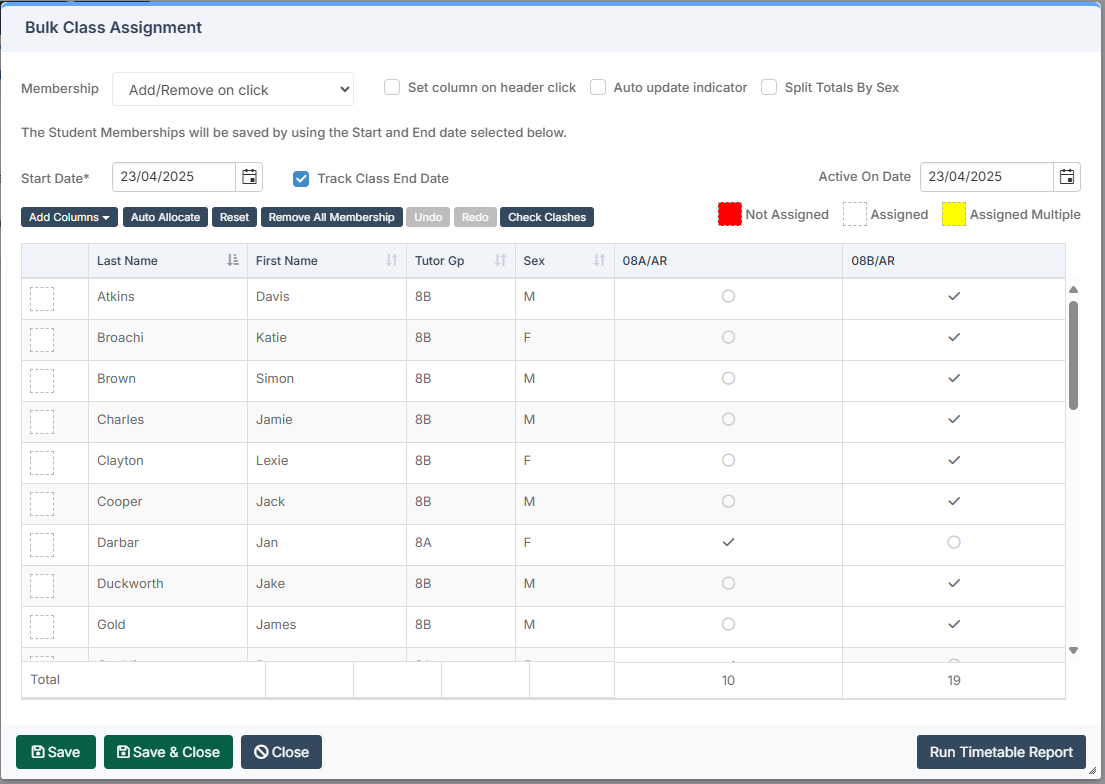
Click Go.  You then have the option to tick children into classes.

You can change how the ticks work – whether you just add or remove, or whether it swaps. The process is the same for whichever groups you are moving.
How useful was this article?

Click on a star to rate it!

Average rating / 5. Vote count:

No votes so far! Be the first to rate this post.

Similar Posts

  • What’s new on Bromcom Finance

    You can view what is new in Finance by clicking on the megaphone icon as seen below. We will also update this FAQ with the latest changes, new features and improvements each time they are released. Sprint Release 17th October 2025     URL for further information MIS Route Information Finance – Clone Invoices and…

  • Configuring Data Collection Sheets in MyChildAtSchool

    MyChildAtSchool (MCAS) can be used to give parents/guardians access to data collection sheets. In this KB we’ll show you how to configure data collection sheets both for current students, and preadmissions. Navigating To The Settings You can configure data collection sheets under Config>MyChildAtSchool>Students And Contact Details Settings Form Permissions In the Students And Contact Details…

  • Bromcom: How to show just statutory columns in a Key Stage Assessment marksheet

    If you want your Key Stage marksheet to show only the statutory marks, you can filter this in some marksheets. Go to Modules>Assessment>Assessment Sheets List Browse to your chosen Key Stage marksheet, in this example we’ve chosen the Year 1 Phonics marksheet KS1-2025-01 In the top right of this marksheet click on the cog icon…

  • MCAS – Dinney money widget is missing to add payments

    Parents are unable to see the “Dinner money” widget to add payments for their children. Please check the following: Please ensure online payments is enabled via Config> MCAS> Online payments – Please also see How do I enable Bromcom Online payments in MCAS – SCHOOLS – Frequently Asked Questions Ensure the Dinner settings are setup …

  • Bromcom Finance: How to Import your reconciliation file and deal with failed reconciliation items

    Once you have downloaded your file from your local authority the next step is to import the reconciliation file into Bromcom Finance. 1 ) Navigate to Modules > Finance > Homepage and select Routines > Automatic Reconciliation. Click the purple Import button top left and browse to file location of the reconciliation file 2) Select…