|

Bromcom Finance: How do I process Non-Invoiced Income

You have two options on how you record Non-Invoiced income as follows:

Navigate to Modules > Finance > Accounts Receivable

(Note: you will need to setup a receipt book and paying in book if not already done so for accounts receivable via Modules> Finance> Maintenance > Books)

  1. To record a receipt, click the “non-inv receipt” button, please complete all fields ensuring you select cash or cheque only and tick centrally paid check box and click save.
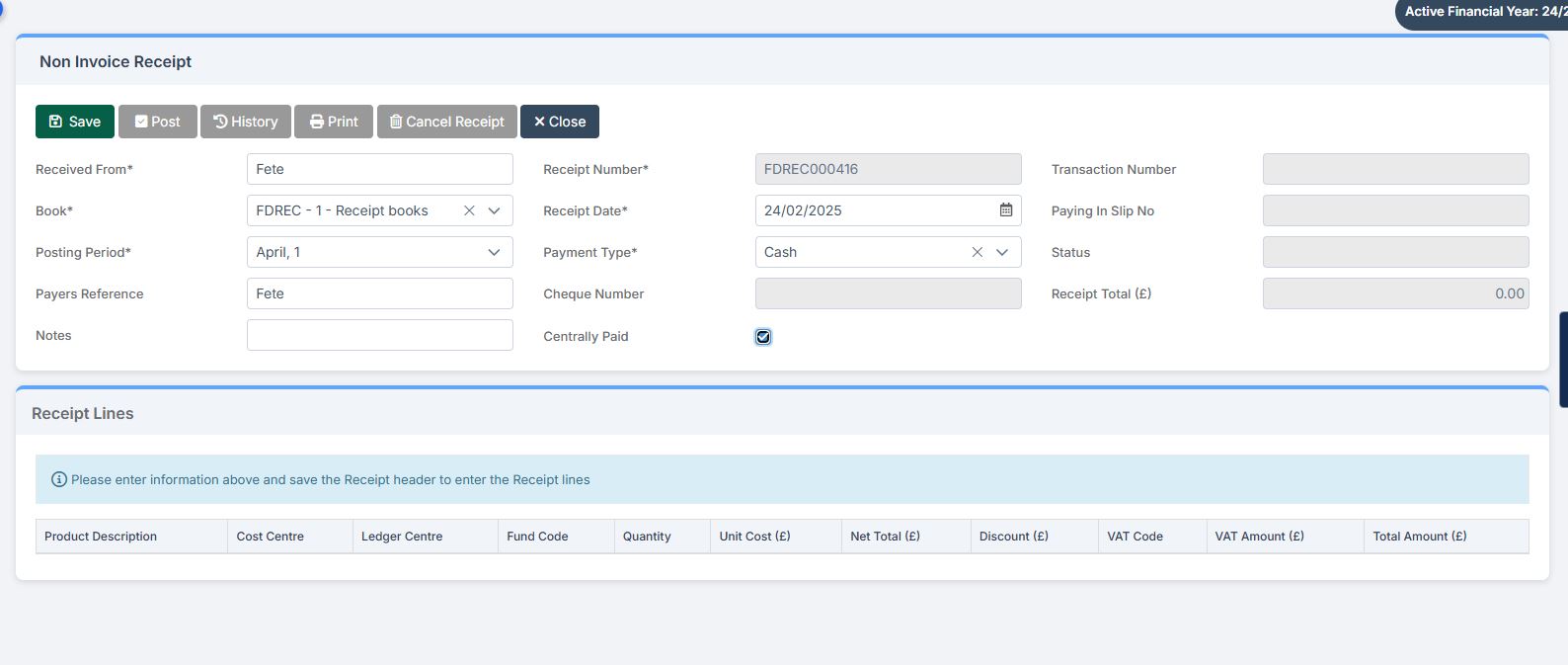
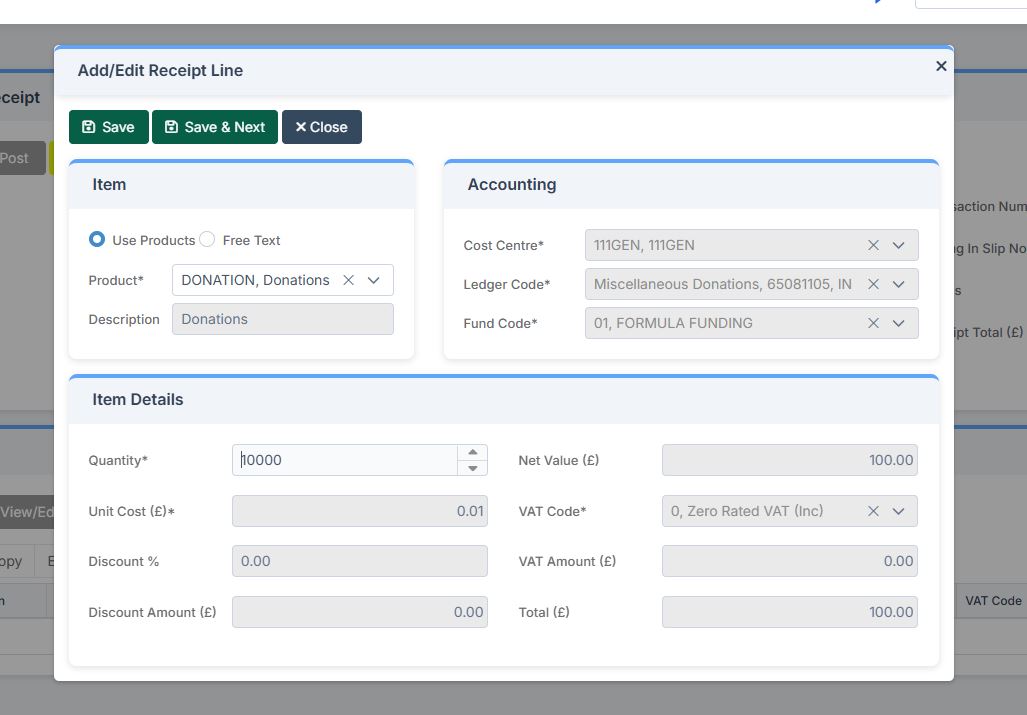
2)  Add your receipt lines as in example screen shots below
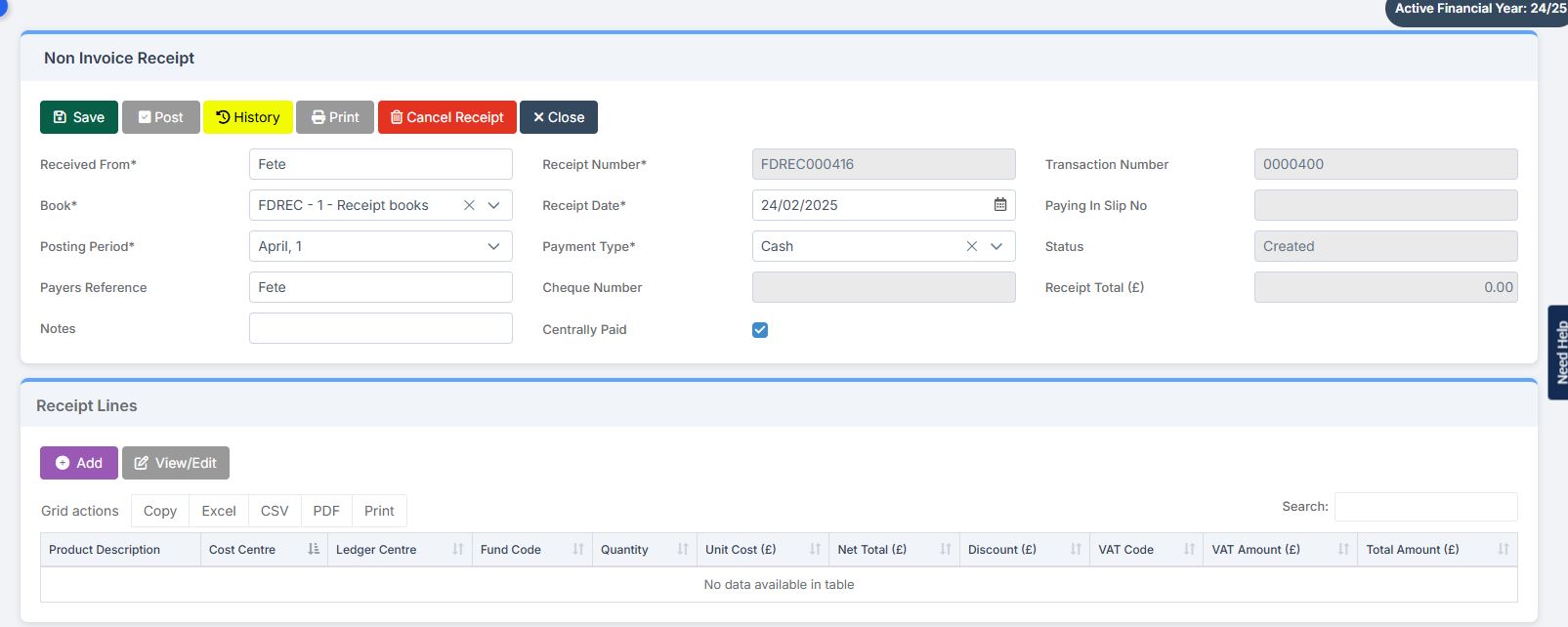
3) Once you have added your receipt details, please click save & print or save & next.
4) Please Click  the purple add button to add a paying in slip, select the book, pay from, paid in date, posting period and tick centrally paid.
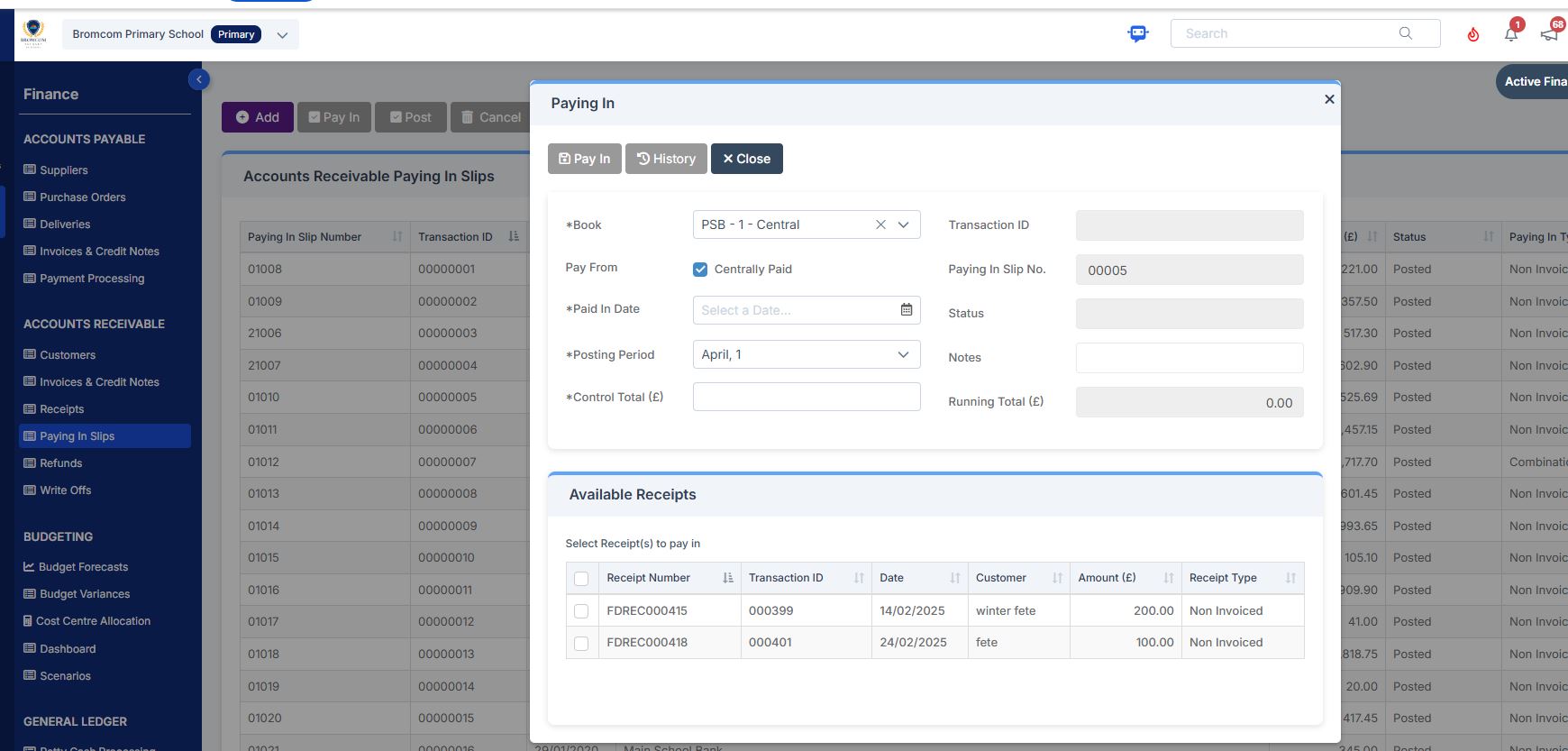
5)  Tick the receipt lines applicable  and click pay in and say yes to authorise and print

6) Now that you have recorded the receipt and paying in slip you will need to navigate to  Modules> Finance > General ledger> Central Manual reconciliation> switch toggle button from  Accounts Payable to Accounts receivable as in this screen shot below and manually reconcile the relevant income recorded in the above steps.
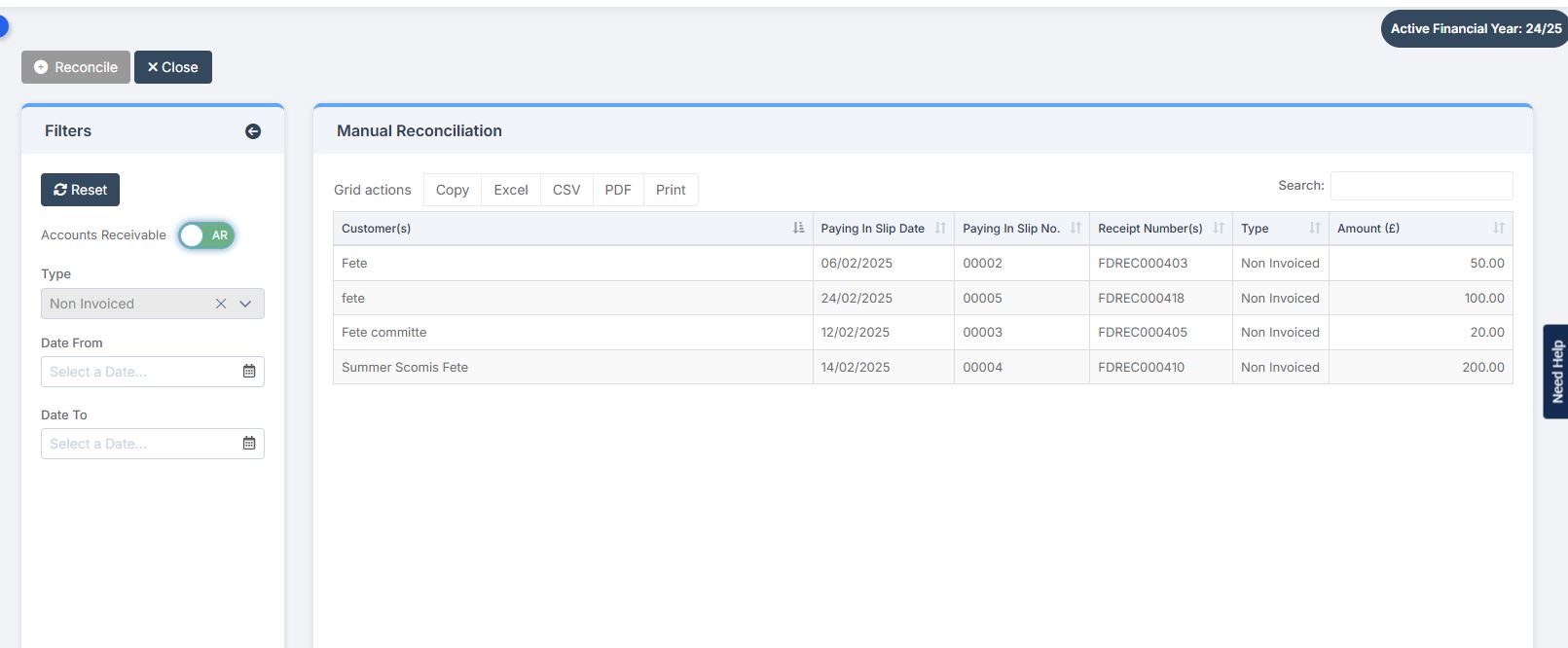
7) When your automatic reconciliation comes down, you will need to delete the line as you will have already reconciled in step 6


For more information on recording non-invoiced income , please see Non Invoiced income receipt guide


The alternative option is you could record via Accounts payable

The other option is you can record in accounts payable  via  Modules> Finance> Routines> Central payment and receipt

  1. Import file and identify income
  2. Record a Central Receipt for the Money received Modules Finance> Central payment and receipts
  3. Delete item from auto rec


How useful was this article?

Click on a star to rate it!

Average rating / 5. Vote count:

No votes so far! Be the first to rate this post.

Similar Posts

  • Bromcom: How do I create a CTF that includes leavers?

    If you need to create a CTF that includes both current pupils and those that are leavers for Key Stage DFE Assessments, you can do this using the search filters option from within the student area. EYFS – Please check with your LA. If you are a Devon school-Upload to Devon Transfer Phonics – Please…

  • Bromcom Finance: Base Pay mapping FAQs

    Please see this guide for commonly asked questions around “Base Pay Mapping” If you need assistance with setting up mapping please see the following FAQ How to add Base Pay Mapping Scenario 1 – I have staff with the role of “Teaching assistants ” that need to be mapped to multiple cost centres In Bromcom…

  • Bromcom: How to enter marks into Key Stage DFE assessment marksheet

    Once you have opened your marksheet- BROMCOM: How to View Marksheets as a Teacher or Admin – Frequently Asked Questions you will need to enter your marks There are three ways to enter marks into Bromcom  You can enter marks by  clicking in each cell and entering the marks 1 by 1 Alternatively if you…

  • Bromcom Finance: How do I add an additional allowance?

    If you need to add an additional allowance for a staff member, you will first need to add a new version date for the allowance as follows: Browse to Config>Administration> Additional allowances Click the allowance line E.G  if you want to update TL3 – Teaching and learning responsibilities Under the “Versions” click add new date…

  • Bromcom: How do I add part time schedules for nursery students

    To add Part Time schedules for Nursery students go to Modules > Attendance > Routines > Bulk Attendance Update. You can then select whether you would like to update attendance for individual Students, Class/Groups or Teachers. Then select the Student/s, Class/Group/s or Teacher/s to update by either typing the name in the box or using the Search option by clicking on the Magnifying Glass icon. The Selection List will then…