|

Bromcom: Updating Staff Current Job Title

To update the staff current job title in bulk go to Staff > Selection > Select All and then Actions > Manual Data Export.

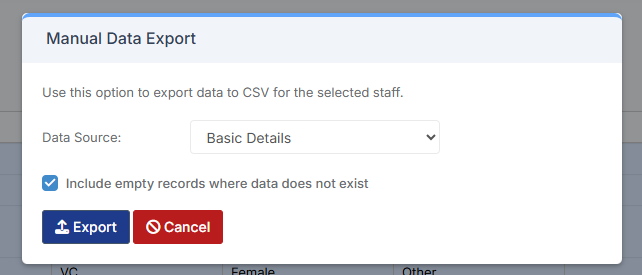
From here select “Basic Details” and tick “Include empty records where data does not exist” and click Export
Open the spreadsheet that has been downloaded and enter all required information.

After saving the spreadsheet go back to Bromcom > Staff > Selection > Select All and then Actions > Manual Data Import.

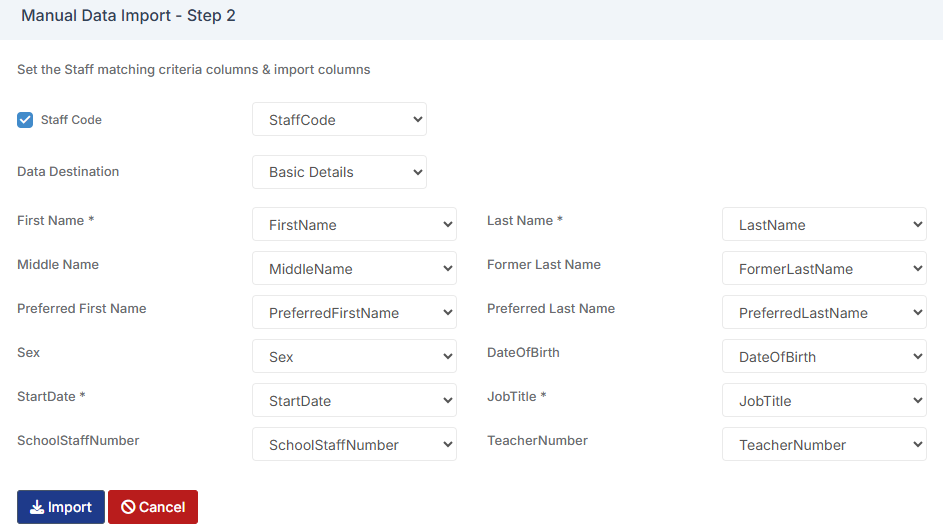
Select the spreadsheet and go to the next step of the wizard. This will then allow you to match the criteria columns & import columns.
How useful was this article?

Click on a star to rate it!

Average rating / 5. Vote count:

No votes so far! Be the first to rate this post.

Similar Posts

  • BROMCOM: Which Marksheet to Enter Phonics Results

    In Bromcom via Modules > Assessment > Assessment Sheet List, the Phonics is Entered in the Marksheet named KS1-2025-01 for Year 1 Pupils. For Year 2 Phonics Retakes – This is entered in KS1-2025-02  The marks are entered in the Phonics Screening Check Mark This takes you through how to Enter in Marks How useful…

  • Bromcom: As admin staff how can I disable the Exams information on the student portal?

    As admin staff how can I disable the Exams information on the student portal?  Go to: Config>Student Portal>Exams Within Exam Result Settings > “Enable Exam Results” untick if you do not want the exam results to show on the student portal.         How useful was this article? Click on a star to…

  • Bromcom Finance: How do I add a Petty Cash into the new year

    If you have not run preliminary close in the old year and need money in Petty cash  “Cash In hand” you can add a temporary reimbursement as follows: Modules> Finance> Homepage>General ledger> Petty cash processing Click “Add Reimbursement” as show below and add your details on the right of the example screen shot. Please note:…

  • BROMCOM: Key Stage reports

    There are a number of reports that can be run for Key Stage. These can be used for analysis or to send to Parents/Guardians You can find all of these reports from Reports>Assessment>Stage Assessment Comparative Report– This report can be used to analyse Test Scores and Outcomes in Percentages to compare against National Figures Pupil…

  • Bromcom: Exam result not importing into assessment template

    https://docs.bromcom.com/knowledge-base/how-to-include-exam-results-in-assessments-sheets/ As outlined in the referenced article, you may find that after completing the routine, the expected results do not appear. If this occurs, please verify that your internal subject names are correctly mapped to the exam name. This can be done by navigating to: Config > Analysis > Exam Options Subjects For detailed guidance,…