Bromcom Finance and DTSApps – Download and Reformat process PLYMOUTH SCHOOLS

This FAQ is for Plymouth Schools and explains how to reformat your reconciliation file downloaded from DfE S2S to ensure it can be imported into Bromcom Finance.

  1. Download your relevant reconciliation files from DfE School to School
  2. Unzip your file using 7 zip and your Plymouth credentials (Please ensure that the file size is above 0KB, if it shows as 0KB this can indicate that the incorrect password was entered).
  3. Log into DTSApps with your login credentials
  4.  From the menu on the left, click “Reformat”
  5. Click upload from file and browse to the location of your newly downloaded reconciliation files and select one file at a time to process.  These files are in transmission number order, please import oldest first.
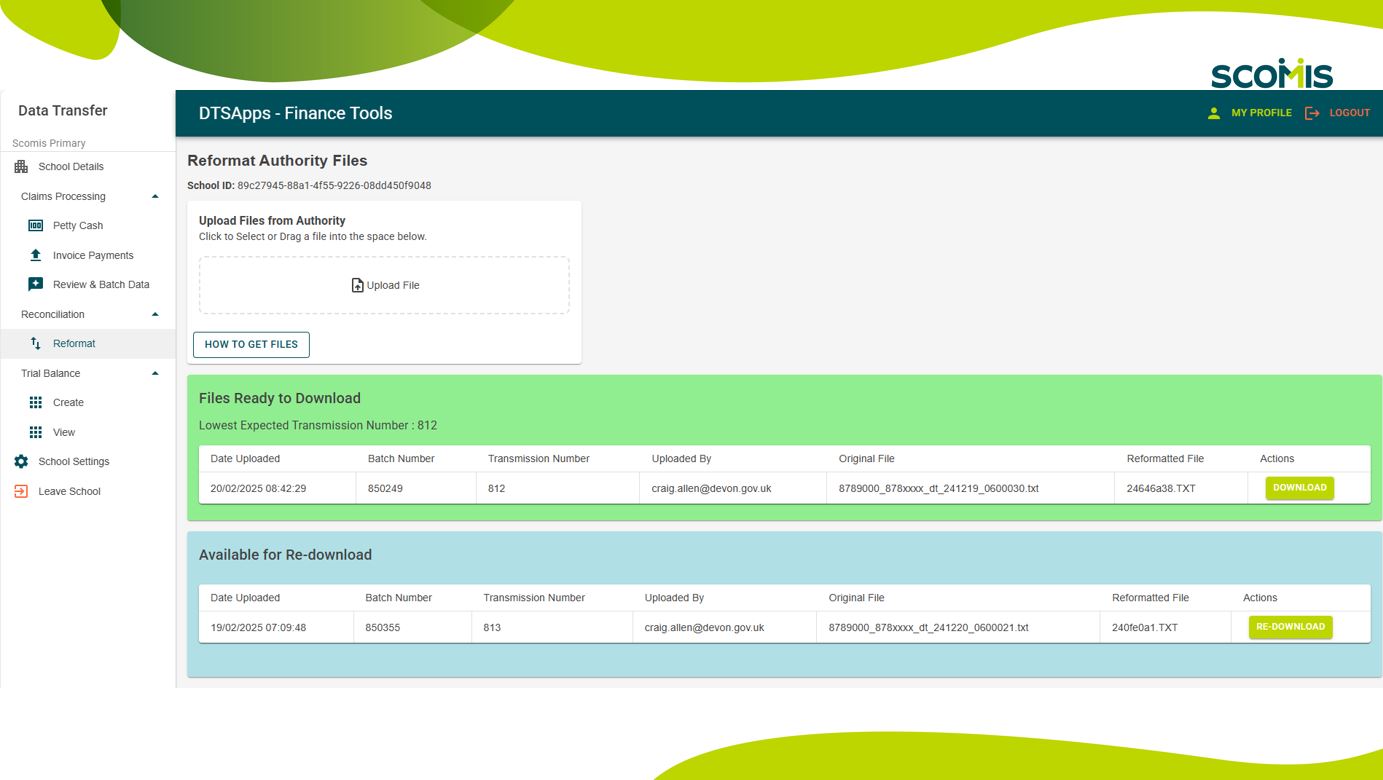
  6. The formatted file will in appear in the green window “Files ready to download” click the green “Download” button to download the .TXT file, which will then show in your downloads folder with the short file name as shown in the screen shot above. If there is no option to ‘Download’ this is because the file number does not match the next ‘Expected’ transmission number. You will need to upload the next expected file to continue.
  7. It is up to the individual school on how you manage your files, shared locations etc.
  8. You will need to repeat the above steps for each file you download from your local authority
  9. Your formatted file is now ready for import into Bromcom as follows : Modules > Finance> Homepage> Routines> Automatic Reconciliation> Import

Please see the reconciliation FAQ https://faq.scomis.org/kb2395869/

How useful was this article?

Click on a star to rate it!

Average rating / 5. Vote count:

No votes so far! Be the first to rate this post.

Similar Posts

  • Bromcom Finance: How do I add a pay award ?

    Please note: This method is recommended for confirmed pay awards, if adding a projected pay award, please follow step 5  Browse to Config>Administration>Base Pay Structures>double click the required Base Pay structure, e.g JK – Job Evaluation Hours Per Annum, JE – Job Evaluation All Year Round,  JL – Job Evaluation > HPA 5 yrs, Teachers…

  • Bromcom Finance & DTSApps – DEVON SCHOOLS

    Bromcom Finance: How to process your invoices, in Central Authorisation and “Print & Export” Bromcom Finance: Raising orders on suppliers websites for example: YPO & Amazon Bromcom Finance: How to cancel “Passed for Pay” Invoices Bromcom Finance: I have clicked print and not print and export Bromcom Finance and DTSApps: How to process your invoice…

  • Bromcom Finance: How can I print my imported “Automatic Reconciliation file”

    Once in Modules > Finance> Homepage>Routines> Automatic reconciliation, please right click in the listing and then click export as shown in the screen shot  below.  This will then allow you to export to excel or csv and print as required.   How useful was this article? Click on a star to rate it! Submit Rating…

  • DTSApps/UNIT4 – DEVON ONLY

    DTSApps/UNIT4 Important – From Monday 7th April UNIT4 went live, there are some changes in DTSApps  in the process of uploading/downloading dt files (dt files are invoices passed for payment, petty cash and auto rec files) Please note – these are the changes we are aware of for day 1. We may be made aware…

  • Bromcom Finance: Error posting Individual salary payment

    When posting the Individual salary payment an error is generated as below : This is most likely due to the “Base Pay” associated with the ledger codes being used, having missing information e.g Missing Financial subgroup. Please browse to: Modules> Finance> Homepage>Staffing> Base Pay Mapping, locate the Base pay being used for the individual salary…

  • Bromcom Finance: How do I add a Petty Cash into the new year

    If you have not run preliminary close in the old year and need money in Petty cash  “Cash In hand” you can add a temporary reimbursement as follows: Modules> Finance> Homepage>General ledger> Petty cash processing Click “Add Reimbursement” as show below and add your details on the right of the example screen shot. Please note:…