Bromcom Finance: Configuring Bromcom to send purchase orders by email

Prerequisites – Please ensure you have configured email for the Bromcom MIS system as per instructions in the following guide. Sending emails from your school email address in Bromcom – Frequently Asked Questions

To enable Bromcom Finance module to send emails for BACS and purchase orders, you need to complete the following steps:

  1. Browse to Modules > Finance > Maintenance > Purchase Order Definition
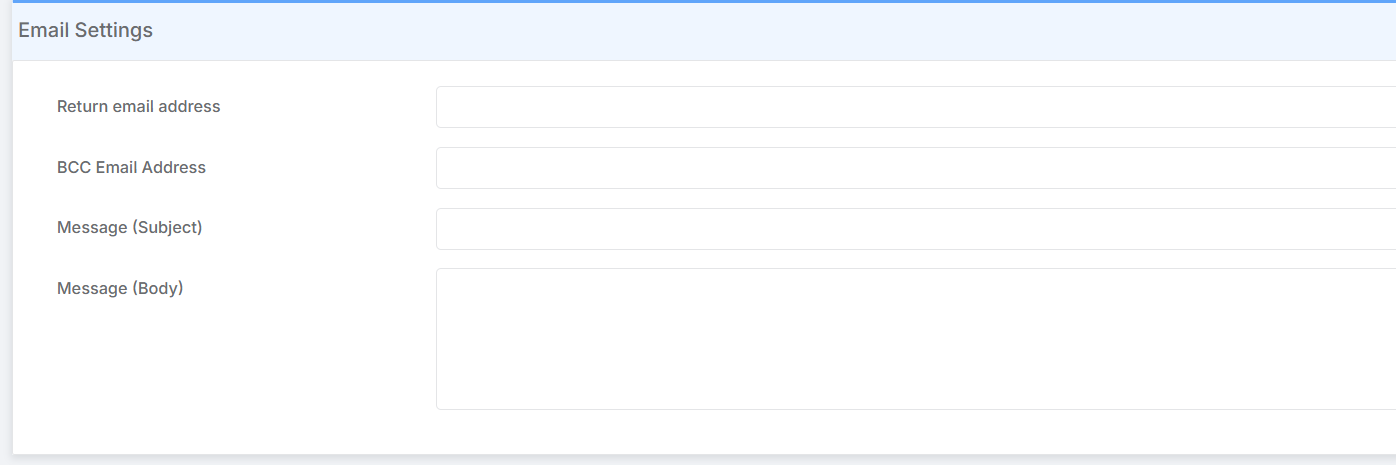
  2. Scroll to the bottom of the page to find the Email Settings section
  3. Enter in your details as follows:
    • Return Email Address – The email address that will receive the replies from the supplier
    • BCC email address – If you wish to receive a copy of the sent emails you can enter it here
    • Message subject – the subject of your emails which is customisable ‘Purchase order from’ etc.
    • Message body – the body of the emails you send, customisable.
4. When you are satisfied with the entered information, scroll to the top of the page and click the Save button.
5. Browse to Config > Finance > BACS Configuration
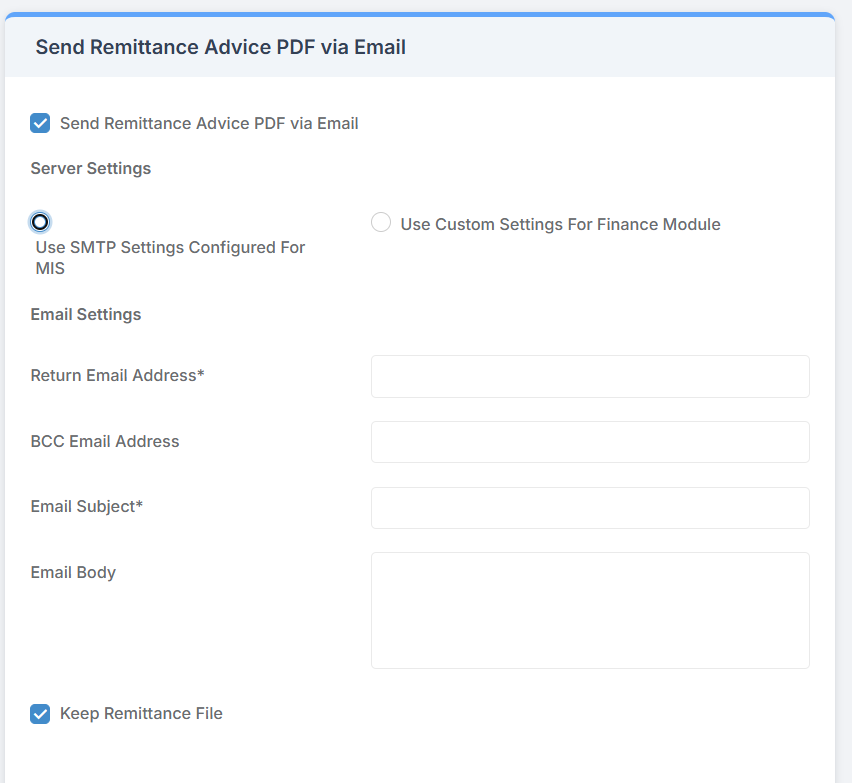
6. As shown above, ensure that the Use SMTP settings configured for MIS is enabled, unless you wish to configure a different mail server. You will then need to fill in the fields as per the below:

    • Return Email Address – The email address that will receive the replies from the supplier
    • BCC email address – If you wish to receive a copy of the sent emails you can enter it here
    • Message subject – the subject of your emails which is customisable ‘Purchase order from’ etc.
    • Message body – the body of the emails you send, customisable.

7. When you are satisfied your information is correct, click Save.

How useful was this article?

Click on a star to rate it!

Average rating / 5. Vote count:

No votes so far! Be the first to rate this post.

Similar Posts

  • Bromcom Finance: Error posting Individual salary payment

    When posting the Individual salary payment an error is generated as below : This is most likely due to the “Base Pay” associated with the ledger codes being used, having missing information e.g Missing Financial subgroup. Please browse to: Modules> Finance> Homepage>Staffing> Base Pay Mapping, locate the Base pay being used for the individual salary…

  • What’s new on Bromcom Finance

    You can view what is new in Finance by clicking on the megaphone icon as seen below. We will also update this FAQ with the latest changes, new features and improvements each time they are released. Sprint Release 12th December 2025     URL for further information MIS Route Information Finance – Clone Invoices and…

  • Bromcom Finance: How can I print my imported “Automatic Reconciliation file”

    Once in Modules > Finance> Homepage>Routines> Automatic reconciliation, please right click in the listing and then click export as shown in the screen shot  below.  This will then allow you to export to excel or csv and print as required.   How useful was this article? Click on a star to rate it! Submit Rating…

  • Bromcom Finance : How do I clear a salary commitment ?

    You will need to clear a salary commitment if you have reconciled manually via Individual salary payments or central payments as follows: Browse to Modules> Finance> Homepage> Staffing> Salary Projections. Click the “Actions” button top left > Click “Amend Commitments” Select the staff member & posting period. Click “Clear Commitments” How useful was this article?…

  • Bromcom Finance and DTSApps: How do I process my Petty cash file – DEVON SCHOOLS

    Navigate to Modules> Finance> Homepage> General ledger> Petty Cash Processing. 1) Click the yellow button to add an expenditure or green button to add a reimbursement 2) Add your expense lines on the right hand side VAT Reg Numbers Note : When adding multiple lines of expenditure, please remove the VAT Reg number if not…