Updating to Payroll2Finance

If you had a previous version of the software, the application may need to update some settings and/or convert it’s data files.

The 2025.04.406 version of the application removes any Intellectual Property and possible trademark violations, this means that some of the conveinence features, such as obtaining Ledger Codes, or layout settings have been removed.  These will now need to be manually configured, and only affect new installation.

To Upgrade/Update

  1. Download the latest version from : https://upgrades.scomis.org/upgrades/202504-Payroll2Finance/Payroll2Finance-Release.zip
  2. Right Click on the Zip file and choose Properties, uncheck the “Block File”, then click ok.
  3. Extract the Zip file, this can be extracted into the same folder as the older version of the application (Please delete the old program.exe, leaving P2F_LedgerCodes.xml, P2F_LedgerCodesSupply.xml, P2F_Translations.xml and the Payroll2*.INI files.)
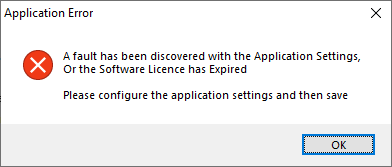
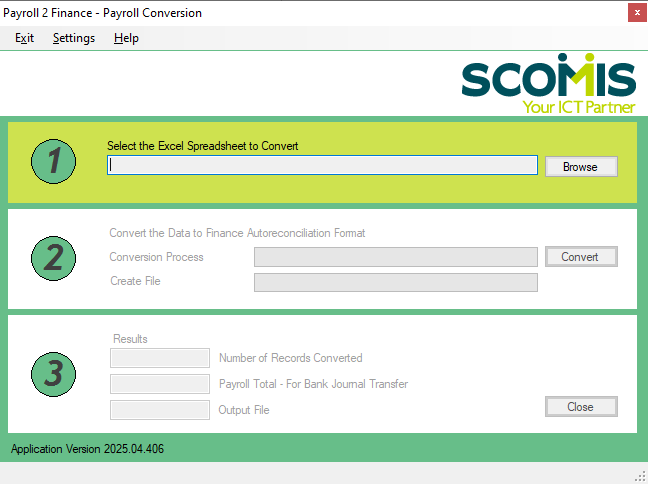
  4. Run the Payroll2Finance application, the program will initially error:
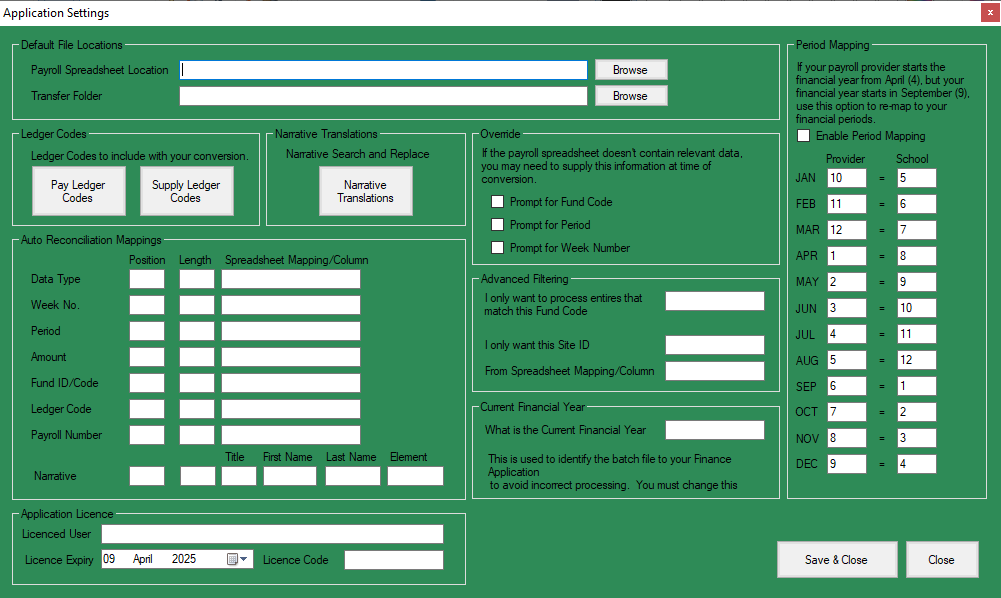
  5. Acknowledge the message, the Setting screen will open.
    (the screen shot shows a completely new settings)
  6. The name of the Transfer Folder has been changed in between the settings file.  Enter the Transfer folder, e.g. C:\Public\Transfer\In
  7. Adjust or set any additional settings, these are stored in the file Payroll2Finance.ini
  8. Click the buttons for “Pay Ledger Codes”, “Supply Ledger Codes” and “Narrative Translations” to ensure that they are converted from older formats and contain the Ledger Codes that you are expecting.
  9. Payroll2Finance should now be ready to use.


How useful was this article?

Click on a star to rate it!

Average rating / 5. Vote count:

No votes so far! Be the first to rate this post.

Similar Posts

  • Payroll2Finance – File not showing to import into Payroll2Finance.

    Payroll2Finance – File not showing to import into payroll2Finance. The Excel file has been saved in F:public\payroll2finance folder and can be viewed when in file manager but when importing by browsing to that location in the payroll2finance software cannot be located. The Cost Analysis Detail file required will not import if created in Excel 2010 as…

  • New Licence for Payroll2Finance

    When trying to access Payroll2Finance you will see the following window as your licence will have expired on 30th September. Enter the details exactly as shown in the email that you have been sent.  All details are case sensitive.  Once the details have been entered click on “Validate Licence”  and the “Licence Code is Invalid”…

  • Installing Payroll2Finance (at a school)

    Payroll2Finance is a tool that converts spreadsheet data from a payroll provider into a format that your Finance System can read.  This guide covers installing Payroll2Finance on a School Computer. Installing Payroll2Finance(.net version) This is a new version of Payroll2Finance and has been completely re-written using the Microsoft .net framework. Requirements Microsoft .net 4.5.2 is…

  • What is Payroll 2 finance?

    Payroll 2 Finance is an application to convert spreadsheet data into an automatic reconciliation file.

  • Reconciliation completely fails – usually from a Payroll2Finance file

    Issue : Using Payroll2Finance, a file was created for import into your Finance Reconciliation Eg. 05G128AE.TXT. The file was imported into your Finance System but every single item rejected. The school deletes all the rejected items from suspense. The school creates a new file out of Payroll2Finance for import into your Finance System but when…