Bromcom: Why can’t I see all of the exam seasons?

This maybe due to your data boundary. Check under your account profile by going to your photo in the top right-hand corner of the MIS, My Account > Current Interval.


Data Boundaries are used to define what Staff can view in relation to current and historic Student Data, for example External Staff may only require the Current Years Data.


From the left Menu go to Config > Setup > Data Boundaries.
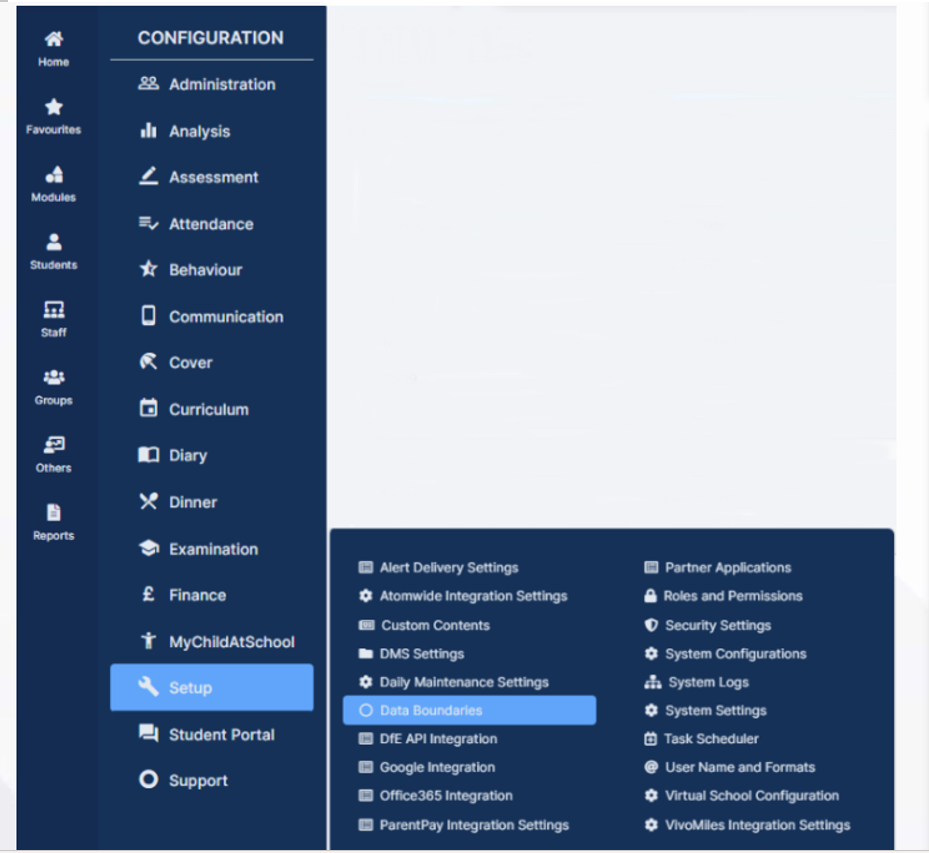
Click the New button to create a New Data Boundary.

Give the Data Boundary an appropriate name (e.g. calendar date range) and then set the date range required. Select all Roles who should have access to the Data Boundary, then click the Create button.
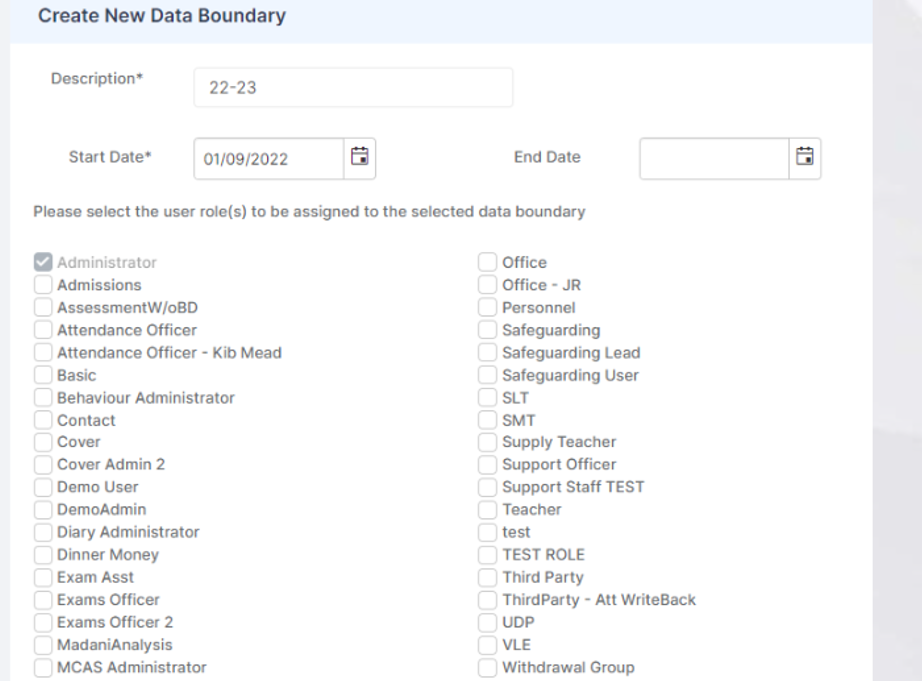
To Edit an existing Data Boundary, simply select it and make changes as required and Save or select then click Delete to Delete the Data Boundary.


How useful was this article?

Click on a star to rate it!

Average rating / 5. Vote count:

No votes so far! Be the first to rate this post.

Similar Posts

  • Bromcom Finance: Year End Payroll clearance from FC01 ** Local payments – Devon LA**

    Local payments need to carry out a payroll clearance in order to set the Fund Control 01 to zero , prior to preliminary close down. Please see the following steps: Step 1 – Modules > Finance> Homepage>General Ledger>Journals.  Select “Year End journal” if you have already run  preliminary close or standard journal if you have…

  • Bromcom: How do I add part time schedules for nursery students

    To add Part Time schedules for Nursery students go to Modules > Attendance > Routines > Bulk Attendance Update. You can then select whether you would like to update attendance for individual Students, Class/Groups or Teachers. Then select the Student/s, Class/Group/s or Teacher/s to update by either typing the name in the box or using the Search option by clicking on the Magnifying Glass icon. The Selection List will then…

  • Bromcom: How to show just statutory columns in a Key Stage Assessment marksheet

    If you want your Key Stage marksheet to show only the statutory marks, you can filter this in some marksheets. Go to Modules>Assessment>Assessment Sheets List Browse to your chosen Key Stage marksheet, in this example we’ve chosen the Year 1 Phonics marksheet KS1-2025-01 In the top right of this marksheet click on the cog icon…

  • Autumn School Census 2025 – Bulletin

    This FAQ lists the latest information regarding the School Census.  For Schools wanting the latest documentation for Census and using Bromcom – Click here  to jump to the relevant section. For Schools wanting the latest documentation for Census and using Arbor –  Click here  to jump to the relevant section. For Schools wanting the latest documentation for…

  • Bromcom Finance: How can I print my imported “Automatic Reconciliation file”

    Once in Modules > Finance> Homepage>Routines> Automatic reconciliation, please right click in the listing and then click export as shown in the screen shot  below.  This will then allow you to export to excel or csv and print as required.   How useful was this article? Click on a star to rate it! Submit Rating…

  • Bromcom: Exams – Common FAQ’s

    Please see the document attached for some common Bromcom Exam questions Exams – common FAQ’s How useful was this article? Click on a star to rate it! Submit Rating Average rating / 5. Vote count: No votes so far! Be the first to rate this post.