|

BROMCOM: How to create a Key Stage DFE assessment CTF

How to create a Key Stage DFE assessment CTF’s

EYFS – Please check with your LA. If you are a Devon school-Upload to Devon Transfer

Phonics – Please check with your LA. If you are a Devon school- Upload to Devon Transfer (Please note: For Devon this is a combined CTF with all Year 1’s and Year 2 retake pupils in ONE CTF. ONLY INCLUDE YEAR 2’S WHO HAVE RETAKEN PHONICS THIS YEAR)

Year 4 MTC – Upload to DFE MTC website

KS2 TA – Upload to National Assessment agency website

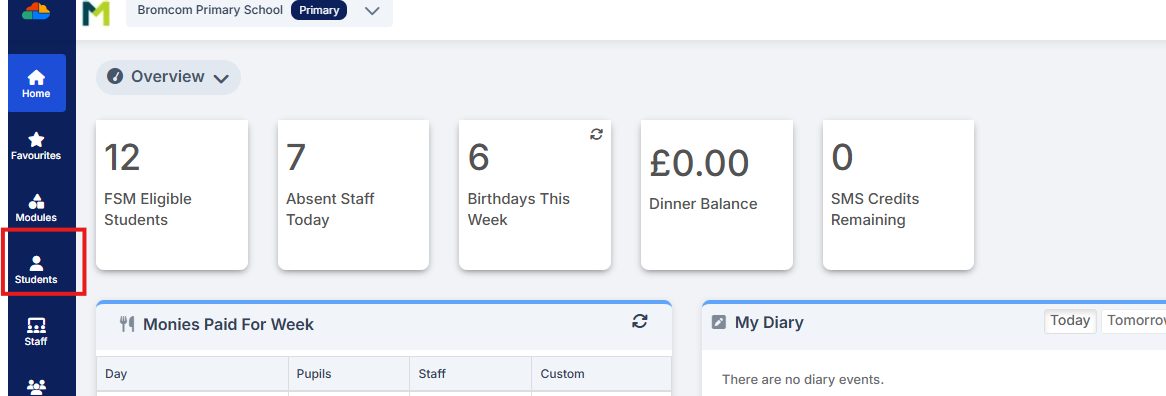
To create a CTF in Bromcom click Students  from the left hand side menu
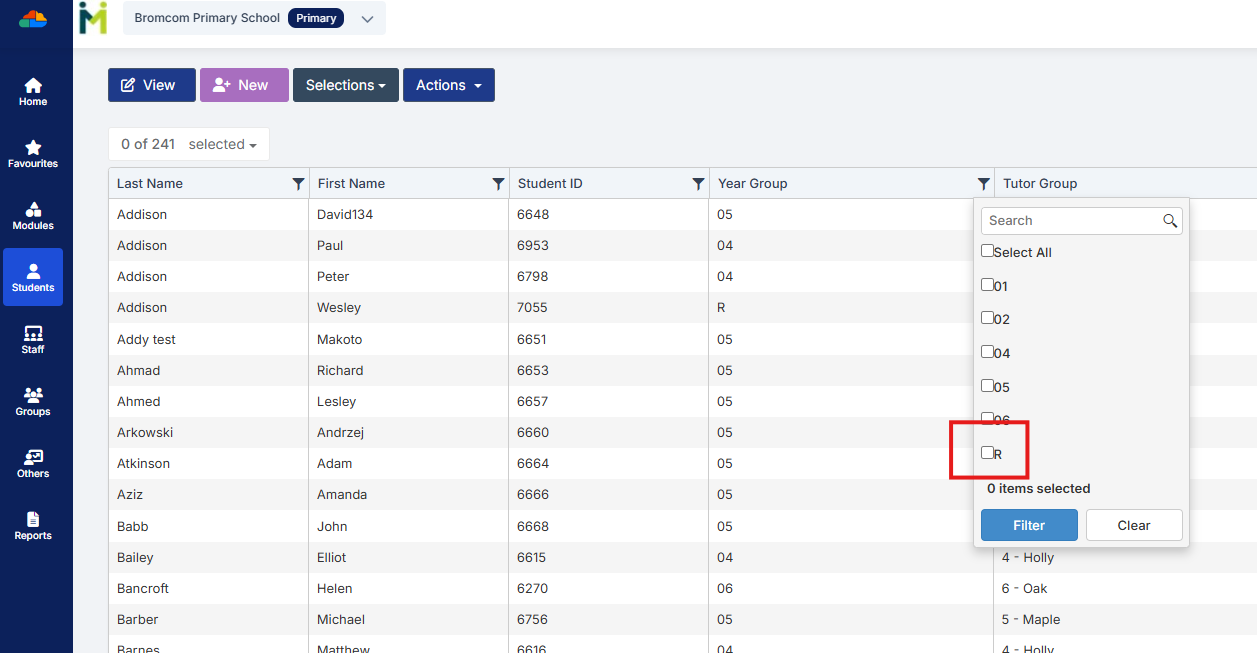
Select the Year Group filter and tick the required Year Group/Groups and click Filter
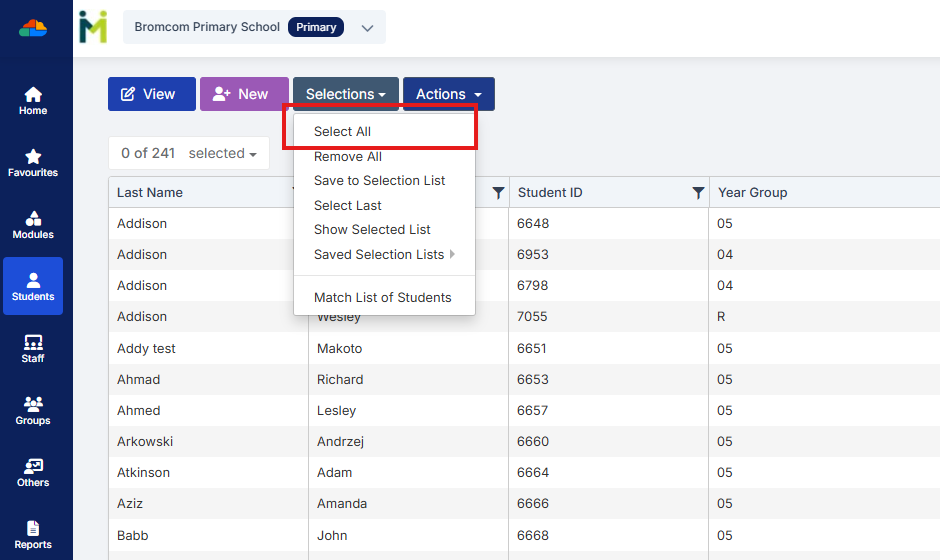
From the Selections button click ‘Select All’. This should then highlight all your required pupils in blue.
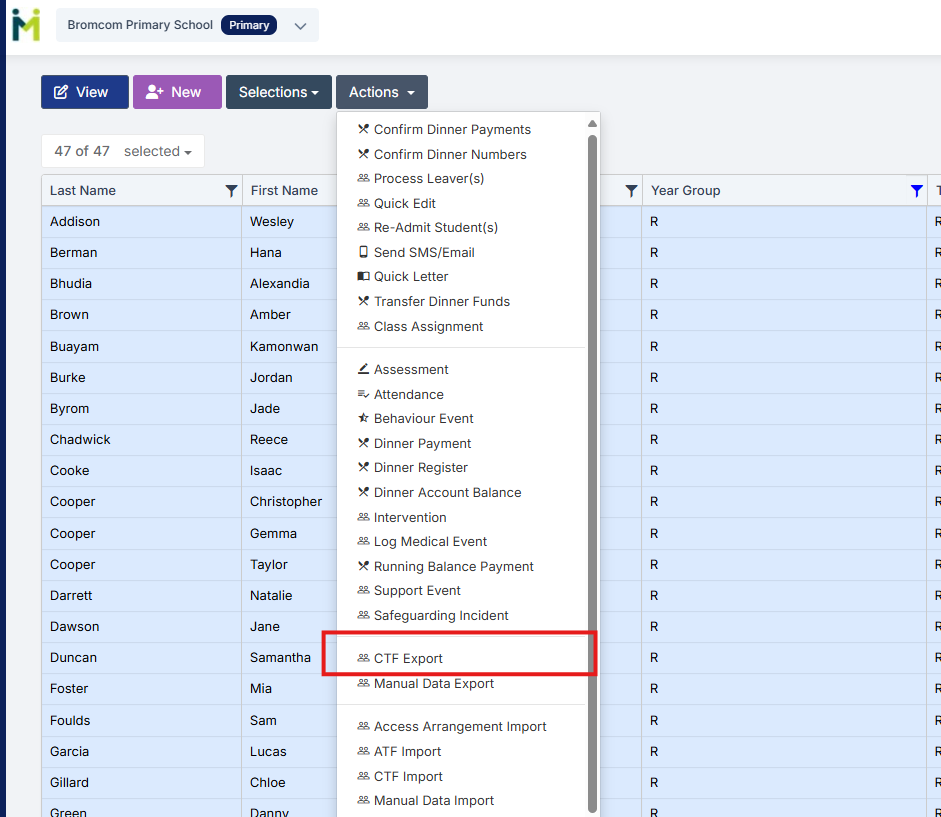
You should see a total pupil number in the top left to confirm the correct number.

Once you have all your students selected click the Actions button and select CTF Export
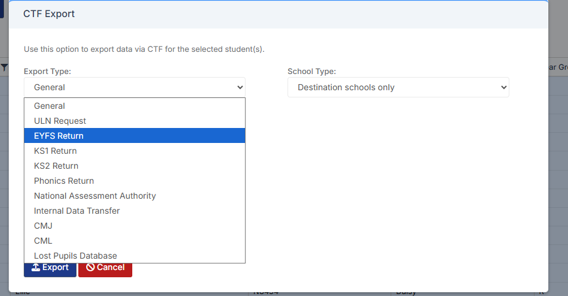
Select the required Export Type

(Please confirm below with your LA)

For EYFS the export type is- EYFS Return

For Year 1 and Year 2 phonics the export type is- Phonics Return

For Year 4 MTC the export type is- Either National assessment authority or Internal Data transfer

For Year 6 KS2 TA  the export type is- National assessment Authority
For EYFS and Phonics tick the LA return box and select your LA.
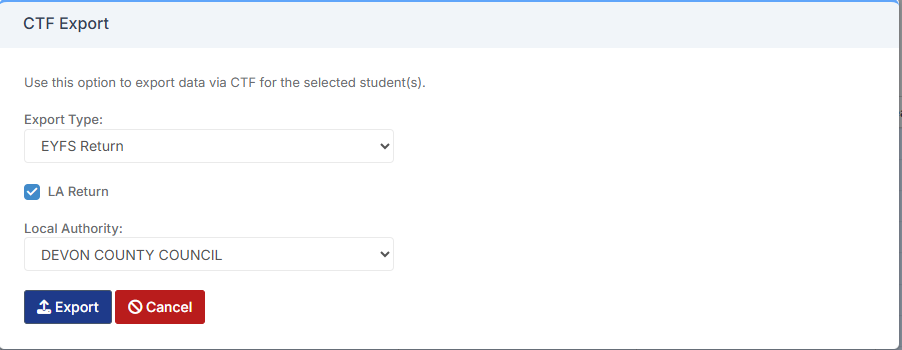
Click Export

This file will then go to your Downloads ready for you to upload.

How useful was this article?

Click on a star to rate it!

Average rating / 5. Vote count:

No votes so far! Be the first to rate this post.

Similar Posts

  • Bromcom Finance: How do I setup a Free Text (Sundry) invoice

    Sundry Invoices should be raised for ad hoc and/or infrequent payments e.g. for payments to staff. You cannot raise a purchase order or free text order against sundry suppliers. Sundry suppliers and invoices can be setup as below: Browse to Modules> Finance> Homepage>Supplier and complete the supplier setup if not already done Tick “Sundry Supplier”…

  • BROMCOM: How to View Marksheets as a Teacher or Admin

    How to view the Marksheets for Key Stage Assessments in Bromcom, once the configurations has been complete: BROMCOM: How to add ‘Configurations’ to a Role for Key Stage – Frequently Asked Questions There are a few ways the Marksheets can be viewed in Bromcom for a Teacher: From the Homepage, go to Settings on the…

  • Bromcom: Why can’t I add a new room to Exams?

    In order for a room to appear within Exams it must first be added in Config > Administration > Rooms Once it has been added here you will then need to go to Config > Examination > Exam Rooms and click New. You will then need to click on the magnifying glass icon which will…

  • Recording Club Attendance in Bromcom

    In Bromcom it’s possible to record attendance for Clubs, in this KB we’ll show you how this is done. Navigating to the Clubs Homepage In Bromcom, click the Groups button, this will default either to Tutor or Class. In the top right corner of the screen change the Group Type to Clubs Recording Attendance Select…