|

BROMCOM: How to import Year 6 CTF SATS

Once your Year 6’s have completed their SATS you will revive a CTF file with the results that you can import into your Bromcom

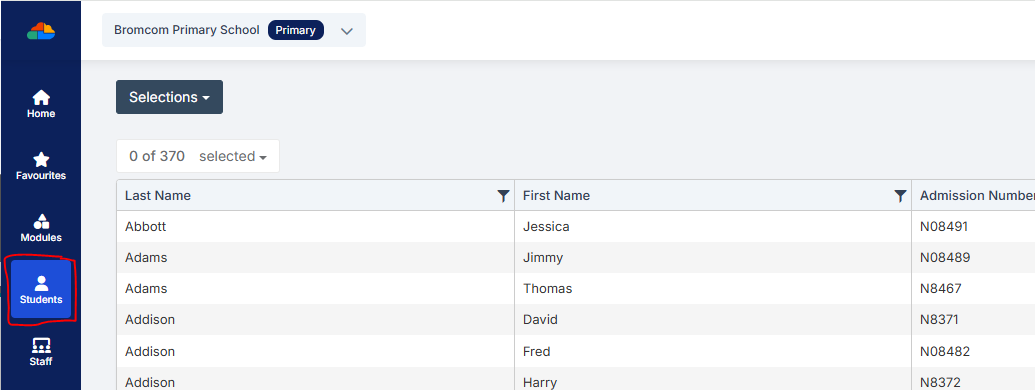
Go to Students from the left hand side menu
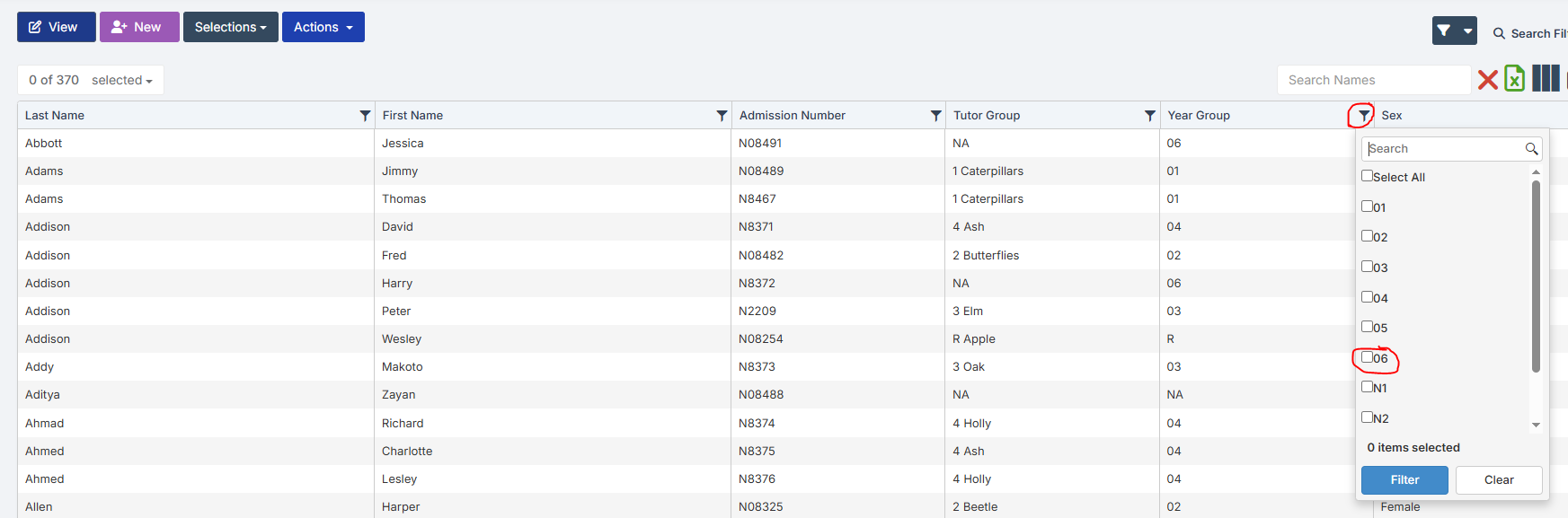
From the Year group filter select Year 6
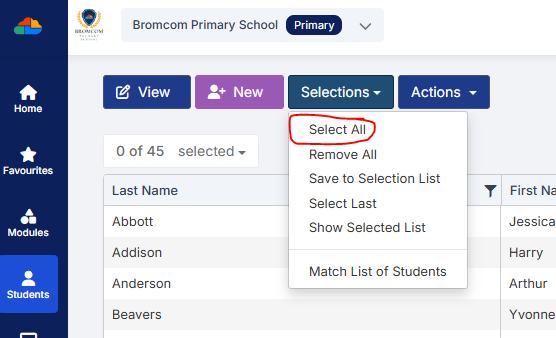
From the Selections button click ‘Select All‘. This should then highlight all your required pupils in blue.
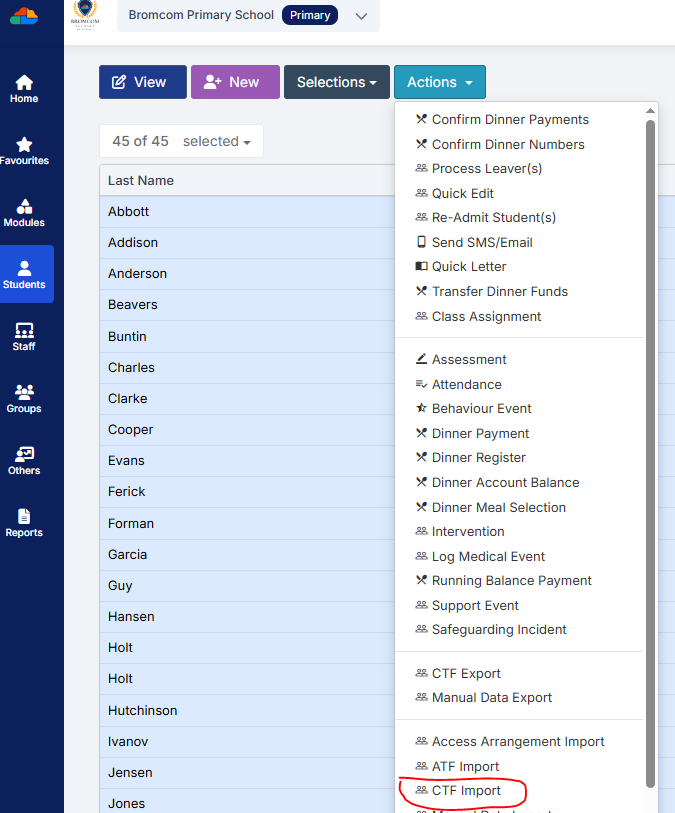
Once you have all your students selected click the Actions button and select CTF Import
Click Browse and find your CTF
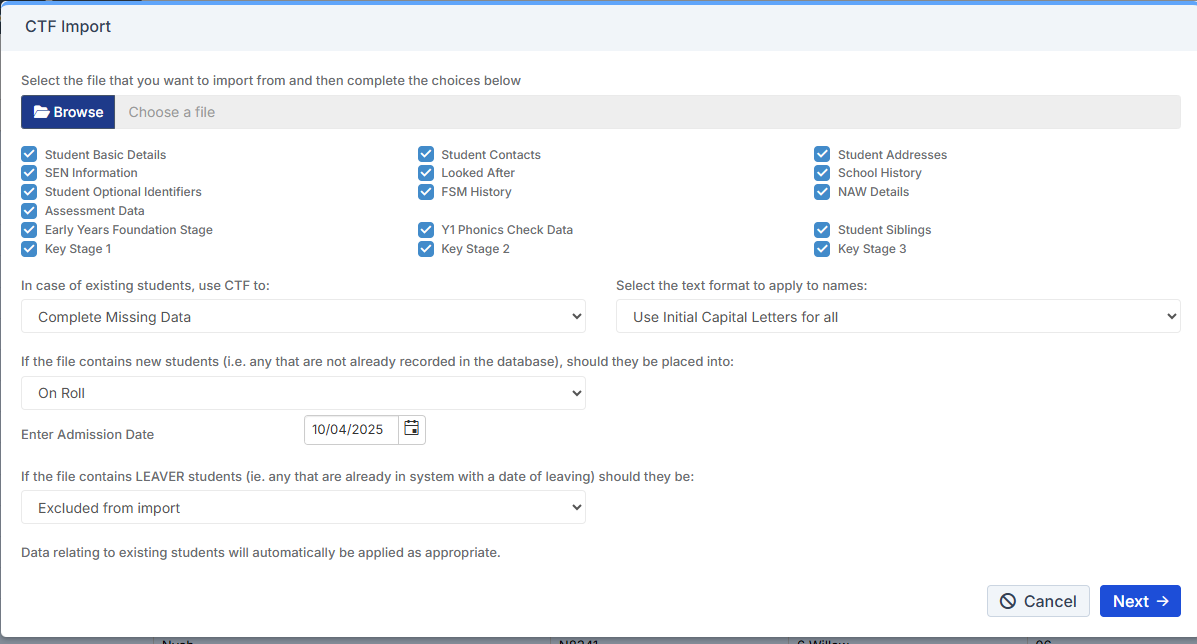
Click which items you wish to Import and Click Next.
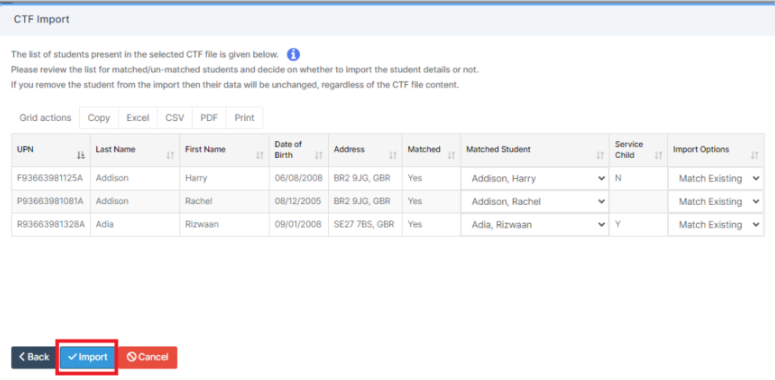
Check the data and the pupils and then click Import 

How useful was this article?

Click on a star to rate it!

Average rating / 5. Vote count:

No votes so far! Be the first to rate this post.

Similar Posts

  • BROMCOM: How To Setup Marksheets for KeyStage

    For Key Stage Assessments after you have access via BROMCOM: How to add ‘Configurations’ to a Role for Key Stage – Frequently Asked Questions Go to Config > Assessment > Configurations and put the tick in Enable Sheet Users.           You can then tick which Staff Roles will require access to the…

  • Bromcom: How do I add a comment to an attendance mark in the register?

    There may be occasions where you need to add a comment to an attendance mark within the register. To do this you will need to go to Modules > Attendance > Manage Attendance. From here you can select the parameters for the register that you would like view. The register will then load. Click into…

  • Configuring Clubs, Trips, and Wraparound Care in MyChildAtSchool

    It’s possible to display details on Clubs, Trips, and Wraparound Care in MyChildAtSchool. In giving parents/guardians access to these areas you’re enabling them to book, and pay for their children to attend these activities. The following KB will details the configuration settings available for these areas. Navigating to the Clubs/Trips Settings Page The Clubs/Trips Settings…

  • BROMCOM: Phonics Screening Check 2025

    This FAQ is for the users in school who need to carry out the Phonics Screening Check. The collection of the Phonics Screening Data Check is for Key Stage 1 All Pupils in Year 1 and Year 2 Pupils who didn’t meet the threshold last academic year.  For further guides please see the following Scomis Bulletin-…

  • DEVON SCHOOLS ONLY – Submitting Claims through iTrent

    The employee is able to do this through self-service and you can then approve the claim once the system is available, or your administrators can input the claim on behalf of the employee via fast input, from a paper form. If you have administrators who are inputting from the paper process, please note the forms…

  • Bromcom Finance: How do I add a Petty Cash into the new year

    If you have not run preliminary close in the old year and need money in Petty cash  “Cash In hand” you can add a temporary reimbursement as follows: Modules> Finance> Homepage>General ledger> Petty cash processing Click “Add Reimbursement” as show below and add your details on the right of the example screen shot. Please note:…