Bromcom: Bulk Update Class Memberships

To bulk update class memberships go to Modules > Curriculum > Bulk Group Assignment
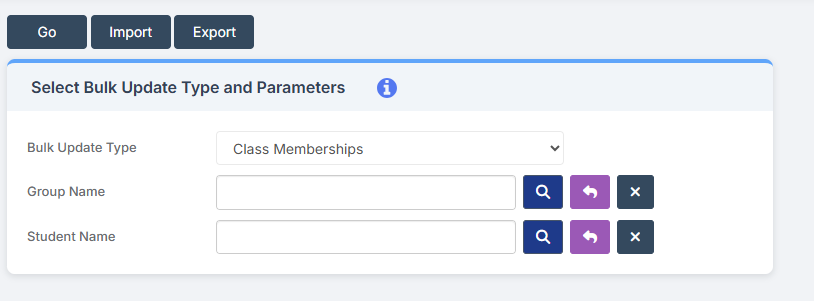
The drop-down menu allows you to choose Class, Tutor Group, Band and Block

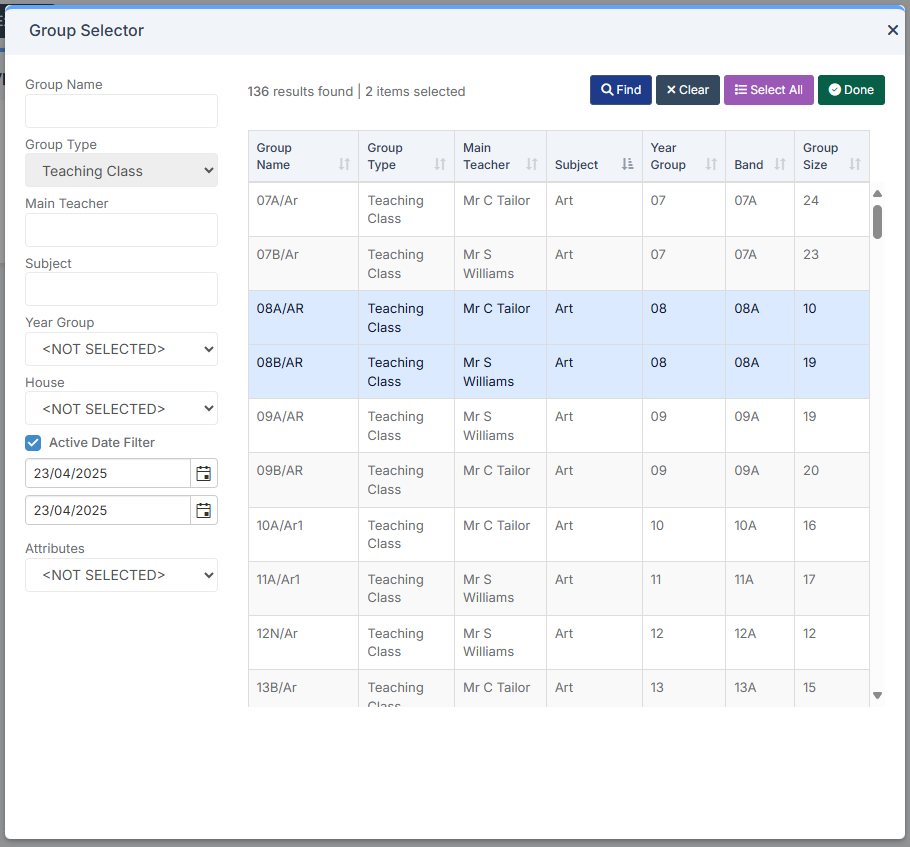
In this example I am setting the Art students in Year 8

Next to the Group Name click the Magnifying glass and choose the required classes. Click Done.
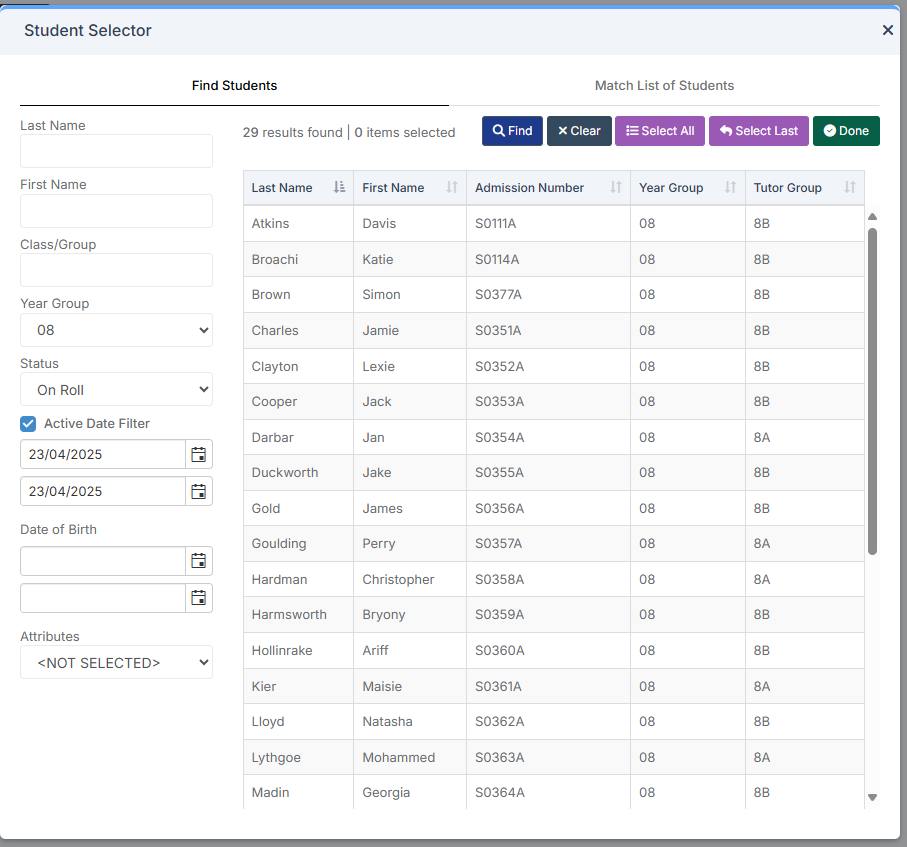
For the Student Name, click the magnifying glass and choose to look at Year Groups. Select all required students and click done.
The Groups and Students selected appear in two separate boxes.
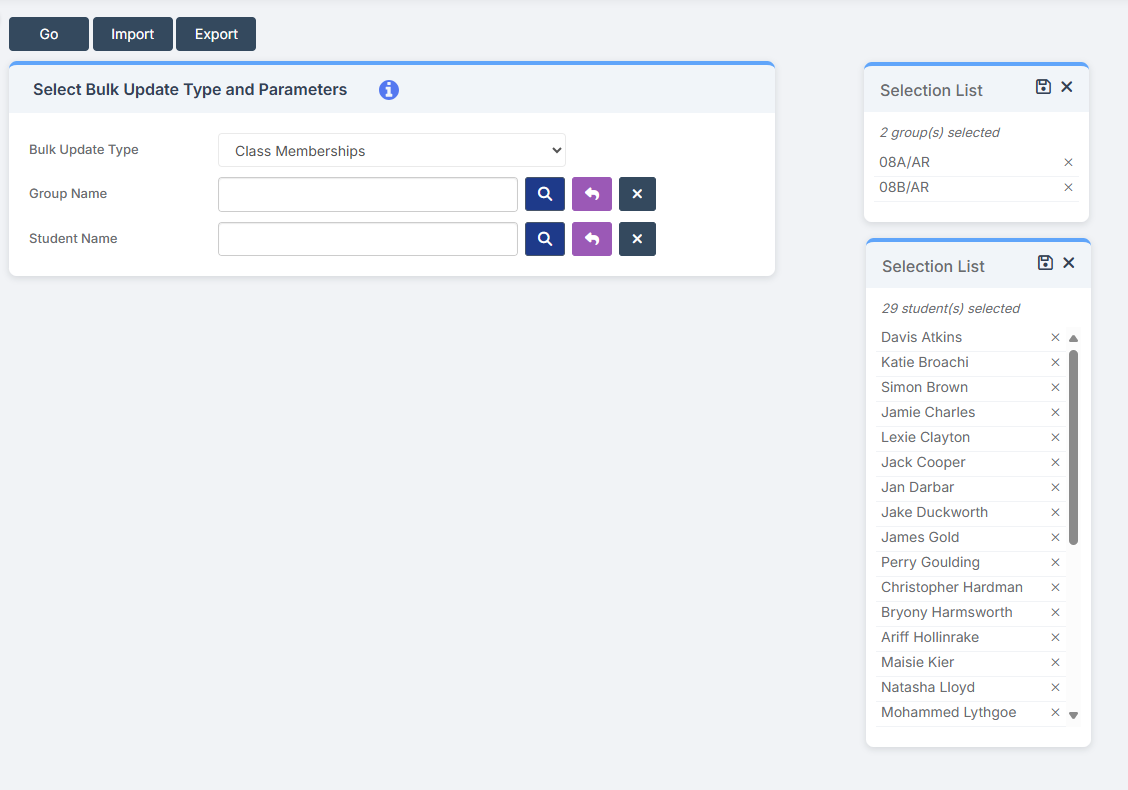
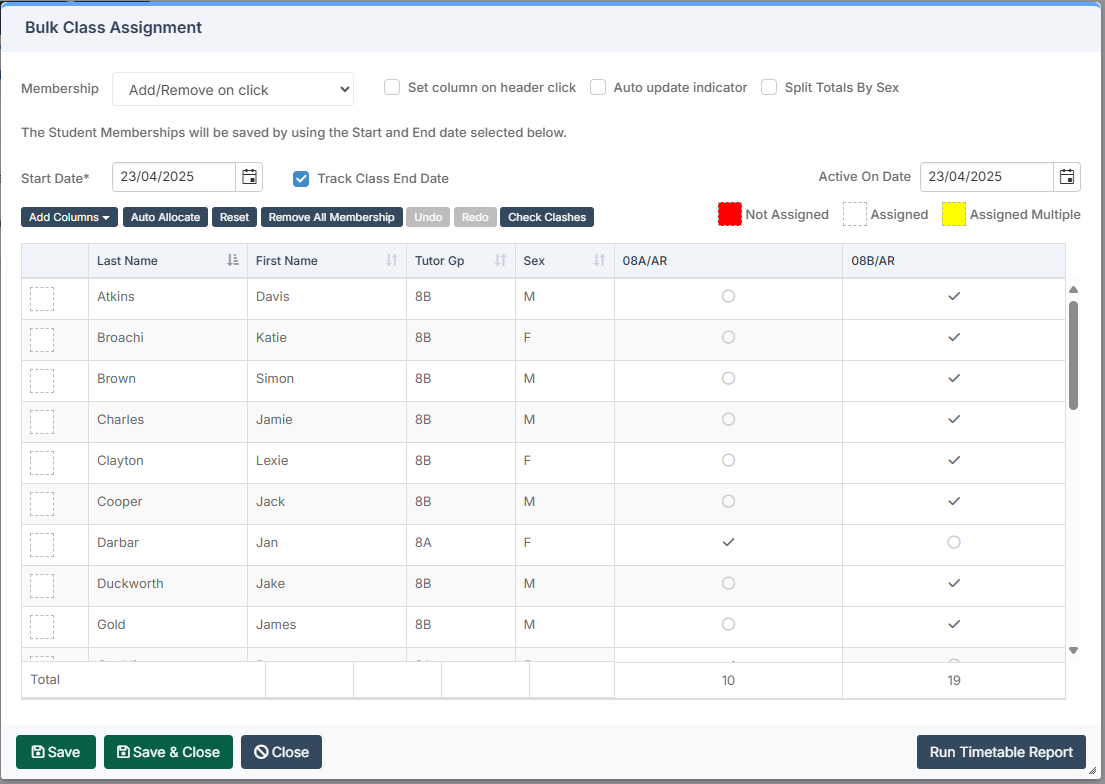
Click Go.  You then have the option to tick children into classes.

You can change how the ticks work – whether you just add or remove, or whether it swaps. The process is the same for whichever groups you are moving.
How useful was this article?

Click on a star to rate it!

Average rating / 5. Vote count:

No votes so far! Be the first to rate this post.

Similar Posts

  • BROMCOM: Assessment – How to give access to Assessment Sheets (Marksheets) for a Head of Department/Head of School/ Teachers

    When creating your Assessment Template, (via Modules>Assessment>Manage Templates>New) as per How to Create an Assessment Sheet – Bromcom – Documentation Centre – you will have the options to associate your Teachers/HoD’s/HoY’s by using the flowchart below.  This has been designed to help you understand how to use Assessment Template Associations to generate/create Assessment Sheets. Please note, It is…

  • Bromcom Finance: How can I print my imported “Automatic Reconciliation file”

    Once in Modules > Finance> Homepage>Routines> Automatic reconciliation, please right click in the listing and then click export as shown in the screen shot  below.  This will then allow you to export to excel or csv and print as required.   How useful was this article? Click on a star to rate it! Submit Rating…

  • Configuring Exam Timetables and Results in MyChildAtSchool

    It’s possible to add both exam timetables and results to MyChildAtSchool (MCAS), the following KB will detail how to activate the areas in MCAS, and how to configure them. Navigating to the Configuration Area To begin with, browse to Config>MyChildAtSchool>Exam.   Activating the Modules Both the results and timetables can be activated separately, this can…

  • Bromcom Finance : How do I clear a salary commitment ?

    You will need to clear a salary commitment if you have reconciled manually via Individual salary payments or central payments as follows: Browse to Modules> Finance> Homepage> Staffing> Salary Projections. Click the “Actions” button top left > Click “Amend Commitments” Select the staff member & posting period. Click “Clear Commitments” How useful was this article?…