|

BROMCOM: Which Marksheet to Enter Phonics Results

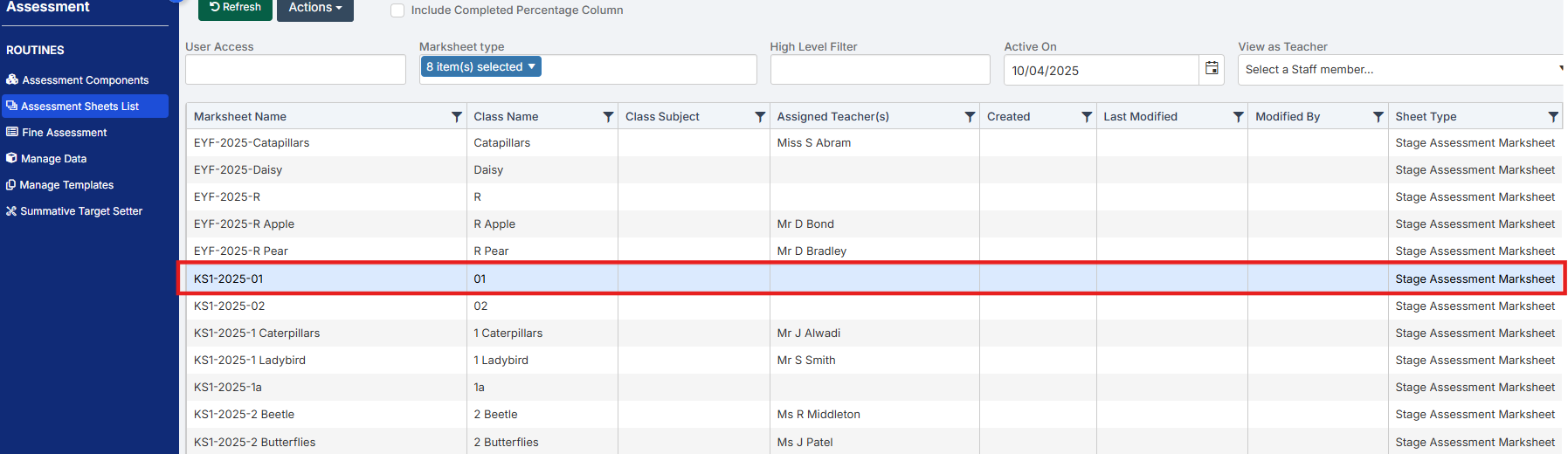
In Bromcom via Modules > Assessment > Assessment Sheet List, the Phonics is Entered in the Marksheet named KS1-2025-01 for Year 1 Pupils.
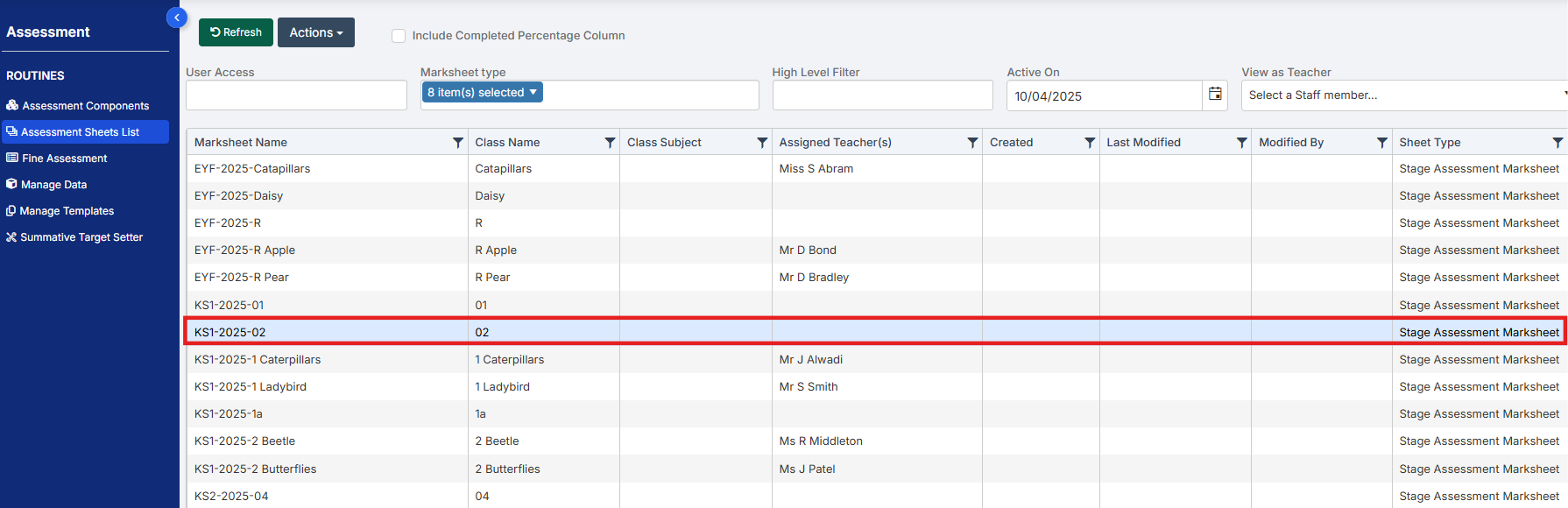
For Year 2 Phonics Retakes – This is entered in KS1-2025-02 
The marks are entered in the Phonics Screening Check Mark
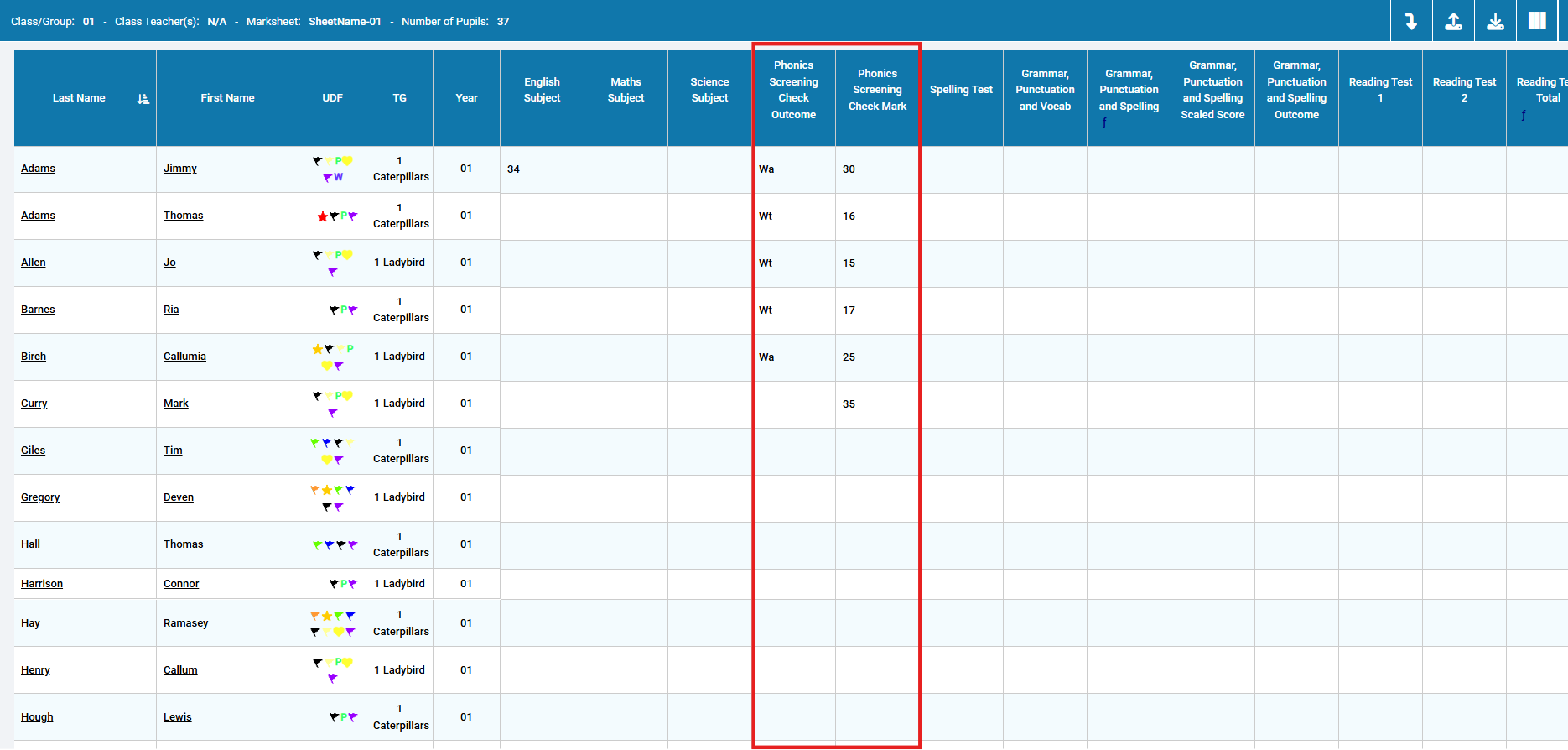
This takes you through how to Enter in Marks

How useful was this article?

Click on a star to rate it!

Average rating / 5. Vote count:

No votes so far! Be the first to rate this post.

Similar Posts

  • Bromcom Staff Data Collection Report

    This report can be found via Reports – Administration – Staff data check report. You can export, print, and hand-out to teachers to check.  Alternatively you could create a quick report with the information you want to check, include staff email, and then mailmerge it to staff. Also, staff should (permissions allowing) be able to…

  • MCAS – What is included and how do I get started?

    My Child at School is a useful communication tool for schools to use with parents which can be configured to give applicable  in the following areas:   Assessment Attendance Behaviour Class Lists Clubs and Trips Dinner Money Online payments Exams and exam timetables Homework On Report Parents Evening Reports Timetable Academic calendar School shop Parental…

  • Bromcom Finance: What do the different status’s mean when processing invoices

    Authorised – This means the Invoice has been “Authorised” and the user would have clicked “Authorise” within the invoice, ready to centrally authorised. Passed for Pay – This means the Invoice has been processed through “Central Authorisation” and print and exported the batch to create a file to upload to the “Local Authority” Paid – This…

  • Bromcom Finance: Individual Salary payments ” Save & Post” button is greyed out

    Modules > Finance> Homepage> Individual Salary payments The most common reason why the “Save & Post button is greyed out is because you may have zero value lines See example screen shot below: To resolve the issue, simply highlight the payment line in the right hand column and either add a value or delete, you…

  • Bromcom Finance: How can I print my imported “Automatic Reconciliation file”

    Once in Modules > Finance> Homepage>Routines> Automatic reconciliation, please right click in the listing and then click export as shown in the screen shot  below.  This will then allow you to export to excel or csv and print as required.   How useful was this article? Click on a star to rate it! Submit Rating…