|

Bromcom Finance: How do I add a Petty Cash into the new year

If you have not run preliminary close in the old year and need money in Petty cash  “Cash In hand” you can add a temporary reimbursement as follows:

Modules> Finance> Homepage>General ledger> Petty cash processing

Click “Add Reimbursement” as show below and add your details on the right of the example screen shot.
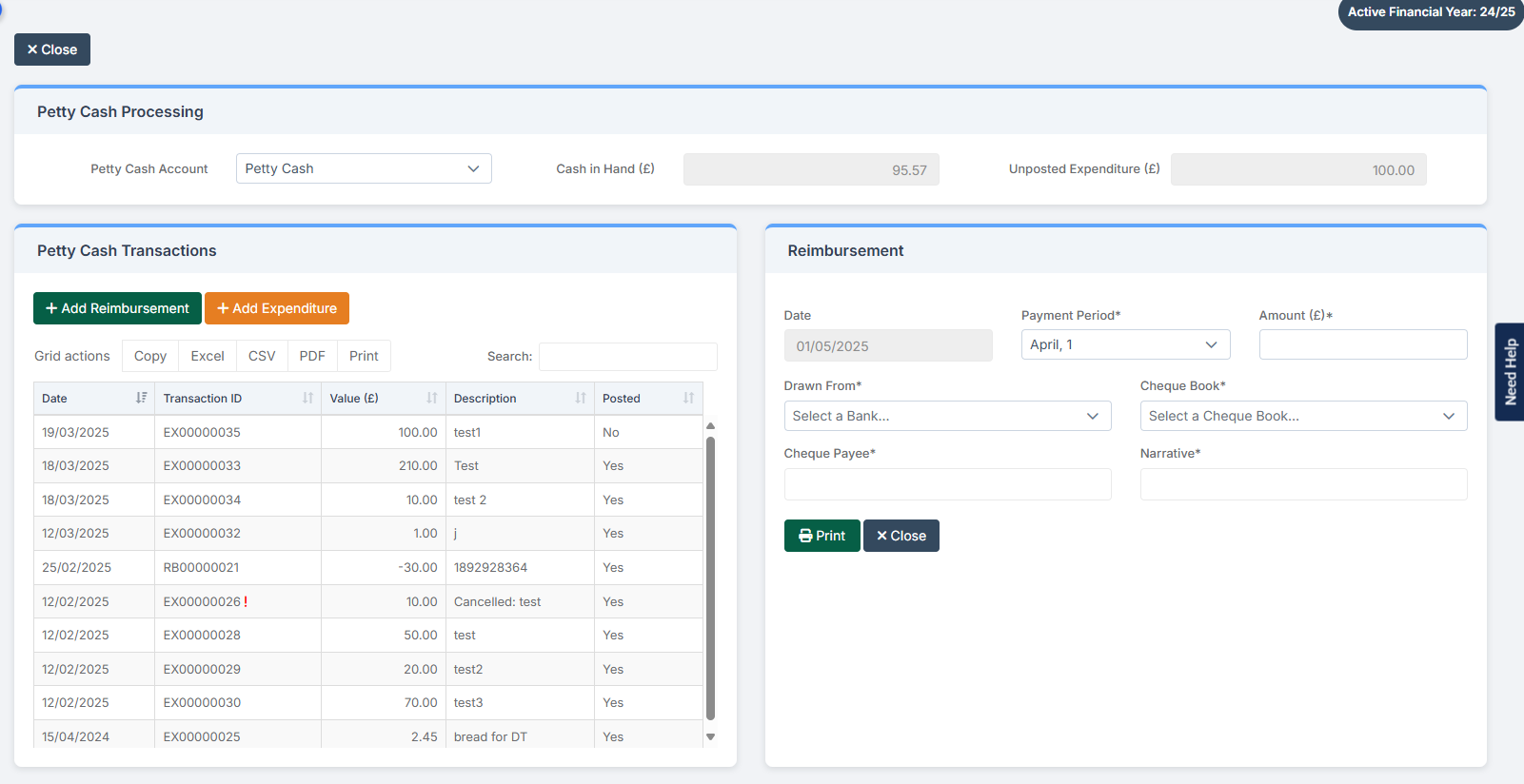
Please note: Please remember to cancel the reimbursement, once you have run preliminary close down.

How useful was this article?

Click on a star to rate it!

Average rating / 5. Vote count:

No votes so far! Be the first to rate this post.

Similar Posts

  • Bromcom Finance & Budgets: How can I export my Budget Variance Report?

    Modules> Finance> Budgeting> Budget Variances You can export your budget variances report by clicking into any of the budget lines and then right click, select “Export” to CSV or Excel, as shown in the below screen shot:     How useful was this article? Click on a star to rate it! Submit Rating Average rating…

  • Bromcom – Readmit student

    To begin, go to the Student List page. From there, press Search Filters on the top right and change the Status to Leaver. Now select the student/s that you wish to Re-admit and press Actions>Re-admit Student(s). If you are Re-admitting multiple students, the Re-admit Date you select is going to apply to each student so please double check the dates you need before proceeding. Further and full information can be found here: How to…

  • Bromcom Exams: How do I prepare and print the candidate statements

    Browse to Reports> Examinations>Results> Results by Students Click ” Find” button opposite candidate name Click “Select All” button top right or alternatively click and highlight the required students Click “Preview” This will then show the statement of results by candidate, you can click the top arrow button to view them one student at a time…

  • Finding your iPad’s MAC Address

    If your the wireless network you are connecting to is a Managed Network, then you will need to provide your Network Administrator with the iPad’s MAC Address. To obtain this first Tap on the Settings Icon… Once in the settings application, you will be in the General Screen as shown below: Tapping on About will…