Bromcom Finance and DTSApps : How do I process my Petty cash file PLYMOUTH SCHOOLS

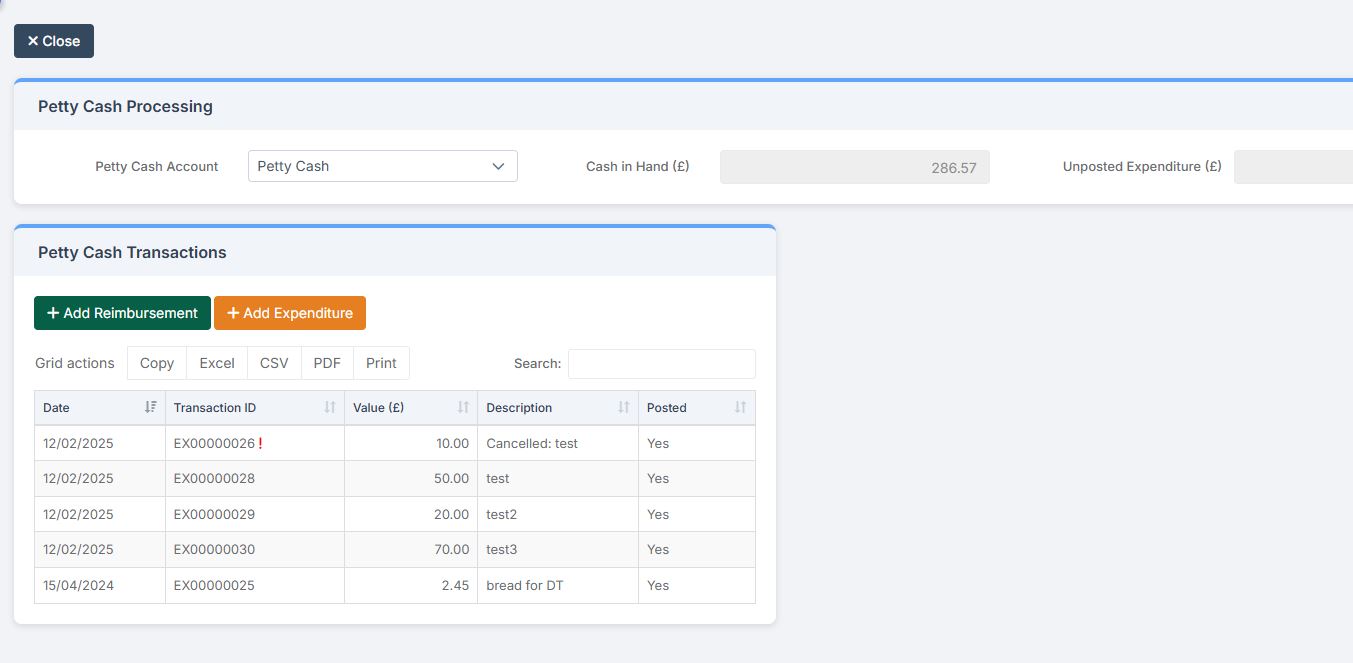
In Bromcom navigate to Modules> Finance> Homepage> General ledger> Petty Cash Processing.

1) Click the yellow button to add an expenditure or green button to add a reimbursement
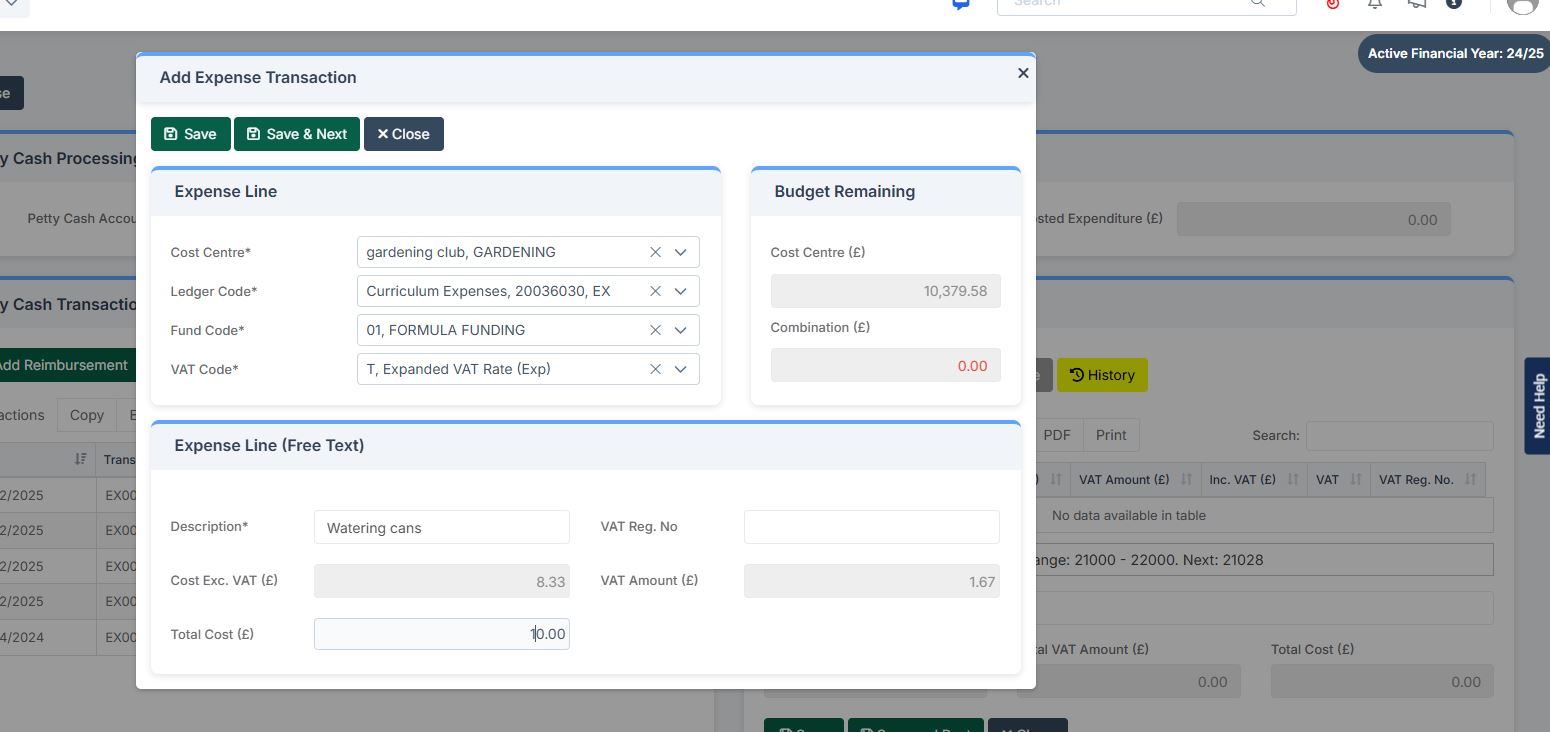
2) Add your expense lines on the right hand side
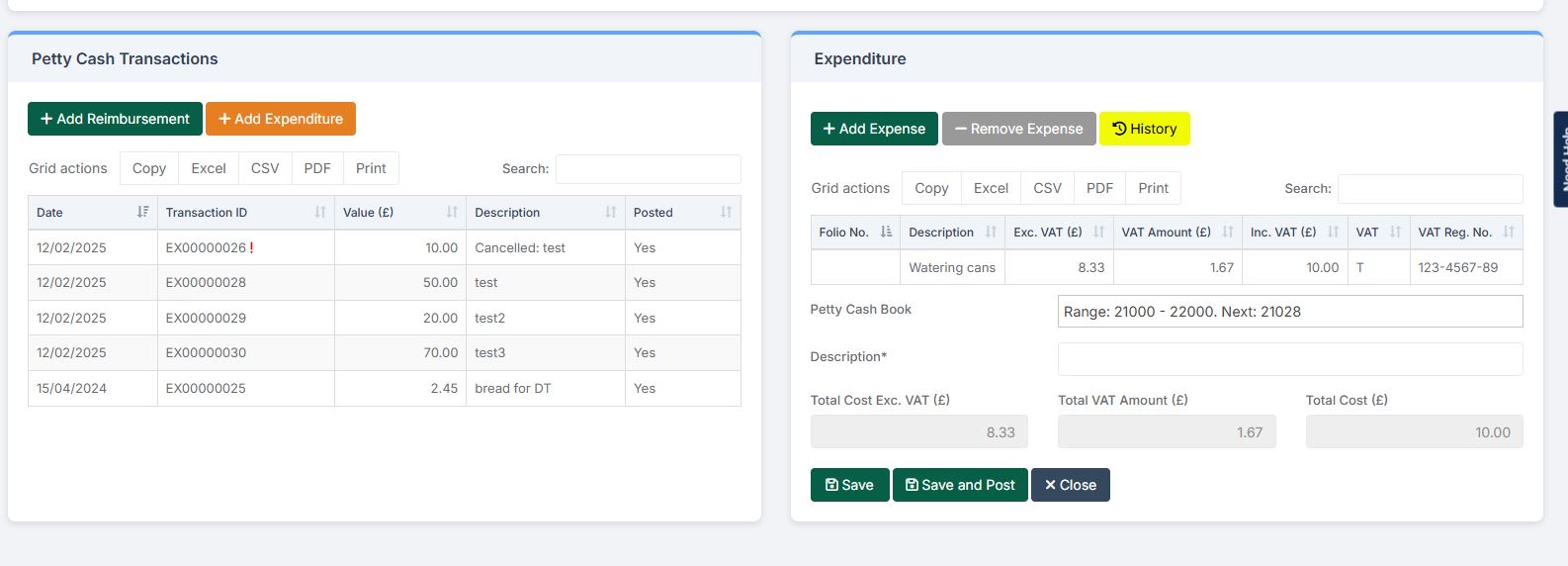
3) Once you have added your expense lines, save and post. Once this has been done you can click download CSV on the right hand side window
4) Open DTSAPPS and login

5) Click Petty Cash Processing on the left hand side

6) Upload your exported Petty Cash CSV file

7) This will load your petty cash transactions. You will need to add the ledger code and fund code for each line of the petty cash claim. Once you have filled in all missing details you can click on ‘Commit Transactions’. You will then go to a new screen where you can print your authorisation report.

Note: Adding ledger codes is currently a workaround until Bromcom release a new report (Currently in development) then this step will not be necessary
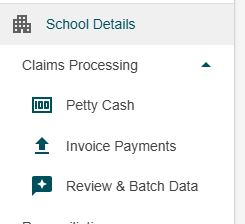
8) Click Review and Batch to create your petty cash file.

9) Your file will now be showing in the blue ‘Review and Send’ area. You can now select ‘Download Zip’ to download your zipped file which is password protected with your Plymouth password. You can also select ‘View Details’ to print off an authorisation report (If you need to change your Plymouth password you can do this via School Details > Prefix/Suffix)
 

10) You will need to rename your zipped file in line with Plymouth instructions and then upload via DfE S2S


How useful was this article?

Click on a star to rate it!

Average rating / 5. Vote count:

No votes so far! Be the first to rate this post.

Similar Posts

  • Bromcom Finance: Unable to search on Cost Centre & Ledger Code fields

    When adding purchase orders it isn’t possible to use any of the accounting search fields. If this is happening please check that your browser and the PC display itself are not on more than 100% on zoom, as well as no half screen or stretched mode etc. If this does not resolve the issue please…

  • Bromcom Finance: How to process your invoices, in Central Authorisation and “Print & Export”

    Once you have added your invoices into Bromcom finance, you will need to authorise and batch up any invoices and credit notes created as follows : In Bromcom, navigate to Bromcom Finance Home page: 1) Click on Central Authorisation in the Routines area: 2) You will see any invoices and Credit notes that have been…

  • Bromcom Finance and DTSApps: How to process your invoice file PLYMOUTH SCHOOLS

    Once you have clicked “Print and Export” in Central Authorisation in Bromcom, you will need to process your TXT file through DTSApps Click here to log into DTSApps 2) If you work in more than one school, please ensure you select the DTSApps for the school you are processing the file for. 3) In the…

  • Bromcom Finance: Base Pay mapping FAQs

    Please see this guide for commonly asked questions around “Base Pay Mapping” If you need assistance with setting up mapping please see the following FAQ How to add Base Pay Mapping Scenario 1 – I have staff with the role of “Teaching assistants ” that need to be mapped to multiple cost centres In Bromcom…

  • Bromcom Finance: How to add Base Pay Mapping?

    Please see the following guide on how to map your base pay: Modules> Finance> Homepage> Staff> Base Pay mapping Base Pay Mapping How useful was this article? Click on a star to rate it! Submit Rating Average rating / 5. Vote count: No votes so far! Be the first to rate this post.