BROMCOM: EYFS Key Stage Return
EYFS is for every child in the final term of the year in which they reach age 5
Please contact your LA for deadline date or see here if you are a Devon County Council school- BROMCOM: Devon County Council- Key Stage Upload dates – Frequently Asked Questions
For more information please read the following DFE Guidance– Early years foundation stage profile return – GOV.UK
For further guides please see the following Scomis Bulletin- Key Stage Bulletin 2026 – Frequently Asked Questions
Step 1 – Set up Access to view Marksheets
BROMCOM: How to add ‘Configurations’ to a Role for Key Stage – Frequently Asked Questions
From the left hand menu go to Config>Setup>Roles and Permissions
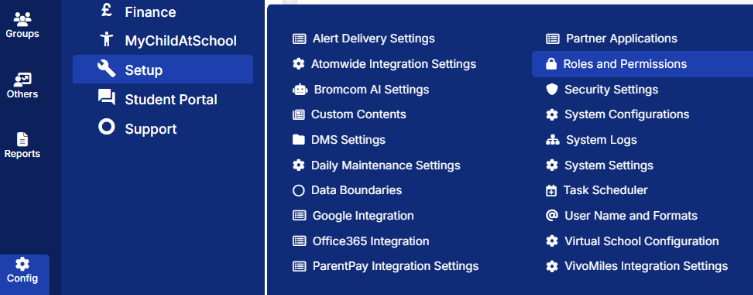
From the drop down list select the required Role and click Edit (The required Role will be anybody who needs access to the marksheets e.g Administrator, Teacher, Office Admin etc)
From the Module dropdown choose Assessment
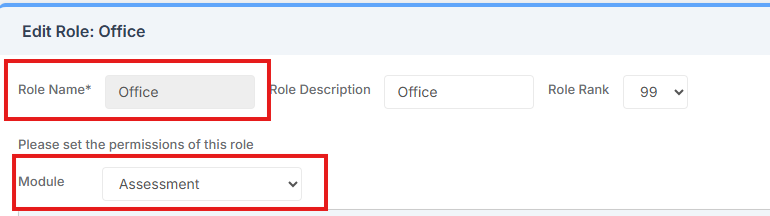
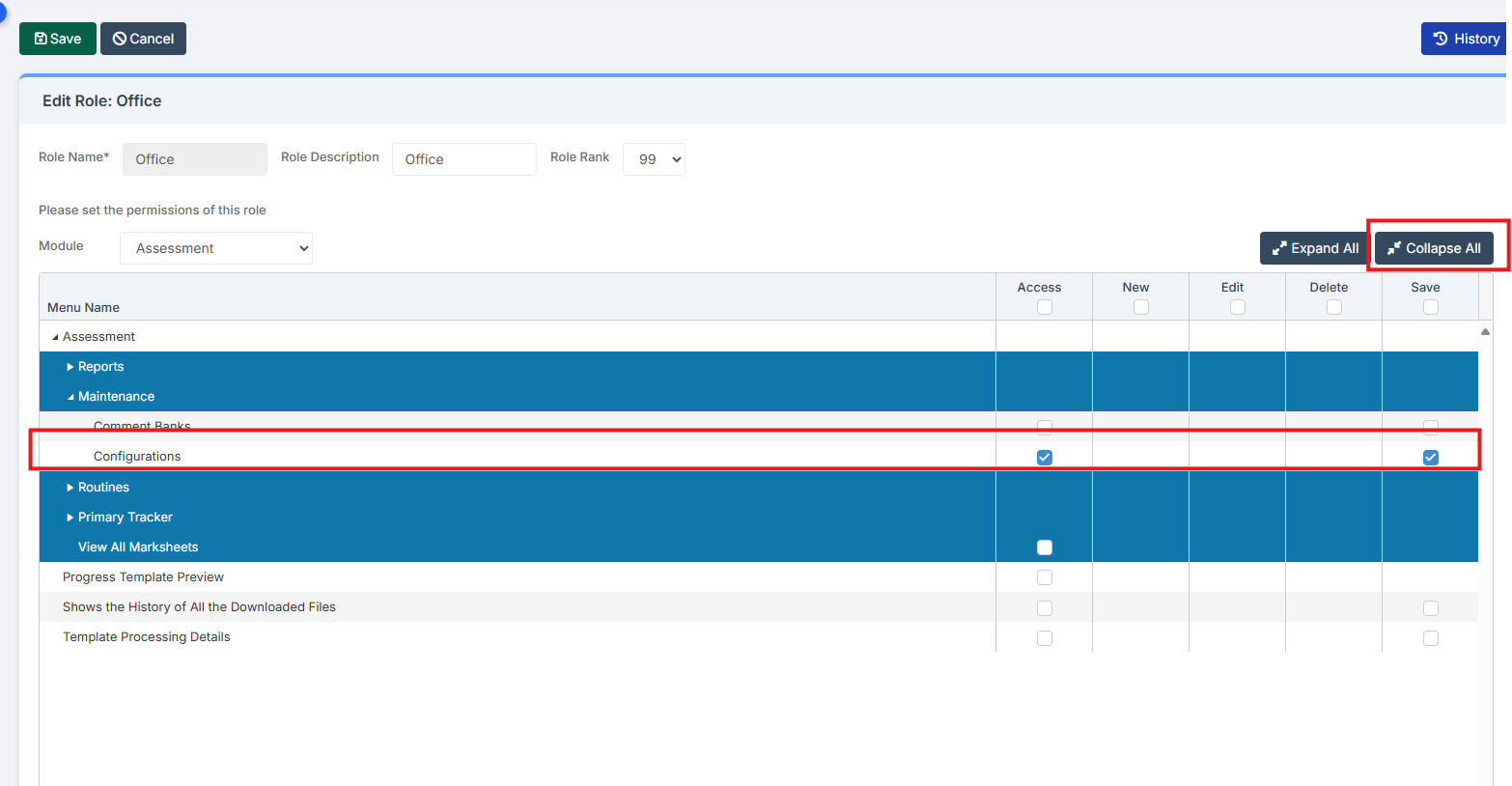
Click Collapse All, Open up Maintenance and put a tick in for Configurations for Actions and Save and then Save these changes at the top of the page.
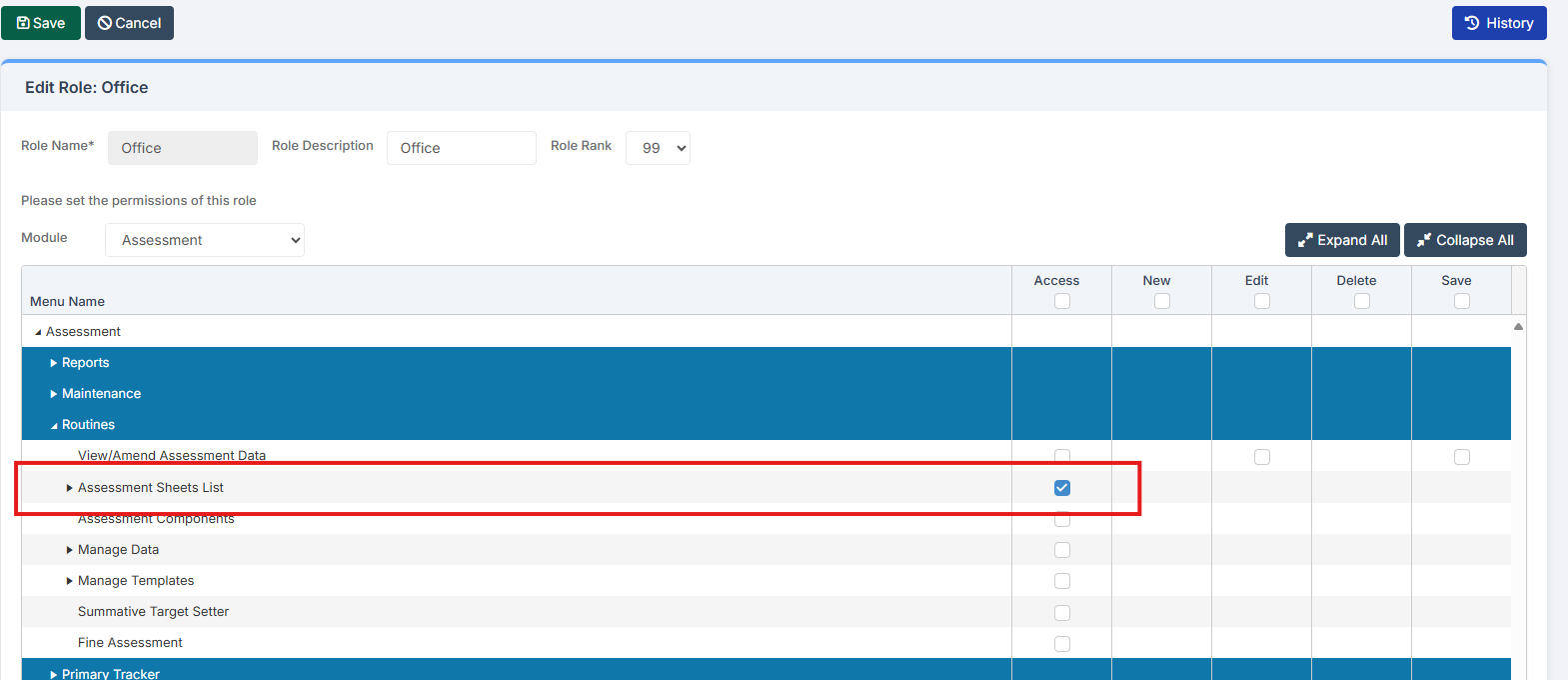
Then go to Routines and Tick Access for Assessment Sheet List
Click Save
Step 2 – Configure the Marksheets
BROMCOM: How to Add Staff to Edit/View Marksheets – Frequently Asked Questions
From the left hand menu go to Config>Assessment >Configurations
Tick Enable Sheet users
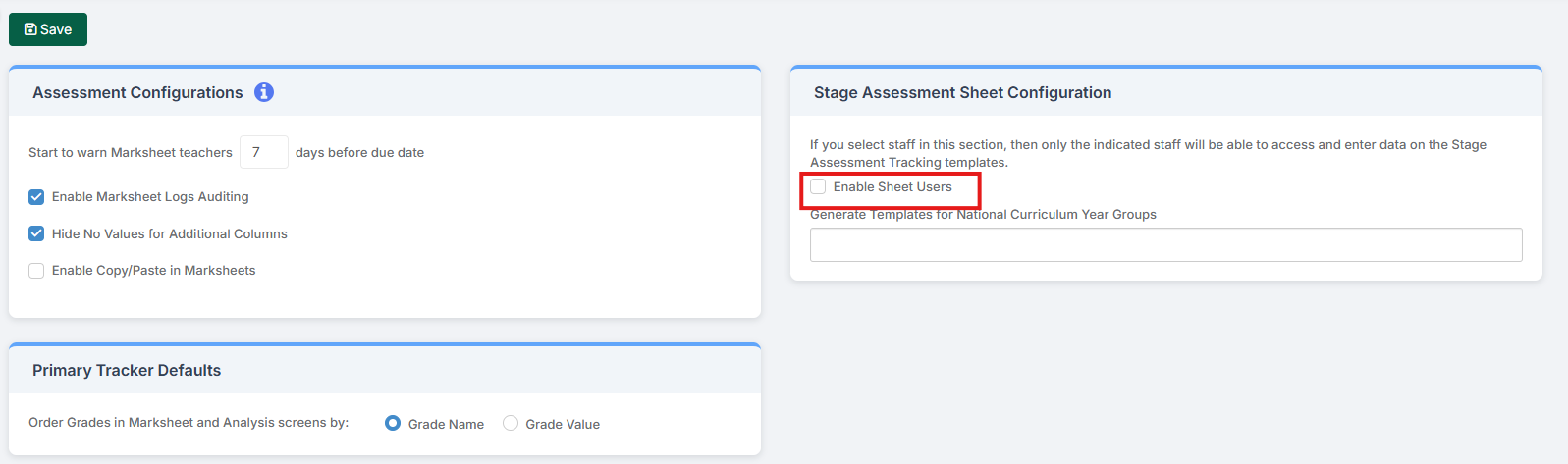
Tick the relevant parameters for your school such as Head of School and Tutor
You can also select individual members of staff using the magnifying glass such as Teaching assistants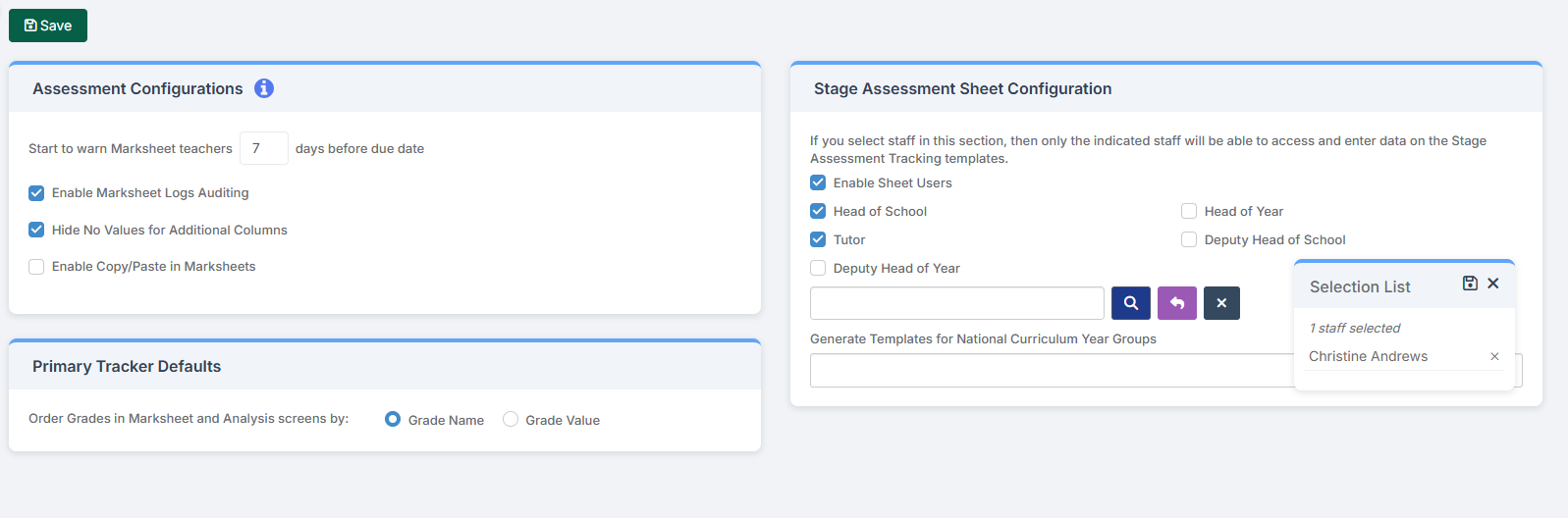
Next you will need to Generate templates for National Curriculum Year groups– For most Year R to Year 6 entry Primary schools this will be R, 1, 2, 4 and 6 for EYFS, Phonics Yr1, Phonics Yr2, Year 4 MTC and Year 6 KS2 TA
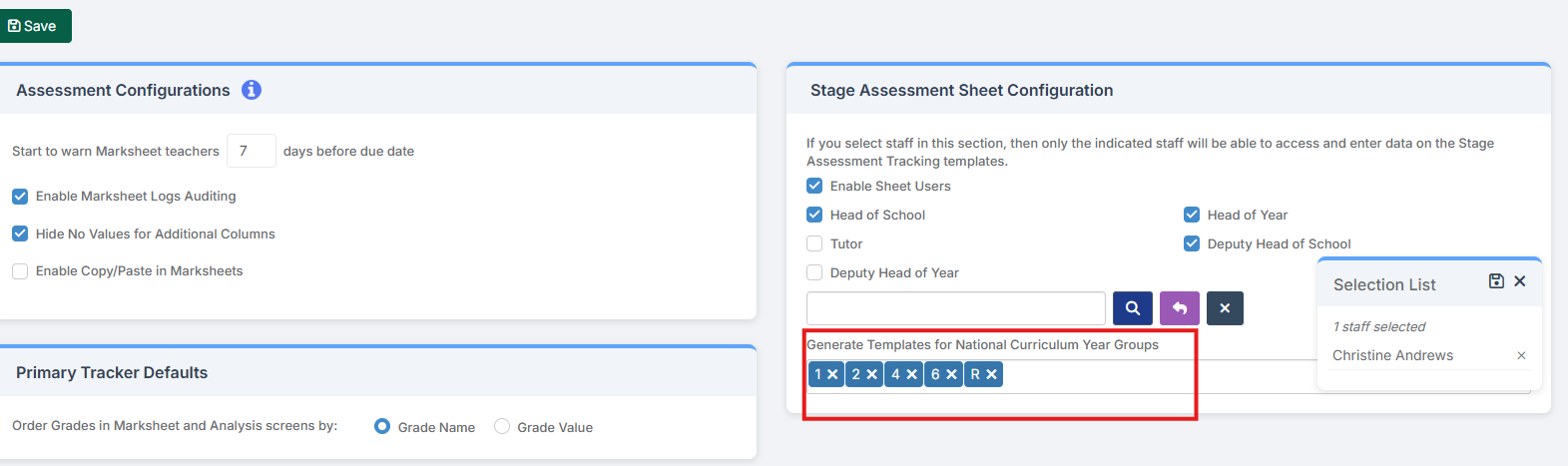
Once you have your Year Groups selected and you are happy that everybody who needs to view the marksheets has access you can click Save
Step 3- Access the Marksheets as a Teacher or Administrator
There are a few ways the Marksheets can be viewed in Bromcom for a Teacher:
From the Homepage, go to Settings on the Right Hand side and open up these tick options, and tick Assessment Sheets and Save
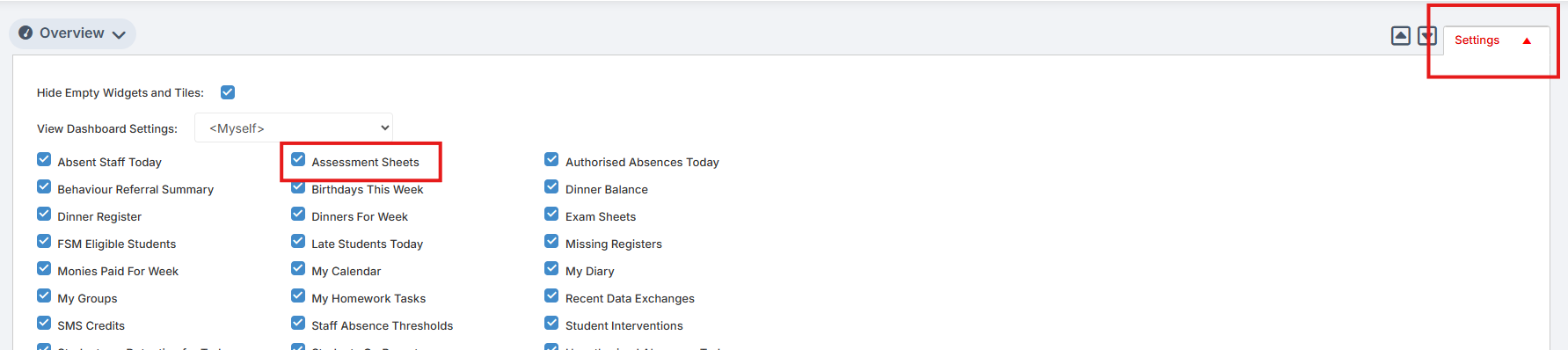
The Assessment Sheet will now show as a tile
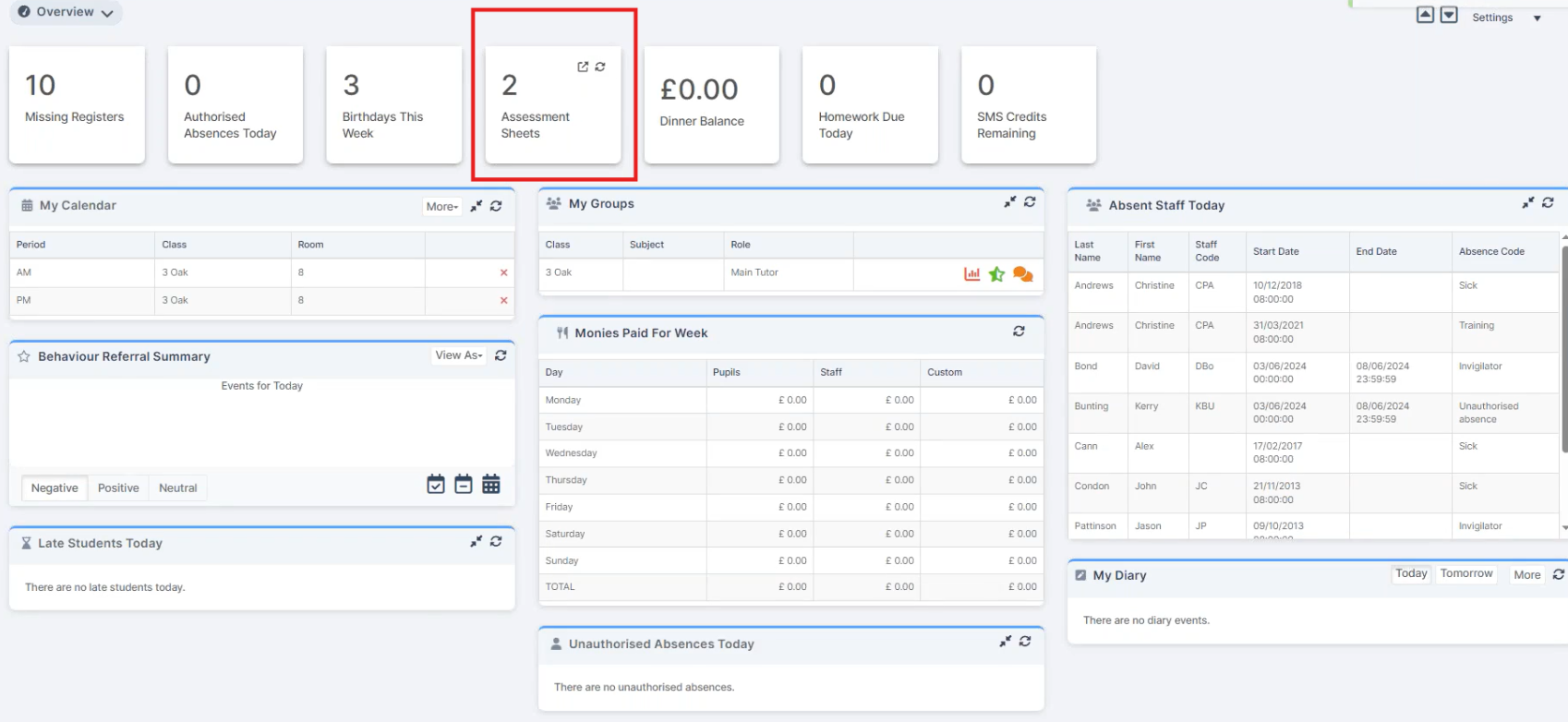
If you double click on the tile it opens
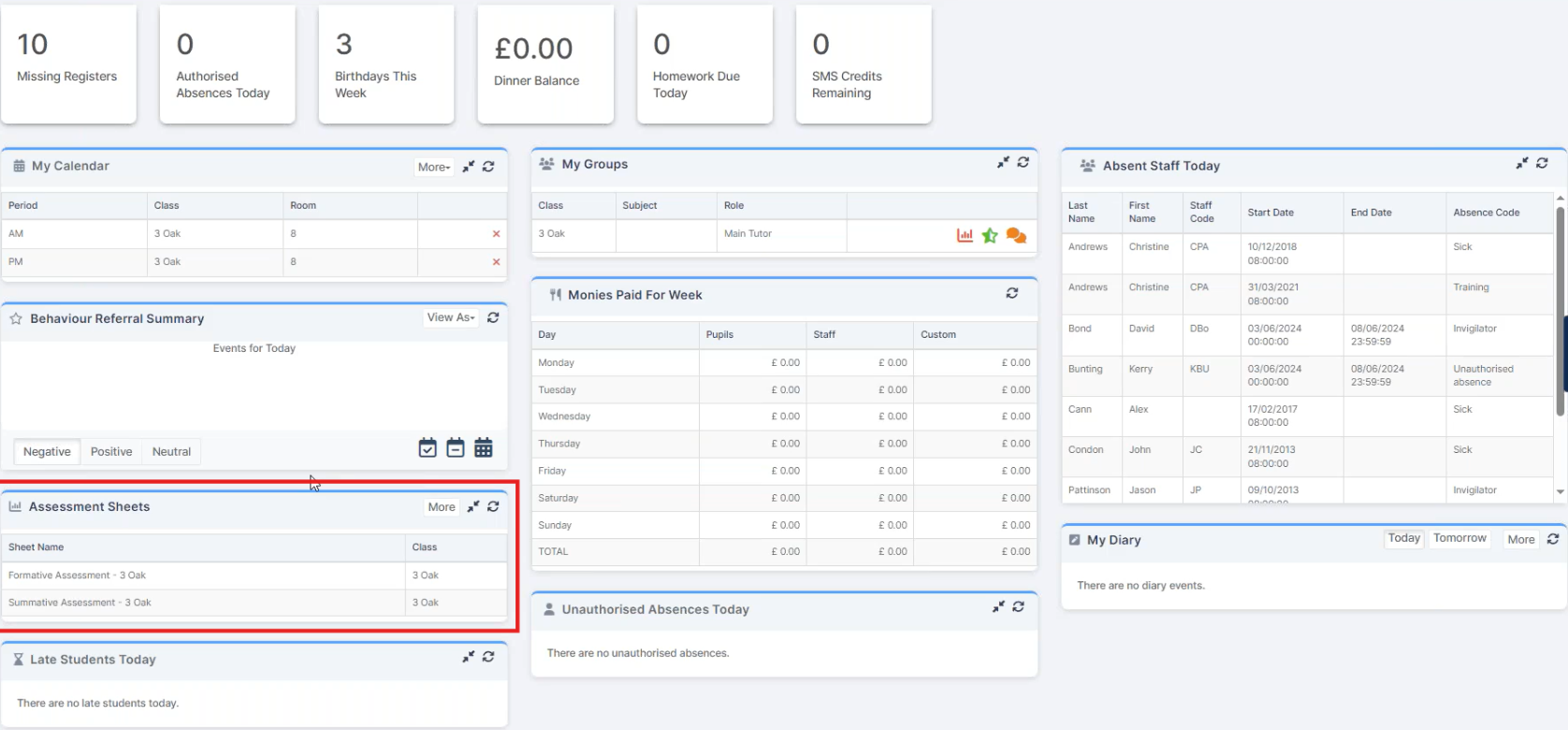
You can left click on the listed marksheets to open them.
For an Administrator: Marksheets can also be viewed via Modules > Assessment >Assessment Sheets List
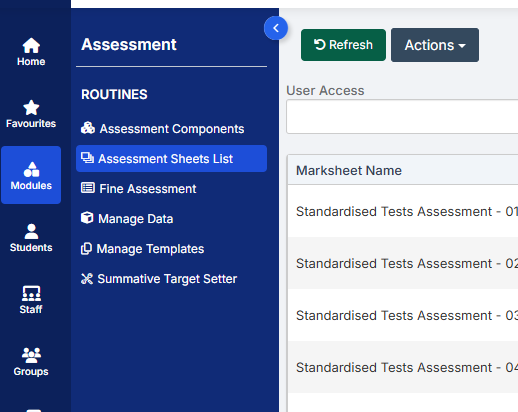
Click on the required marksheet to open- EYF-2026-R
Step 4- Input marks into the Marksheets
Bromcom: How to enter marks into Key Stage DFE assessment marksheet – Frequently Asked Questions
The DfE requires that the school record an assessment score for each of
the 17 early learning goals E01 to E17, either;
1 for Emerging
2 for Expected
A for unable to assess/exemption applies.
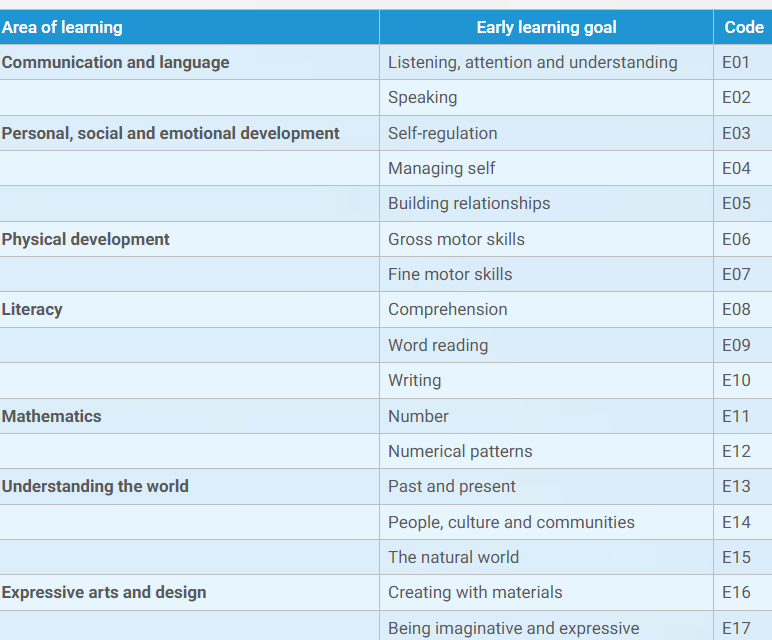
Open up your EYFS Marksheet. This should be called EYF-2026-R. You may also see a marksheet for the registration group.
You can choose to either complete the marksheet via the whole year group marksheet or the registration group marksheet. Reg group may be more useful for you if you have multiple classes in a year group.

There are three ways to enter marks into Bromcom
You can enter marks by clicking in each cell and entering the marks 1 by 1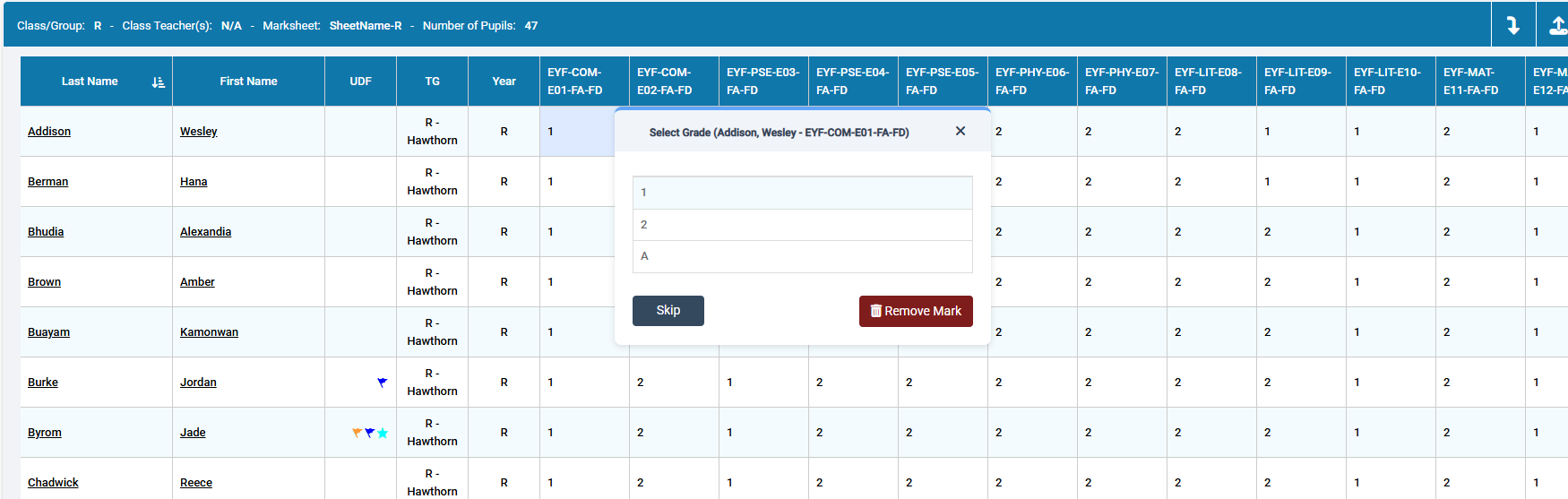
Alternatively if you have a number of pupils with the same mark you can right click on the column heading and “Flood fill”
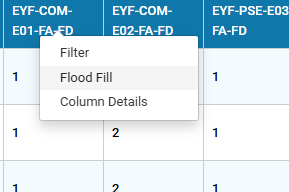
Lastly you can export the marksheet to Excel
Click on the first button shown below to download the Excel marksheet.
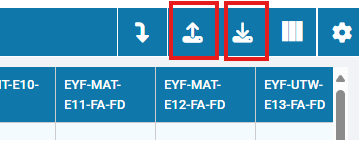
Open the marksheet from your Downloads folder
Fill in the marks in Excel
Save the Excel document
Go back into Bromcom and click the second button shown above and locate your saved Excel file and Import.
Step 5- Create your EYFS CTF
Now you have entered in all your marks for EYFS you need to create a CTF to send to your LA.
To create a CTF in Bromcom click Students from the left hand side menu
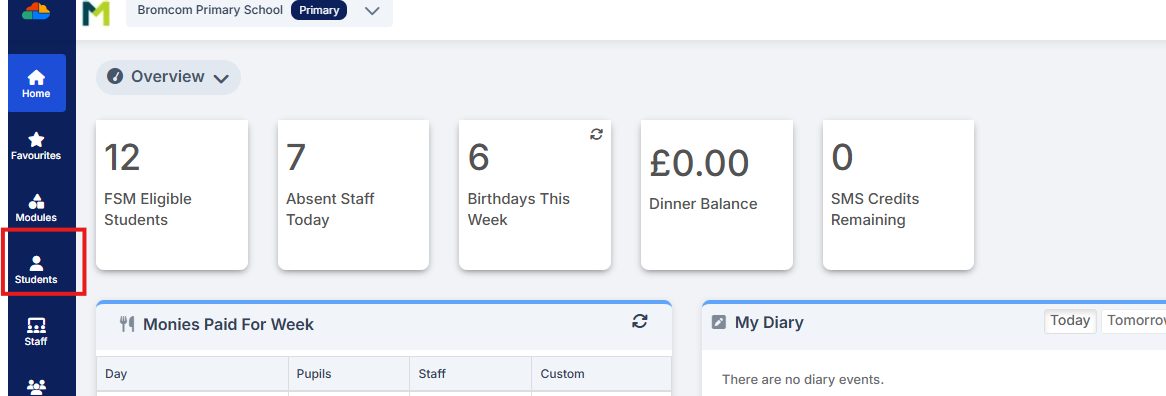
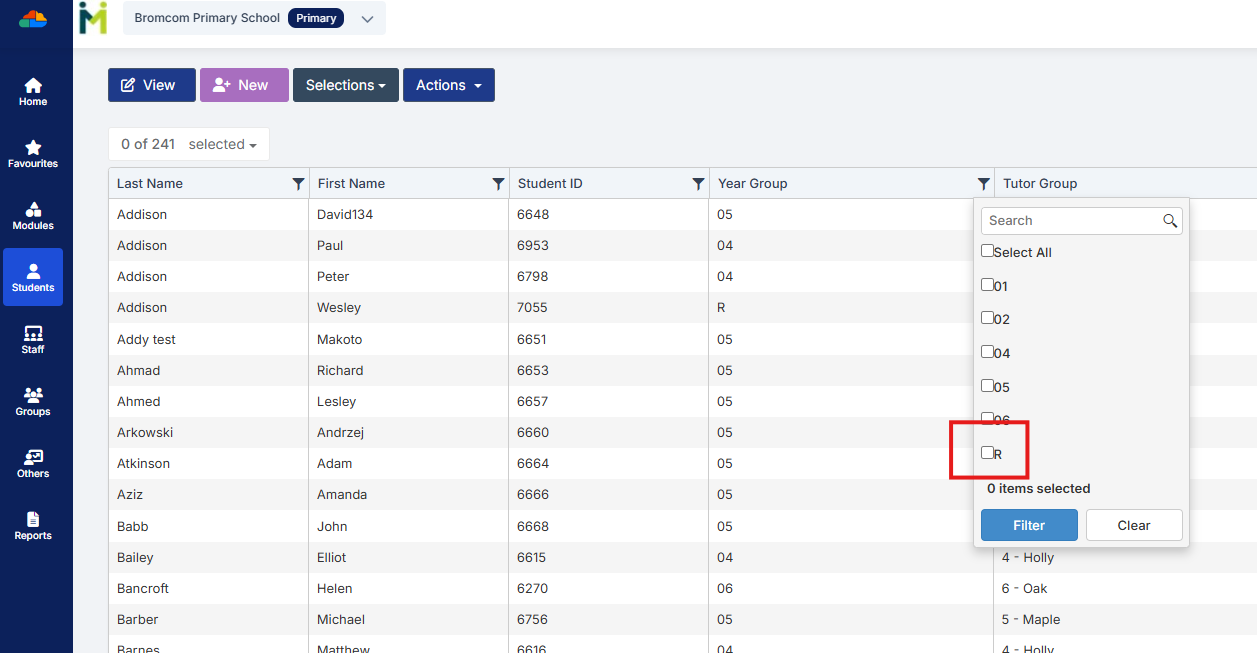
Select the Year Group filter and tick Year R and click Filter
From the Selections button click ‘Select All’. This should then highlight all your required pupils in blue.
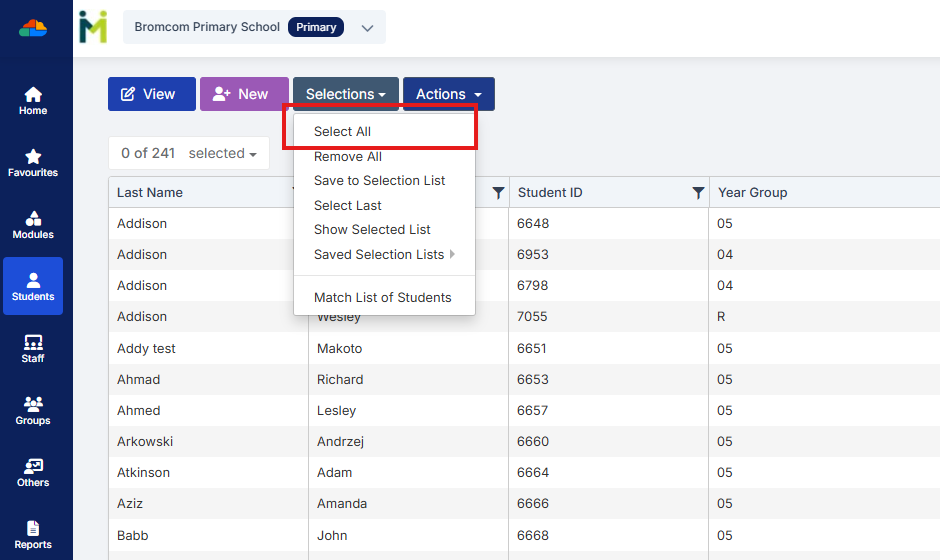
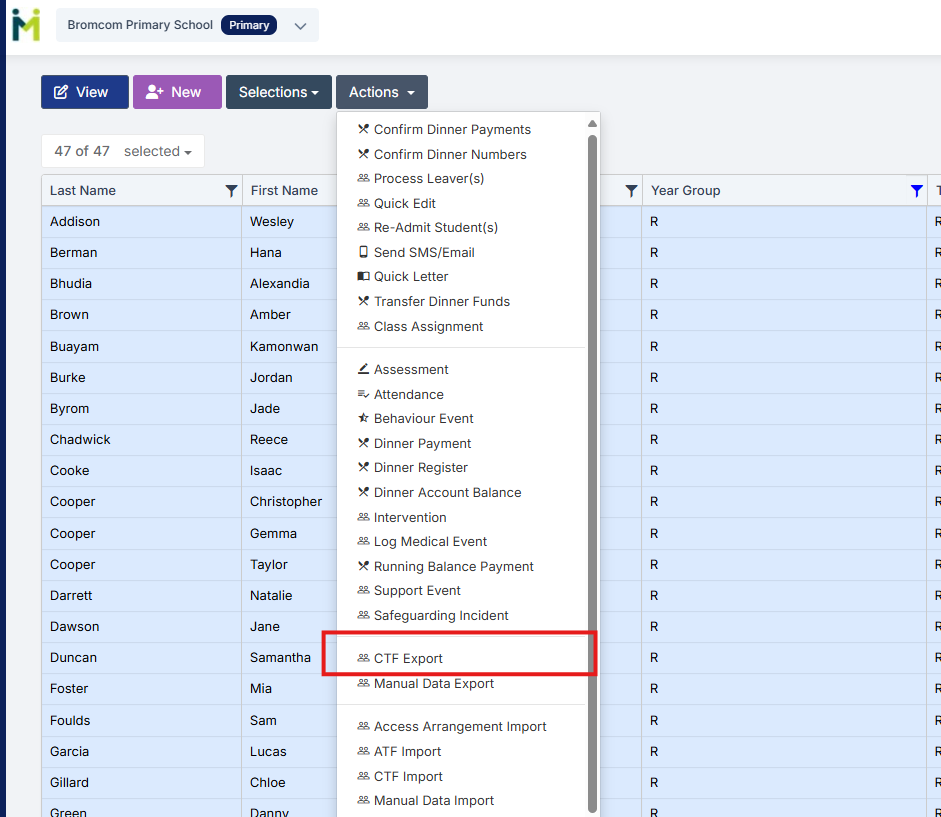
You should see a total pupil number in the top left to confirm the correct number.
Once you have all your students selected click the Actions button and select CTF Export
For EYFS the export type is- EYFS Return
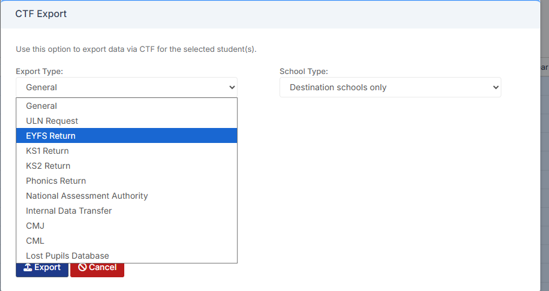
Tick the LA return box and select your LA
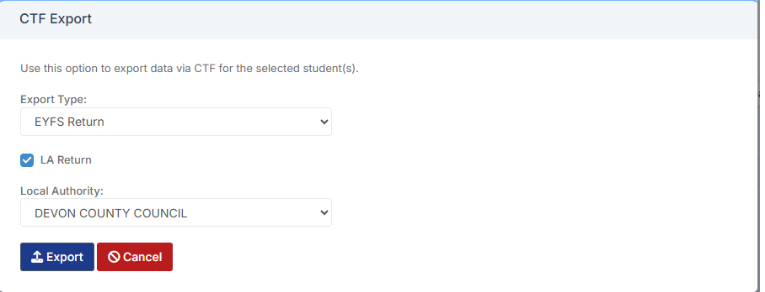
Click Export
This file will then go to your Downloads ready for you to upload.
For Devon Schools this needs to be upload by 30th June via Devon Transfer- https://www.devontransfer.co.uk/Login.aspx