|

Bromcom: How to create a Phonics CTF for Year 1 and Year 2

Please check with your LA for CTF requirements. If you are a Devon school- Upload to Devon Transfer (Please note: For Devon this is a combined CTF with all Year 1’s and Year 2 retake pupils in ONE CTF. ONLY INCLUDE YEAR 2’S WHO HAVE RETAKEN PHONICS THIS YEAR)

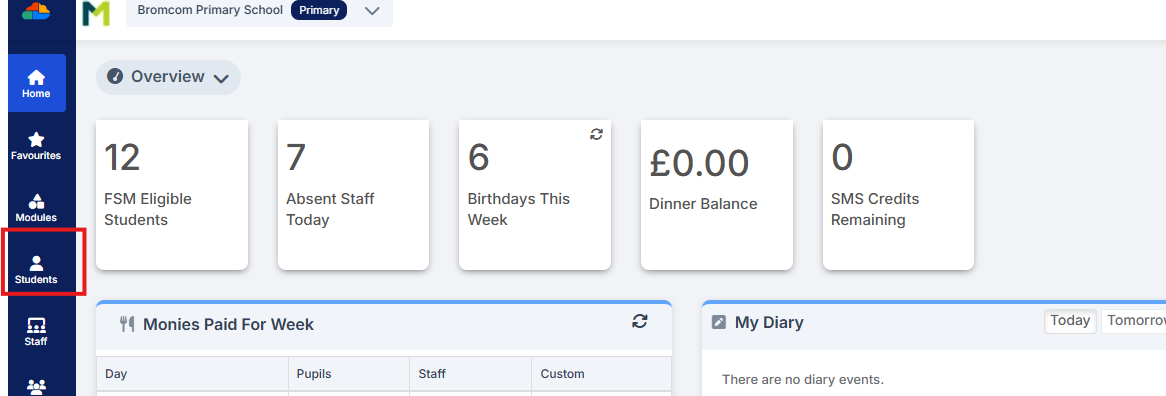
To create a CTF that includes all your Year 1 pupils and any Year 2 pupils that have retaken Phonics this year, first go to the student area on the left hand side menu.
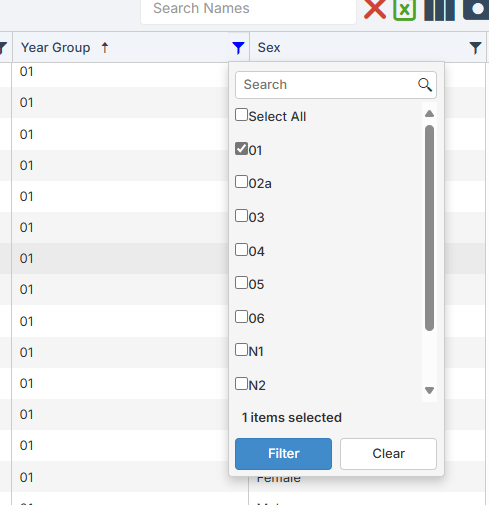
You can then use the filter on the year group column to select Year 1
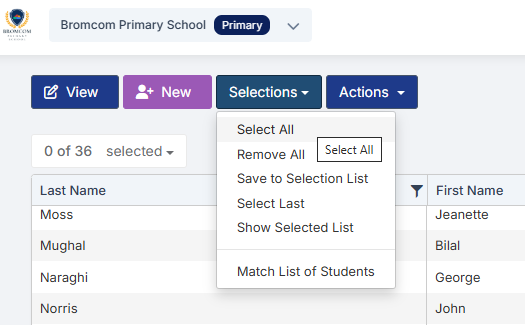
Now use the Selections button at the top to Select All, and all your Year 1 students will now be highlighted.
To add any Year 2 pupils go back to the filter option next to Year Group and add Year 2, then click filter
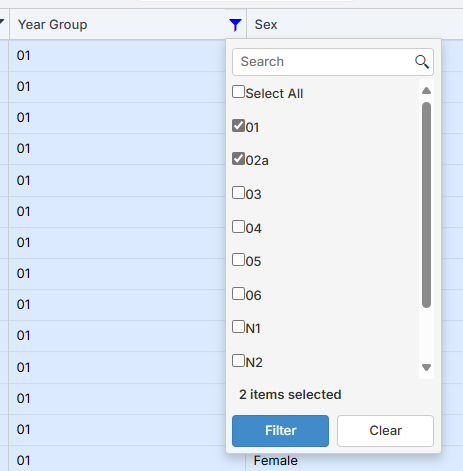
Now you need to select just those Year 2 pupils that have retaken Phonics this year. You do this by clicking on their names so they are highlighted in blue, along with all of your Year 1 pupils you’ve already selected in the earlier step.
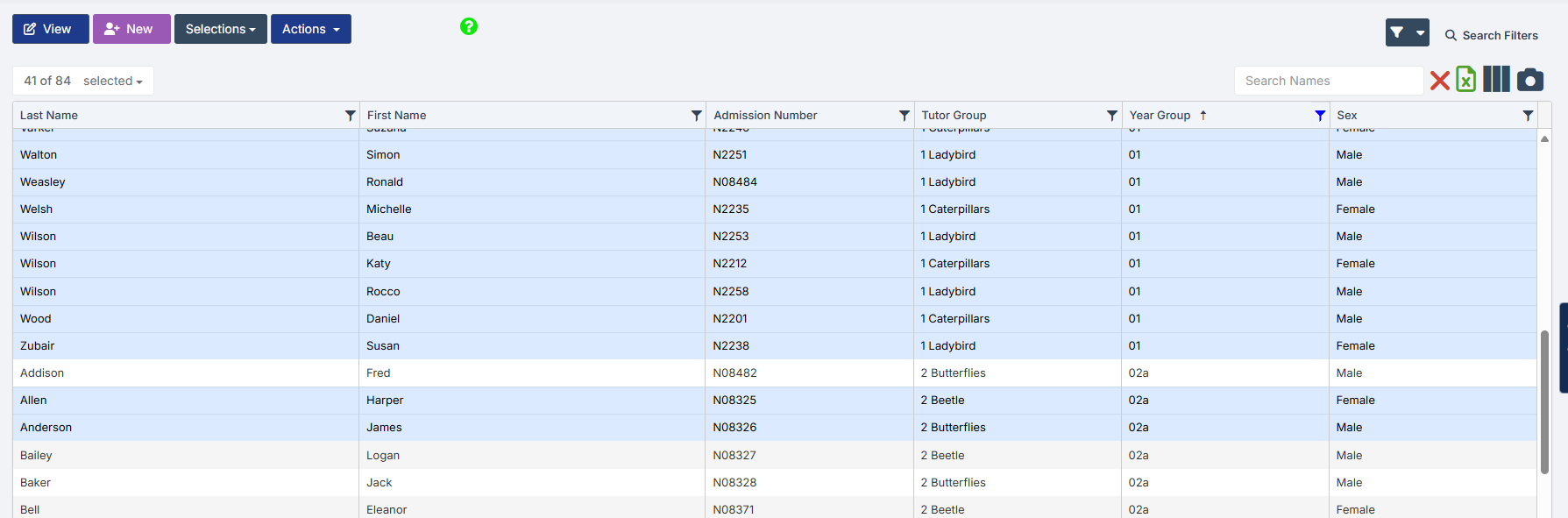
Once you have all the Phonics pupils highlighted, you can check the total pupil number on the top left to confirm the correct number, you then click Actions and CTF Export
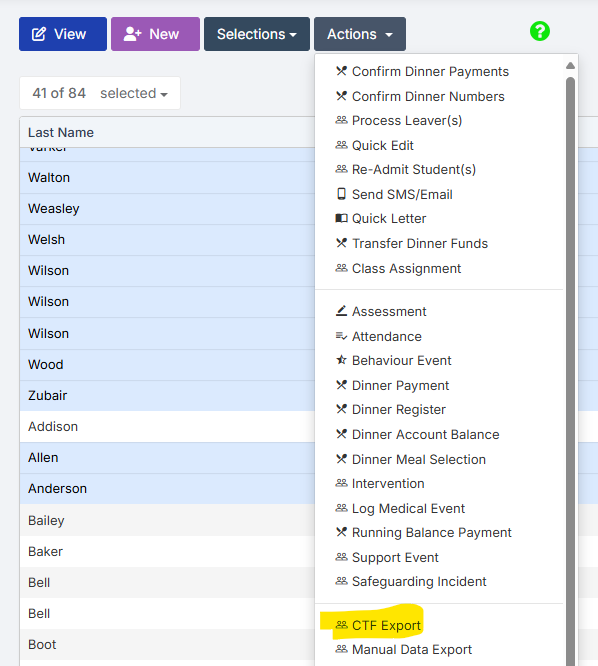
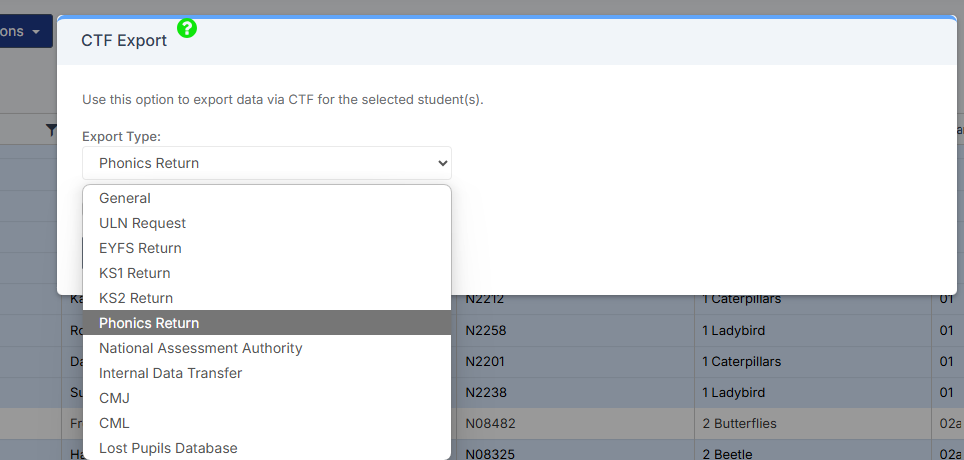
Select the required Export Type.

For Year 1 and Year 2 phonics the export type is Phonics Return
Tick the LA return box and select your LA
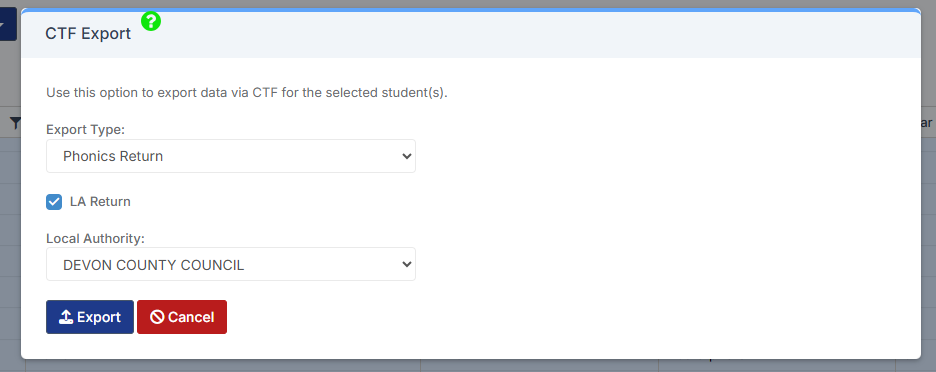
Click Export

This file will then go to your Downloads ready for you to upload.


How useful was this article?

Click on a star to rate it!

Average rating / 5. Vote count:

No votes so far! Be the first to rate this post.

Similar Posts

  • MCAS – What is included and how do I get started?

    My Child at School is a useful communication tool for schools to use with parents which can be configured to give applicable  in the following areas:   Assessment Attendance Behaviour Class Lists Clubs and Trips Dinner Money Online payments Exams and exam timetables Homework On Report Parents Evening Reports Timetable Academic calendar School shop Parental…

  • Bromcom Exams: How do I prepare and print the candidate statements

    Browse to Reports> Examinations>Results> Results by Students Click ” Find” button opposite candidate name Click “Select All” button top right or alternatively click and highlight the required students Click “Preview” This will then show the statement of results by candidate, you can click the top arrow button to view them one student at a time…

  • Third Party Application integration with Bromcom

    When looking to integrate a third party application, it’s best to liaise with the third party for more detailed instructions. The purpose of this guide is to explain how a new User Account can be created to give Third Party Supplier’s access to data in your MIS system through Bromcom’s API interface, which is required for all…

  • Bromcom: Pre-Admissions

    Pre-Admissions in Bromcom Attached is a brief guide on how to carry out the following tasks with regards to Pre-Admissions; Creating a Pre-Admission Group Adding Students Manually Adding a student Via CTF/ATF Communication Using MCAS to share/collect information Sending Messages to parents Managing Admissions Finalise Admissions/Admitting Students Bromcom Pre-Admission documentation How useful was this article?…