|

Bromcom: How to view Year 2’s Phonics results from when they were in Year 1

If you need to view your current Year 2’s Phonics results from the previous year, you can do so using a report.

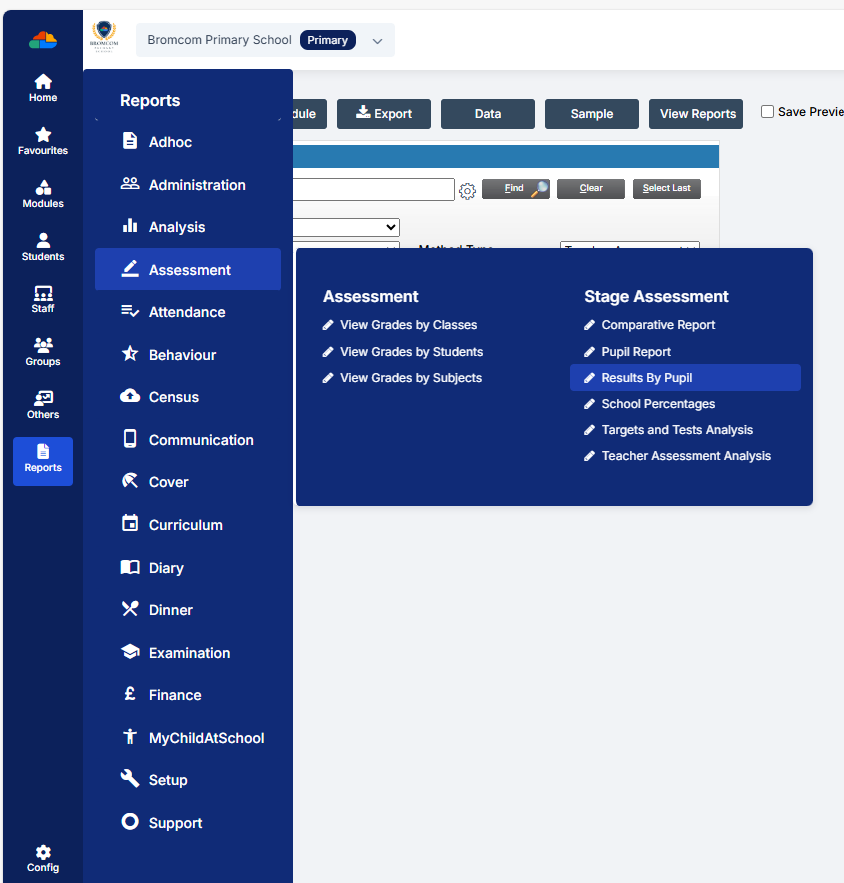
Go to Reports on the left hand side menu, then Assessment and then Results by Pupil
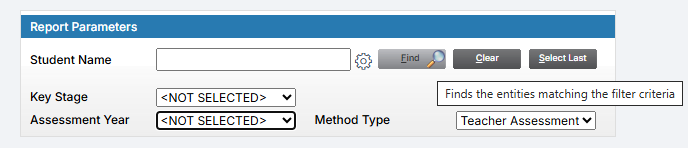
Use the find button to select all of your current Year 2 pupils
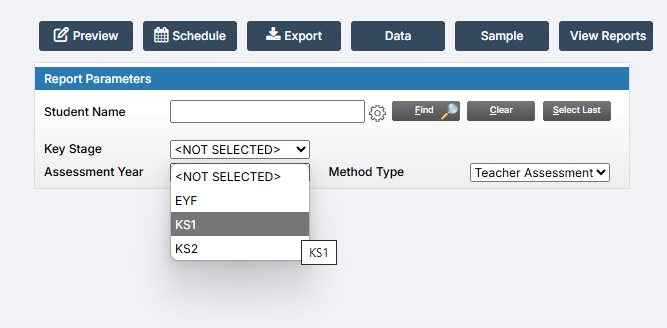
Now select KS1 from the Key Stage drop down
Then choose the assessment year
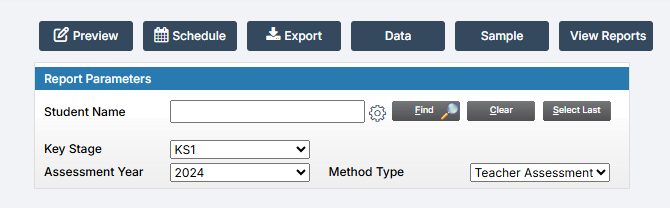
Now you can either preview or export the report as needed, and it should show you the results of the Year 1 Phonics assessment for your current Year 2 pupils.


How useful was this article?

Click on a star to rate it!

Average rating / 5. Vote count:

No votes so far! Be the first to rate this post.

Similar Posts

  • Finding your iPad’s MAC Address

    If your the wireless network you are connecting to is a Managed Network, then you will need to provide your Network Administrator with the iPad’s MAC Address. To obtain this first Tap on the Settings Icon… Once in the settings application, you will be in the General Screen as shown below: Tapping on About will…

  • Bromcom – Readmit student

    To begin, go to the Student List page. From there, press Search Filters on the top right and change the Status to Leaver. Now select the student/s that you wish to Re-admit and press Actions>Re-admit Student(s). If you are Re-admitting multiple students, the Re-admit Date you select is going to apply to each student so please double check the dates you need before proceeding. Further and full information can be found here: How to…

  • BROMCOM: Where would you amend the cost of a school meal?

    You can do this in: Config>Dinner>Meal Definitions         How useful was this article? Click on a star to rate it! Submit Rating Average rating / 5. Vote count: No votes so far! Be the first to rate this post.

  • Bromcom: Updating Staff Current Job Title

    To update the staff current job title in bulk go to Staff > Selection > Select All and then Actions > Manual Data Export. From here select “Basic Details” and tick “Include empty records where data does not exist” and click Export Open the spreadsheet that has been downloaded and enter all required information. After…