|

Bromcom: How do I partially refund a “Paid” club pupil order

If you need to  partially refund a pupils club order, please take the following steps:


  1. Please browse to Modules> MCAS> Online Payment> View Orders
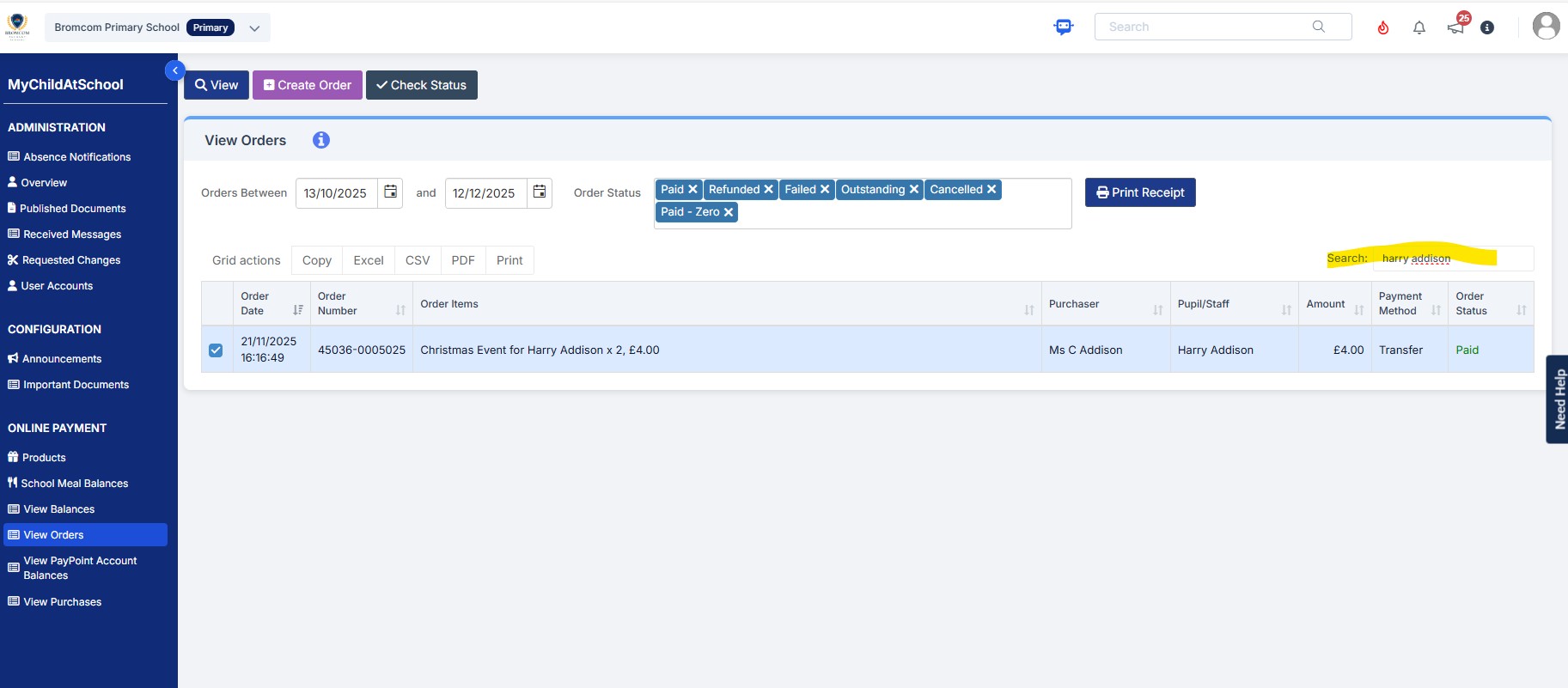
  2. Amend the dates if required and type the pupils name into the search bar as shown in the example screen shot below and double click the order.
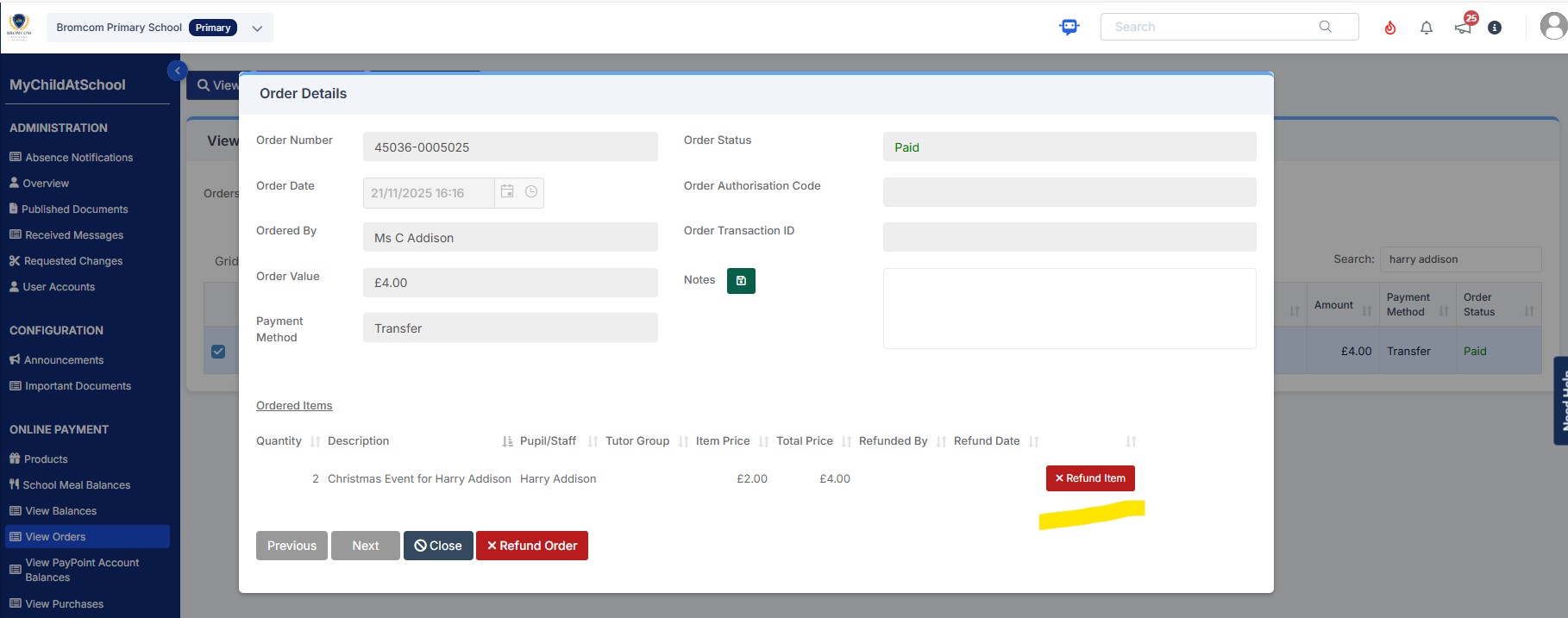
  3. After clicking the order your screen will look like the example screen shot below. For a partial refund, please click the “Refund Item” red button
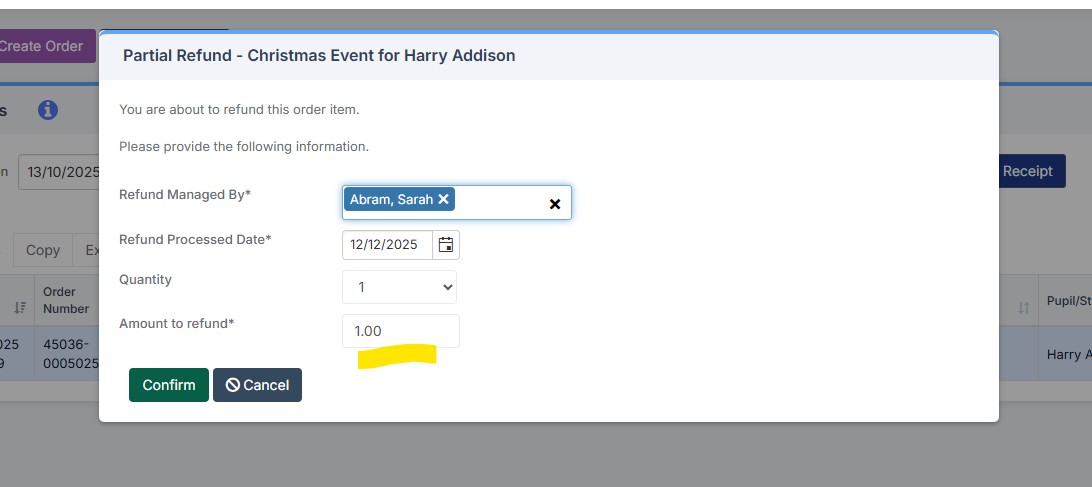
4)Type the amount to be refunded into the “Amount to be refunded box”  and  click the  green “Confirm” button
5) After clicking “Confirm” you will the see the below popup to confirm the partial refund was a success.

6) Please refresh your Bromcom screen and you will then see the order has reduced as in this example below from £4.00 to £3.00

 

How useful was this article?

Click on a star to rate it!

Average rating / 5. Vote count:

No votes so far! Be the first to rate this post.

Similar Posts

  • Bromcom Finance: What do the different status’s mean when processing invoices

    Authorised – This means the Invoice has been “Authorised” and the user would have clicked “Authorise” within the invoice, ready to centrally authorised. Passed for Pay – This means the Invoice has been processed through “Central Authorisation” and print and exported the batch to create a file to upload to the “Local Authority” Paid – This…

  • MCAS – What is included and how do I get started?

    My Child at School is a useful communication tool for schools to use with parents which can be configured to give applicable  in the following areas:   Assessment Attendance Behaviour Class Lists Clubs and Trips Dinner Money Online payments Exams and exam timetables Homework On Report Parents Evening Reports Timetable Academic calendar School shop Parental…

  • Recording Club Attendance in Bromcom

    In Bromcom it’s possible to record attendance for Clubs, in this KB we’ll show you how this is done. Navigating to the Clubs Homepage In Bromcom, click the Groups button, this will default either to Tutor or Class. In the top right corner of the screen change the Group Type to Clubs Recording Attendance Select…

  • Bromcom Finance & Budgeting : How do I enter a Variance reason in Budget Variances

    Modules> Finance> Homepage> Budgeting> Budget Variances In the budget variances you can add a budget variance reason against e.g a Cost centre as shown in this example below: Note: Any Variance reason needs to be added before you sort your columns – see sorting columns FAQ – Bromcom Finance & Budgets: How do I sort…

  • BROMCOM:Shared Staff in a tutor group

    If you have more than one staff member with scheduled timetabled registers e.g Mr Smith is timetabled for Mon-Wed and Mrs Brown is scheduled Thur- Fri then you might want to remove tick box ten from the Daily Maintenance Settings. The Daily Maintenance Settings are a group of processes that are performed automatically on a…