|

BROMCOM: DEVON- How to upload CTF’s to Devon Transfer

How to upload your Phonics and EYFS CTF’s to Devon Transfer.

If you are a Devon school you need to upload two CTF’s to the Data and Assessment team at Devon County Council.

Once you have created your CTF’s- BROMCOM: How to create a Key Stage DFE assessment CTF – Frequently Asked Questions

Log into Devon Transfer – AnyComms+ Login

Please see the following if you have forgotten your login- Anycomms – Support for schools and settings

Click Upload to Service 

Find your EYFS CTF (this should be called something like 8309999_FSP_830LLLL_001) and select EYFSP from the drop down. Then select Devon Education Services.
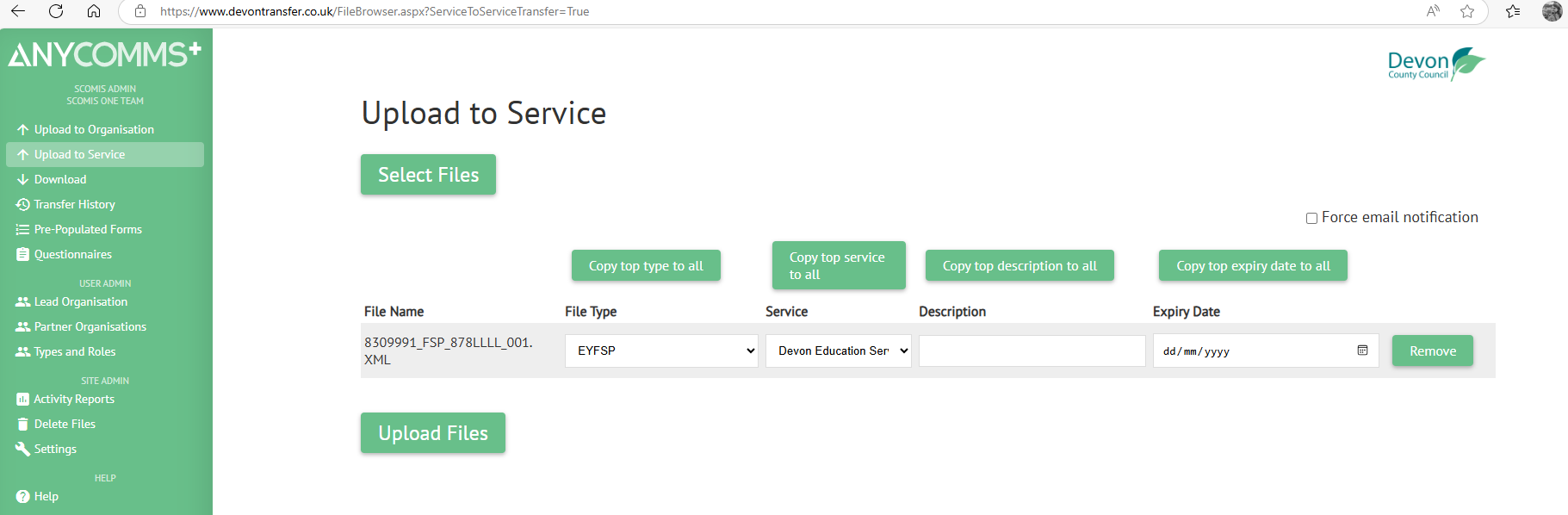
Once you are happy click Upload Files 

Repeat for your Phonics CTF 

Find your Phonics CTF (This should be called something like 830999_PHO_830LLLL_001) and select Phonics Yr1+Yr2 retakes Combined. Then Select Devon Education Services. 
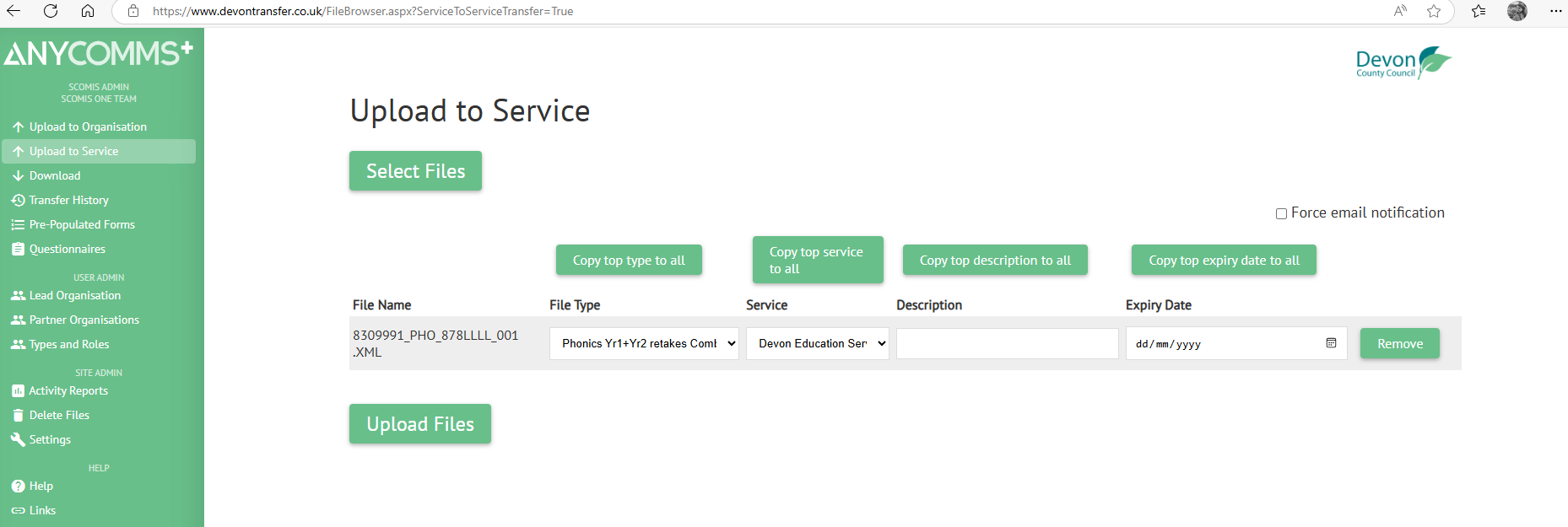
Once you are happy click Upload 

Your KS2 CTF should be uploaded straight to the Primary Assessment Gateway- Submitting key stage 2 teacher assessment data in 2025 – GOV.UK

How useful was this article?

Click on a star to rate it!

Average rating / 5. Vote count:

No votes so far! Be the first to rate this post.

Similar Posts

  • BROMCOM: How to create a Key Stage DFE assessment CTF

    How to create a Key Stage DFE assessment CTF’s EYFS – Please check with your LA. If you are a Devon school-Upload to Devon Transfer Phonics – Please check with your LA. If you are a Devon school- Upload to Devon Transfer (Please note: For Devon this is a combined CTF with all Year 1’s and…

  • Bromcom – Readmit student

    To begin, go to the Student List page. From there, press Search Filters on the top right and change the Status to Leaver. Now select the student/s that you wish to Re-admit and press Actions>Re-admit Student(s). If you are Re-admitting multiple students, the Re-admit Date you select is going to apply to each student so please double check the dates you need before proceeding. Further and full information can be found here: How to…

  • BROMCOM: How to import Year 4 MTC Results CTF

    You will revive a CTF file with the MTC results that you can import into your Bromcom Go to Students from the left hand side menu From the Year group filter select Year 4 From the Selections button click ‘Select All‘. This should then highlight all your required pupils in blue. Once you have all…

  • Bromcom Staff Data Collection Report

    This report can be found via Reports – Administration – Staff data check report. You can export, print, and hand-out to teachers to check.  Alternatively you could create a quick report with the information you want to check, include staff email, and then mailmerge it to staff. Also, staff should (permissions allowing) be able to…

  • Bromcom Finance: What do the different status’s mean when processing invoices

    Authorised – This means the Invoice has been “Authorised” and the user would have clicked “Authorise” within the invoice, ready to centrally authorised. Passed for Pay – This means the Invoice has been processed through “Central Authorisation” and print and exported the batch to create a file to upload to the “Local Authority” Paid – This…