|

Bromcom Finance: Year End Payroll clearance from FC01 ** Local payments – Devon LA**

Local payments need to carry out a payroll clearance in order to set the Fund Control 01 to zero , prior to preliminary close down.

Please see the following steps:

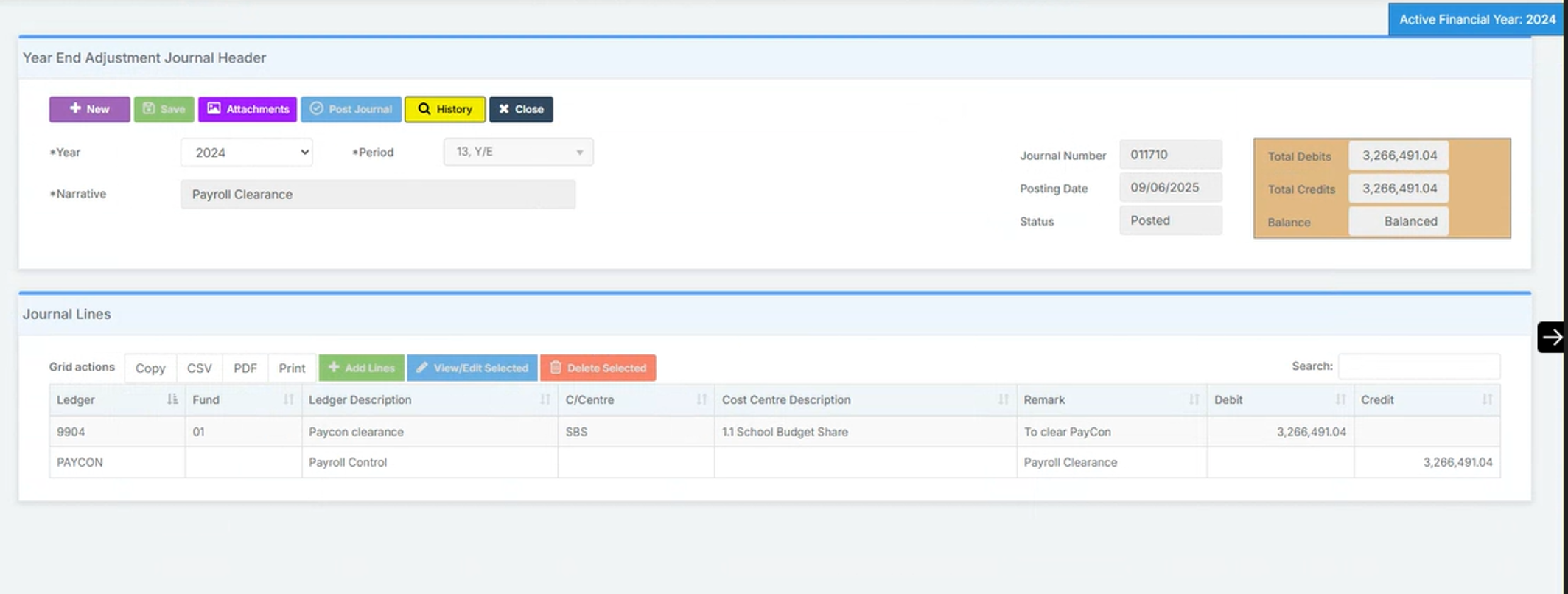
Step 1 – Modules > Finance> Homepage>General Ledger>Journals.  Select “Year End journal” if you have already run  preliminary close or standard journal if you have not run Preliminary close.

  • Click green add lines button to add your journal lines:
  • Line 1  – Select 9904 ledger code to record a debit for the payroll amount for the year as shown in the screen shot below.
  • Line 2 – Select PAYCON ledger code to record a credit as shown in screen shot below.
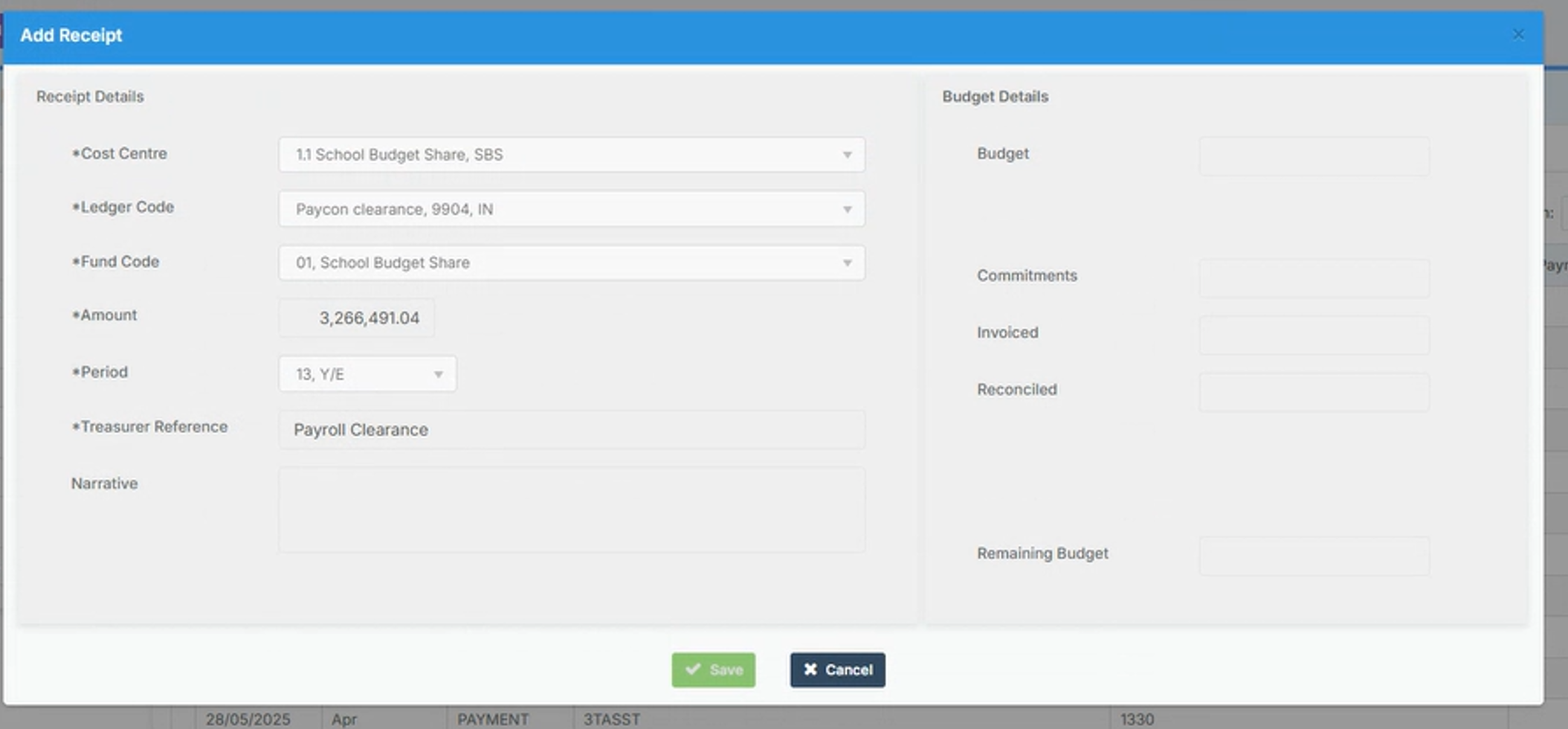
Step 2 Modules> Finance> Homepage>Routines> Central payments/Receipts

  • Record a receipt as shown in the screen shot below to credit the ledger PAYCON with the payroll expenditure for the year.
  • Once this has been done you will need to run preliminary close again via Modules> Finance> Homepage>Routines> Close Financial year process.
 

How useful was this article?

Click on a star to rate it!

Average rating / 5. Vote count:

No votes so far! Be the first to rate this post.

Similar Posts

  • Bromcom Finance: How do I enter my budget into the new year ?

    Modules> Finance> Homepage>Budgeting> Cost Centre allocation. Top tip: When in Cost centre allocation, you can click “Edit Mode” located top right of screen, which opens all cost centres and ledger codes in one area for you to add your budget allocations. Please also see the following guide:Bromcom Finance guide – How to Enter Budgets  …

  • BROMCOM: How to import Year 4 MTC Results CTF

    You will revive a CTF file with the MTC results that you can import into your Bromcom Go to Students from the left hand side menu From the Year group filter select Year 4 From the Selections button click ‘Select All‘. This should then highlight all your required pupils in blue. Once you have all…

  • Bromcom Finance: How do I add a Fund code?

    Modules> Finance> Homepage> Maintenance>Fund Codes Click New as shown in the below screen shot to create your chosen fund code Please also see guidance on Fund allocation How to allocate Funds How useful was this article? Click on a star to rate it! Submit Rating Average rating / 5. Vote count: No votes so far! Be…

  • Bromcom: MCAS User Activity

    You may be starting to roll out MCAS and have been sending links out to parents. In Bromcom, you can run a report that shows you which students parents have not activated their account. You can run the User Accounts Report under Reports>MCAS>Account Report.  Here you will be able to run a report of all…

  • Bromcom Finance & DTSApps – PLYMOUTH SCHOOLS

    Bromcom Finance: How to process your invoices, in Central Authorisation and “Print & Export” Bromcom Finance: Raising orders on suppliers websites for example: YPO & Amazon Bromcom Finance: How to cancel “Passed for Pay” Invoices Bromcom Finance: I have clicked print and not print and export Bromcom Finance and DTSApps: How to process your invoice…

  • Bromcom: How to view Year 2’s Phonics results from when they were in Year 1

    If you need to view your current Year 2’s Phonics results from the previous year, you can do so using a report. Go to Reports on the left hand side menu, then Assessment and then Results by Pupil Use the find button to select all of your current Year 2 pupils Now select KS1 from…