Additional Funds not showing when selecting Ledger Code in Central Payments and Receipts

There is currently an issue within Bromcom Finance that is not allowing additional Fund Codes to be selected when within Modules > Finance > Routines > Central Payments and Receipts.

The issue that is currently being experienced is that when selecting a ledger code that is linked to multiple funds only Fund 01 is showing.
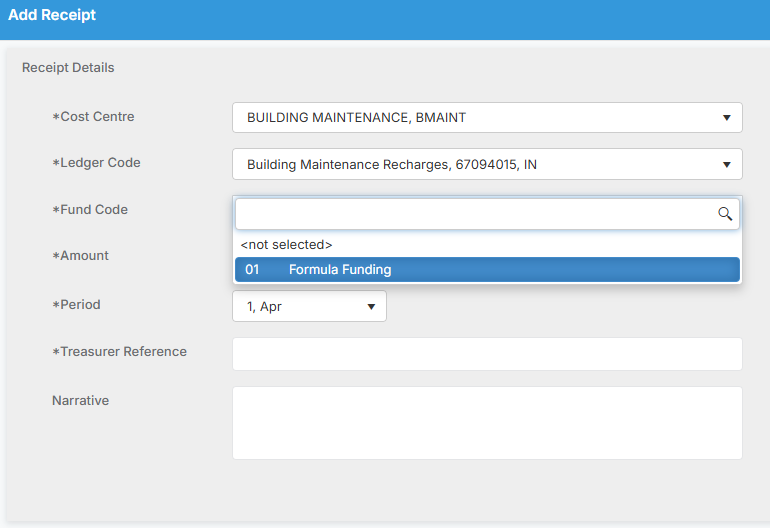
This is despite the ledger code being linked to multiple funds in Modules> Finance> Maintenance> Ledger codes, the additional fund codes being ticked.

Bromcom have advised that this is a known issue which they are currently working to rectify but in the meantime if you experience this issue please log a case with the Service Desk

How useful was this article?

Click on a star to rate it!

Average rating / 5. Vote count:

No votes so far! Be the first to rate this post.

Similar Posts

  • Bromcom Finance: How to cancel “Passed for Pay” Invoices

    There are a couple of reasons you might need to cancel your raised “Passed for Pay” Invoices: If you have lost your “Print and export” text file that is required for processing through DTSApps, you will need to cancel your invoices and re-raise them.  If you have raised an invoice and now no longer require…

  • Bromcom Finance : How do I clear a salary commitment ?

    You will need to clear a salary commitment if you have reconciled manually via Individual salary payments or central payments as follows: Browse to Modules> Finance> Homepage> Staffing> Salary Projections. Click the “Actions” button top left > Click “Amend Commitments” Select the staff member & posting period. Click “Clear Commitments” How useful was this article?…

  • Bromcom Finance: Base Pay mapping FAQs

    Please see this guide for commonly asked questions around “Base Pay Mapping” If you need assistance with setting up mapping please see the following FAQ How to add Base Pay Mapping Scenario 1 – I have staff with the role of “Teaching assistants ” that need to be mapped to multiple cost centres In Bromcom…

  • Bromcom Finance: Configuring Bromcom to send purchase orders by email

    Prerequisites – Please ensure you have configured email for the Bromcom MIS system as per instructions in the following guide. Sending emails from your school email address in Bromcom – Frequently Asked Questions To enable Bromcom Finance module to send emails for BACS and purchase orders, you need to complete the following steps: Browse to…

  • Bromcom Finance & Budgets: How can I export my Budget Variance Report?

    Modules> Finance> Budgeting> Budget Variances You can export your budget variances report by clicking into any of the budget lines and then right click, select “Export” to CSV or Excel, as shown in the below screen shot:     How useful was this article? Click on a star to rate it! Submit Rating Average rating…