Bromcom: Missing Staff Dinner Balance Widget

If your staff is missing the “Staff Dinner Balance” widget, please ensure the correct permission has been assigned to their “Teacher” role.

To ensure the correct permissions have been assigned, please browse to Config> Setup> Roles and permissions, choose the role e.g Teacher click edit and choose the module in the drop down of “Profile”

You will then see a list of permission including one for “Dinner Balance” as per the below screen shot. Please then tick  the permission under the “Access” column and click the green save button.
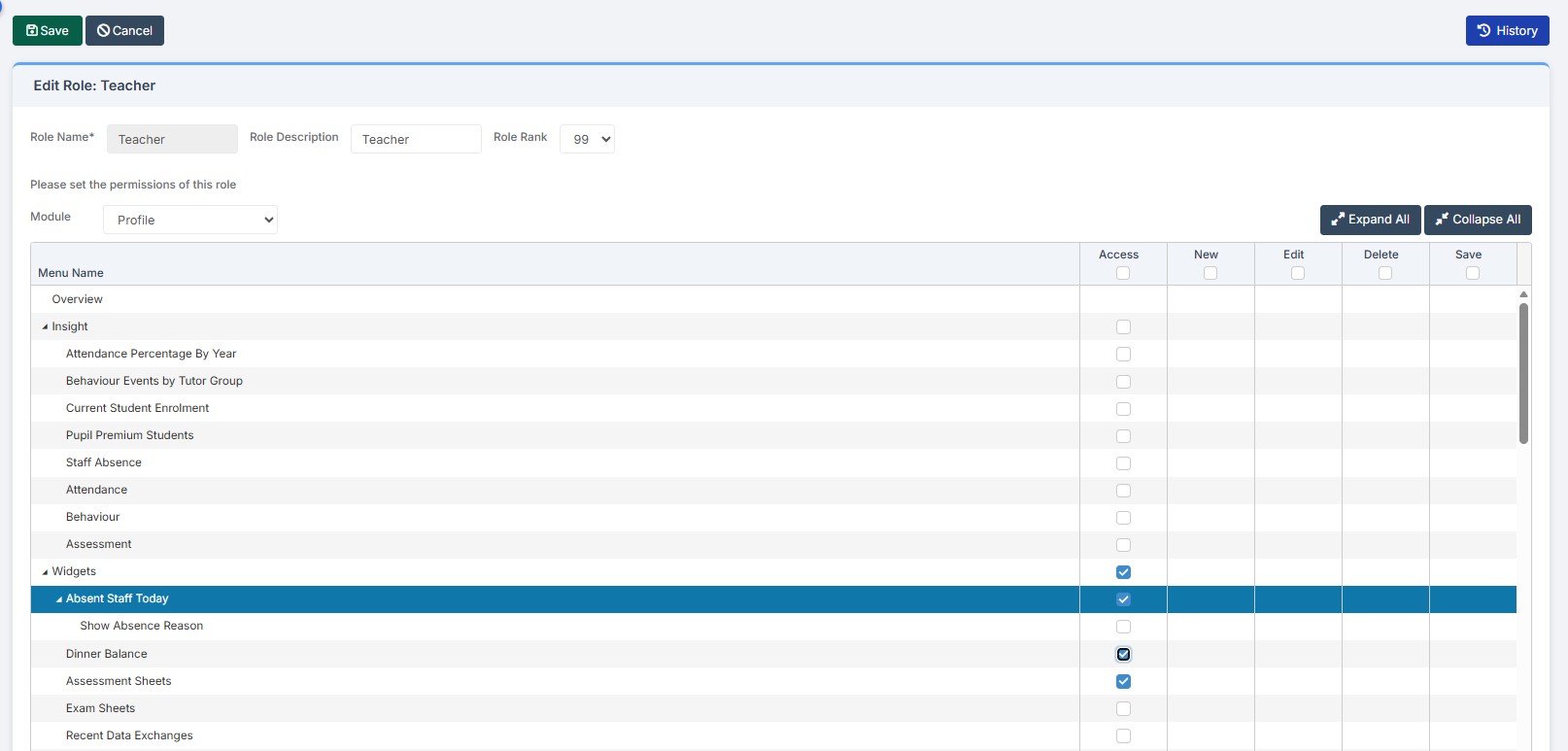
Once you have done the above, please ask the teacher to check the dinner balance widget is showing on their Bromcom homepage, under the drop down tab of overview.  If for any reason the widget is not showing it can be added by clicking on the  settings button top right of the homepage – overview section.


How useful was this article?

Click on a star to rate it!

Average rating / 5. Vote count:

No votes so far! Be the first to rate this post.

Similar Posts

  • Bromcom Finance & DTSApps – DEVON SCHOOLS

    Bromcom Finance: How to process your invoices, in Central Authorisation and “Print & Export” DTSApps – Bromcom Integration Guidance Bromcom Finance: Raising orders on suppliers websites for example: YPO & Amazon Bromcom Finance: How to cancel “Passed for Pay” Invoices Bromcom Finance: I have clicked print and not print and export Bromcom Finance and DTSApps:…

  • Bromcom: Parent only seeing one child in MCAS

    You may find that you receive queries from Parents as to why they can only see one of their children in MCAS.  This may be because “Grant access to student details on MCAS” is not ticked” within the contact record. Please go to “Others”, Type: “Contact” and open the contact record.  Within “Linked Students”, double…

  • Bromcom: How to enter marks into Key Stage DFE assessment marksheet

    Once you have opened your marksheet- BROMCOM: How to View Marksheets as a Teacher or Admin – Frequently Asked Questions you will need to enter your marks There are three ways to enter marks into Bromcom  You can enter marks by  clicking in each cell and entering the marks 1 by 1 Alternatively if you…

  • BROMCOM: How to View Marksheets as a Teacher or Admin

    How to view the Marksheets for Key Stage Assessments in Bromcom, once the configurations has been complete: BROMCOM: How to add ‘Configurations’ to a Role for Key Stage – Frequently Asked Questions There are a few ways the Marksheets can be viewed in Bromcom for a Teacher: From the Homepage, go to Settings on the…

  • Bromcom Finance & DTSApps – PLYMOUTH SCHOOLS

    Bromcom Finance: How to process your invoices, in Central Authorisation and “Print & Export” Bromcom Finance: Raising orders on suppliers websites for example: YPO & Amazon Bromcom Finance: How to cancel “Passed for Pay” Invoices Bromcom Finance: I have clicked print and not print and export Bromcom Finance and DTSApps: How to process your invoice…

  • Bromcom: Bulk Update Class Memberships

    To bulk update class memberships go to Modules > Curriculum > Bulk Group Assignment The drop-down menu allows you to choose Class, Tutor Group, Band and Block In this example I am setting the Art students in Year 8 Next to the Group Name click the Magnifying glass and choose the required classes. Click Done….