|

Recording Club Attendance in Bromcom

In Bromcom it’s possible to record attendance for Clubs, in this KB we’ll show you how this is done.

Navigating to the Clubs Homepage

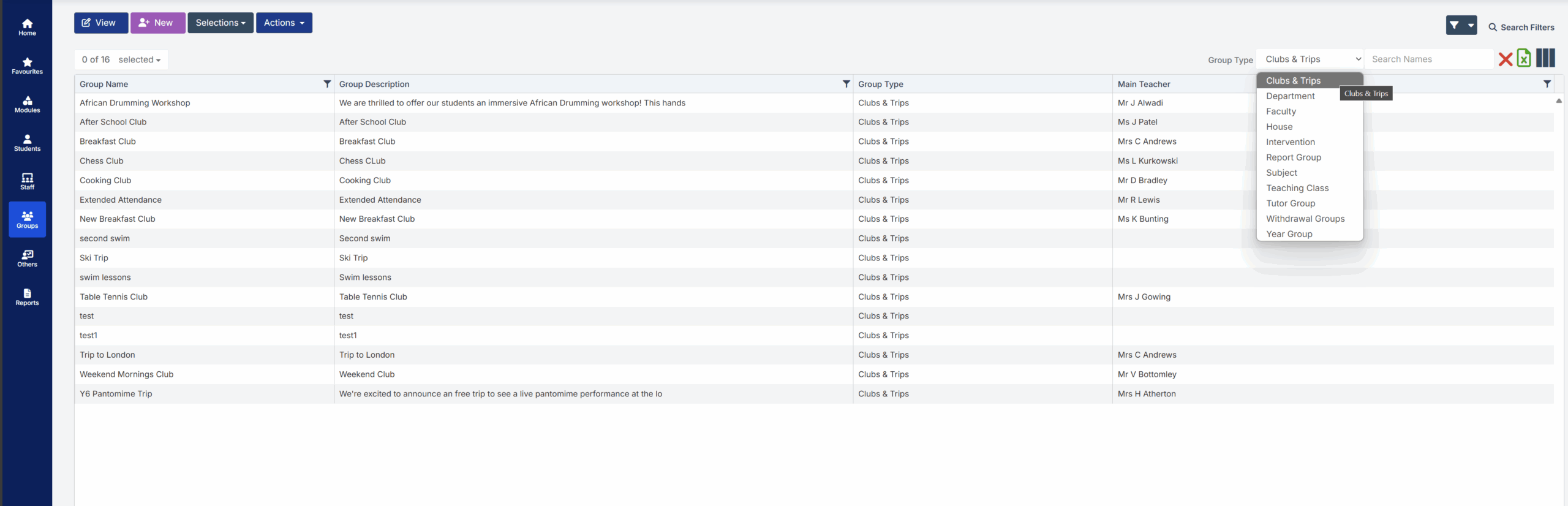
In Bromcom, click the Groups button, this will default either to Tutor or Class. In the top right corner of the screen change the Group Type to Clubs
Recording Attendance

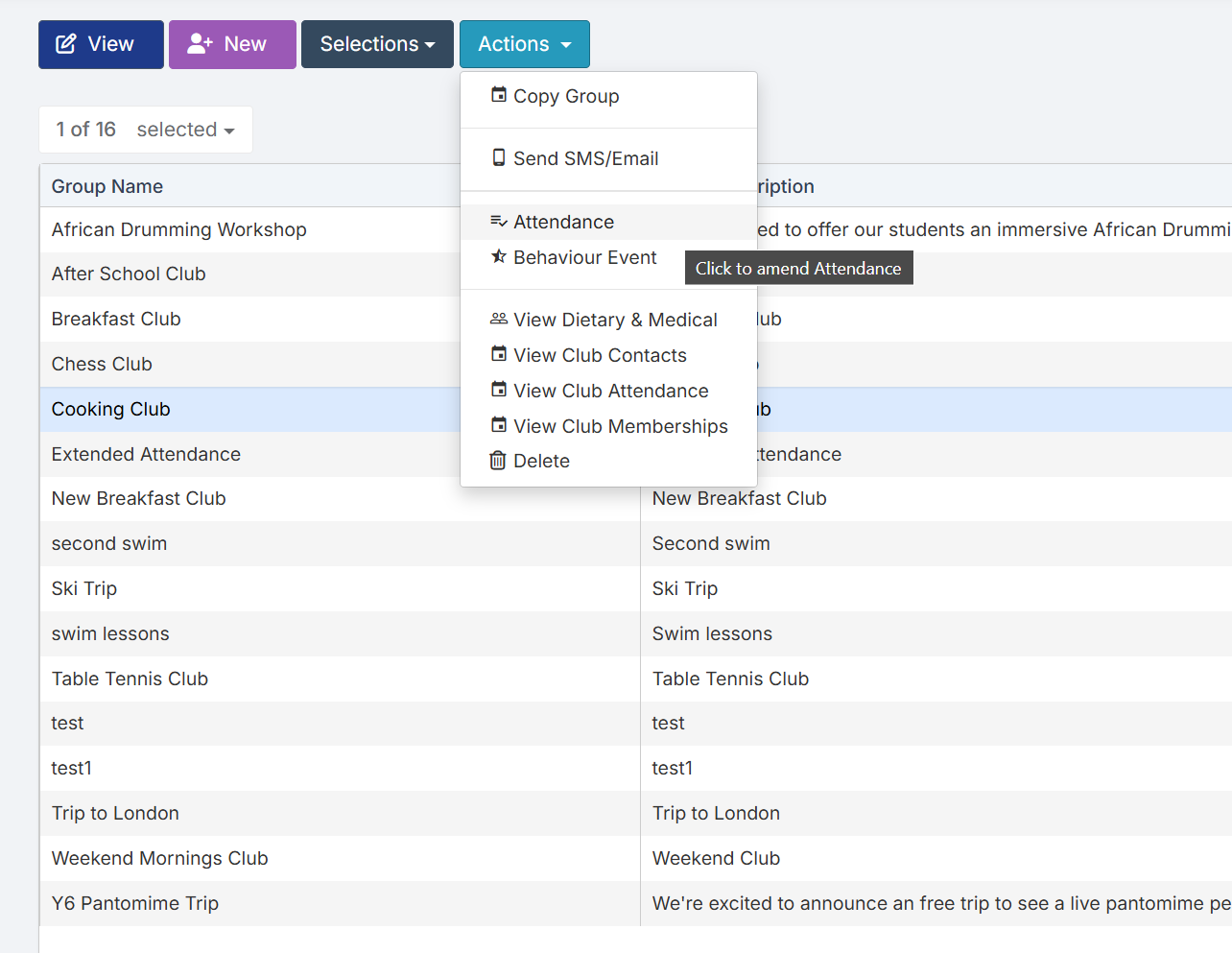
Select the Club(s) that you want to take the register for, then use the Actions menu to select the Attendance option
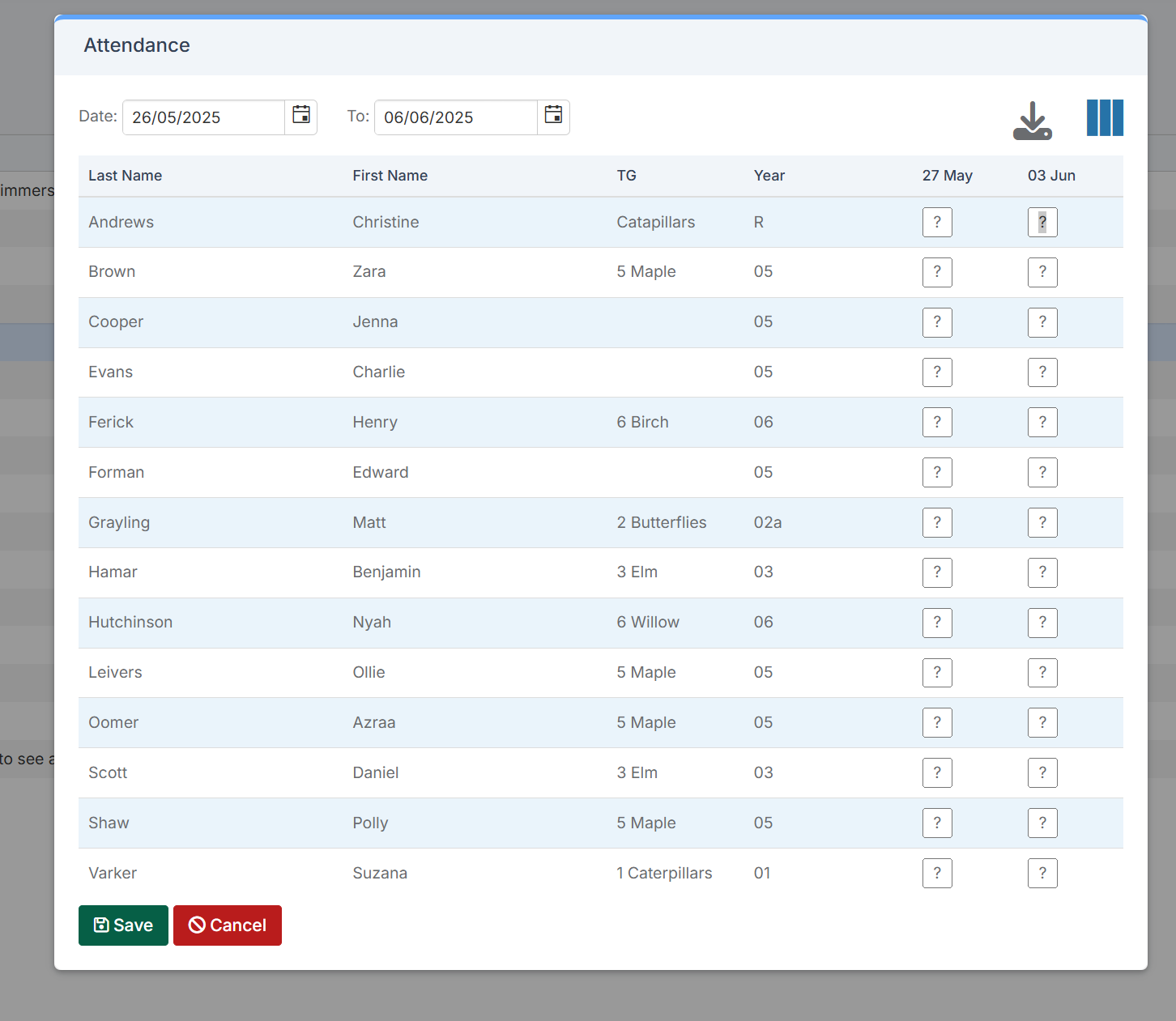
When you open the Attendance window it will default to the current week, using the dates at the top of the window you’ll be able to show both previous or future sessions.
Reporting on Club Attendance

It’s possible to report on club attendance via the Quick Reports area in Bromcom.

How useful was this article?

Click on a star to rate it!

Average rating / 5. Vote count:

No votes so far! Be the first to rate this post.

Similar Posts

  • BROMCOM: How to Add Staff to Edit/View Marksheets

    For Key Stage Assessments after you have access via BROMCOM: How to add ‘Configurations’ to a Role for Key Stage – Frequently Asked Questions Go to Config > Assessment > Configurations and put the tick in Enable Sheet Users.         You can then tick which Staff Roles will require access to the marksheets…

  • Assessment Scores- What is ?

    What is a Raw Score? The raw score is the total number of marks a pupil scores in a test, based on the number of questions they answered correctly. What is a Scaled score? Scaled Score results are reported consistently from one year to the next.  The national curriculum tests are designed to be as…

  • BROMCOM: Which Marksheet to Enter Phonics Results

    In Bromcom via Modules > Assessment > Assessment Sheet List, the Phonics is Entered in the Marksheet named KS1-2025-01 for Year 1 Pupils. For Year 2 Phonics Retakes – This is entered in KS1-2025-02  The marks are entered in the Phonics Screening Check Mark This takes you through how to Enter in Marks How useful…

  • Bromcom: Why can’t I add a new room to Exams?

    In order for a room to appear within Exams it must first be added in Config > Administration > Rooms Once it has been added here you will then need to go to Config > Examination > Exam Rooms and click New. You will then need to click on the magnifying glass icon which will…