|

Bromcom Finance: How to process your invoices, in Central Authorisation and “Print & Export”

Once you have added your invoices into Bromcom finance, you will need to authorise and batch up any invoices and credit notes created as follows :

In Bromcom, navigate to Bromcom Finance Home page:

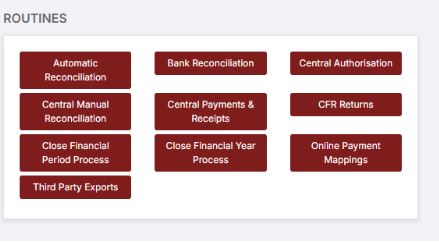
1) Click on Central Authorisation in the Routines area:
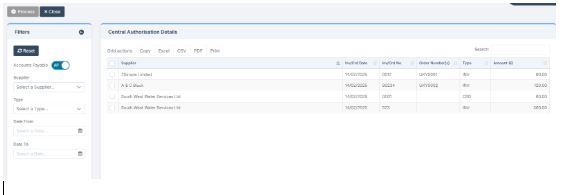
2) You will see any invoices and Credit notes that have been Authorised for Central payment
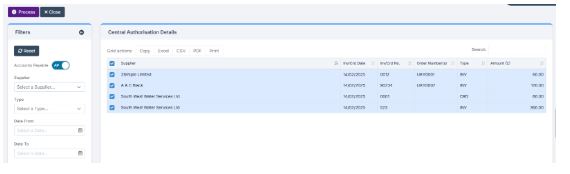
3) Select all invoices and credit notes and click the process button which will now be active and a purple colour: 
4)  Click on the Process button, you will see a Print Details pop-up. You can also print the authorisation sheet in a shorter format from DTSApps rather than printing and signing the PDF which is the longer version.
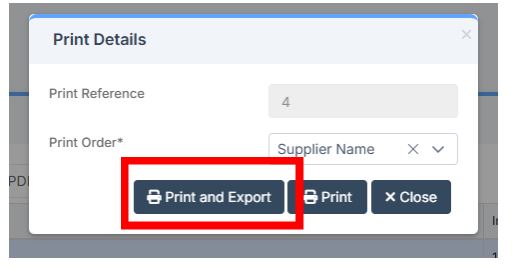
IMPORTANT :It is essential that you click the Print and Export button.  This will generate signing slips in a .PDF file and a (Text file which is needed for DTS Apps processing)

5) Click Yes on the Pop up to confirm the transactions:
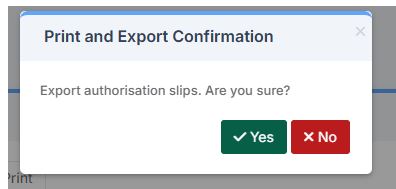
 

6) You will see that the files have been created as in the screen shot below, and will appear in your downloads. (Top Tip: Copy/Move the “text file” from your downloads and paste into a new folder e.g. label folder as” Bromcom Finance exported files”

 

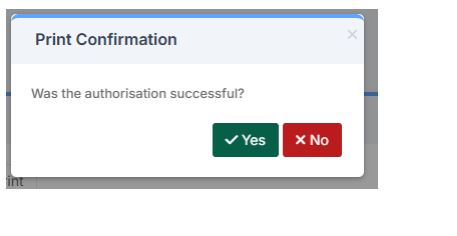
7) On the next step once you have ensured you have the text file saved, as advised in the above step, say YES to confirm that the authorisation has been successful, see screen shot below :
Important – Please see the following FAQ for processing your central payment text file through DTSApps: https://faq.scomis.org/kb2395844/


How useful was this article?

Click on a star to rate it!

Average rating / 5. Vote count:

No votes so far! Be the first to rate this post.

Similar Posts

  • Bromcom: Updating Staff Current Job Title

    To update the staff current job title in bulk go to Staff > Selection > Select All and then Actions > Manual Data Export. From here select “Basic Details” and tick “Include empty records where data does not exist” and click Export Open the spreadsheet that has been downloaded and enter all required information. After…

  • Bromcom Repository

    The online report repository offers a selection of editable reports that you can import in to your system (Reports>Adhoc>View Reports>Actions>Import Report Definition ) More information can be found here: How to use the Online Report Repository & Import Report Definition – Bromcom – Documentation Centre How useful was this article? Click on a star to rate…

  • Bromcom: Asking for “PIN” when deleting a student record

    You may be trying to delete a pupil and are being asked for your PIN? How do you find out what your user PIN is? Request for a PIN usually means you’re an SSO user logging in with O365 or Google, and you were prompted to set your PIN number the first time you logged…

  • Bromcom Finance & Budgeting : How do I enter a Variance reason in Budget Variances

    Modules> Finance> Homepage> Budgeting> Budget Variances In the budget variances you can add a budget variance reason against e.g a Cost centre as shown in this example below: Note: Any Variance reason needs to be added before you sort your columns – see sorting columns FAQ – Bromcom Finance & Budgets: How do I sort…

  • Third Party Application integration with Bromcom

    When looking to integrate a third party application, it’s best to liaise with the third party for more detailed instructions. The purpose of this guide is to explain how a new User Account can be created to give Third Party Supplier’s access to data in your MIS system through Bromcom’s API interface, which is required for all…