|

Bromcom Finance and DTSApps: Download and Reformat process – DEVON SCHOOLS


IMPORTANT: New Process – there is no longer a requirement to log into Devon Transfer to download your reconciliation files, please see step 2

Schools using Scomis DTSApps will process available files using the DTSApps download area as follows:

  1. Log into DTSApps with your login credentials
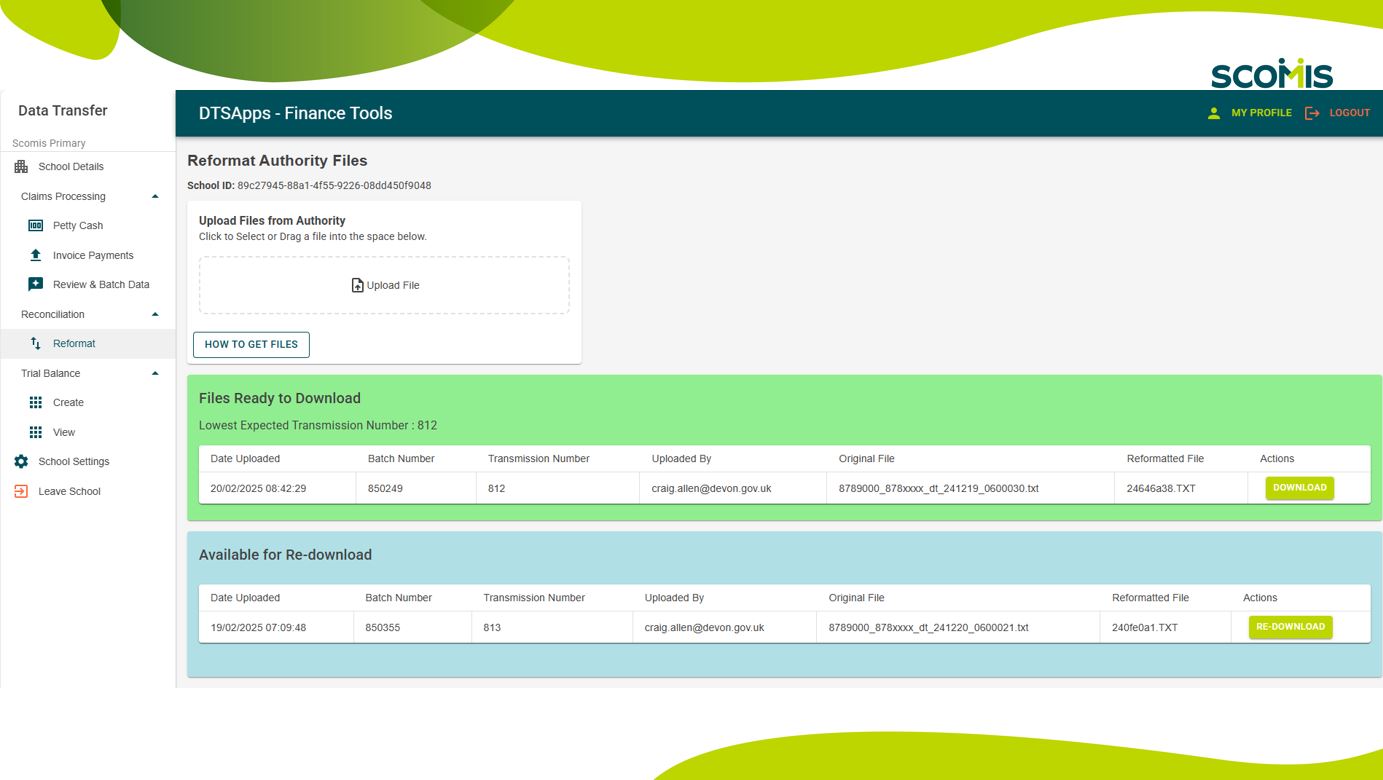
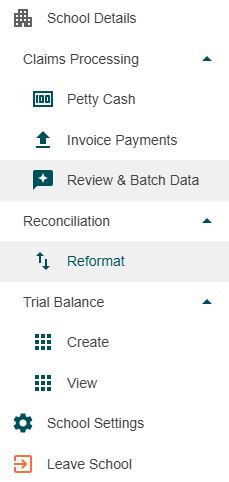
  2.  From the menu on the left, click “Reformat”

3. Any waiting formatted files will in appear in the green window “Files ready to download”. Click the green “Download” button to download the reconciliation file, which will then show in your downloads folder.

4. It is up to the individual school on how you manage your files, shared locations etc.

5. You will need to repeat the above steps for each file you download.

6. Your formatted file is now ready for import into Bromcom as follows : Modules> Finance> Homepage> Routines> Automatic Reconciliation> Import

Please see the reconciliation FAQ https://faq.scomis.org/kb2395869/

How useful was this article?

Click on a star to rate it!

Average rating / 5. Vote count:

No votes so far! Be the first to rate this post.

Similar Posts

  • Autumn School Census 2025 – Bulletin

    This FAQ lists the latest information regarding the School Census.  For Schools wanting the latest documentation for Census and using Bromcom – Click here  to jump to the relevant section. For Schools wanting the latest documentation for Census and using Arbor –  Click here  to jump to the relevant section. For Schools wanting the latest documentation for…

  • Bromcom Repository

    The online report repository offers a selection of editable reports that you can import in to your system (Reports>Adhoc>View Reports>Actions>Import Report Definition ) More information can be found here: How to use the Online Report Repository & Import Report Definition – Bromcom – Documentation Centre How useful was this article? Click on a star to rate…

  • Bromcom Finance: How to process your invoices, in Central Authorisation and “Print & Export”

    Once you have added your invoices into Bromcom finance, you will need to authorise and batch up any invoices and credit notes created as follows : In Bromcom, navigate to Bromcom Finance Home page: 1) Click on Central Authorisation in the Routines area: 2) You will see any invoices and Credit notes that have been…

  • Bromcom: How to show just statutory columns in a Key Stage Assessment marksheet

    If you want your Key Stage marksheet to show only the statutory marks, you can filter this in some marksheets. Go to Modules>Assessment>Assessment Sheets List Browse to your chosen Key Stage marksheet, in this example we’ve chosen the Year 1 Phonics marksheet KS1-2025-01 In the top right of this marksheet click on the cog icon…

  • Examination Bulletin 2025

    Key Dates: Restricted release of results to centres only (00:01); – Wednesday 13 August 2025: GCE AS and A-level, FSMQ, Extended Project, Level 3 Vocational and Technical qualifications – Wednesday 20 August 2025: GCSE, ELC, Foundation and Higher Projects, Level 1 and Level 2 Vocational and Technical qualifications Release of results to candidates (08:00); –…