Bromcom: Attendance – What is the “Projector Mode” when taking a register?

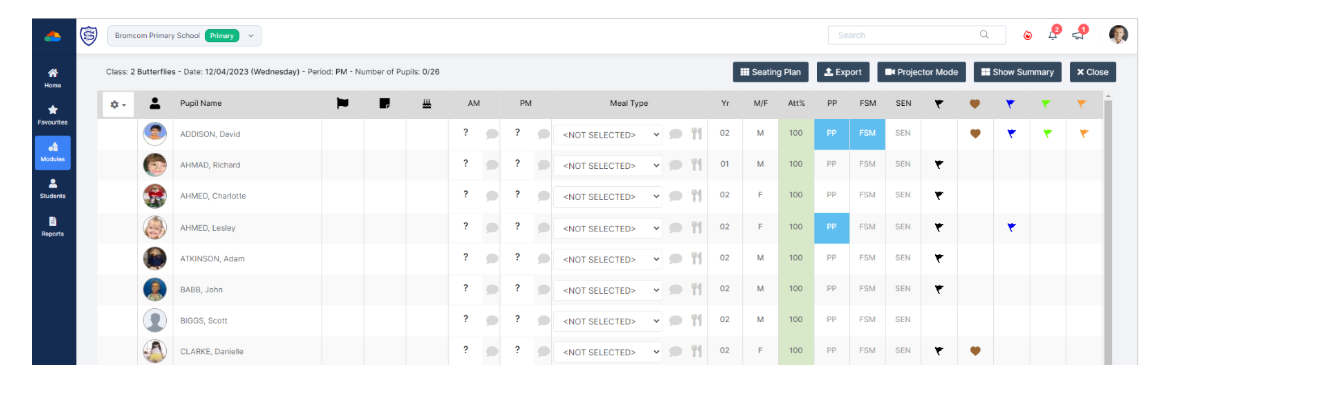
Projector mode, which when turned on, will hide potentially sensitive information on registers from being shown on the Teacher’s screen.  This could be sensitive information such as a students SEN, PP or FSM. 

 In the example below the Projector Mode is Off. 
In the example below the Projector Mode is On. 
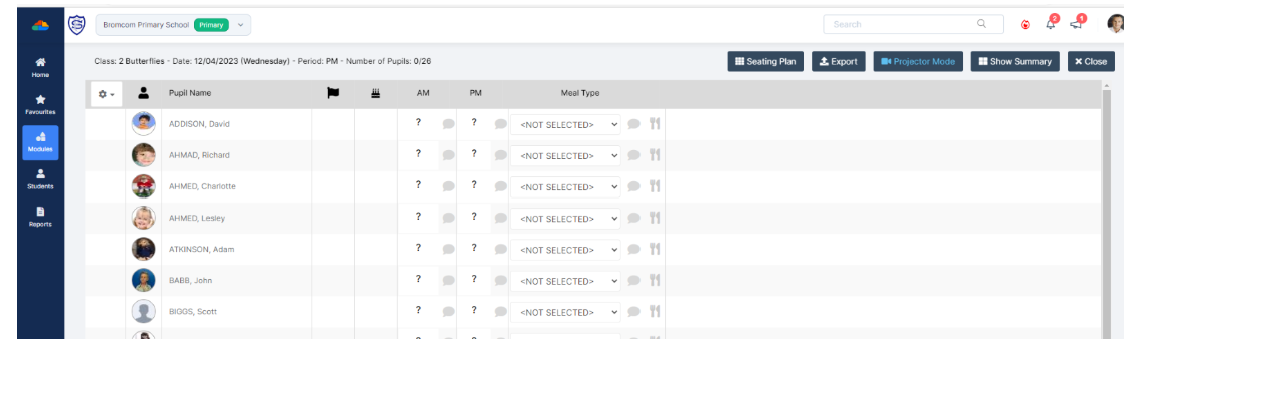
To reenable the Projector Mode, you will need to enter your Password.  This is the password that you use to log into the Bromcom MIS system. 

How useful was this article?

Click on a star to rate it!

Average rating / 5. Vote count:

No votes so far! Be the first to rate this post.

Similar Posts

  • ARBOR – Quick Summary Guide – Pre-checks and Generating School Census

    This FAQ is a quick check list for updating information before Census.  For Schools wanting the latest documentation for Census and using Arbor – Click here  to jump to the relevant section. Thursday 15th January 2026 is census day Spring Census Dry Run opens 2 weeks before Census Day 11th of February 2026 is your census submission…

  • Bromcom: How do I create a CTF that includes leavers?

    If you need to create a CTF that includes both current pupils and those that are leavers for Key Stage DFE Assessments, you can do this using the search filters option from within the student area. EYFS – Please check with your LA. If you are a Devon school-Upload to Devon Transfer Phonics – Please…

  • End of Year Procedures 2025

    This FAQ lists the latest information regarding the End of Year procedures within Arbor and Bromcom. It contains all guidance notes required to carry out end of year procedures in your school. You must complete these procedures before the start of the new academic year.  Scomis is delivering Bromcom End of Year training on the…

  • Bromcom: How to see who has received MCAS push notifications

    To see who has received push notifications you can use Modules > Communication > Overview to see who push notifications have been sent to:         You can use Modules > MyChildAtSchool > Overview to review app installations:     Additionally there is an MCAS domain in Quick Reports for the school to…