|

BROMCOM: Key Stage Year 6 CTF

How to create a Year 6 KS2 TA CTF

Once you have entered in all your marks you need to create a CTF file to send to the National Assessment Agency

Please check with your LA to confirm the destination.

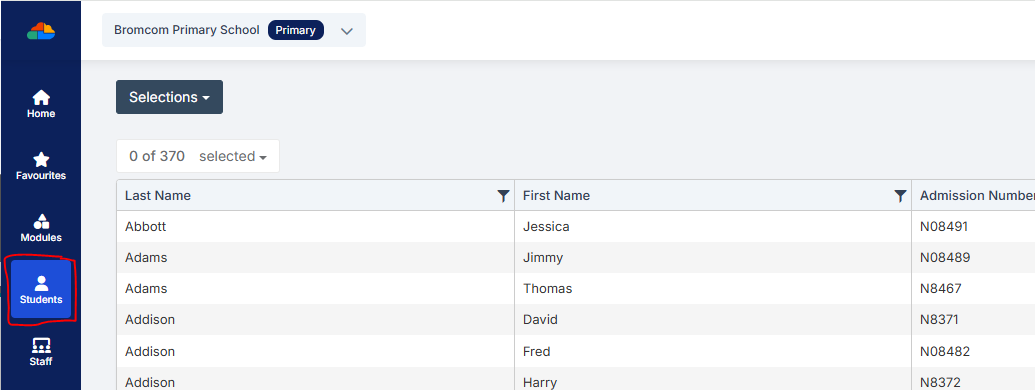
To create a CTF in Bromcom click Students  from the left hand side menu
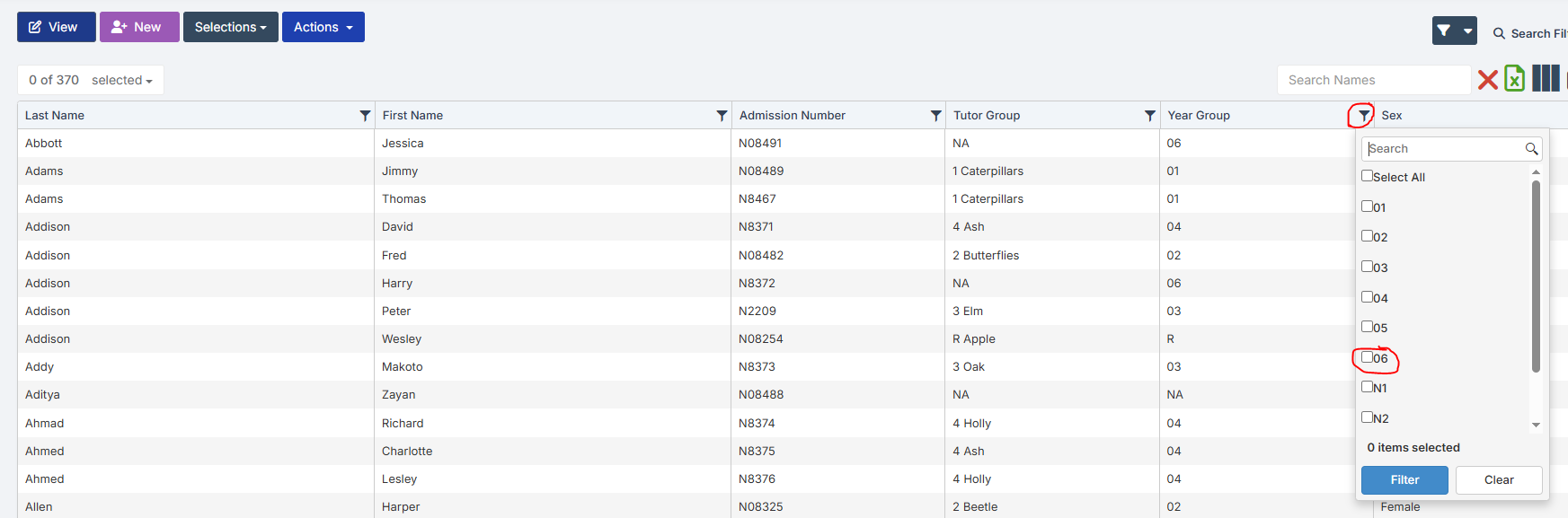
Select the Year Group filter and tick Year 6
From the Selections button click Select All

This should then highlight all your required pupils in blue.
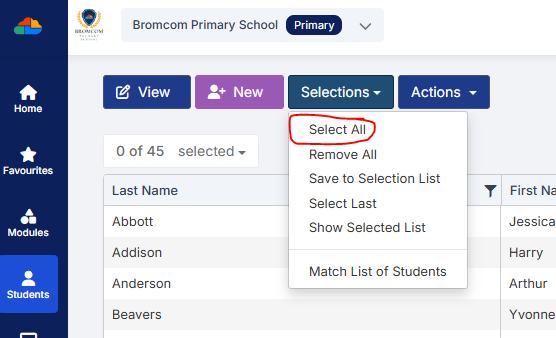
You should see a total pupil number in the top left to confirm the correct number.

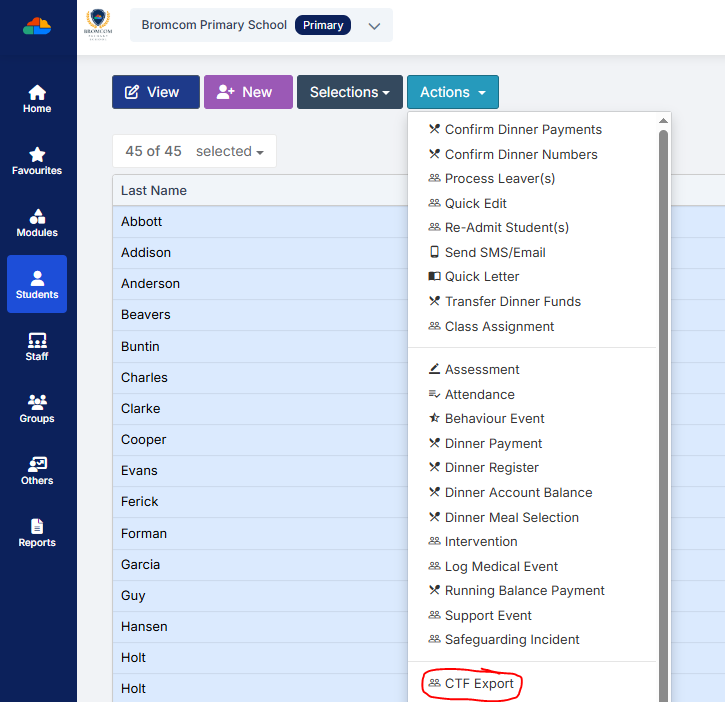
Once you have all your students selected click the Actions button and select CTF Export
Select KS2 Return as the Export Type
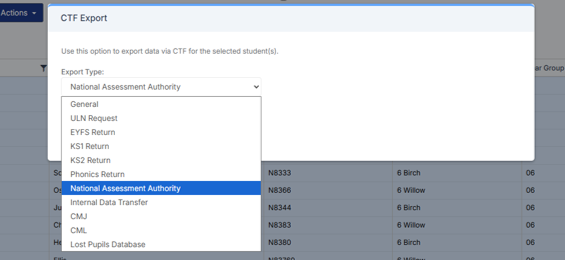
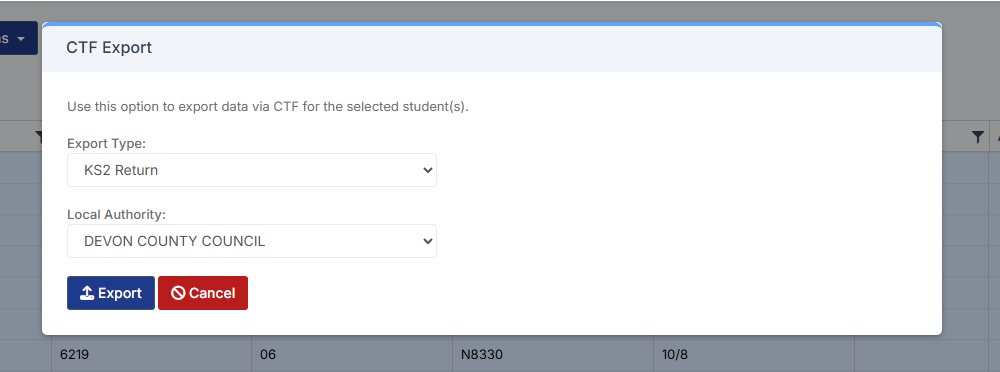
Select your Local Authority

Click Export

Your CTF will now be in your downloads folder ready for you to upload to the NAA website.


How useful was this article?

Click on a star to rate it!

Average rating / 5. Vote count:

No votes so far! Be the first to rate this post.

Similar Posts

  • Bromcom: Why can’t I see all of the exam seasons?

    This maybe due to your data boundary. Check under your account profile by going to your photo in the top right-hand corner of the MIS, My Account > Current Interval.   Data Boundaries are used to define what Staff can view in relation to current and historic Student Data, for example External Staff may only require the Current Years Data.   From the…

  • Bromcom Exams: How do I prepare and print the candidate statements

    Browse to Reports> Examinations>Results> Results by Students Click ” Find” button opposite candidate name Click “Select All” button top right or alternatively click and highlight the required students Click “Preview” This will then show the statement of results by candidate, you can click the top arrow button to view them one student at a time…

  • Bromcom Finance: Unable to search on Cost Centre & Ledger Code fields

    When adding purchase orders it isn’t possible to use any of the accounting search fields. If this is happening please check that your browser and the PC display itself are not on more than 100% on zoom, as well as no half screen or stretched mode etc. If this does not resolve the issue please…

  • BROMCOM: Which Marksheet to Enter Phonics Results

    In Bromcom via Modules > Assessment > Assessment Sheet List, the Phonics is Entered in the Marksheet named KS1-2025-01 for Year 1 Pupils. For Year 2 Phonics Retakes – This is entered in KS1-2025-02  The marks are entered in the Phonics Screening Check Mark This takes you through how to Enter in Marks How useful…

  • BROMCOM: Key Stage reports

    There are a number of reports that can be run for Key Stage. These can be used for analysis or to send to Parents/Guardians You can find all of these reports from Reports>Assessment>Stage Assessment Comparative Report– This report can be used to analyse Test Scores and Outcomes in Percentages to compare against National Figures Pupil…