Bromcom – Readmit student

To begin, go to the Student List page.

From there, press Search Filters on the top right and change the Status to Leaver.
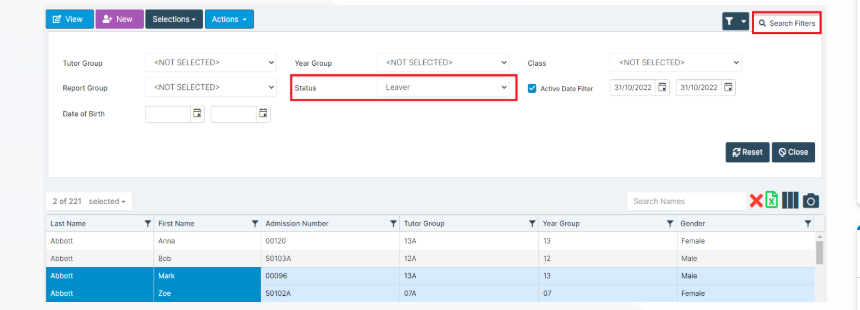
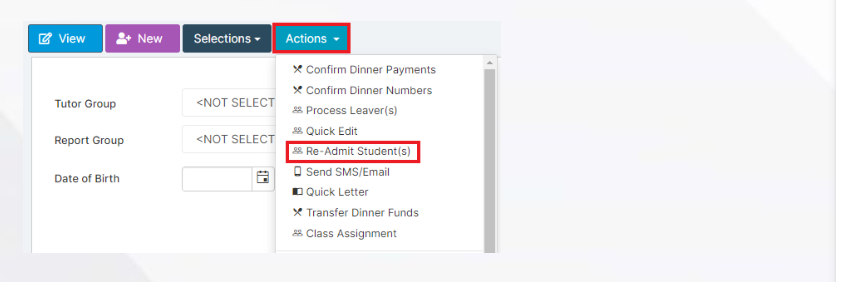
Now select the student/s that you wish to Re-admit and press Actions>Re-admit Student(s).

If you are Re-admitting multiple students, the Re-admit Date you select is going to apply to each student so please double check the dates you need before proceeding.
Further and full information can be found here: How to Re-Admit a Student – Bromcom – Documentation Centre

How useful was this article?

Click on a star to rate it!

Average rating / 5. Vote count:

No votes so far! Be the first to rate this post.

Similar Posts

  • AnyComms error message

    An error has occurred downloading files, error: The server was unable to process the request due to an internal error This was resolved by AVCO at their end.   kb19822   How useful was this article? Click on a star to rate it! Submit Rating Average rating / 5. Vote count: No votes so far! Be…

  • Bromcom Finance and DTSApps: How do I process my Petty cash file – DEVON SCHOOLS

    Navigate to Modules> Finance> Homepage> General ledger> Petty Cash Processing. 1) Click the yellow button to add an expenditure or green button to add a reimbursement 2) Add your expense lines on the right hand side VAT Reg Numbers Note : When adding multiple lines of expenditure, please remove the VAT Reg number if not…

  • BROMCOM: How to Add Staff to Edit/View Marksheets

    For Key Stage Assessments after you have access via BROMCOM: How to add ‘Configurations’ to a Role for Key Stage – Frequently Asked Questions Go to Config > Assessment > Configurations and put the tick in Enable Sheet Users.         You can then tick which Staff Roles will require access to the marksheets…