Bromcom Finance: How do I add a pay award ?
- Please note: This method is recommended for confirmed pay awards, if adding a projected pay award, please follow step 5
- Browse to Config>Administration>Base Pay Structures>double click the required Base Pay structure, e.g JK – Job Evaluation Hours Per Annum, JE – Job Evaluation All Year Round, JL – Job Evaluation > HPA 5 yrs, Teachers – Main, Teachers – Upper. Please see Screen shots below of the example Base Pay structure lines. Each Base Pay line will need the pay award spine points updated as relevant to your school. Please see further steps on updating as detailed in the instructions below.
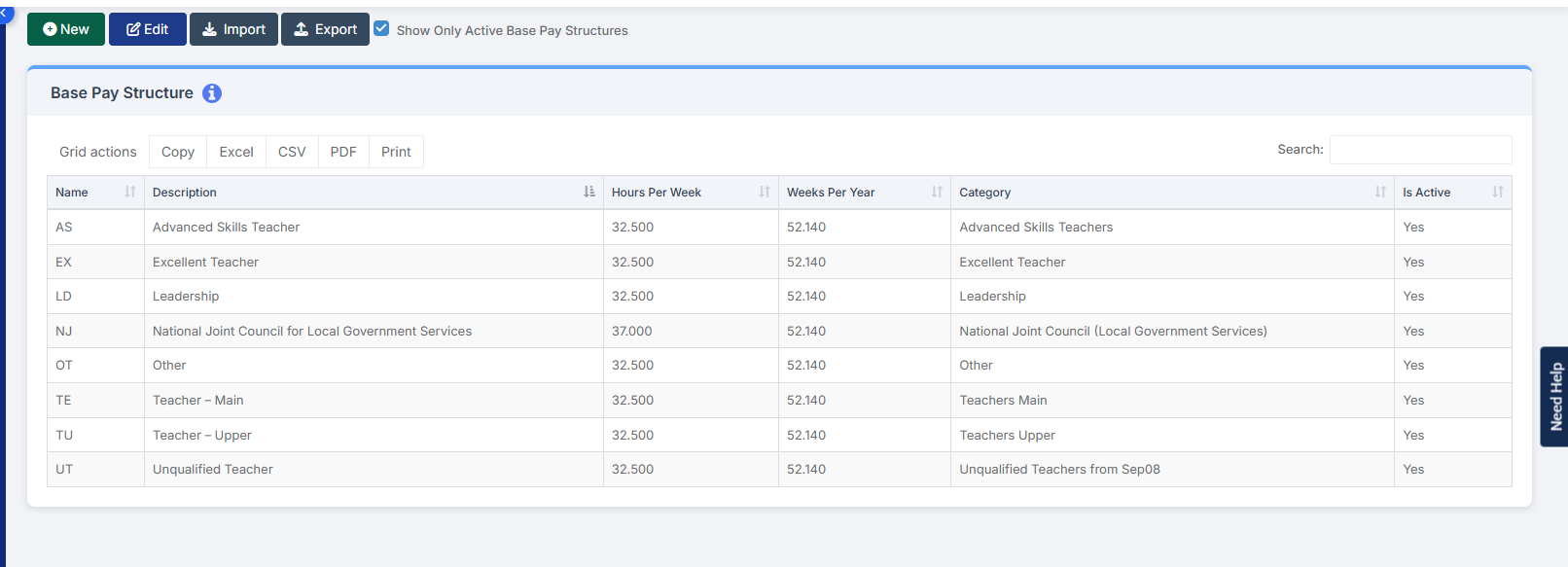
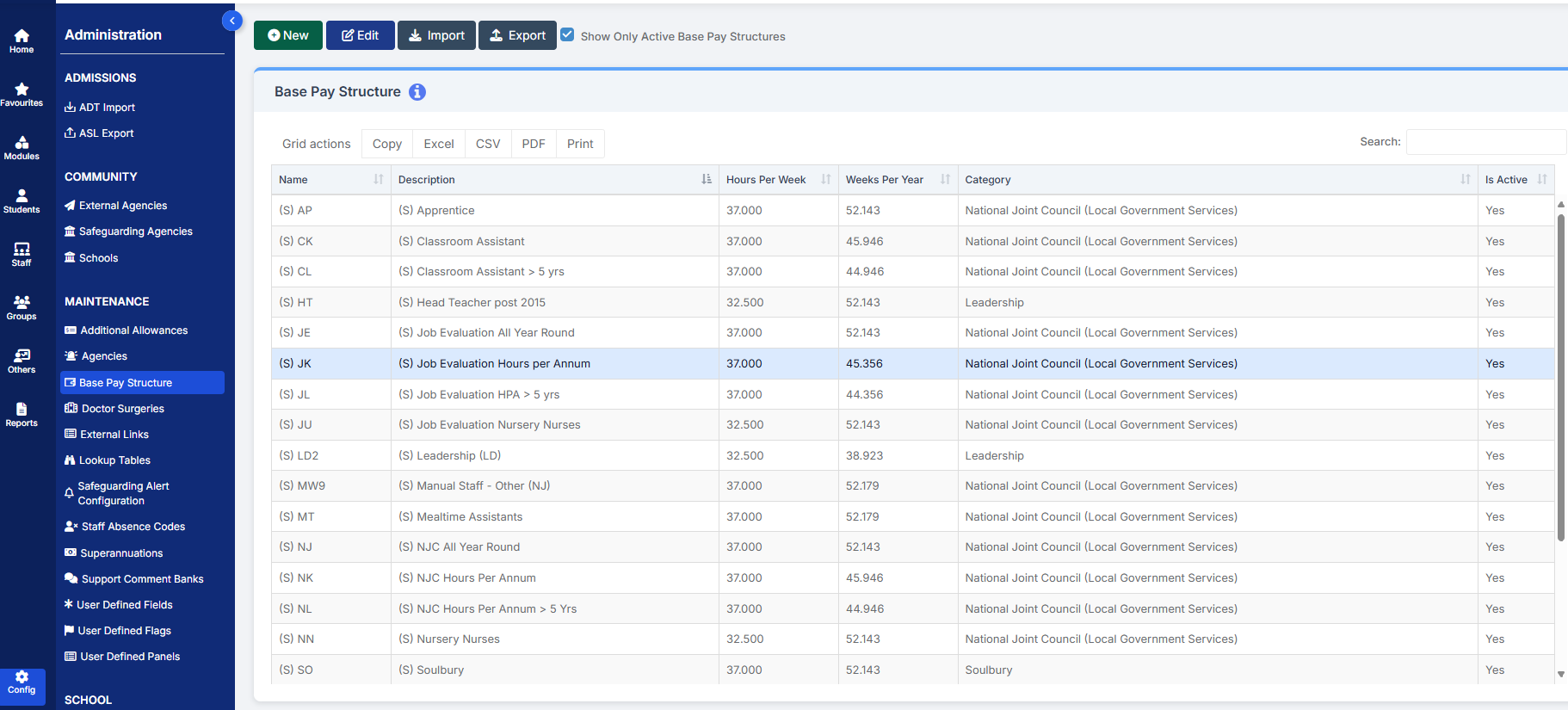
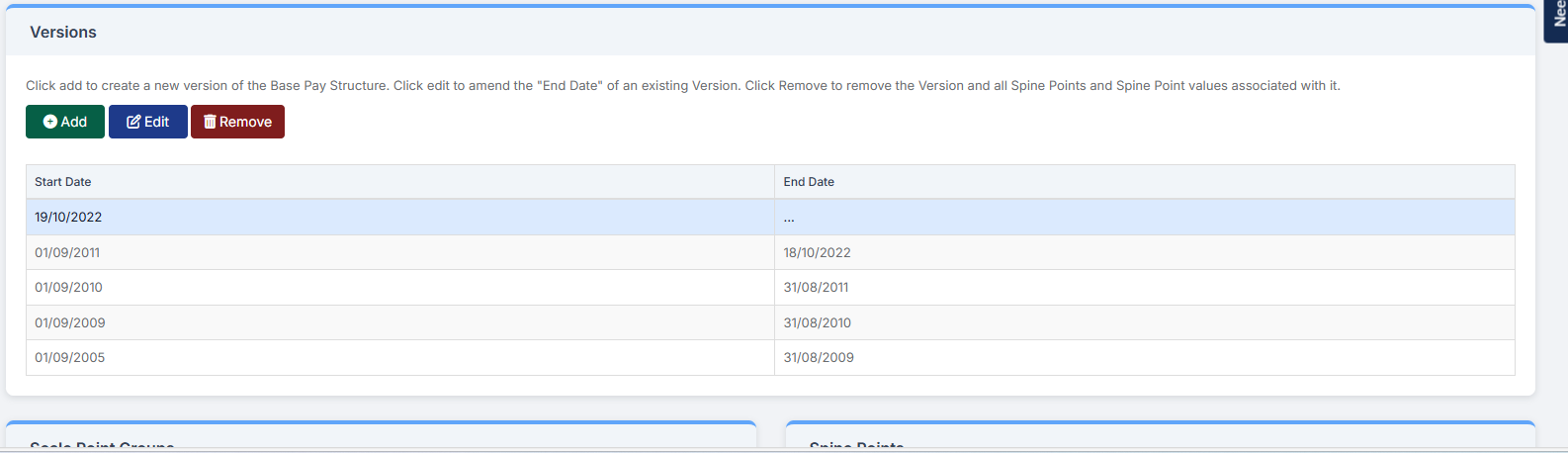
2.Under ” Version” ensure the current version has an end date of e.g 31/3/25,if not highlight the line and click the “Edit” button to add the end date.
Once you have done this then click the “Add” button to add a new pay award version
3. You will then see the spine points for that particular base pay are set to zero and ready for you to update
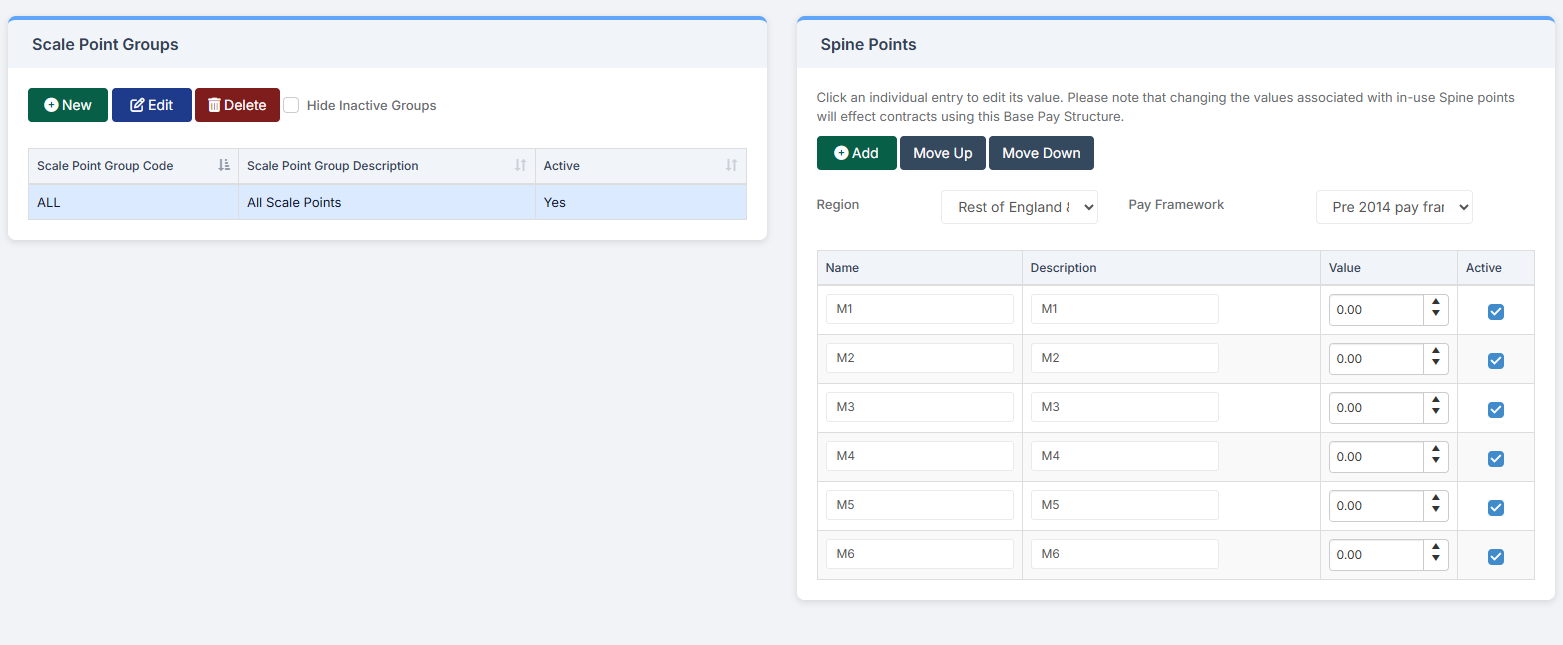
4. Once you have added all the spinal points, click the green save button at the top of the screen
5. If you are wanting to add a projected annual award percentage then please follow the below steps:
6. Modules> Finance> Homepage> Staffing> Salary Projections > Click Actions> Annual Award
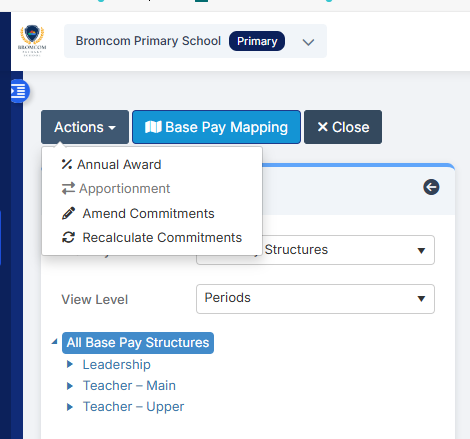
7. Single Click the required “Base Pay” and click add record as shown below in screen shots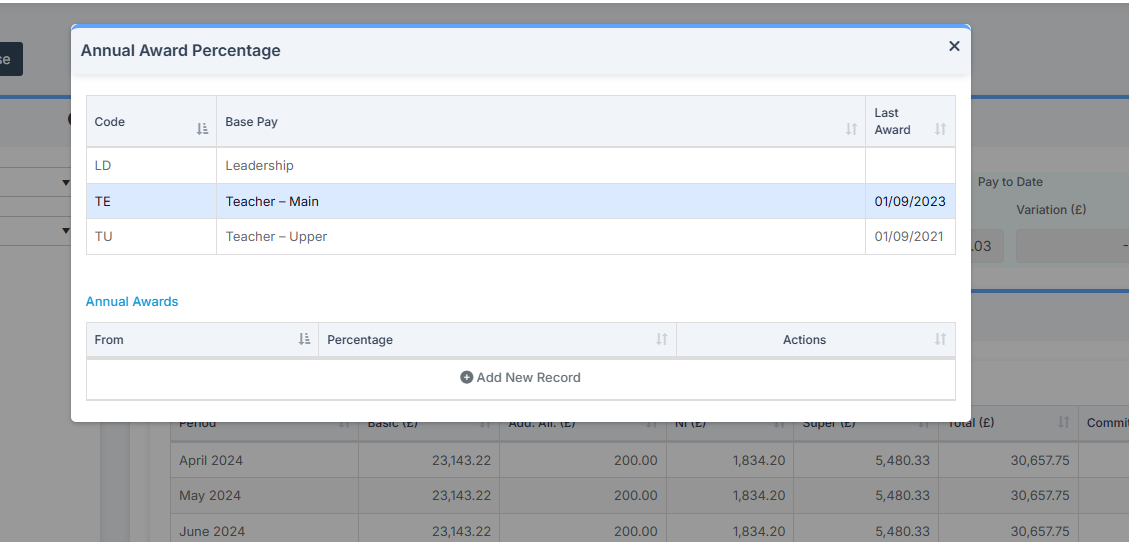
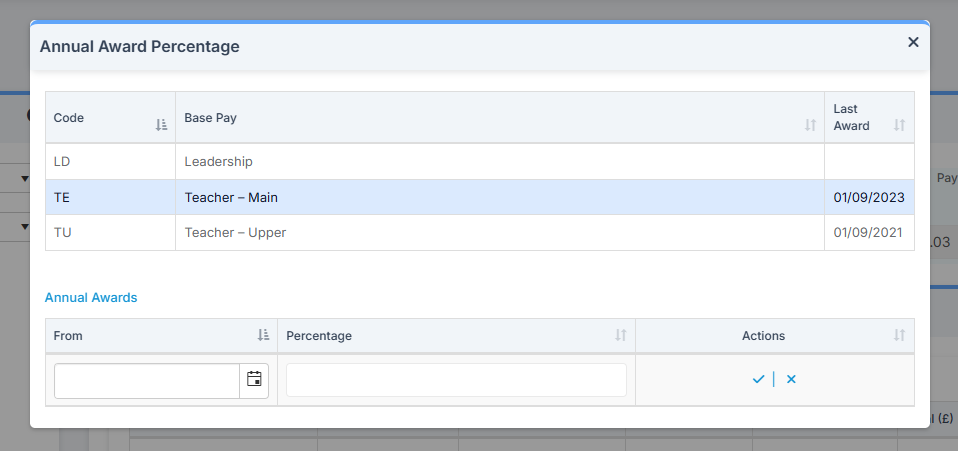
8. Add the date and percentage and click the blue tick to save the record.
Please Note: If you want to find out more information on setting up spinal progression for staff, please see this guide Automatic Spinal Progression for staff
Additional Allowances
Please see the following FAQ for adding “Additional Allowances” Bromcom Finance: How do I add an additional allowance? – Frequently Asked Questions