|

Bromcom: How do I create a CTF that includes leavers?

If you need to create a CTF that includes both current pupils and those that are leavers for Key Stage DFE Assessments, you can do this using the search filters option from within the student area.

EYFS – Please check with your LA. If you are a Devon school-Upload to Devon Transfer

Phonics – Please check with your LA. If you are a Devon school- Upload to Devon Transfer (Please note: For Devon this is a combined CTF with all Year 1’s and Year 2 retake pupils in ONE CTF. ONLY INCLUDE YEAR 2’S WHO HAVE RETAKEN PHONICS THIS YEAR)

Year 4 MTC – Upload to DFE MTC website

KS2 TA – Upload to National Assessment agency website

Go to Students on the left hand side menu

Click on Search Filters in the top right

Here you can change the active dates accordingly, to include your current pupils and any leavers you need to too

Now you can close the filter and your list will show any pupils who are enrol within the date range you’ve chosen, and you can then create your CTF.

Select the pupils you need to include in the CTF by clicking on them to highlight them in blue, and then use the actions button at the top and choose CTF Export
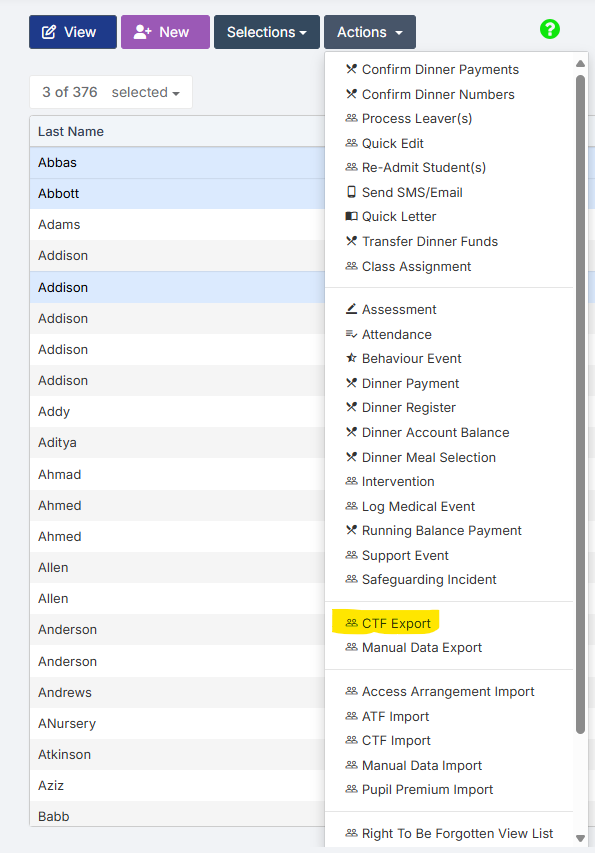
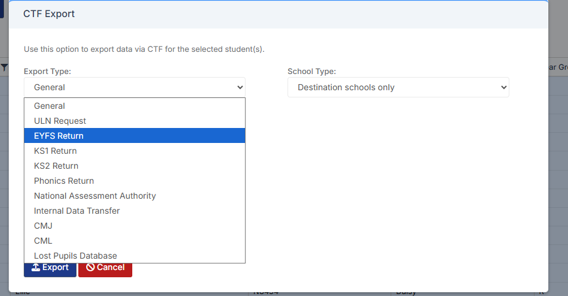
Select the required Export Type

(Please confirm below with your LA)

For EYFS the export type is- EYFS Return

For Year 1 and Year 2 phonics the export type is- Phonics Return

For Year 4 MTC the export type is- Either National assessment authority or Internal Data transfer

For Year 6 KS2 TA  the export type is- National assessment Authority
For EYFS and Phonics tick the LA return box and select your LA.
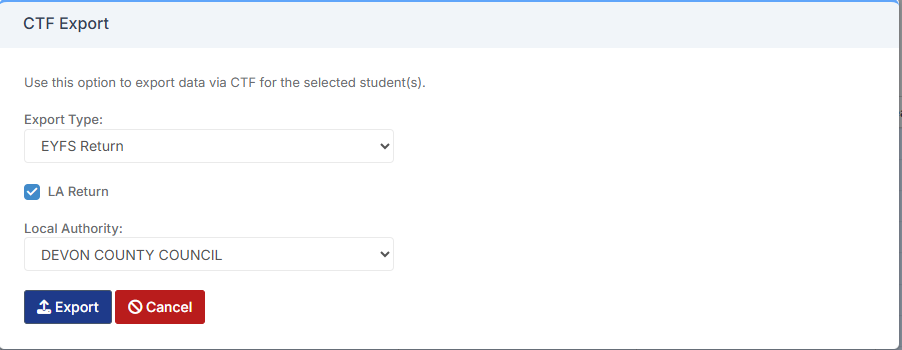
Click Export

This file will then go to your Downloads ready for you to upload.

How useful was this article?

Click on a star to rate it!

Average rating / 5. Vote count:

No votes so far! Be the first to rate this post.

Similar Posts

  • How do I delete equipment in Equipment Register?

    Follow the below to remove equipment from Equipment Register. Focus > Equipment > Highlight the item > Click View/Edit. To delete the Item click the – icon on the focus bar and enter the reason for deletion. Click Save. How useful was this article? Click on a star to rate it! Submit Rating Average rating…

  • Bromcom: How do I add a comment to an attendance mark in the register?

    There may be occasions where you need to add a comment to an attendance mark within the register. To do this you will need to go to Modules > Attendance > Manage Attendance. From here you can select the parameters for the register that you would like view. The register will then load. Click into…

  • BROMCOM: Key Stage Year 6 CTF

    How to create a Year 6 KS2 TA CTF Once you have entered in all your marks you need to create a CTF file to send to the National Assessment Agency Please check with your LA to confirm the destination. To create a CTF in Bromcom click Students  from the left hand side menu Select…

  • Bromcom Finance: Error posting Individual salary payment

    When posting the Individual salary payment an error is generated as below : This is most likely due to the “Base Pay” associated with the ledger codes being used, having missing information e.g Missing Financial subgroup. Please browse to: Modules> Finance> Homepage>Staffing> Base Pay Mapping, locate the Base pay being used for the individual salary…

  • School Workforce Census Bulletin 2025

    This FAQ lists the latest information regarding the School Workforce Census. It contains links to relevant documentation for Arbor and Bromcom. School Workforce Census Date: Thursday 6th November 2025 School Workforce Census Deadline Date to DfE: Friday 21st November 2025 (If you are a maintained school please consult your LA) Latest Census Information KNOWN ISSUES…