|

Bromcom Finance: Year End Payroll clearance from FC01 ** Local payments – Devon LA**

Local payments need to carry out a payroll clearance in order to set the Fund Control 01 to zero , prior to preliminary close down.

Please see the following steps:

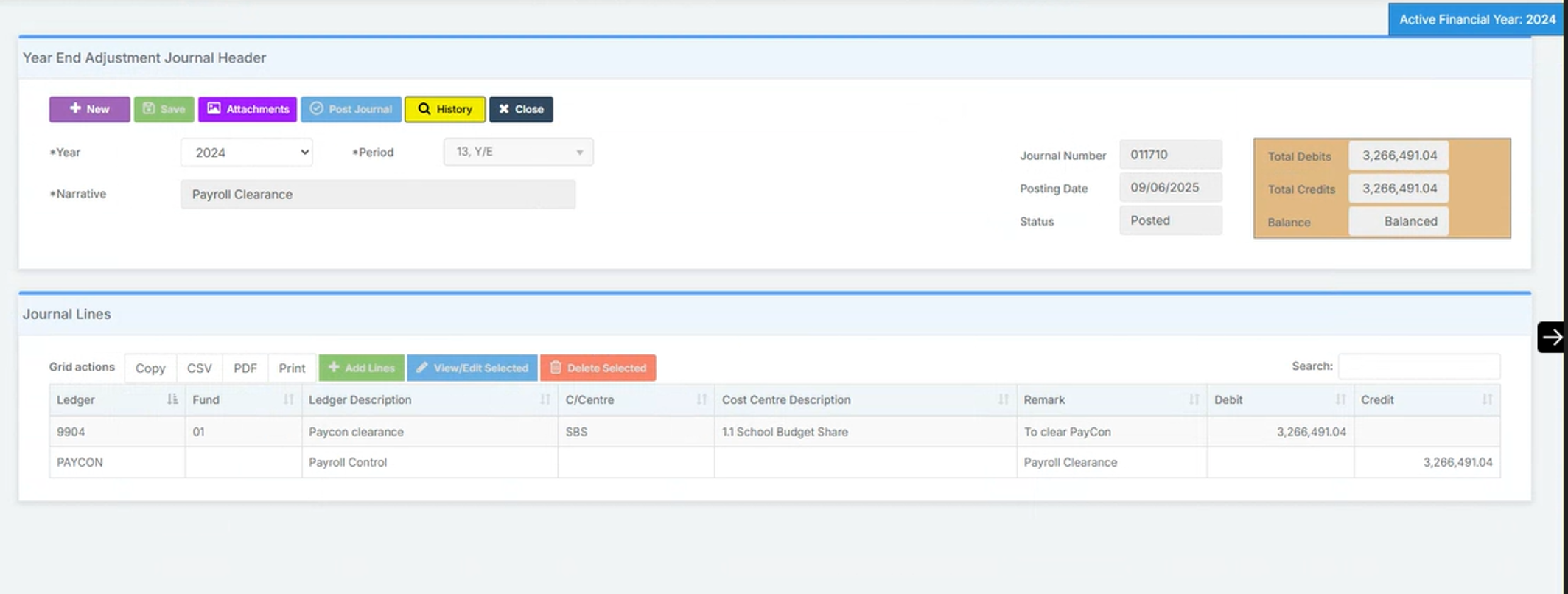
Step 1 – Modules > Finance> Homepage>General Ledger>Journals.  Select “Year End journal” if you have already run  preliminary close or standard journal if you have not run Preliminary close.

  • Click green add lines button to add your journal lines:
  • Line 1  – Select 9904 ledger code to record a debit for the payroll amount for the year as shown in the screen shot below.
  • Line 2 – Select PAYCON ledger code to record a credit as shown in screen shot below.
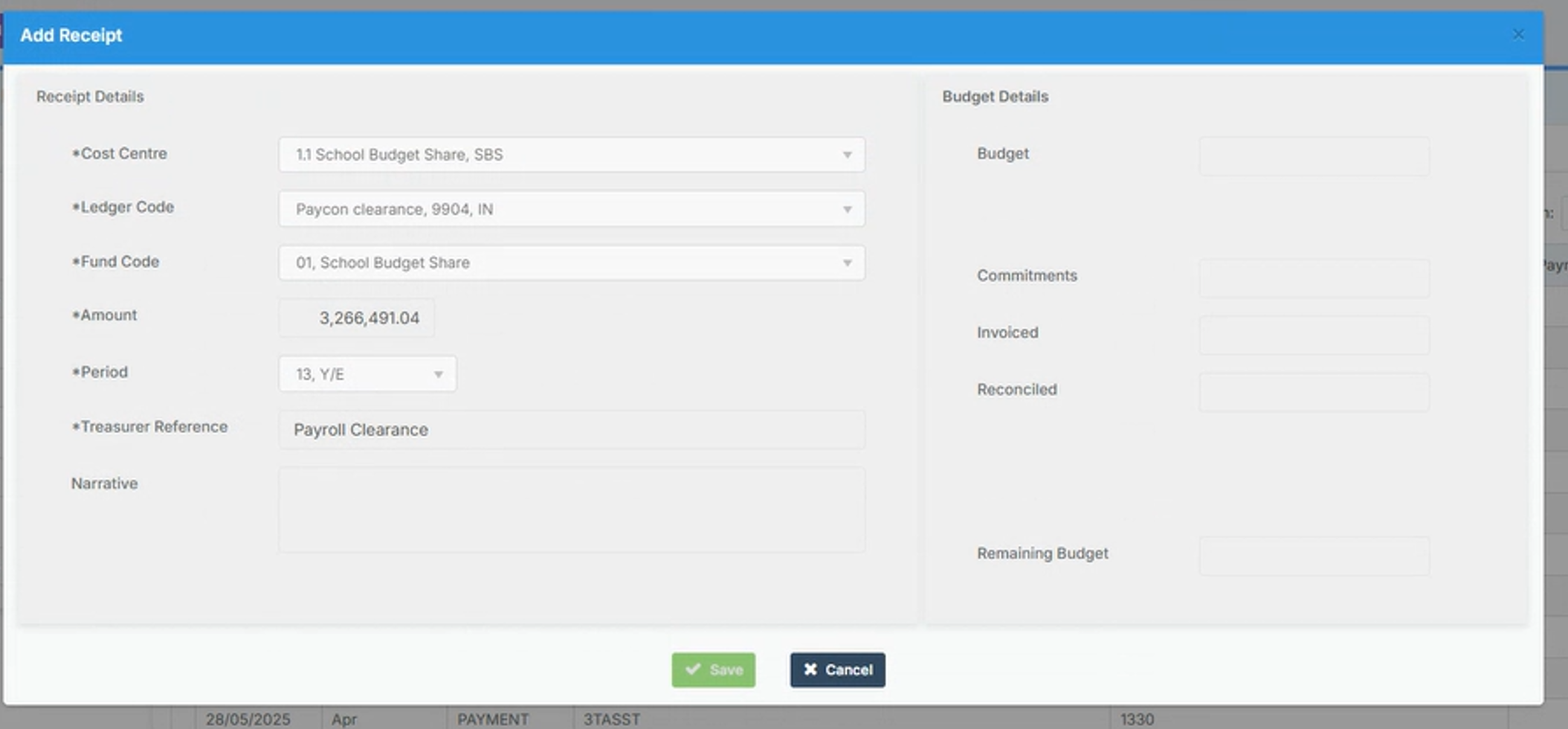
Step 2 Modules> Finance> Homepage>Routines> Central payments/Receipts

  • Record a receipt as shown in the screen shot below to credit the ledger PAYCON with the payroll expenditure for the year.
  • Once this has been done you will need to run preliminary close again via Modules> Finance> Homepage>Routines> Close Financial year process.
 

How useful was this article?

Click on a star to rate it!

Average rating / 5. Vote count:

No votes so far! Be the first to rate this post.

Similar Posts

  • Bromcom: Asking for “PIN” when deleting a student record

    You may be trying to delete a pupil and are being asked for your PIN? How do you find out what your user PIN is? Request for a PIN usually means you’re an SSO user logging in with O365 or Google, and you were prompted to set your PIN number the first time you logged…

  • Bromcom Finance & Budgeting : How do I enter a Variance reason in Budget Variances

    Modules> Finance> Homepage> Budgeting> Budget Variances In the budget variances you can add a budget variance reason against e.g a Cost centre as shown in this example below: Note: Any Variance reason needs to be added before you sort your columns – see sorting columns FAQ – Bromcom Finance & Budgets: How do I sort…

  • MCAS – Dinney money widget is missing to add payments

    Parents are unable to see the “Dinner money” widget to add payments for their children. Please check the following: Please ensure online payments is enabled via Config> MCAS> Online payments – Please also see How do I enable Bromcom Online payments in MCAS – SCHOOLS – Frequently Asked Questions Ensure the Dinner settings are setup …

  • BROMCOM:Shared Staff in a tutor group

    If you have more than one staff member with scheduled timetabled registers e.g Mr Smith is timetabled for Mon-Wed and Mrs Brown is scheduled Thur- Fri then you might want to remove tick box ten from the Daily Maintenance Settings. The Daily Maintenance Settings are a group of processes that are performed automatically on a…

  • Bromcom Finance and DTSApps: How do I process my Petty cash file – DEVON SCHOOLS

    Navigate to Modules> Finance> Homepage> General ledger> Petty Cash Processing. 1) Click the yellow button to add an expenditure or green button to add a reimbursement 2) Add your expense lines on the right hand side VAT Reg Numbers Note : When adding multiple lines of expenditure, please remove the VAT Reg number if not…

  • What’s new on Bromcom MIS

    You can view what is new in the MIS by clicking on the megaphone icon as seen below. We will also update this FAQ with the latest changes, new features and improvements each time they are released. Sprint Release 6th February 2026   URL for further information MIS Route Information Exams – Update Reports to…