Key Stage 2 Comparative report- BROMCOM

The national statistics for the Bromcom Comparative report found under Reports>Assessment>Comparative Report is not currently available

Scomis has created a Word web merge template for you to use for KS2 results

See the below that Scomis has made for you

You can edit the wording, header and footer as well as the columns to suit your school.

Template- KS2 TA and SATS

Report- KS2 TA and SATS 20250711104452

1. Download both above links and unzip the report file

2. Open the File called Template for KS2 and edit it to suit your school- including adding a header and any other text you would like and then click Save on the Word document.

3. In Bromcom go to Reports>Quick Reports> View Reports or Reports>Adhoc>View Reports

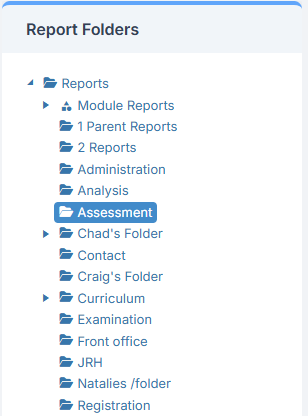
4. Select a Folder from the right hand side e.g Assessment
5. Click ‘Actions’ and then ‘Import Report Definition’
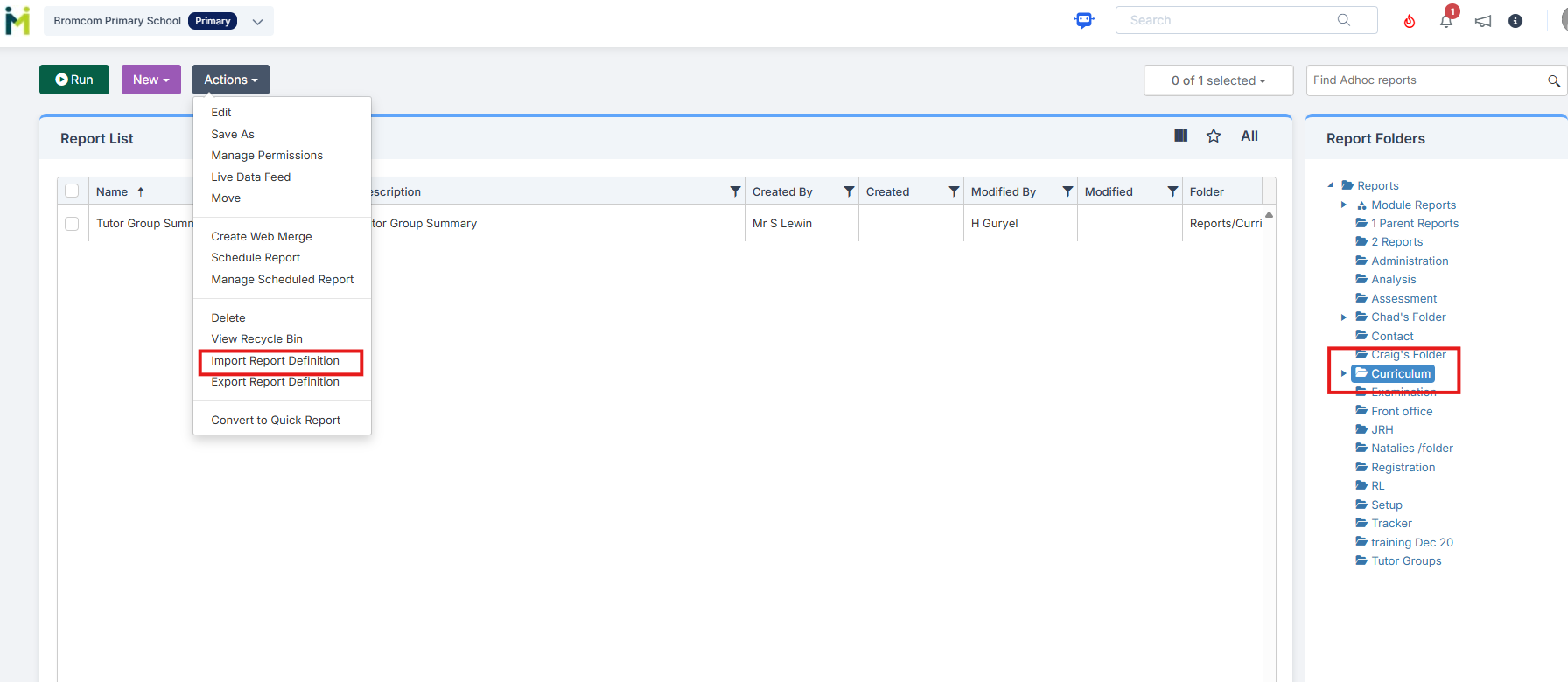
6. Import the report file called KS2 TA and SATS

7. Highlight the Report- Select it and click ‘Run’

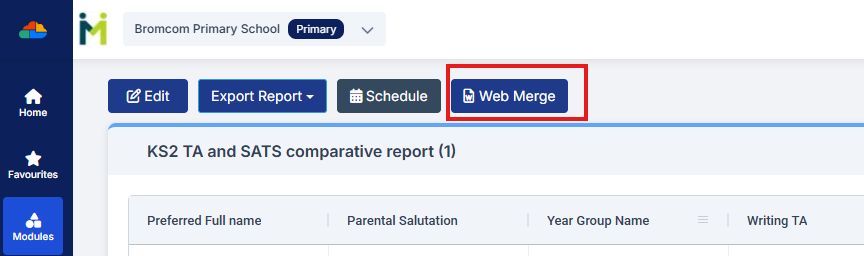
8. Click ‘Web Merge’
9. Select your edited template to be imported from the ‘Browse’ button

10. Click ‘Next’

11. Click ‘Next’ again

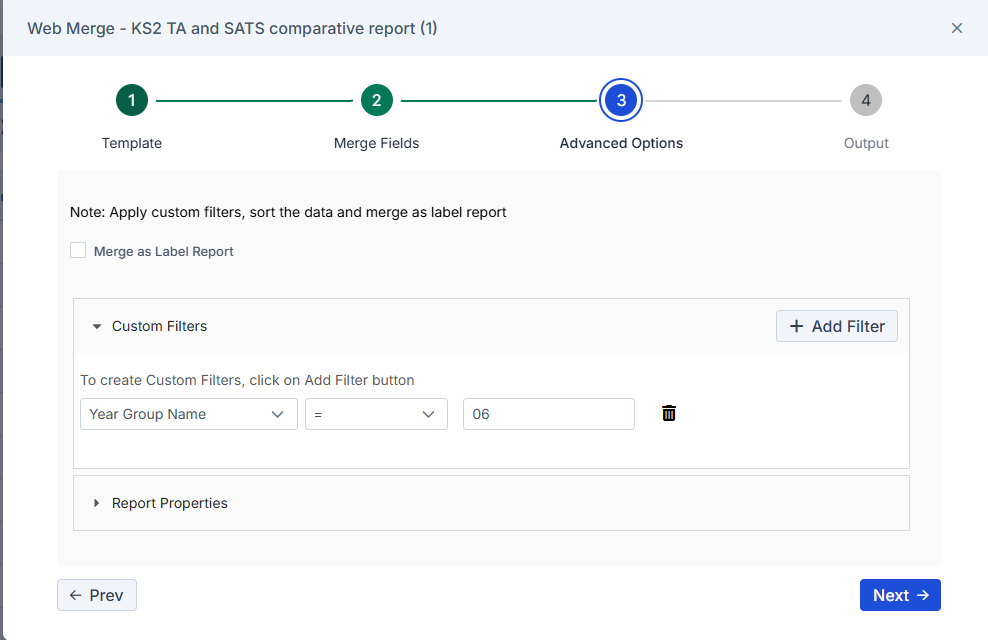
12. On page 3 ‘Advanced Options’ click the ‘Add Filter’ button. Change the drop down to ‘Year Group Name’ and in the ‘Value’ box enter your schools Year 6 year group name e.g 6, 06, Yr6, Yr06, Year 6
13. Click Next

14. Change the radio dot to ‘Word’

15. You can add a tick in ‘Copy to DMS’ if you wish to email the file directly to parents if your school uses MCAS

16. Click ‘Save & Process’

17. Open the file from your downloads and check the information is showing as expected

NOTE: School Results

If you wish to add results into the ‘School Results’ column- Please run the Reports>Assessment>Comparative Report for KS2 and 2025 and manually add the school results to the Template file. If you don’t want the ‘School results’ column please right click the column to remove it from the Template.

How useful was this article?

Click on a star to rate it!

Average rating / 5. Vote count:

No votes so far! Be the first to rate this post.

Similar Posts

  • BROMCOM: How to import Year 4 MTC Results CTF

    You will revive a CTF file with the MTC results that you can import into your Bromcom Go to Students from the left hand side menu From the Year group filter select Year 4 From the Selections button click ‘Select All‘. This should then highlight all your required pupils in blue. Once you have all…

  • Key Stage Bulletin 2025

    This FAQ contains the latest information and guides regarding the Key Stage Return 2025.  Please see below for further guidance DFE information can be found here- School curriculum – GOV.UK KS1 is still Optional. Please see the following article from the DFE –  Changes to KS1 Important Dates Phonics Threshold mark release date- 23rd June…

  • Bromcom: How to enter marks into Key Stage DFE assessment marksheet

    Once you have opened your marksheet- BROMCOM: How to View Marksheets as a Teacher or Admin – Frequently Asked Questions you will need to enter your marks There are three ways to enter marks into Bromcom  You can enter marks by  clicking in each cell and entering the marks 1 by 1 Alternatively if you…

  • BROMCOM: KS2 Key Stage Return

    This FAQ is for the users in school who need to carry out the  KS2 TA Key Stage return For more information please see the following DFE guide- Key stage 2 teacher assessment guidance 2025 – GOV.UK To view further guides please see the following Scomis Bulletin- Key Stage Bulletin 2025 – Frequently Asked Questions…

  • BROMCOM: How to Add Staff to Edit/View Marksheets

    For Key Stage Assessments after you have access via BROMCOM: How to add ‘Configurations’ to a Role for Key Stage – Frequently Asked Questions Go to Config > Assessment > Configurations and put the tick in Enable Sheet Users.         You can then tick which Staff Roles will require access to the marksheets…

  • BROMCOM: Key Stage reports

    There are a number of reports that can be run for Key Stage. These can be used for analysis or to send to Parents/Guardians You can find all of these reports from Reports>Assessment>Stage Assessment Comparative Report– This report can be used to analyse Test Scores and Outcomes in Percentages to compare against National Figures Pupil…