|

BROMCOM: Which Marksheet to Enter Phonics Results

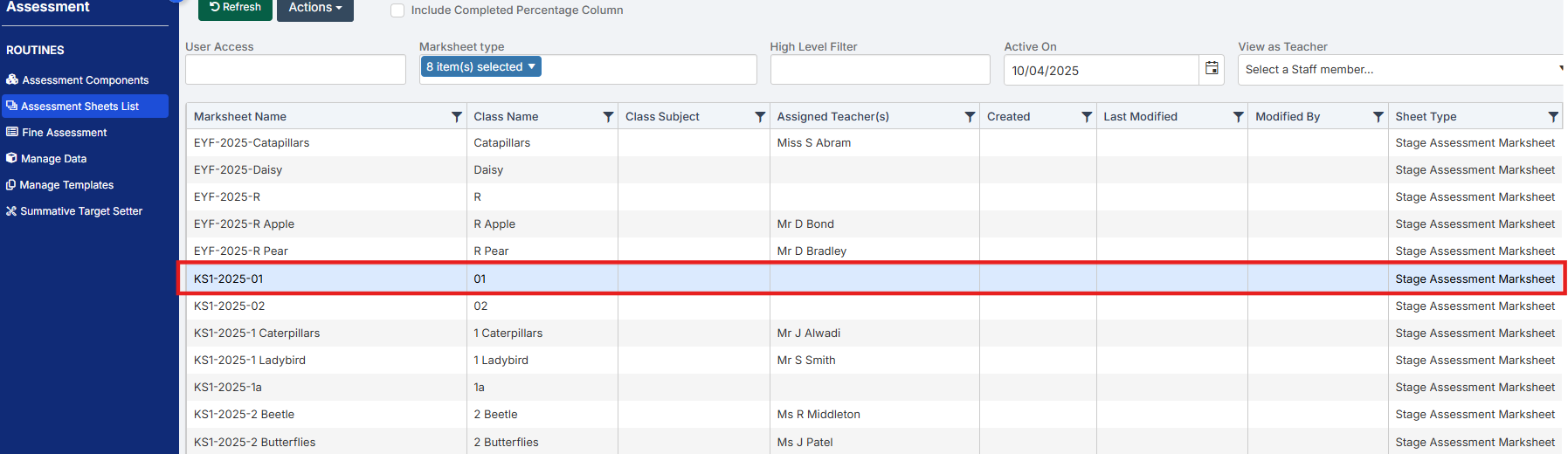
In Bromcom via Modules > Assessment > Assessment Sheet List, the Phonics is Entered in the Marksheet named KS1-2026-01 for Year 1 Pupils.
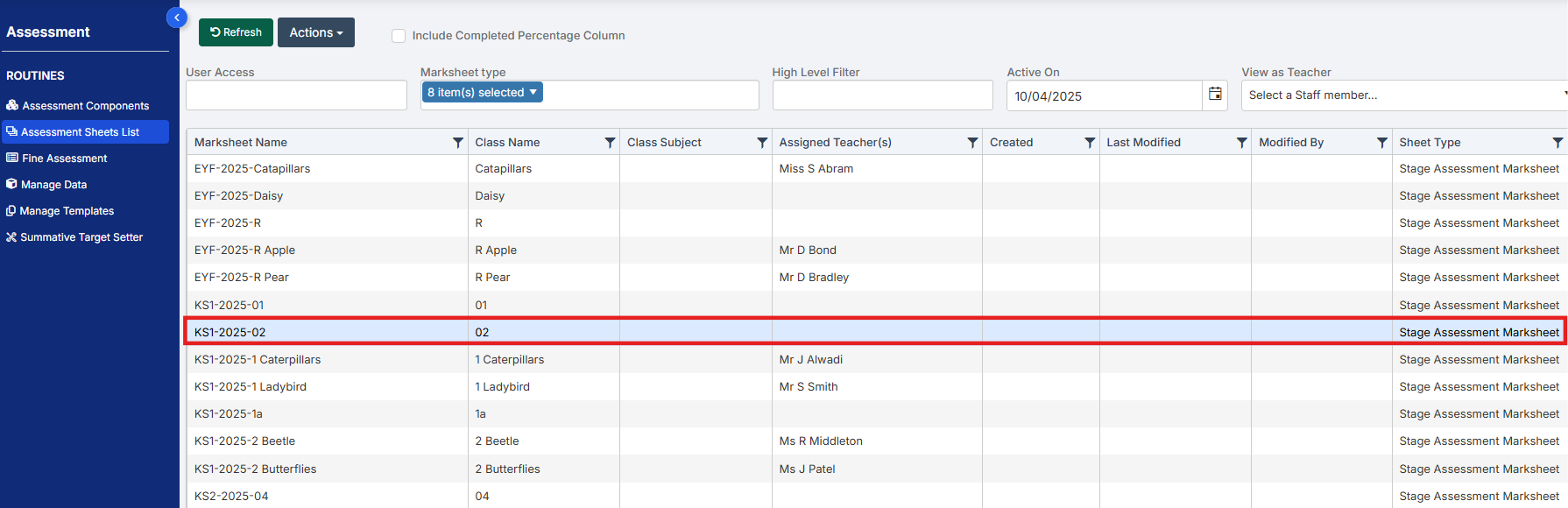
For Year 2 Phonics Retakes – This is entered in KS1-2026-02 
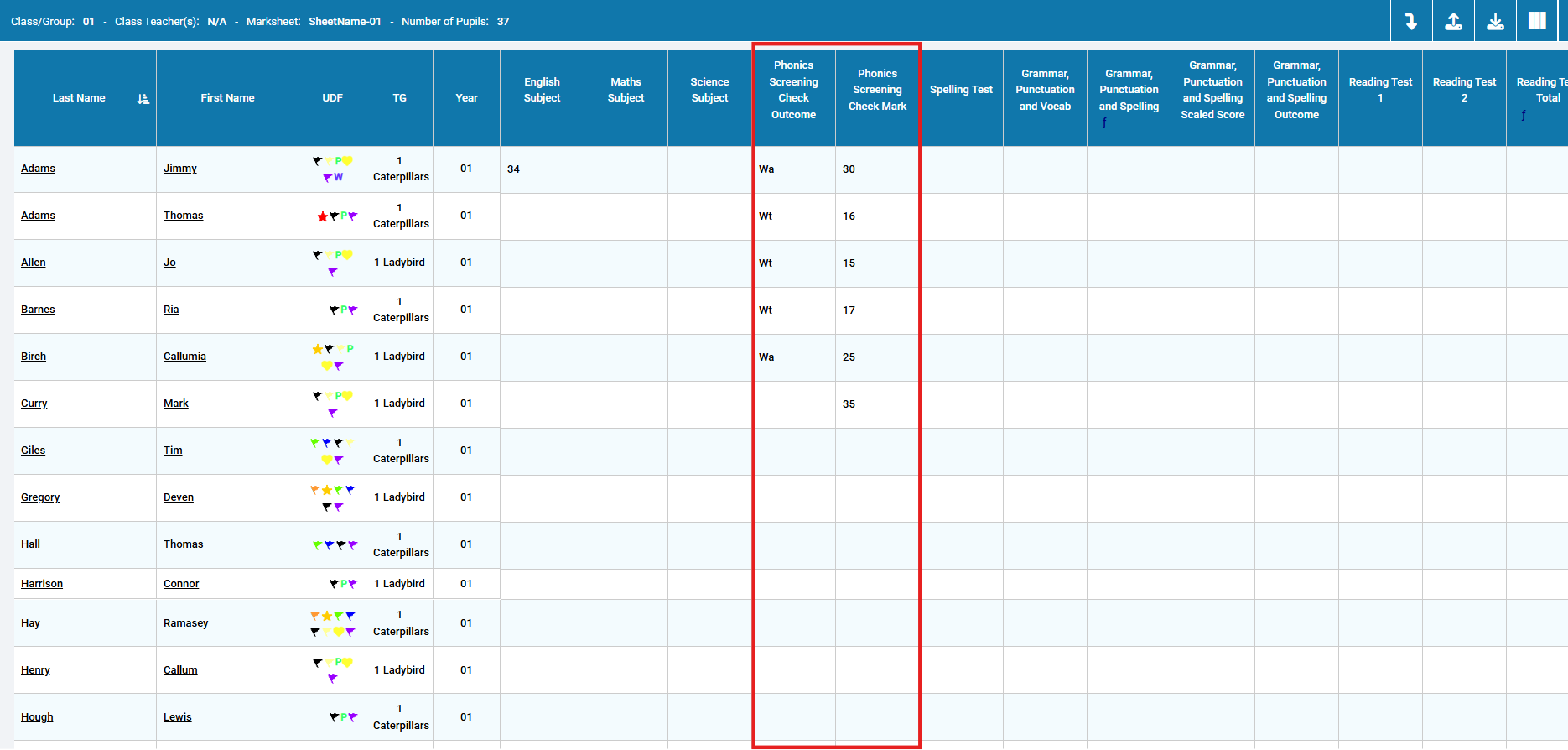
The marks are entered in the Phonics Screening Check Mark
This takes you through how to Enter in Marks

How useful was this article?

Click on a star to rate it!

Average rating / 5. Vote count:

No votes so far! Be the first to rate this post.

Similar Posts

  • BROMCOM: Devon County Council- Key Stage Upload dates

    The following dates have been provided by the Devon Data and Assessment Team. For further information please contact below Tel: 01392 287317 Email: Schooldataassessment@devon.gov.uk Your Key Stage CTF’s must be uploaded via Devon Transfer by the following dates. EYFS Deadline – 30th June 2026 Phonics- 22nd June 2026 (Please include Year 1 and Year 2…

  • Bromcom: Audit Report

    If there are changes to Bromcom data and clarification is needed on who/how or why this has changed you can run a detailed audit report on student and staff data. You can run this report via Reports>Administration>Audit Report This will confirm if this was a system or user change   How useful was this article?…

  • Bromcom: Exam result not importing into assessment template

    https://docs.bromcom.com/knowledge-base/how-to-include-exam-results-in-assessments-sheets/ As outlined in the referenced article, you may find that after completing the routine, the expected results do not appear. If this occurs, please verify that your internal subject names are correctly mapped to the exam name. This can be done by navigating to: Config > Analysis > Exam Options Subjects For detailed guidance,…

  • Bromcom: Missing Staff Dinner Balance Widget

    If your staff is missing the “Staff Dinner Balance” widget, please ensure the correct permission has been assigned to their “Teacher” role. To ensure the correct permissions have been assigned, please browse to Config> Setup> Roles and permissions, choose the role e.g Teacher click edit and choose the module in the drop down of “Profile”…

  • Configure the Notification Settings for MyChildAtSchool

    In this KB we’ll guide you through the notification settings for MyChildAtSchool (MCAS) Navigating to the Notification Settings Area The Notification Settings area can be located under Config>MyChildAtSchool>Notification Settings Exploring the Notification Settings As you enter the Notification Settings area the first option you’ll see is the setting to give parents/guardians access to contact the…