|

BROMCOM: Key Stage reports

There are a number of reports that can be run for Key Stage.

These can be used for analysis or to send to Parents/Guardians

You can find all of these reports from Reports>Assessment>Stage Assessment
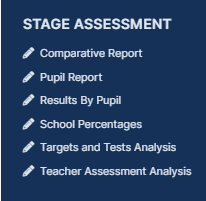
  • Comparative Report– This report can be used to analyse Test Scores and Outcomes in Percentages to compare against National Figures
  • Pupil Report – This is an individual Pupil report and can be sent to Parents to show a pupils Test Results and outcomes. You can also add free text to this report if Teachers or the Head Teacher wish to leave a comment.
  • Results by Pupil- This report shows a list of pupils and how they performed across Test Results and outcomes. This can be used for comparison across a Year or Reg group.
  • School Percentages – This report looks at test results across the school.  You can also add free text to this report if Teachers or the Head Teacher wish to leave a comment.
  • Targets and Tests Analysis- This report can be used to analyse test Scores and Outcomes by Student totals and a gender split.
  • Teacher Assessment Analysis- This report can be used to analyse Teacher assessment by Student totals and a gender split.


How useful was this article?

Click on a star to rate it!

Average rating / 5. Vote count:

No votes so far! Be the first to rate this post.

Similar Posts

  • DEVON SCHOOLS ONLY – Submitting Claims through iTrent

    The employee is able to do this through self-service and you can then approve the claim once the system is available, or your administrators can input the claim on behalf of the employee via fast input, from a paper form. If you have administrators who are inputting from the paper process, please note the forms…

  • Third Party Application integration with Bromcom

    When looking to integrate a third party application, it’s best to liaise with the third party for more detailed instructions. The purpose of this guide is to explain how a new User Account can be created to give Third Party Supplier’s access to data in your MIS system through Bromcom’s API interface, which is required for all…

  • Bromcom – Readmit student

    To begin, go to the Student List page. From there, press Search Filters on the top right and change the Status to Leaver. Now select the student/s that you wish to Re-admit and press Actions>Re-admit Student(s). If you are Re-admitting multiple students, the Re-admit Date you select is going to apply to each student so please double check the dates you need before proceeding. Further and full information can be found here: How to…

  • Recording Club Attendance in Bromcom

    In Bromcom it’s possible to record attendance for Clubs, in this KB we’ll show you how this is done. Navigating to the Clubs Homepage In Bromcom, click the Groups button, this will default either to Tutor or Class. In the top right corner of the screen change the Group Type to Clubs Recording Attendance Select…