|

BROMCOM:Shared Staff in a tutor group

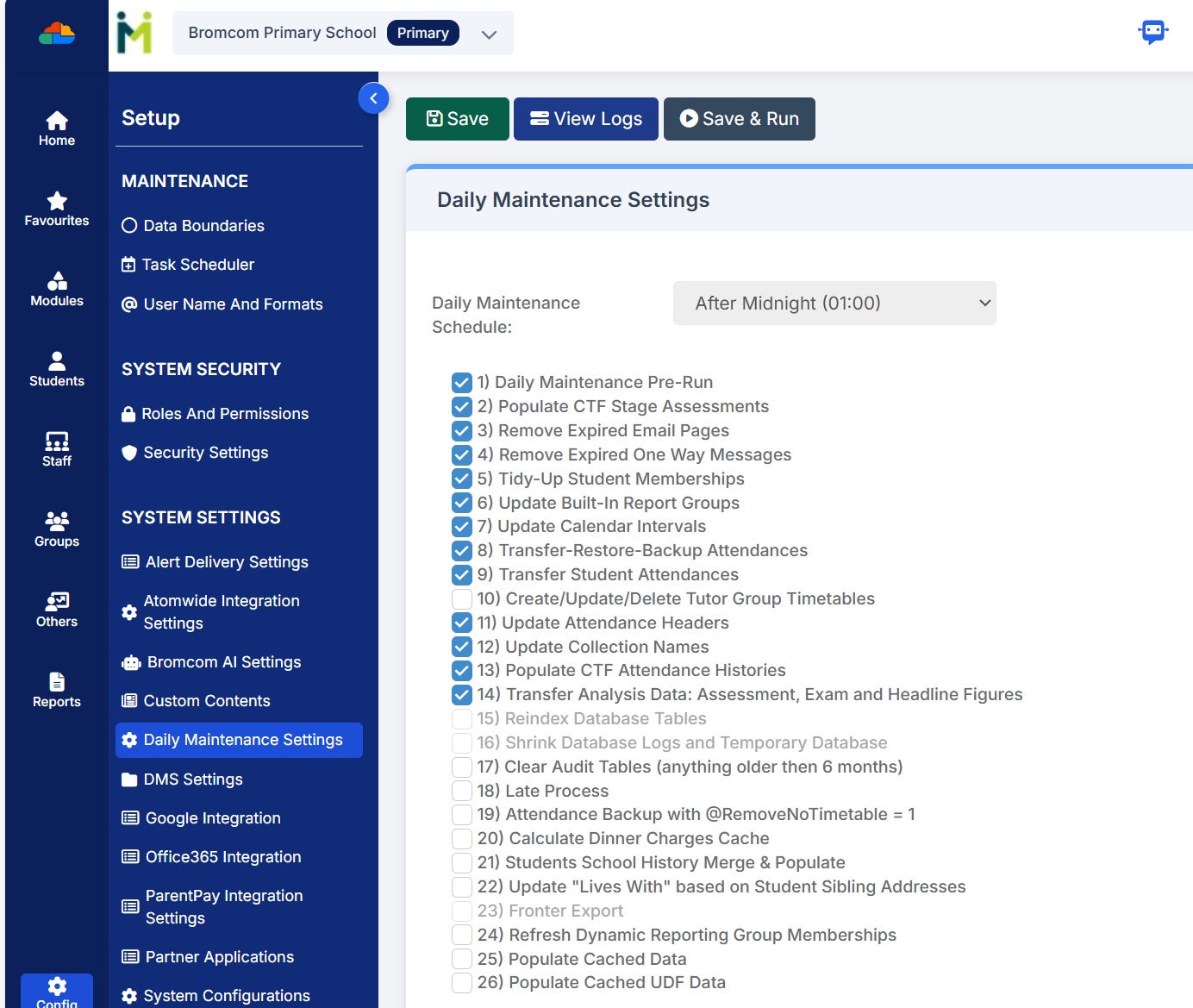
If you have more than one staff member with scheduled timetabled registers e.g Mr Smith is timetabled for Mon-Wed and Mrs Brown is scheduled Thur- Fri then you might want to remove tick box ten from the Daily Maintenance Settings.

The Daily Maintenance Settings are a group of processes that are performed automatically on a daily basis.
Tick box 10 ensures that all active tutor groups have timetabled sessions for every AM and PM. If you have tutor groups that are shared between Staff Members, with each Staff Member having their own specific sessions you may wish to turn this off as it will automatically create sessions for each linked Staff Member for every AM and PM session.

You can turn this of from Config>Setup>Daily Maintenance settings
How useful was this article?

Click on a star to rate it!

Average rating / 5. Vote count:

No votes so far! Be the first to rate this post.

Similar Posts

  • Bromcom: Exams Embargo – Formula Visibility in Assessment Sheets

    The Exams Embargo only applies to the Exams Module. However, if formulas are used in Assessment Sheets to reference embargoed results, they can become visible to staff with certain Assessment permissions. To maintain the security of results and uphold the embargo, Bromcom have introduced a toggle setting to disable formulas from exposing embargoed exam results…

  • What’s new on Bromcom Finance

    You can view what is new in Finance by clicking on the megaphone icon as seen below. We will also update this FAQ with the latest changes, new features and improvements each time they are released. Sprint Release 12th December 2025     URL for further information MIS Route Information Finance – Clone Invoices and…

  • Bromcom Finance & DTSApps – DEVON SCHOOLS

    Bromcom Finance: How to process your invoices, in Central Authorisation and “Print & Export” Bromcom Finance: Raising orders on suppliers websites for example: YPO & Amazon Bromcom Finance: How to cancel “Passed for Pay” Invoices Bromcom Finance: I have clicked print and not print and export Bromcom Finance and DTSApps: How to process your invoice…

  • Bromcom: How to see who has received MCAS push notifications

    To see who has received push notifications you can use Modules > Communication > Overview to see who push notifications have been sent to:         You can use Modules > MyChildAtSchool > Overview to review app installations:     Additionally there is an MCAS domain in Quick Reports for the school to…

  • Bromcom Finance and DTSApps: How do I process my Petty cash file – DEVON SCHOOLS

    Navigate to Modules> Finance> Homepage> General ledger> Petty Cash Processing. 1) Click the yellow button to add an expenditure or green button to add a reimbursement 2) Add your expense lines on the right hand side VAT Reg Numbers Note : When adding multiple lines of expenditure, please remove the VAT Reg number if not…