Disabling Data Collection Sheet for contact in MCAS app

The ability to view and/or edit a student’s data collection sheet in the MCAS (MyChildAtSchool) can be disabled on a case by case basis for specific contacts. The following also applies during the inviting contacts to MCAS process.

To do so, please browse to Modules > MyChildAtSchool > Administration > User Accounts to open the User Account Maintenance tool. This screen will show you the parents who have been invited to MCAS.
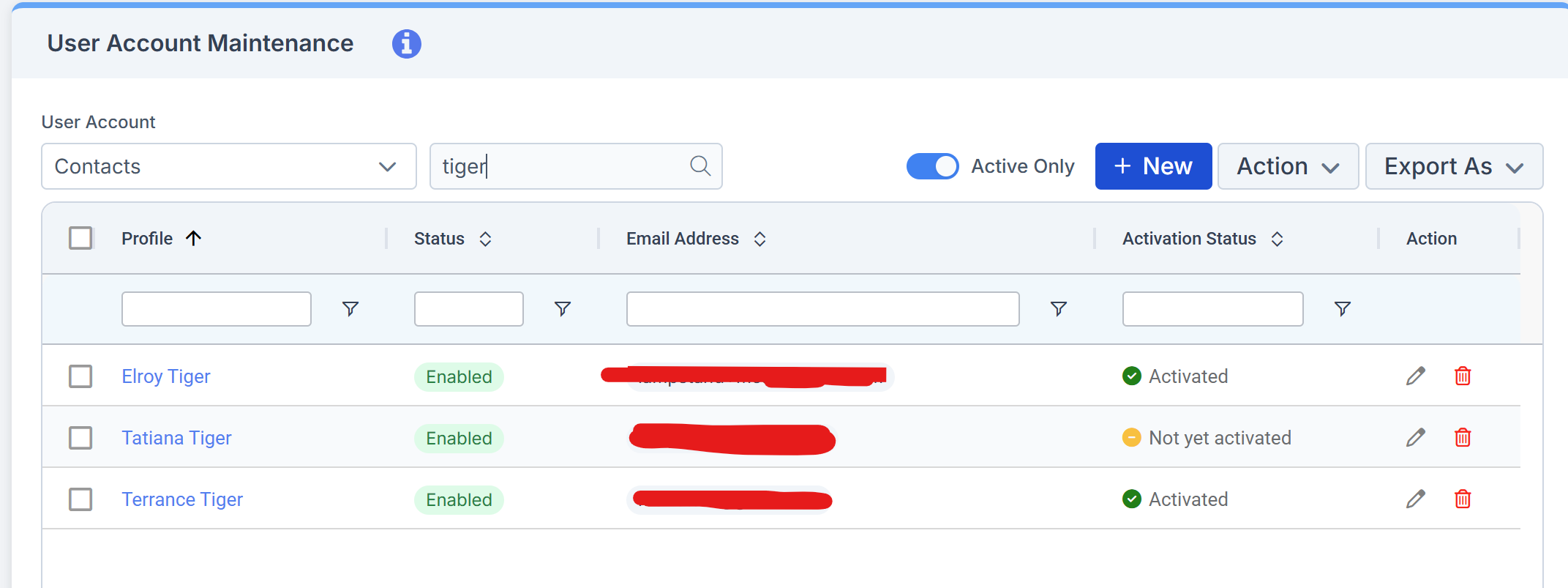
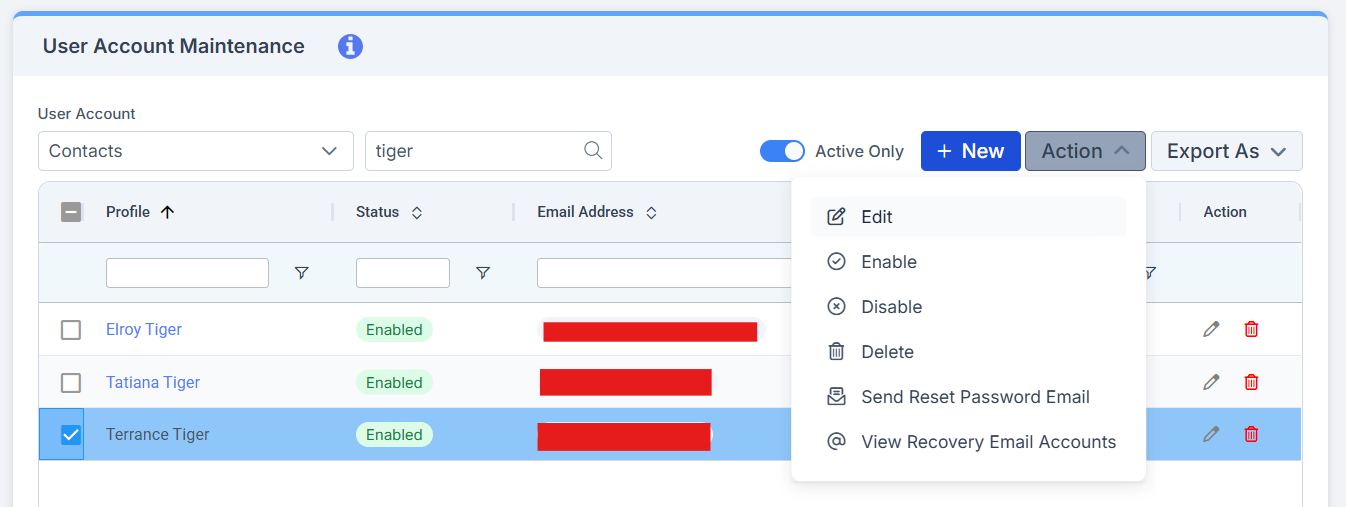
Put a tick in the box on the left of the contact you wish to amend access for, and click the Action button and select Edit.
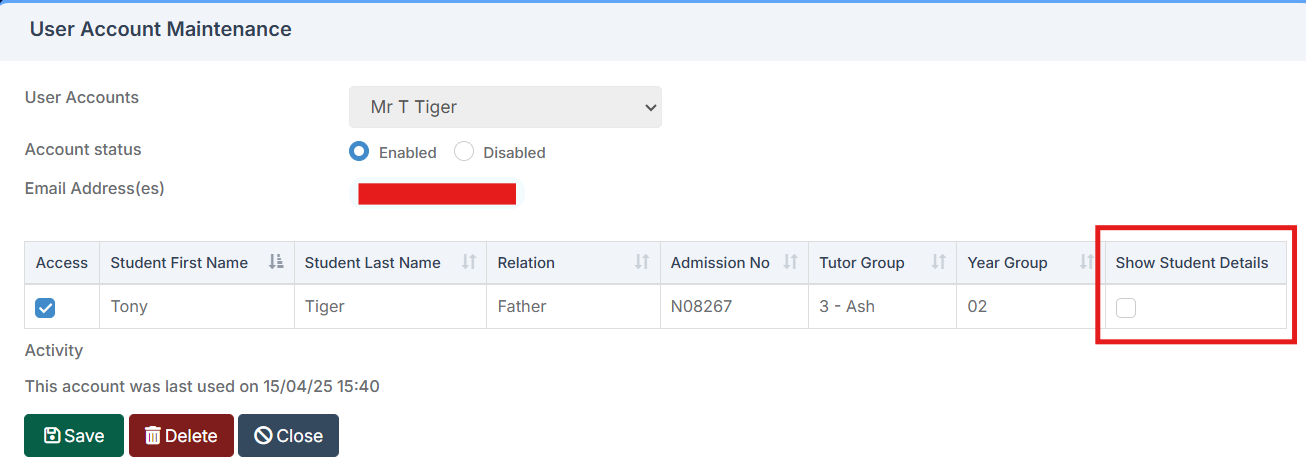
This will open up a screen where you will see the students linked to the contact record. For those you wish to restrict access to, you can either disable MCAS entirely by removing the tick from the Access box, or you can restrict access to the student’s data collection area by unticking the Show Student Details box and clicking save.
To confirm the changes have had the desired effect, open the linked Student Record and click the green person icon next to the relevant contact name. On the Data Collection Sheet option, only the contact’s personal information will be seen.

How useful was this article?

Click on a star to rate it!

Average rating / 5. Vote count:

No votes so far! Be the first to rate this post.

Similar Posts

  • Bromcom: Transferring Assessment data to Insight

    To transfer assessment data from Bromcom to Insight, you’ll typically export the data from Bromcom as a CSV file, edit it as needed, and then import it into Insight. ! We would recommend downloading one year group at a time as running by whole school may create some errors ! Steps to Transfer Assessment Data: Export…

  • BROMCOM: How can I transfer a Dinner Balance to a Running Balance Club Balance?

    Modules>MCAS.View>View Balances.  Select the student and then click on “Transfer” and enter the transfer details.         How useful was this article? Click on a star to rate it! Submit Rating Average rating / 5. Vote count: No votes so far! Be the first to rate this post.

  • Bromcom: Parent only seeing one child in MCAS

    You may find that you receive queries from Parents as to why they can only see one of their children in MCAS.  This may be because “Grant access to student details on MCAS” is not ticked” within the contact record. Please go to “Others”, Type: “Contact” and open the contact record.  Within “Linked Students”, double…

  • How do I enable Bromcom Online payments in MCAS – SCHOOLS

    Please log a case with the Scomis service desk.   We will require the following:   Complete the Online training Online purchases for primary schools | Bromcom Training School Name of user that requires access to Online payments as per certificate of training completion. A recent bank statement showing account details  (Scomis staff will advise…

  • Bromcom: Blank screen in MCAS

    Issue: A parent is logging into MCAS but is being greeted with a blank screen. Resolution: This is likely to be caused by the contact having 2 records within Bromcom. Go to Others > Contact and search for the contacts name Double click on one of the duplicated contact records and remove the student from…