BROMCOM: How can I transfer a Dinner Balance to a Running Balance Club Balance?
Modules>MCAS.View>View Balances. Select the student and then click on “Transfer” and enter the transfer details.
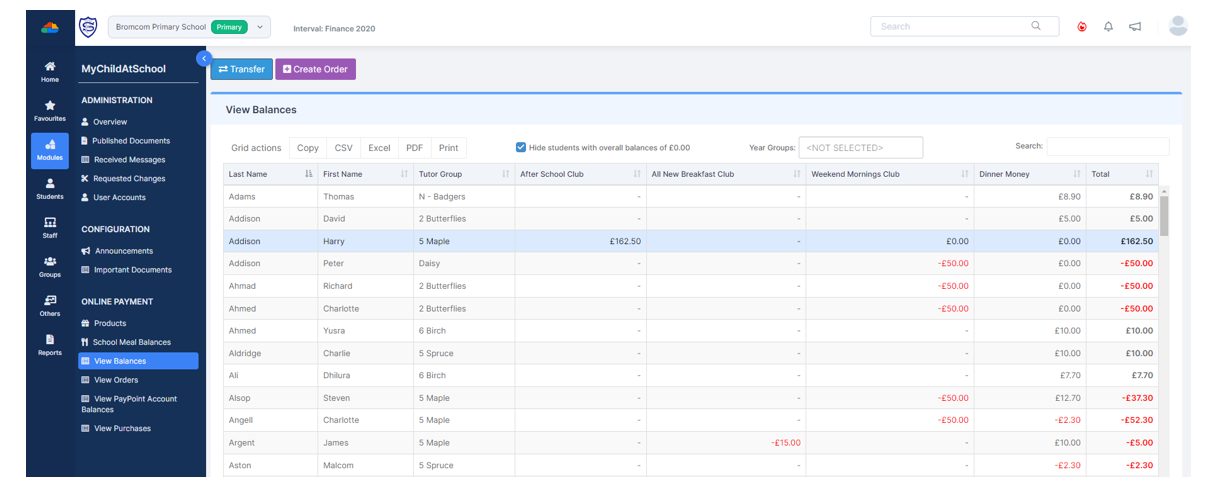
Modules>MCAS.View>View Balances. Select the student and then click on “Transfer” and enter the transfer details.
How useful was this article?
Click on a star to rate it!
Average rating / 5. Vote count:
No votes so far! Be the first to rate this post.
Once in Modules > Finance> Homepage>Routines> Automatic reconciliation, please right click in the listing and then click export as shown in the screen shot below. This will then allow you to export to excel or csv and print as required. How useful was this article? Click on a star to rate it! Submit Rating…
Please see below for suggestions of reports which can assist you with exporting data for financial audits. Budget Monitoring Modules > Finance > Budgeting > Budget Variances Add/remove columns on the right hand side, right click to Export to CSV/Excel. Staff Commitments Modules > Finance > Staffing > Salary Projections In the top right hand…
There is no excerpt because this is a protected post.
There is no excerpt because this is a protected post.
To download FileZilla……
If the post box is “greyed out” please ensure you do the following: Record the receipt and ensure you click save and print. If you don’t print, the receipt will not be available in “Paying in Slips” Browse to Modules> Finance>Accounts receivable> Paying in slips> Click the purple add button, you will see the…