Additional Funds not showing when selecting Ledger Code in Central Payments and Receipts

There is currently an issue within Bromcom Finance that is not allowing additional Fund Codes to be selected when within Modules > Finance > Routines > Central Payments and Receipts.

The issue that is currently being experienced is that when selecting a ledger code that is linked to multiple funds only Fund 01 is showing.
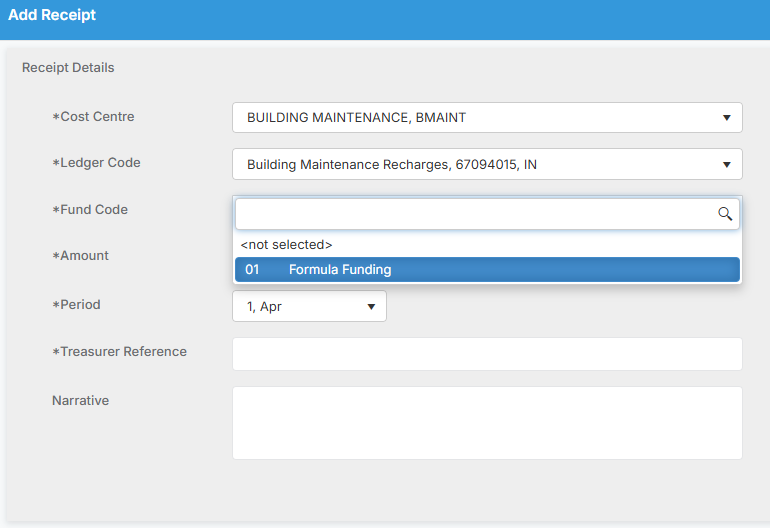
This is despite the ledger code being linked to multiple funds in Modules> Finance> Maintenance> Ledger codes, the additional fund codes being ticked.

Bromcom have advised that this is a known issue which they are currently working to rectify but in the meantime if you experience this issue please log a case with the Service Desk

How useful was this article?

Click on a star to rate it!

Average rating / 5. Vote count:

No votes so far! Be the first to rate this post.

Similar Posts

  • Bromcom Finance & DTSApps – PLYMOUTH SCHOOLS

    Bromcom Finance: How to process your invoices, in Central Authorisation and “Print & Export” Bromcom Finance: Raising orders on suppliers websites for example: YPO & Amazon Bromcom Finance: How to cancel “Passed for Pay” Invoices Bromcom Finance: I have clicked print and not print and export Bromcom Finance and DTSApps: How to process your invoice…

  • Bromcom Finance: How to Import your reconciliation file and deal with failed reconciliation items

    Once you have downloaded your file from your local authority the next step is to import the reconciliation file into Bromcom Finance. 1 ) Navigate to Modules > Finance > Homepage and select Routines > Automatic Reconciliation. Click the purple Import button top left and browse to file location of the reconciliation file 2) Select…

  • Bromcom Finance: How do I map my classroom teacher to multiple funds?

    You may have a classroom teacher who works in nursery as well as the main school and is paid from multiple funds. This FAQ explains how to deal with this in Bromcom. You can also use this if a teacher is paid entirely from a different fund to your other teachers. Please see the following…

  • Bromcom Finance: How do I add a Fund code?

    Modules> Finance> Homepage> Maintenance>Fund Codes Click New as shown in the below screen shot to create your chosen fund code Please also see guidance on Fund allocation How to allocate Funds How useful was this article? Click on a star to rate it! Submit Rating Average rating / 5. Vote count: No votes so far! Be…