Bromcom Finance: How do I map my classroom teacher to multiple funds?

You may have a classroom teacher who works in nursery as well as the main school and is paid from multiple funds. This FAQ explains how to deal with this in Bromcom. You can also use this if a teacher is paid entirely from a different fund to your other teachers.

Please see the following steps:

  • Go to Config > Administration > Base Pay Structure
  • Open the ‘Teacher’ base pay structure
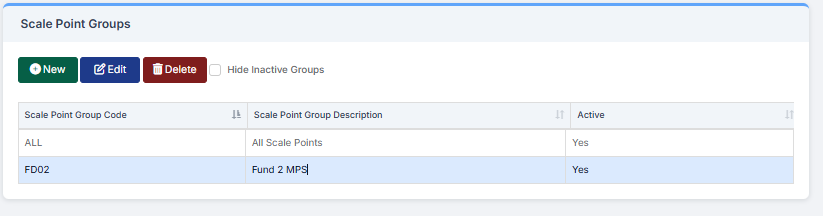
  • In the ‘Scale Point Group’ area you can add a new group for fund 02 by clicking on ‘New’ – eg FD02 MPS
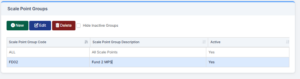
  • You will now be able to click on your FD02 scale point group and the ‘Spine Points’ area on the right will show as blank. You will now need to add in the scale points with a new code eg. FD02 MP1
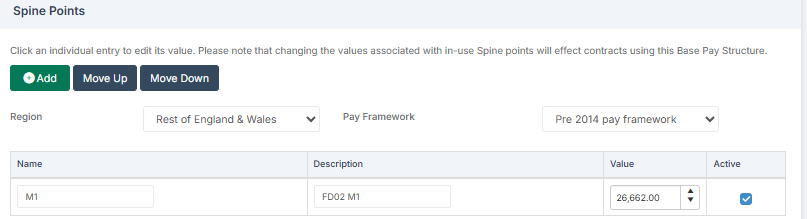
  •  Once all scale points have been added to your FD02 spine point group you will need to save (top left area of the page).
  • You will now need to navigate to your teacher staff page and on the left select ‘Contracts’
  • Locate the correct contract and open the contract
  • Within the ‘Pay’ tab you can now add new pay, select the Teacher base pay structure and you will now see that the FD02 spine point group is available to select.
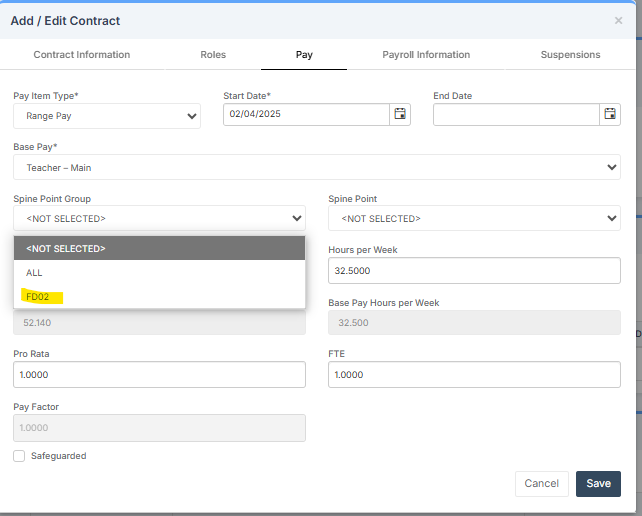
  • This can either be added to the contract as well as the existing FD01 Teacher base pay structure and the FTE divided between the two pay records, or if the teacher is paid fully from FD02 you can just have one pay record added with the full FTE.
  • Save the contract.
  • You will next need to map this new spine point group combination in Base Pay Mapping. Modules > Finance > Staffing > Base Pay Mapping.
  • You will see that there is now a blank line for your Teacher/FD02 combination. Double click on this line to map it to the appropriate cost centre.
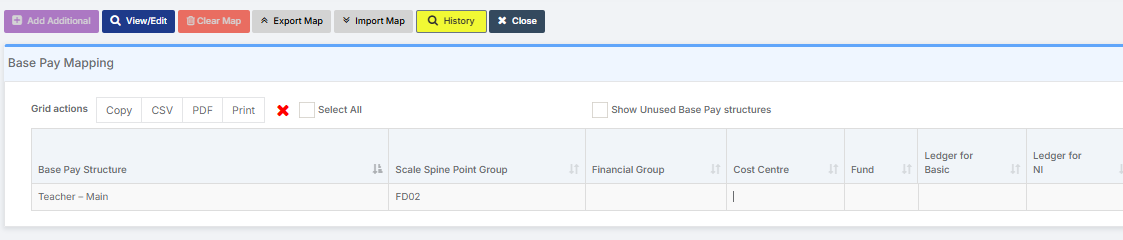
  • Once this has been saved your teacher will now show under the appropriate cost centre in salary projections (Modules > Finance > Staffing > Salary Projections).

How useful was this article?

Click on a star to rate it!

Average rating / 5. Vote count:

No votes so far! Be the first to rate this post.

Similar Posts

  • Bromcom Finance: Year End Procedures 2025

    Please find the following guides for Bromcom Finance Year End Procedures: 1)   Part 1 Guide  Preparing for the year end 2) Part 2 Guide Setting up the new year 3)   Part 3 Guide – Closing the Financial year   How useful was this article? Click on a star to rate it! Submit Rating Average rating /…

  • Bromcom Finance: How do I add a Petty Cash into the new year

    If you have not run preliminary close in the old year and need money in Petty cash  “Cash In hand” you can add a temporary reimbursement as follows: Modules> Finance> Homepage>General ledger> Petty cash processing Click “Add Reimbursement” as show below and add your details on the right of the example screen shot. Please note:…

  • Bromcom Finance and DTSApps : How do I process my Petty cash file PLYMOUTH SCHOOLS

    In Bromcom navigate to Modules> Finance> Homepage> General ledger> Petty Cash Processing. 1) Click the yellow button to add an expenditure or green button to add a reimbursement 2) Add your expense lines on the right hand side 3) Once you have added your expense lines, save and post. Once this has been done you…

  • Bromcom Finance: How do I setup a Free Text (Sundry) invoice

    Sundry Invoices should be raised for ad hoc and/or infrequent payments e.g. for payments to staff. You cannot raise a purchase order or free text order against sundry suppliers. Sundry suppliers and invoices can be setup as below: Browse to Modules> Finance> Homepage>Supplier and complete the supplier setup if not already done Tick “Sundry Supplier”…

  • Bromcom Finance: What do the different status’s mean when processing invoices

    Authorised – This means the Invoice has been “Authorised” and the user would have clicked “Authorise” within the invoice, ready to centrally authorised. Passed for Pay – This means the Invoice has been processed through “Central Authorisation” and print and exported the batch to create a file to upload to the “Local Authority” Paid – This…

  • Bromcom Finance: Configuring Bromcom to send purchase orders by email

    Prerequisites – Please ensure you have configured email for the Bromcom MIS system as per instructions in the following guide. Sending emails from your school email address in Bromcom – Frequently Asked Questions To enable Bromcom Finance module to send emails for BACS and purchase orders, you need to complete the following steps: Browse to…