Sending emails from your school email address in Bromcom
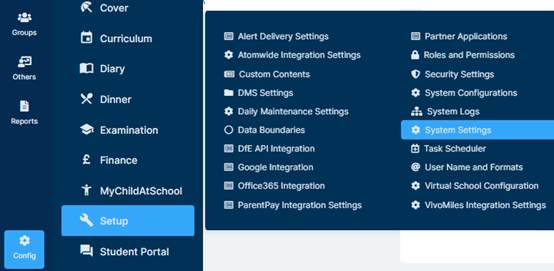
Your email settings can be viewed under Config > Setup > System Settings.
If you have not used Email functionality, you will need to ensure the settings are entered as per the below instructions, and click the Save button in the top left of the screen.
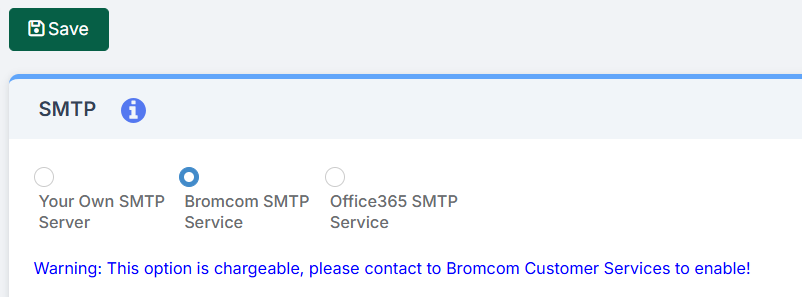
Despite the warning, the ability to send emails is enabled in your system. You will not be charged retroactively however the ability to send emails may become chargeable if you exceed your allowance of 3,000 messages per calendar month. For more information related to the Bromcom mail service, please click here.
By default, your emails will be sent with a reply address of your (Bromcom school ID)@bromcomcloud.com. There are two options for you to customise the emails sent from your Bromcom system. Scomis’ recommendation is there where possible, please use the Mail Server provided by your email provider, otherwise email may not be delivered. Scomis cannot guarantee delivery of email when using external services.
Customising your reply to address
By default, if an email is replied to, you will not receive it. To have your emails have a reply address of a school email address you will need to browse to Config > Communications > Configurations and update the School Email field to be the address you require. The email will still come from your pre-defined @Bromcom email address, however replies will go to the email address you specify in this area.
Configuring your own SMTP email server settings
From the left Menu go to Config > Setup > System Settings, where you will have the option to select your own SMTP Service.
This means that the delivery of Emails will be handled by your Internal Servers once they leave the MIS.
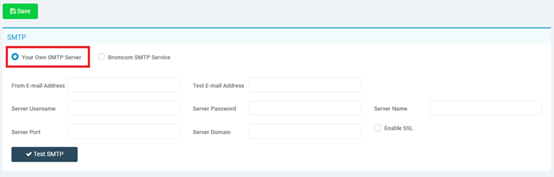
Use the radio button to select Your Own SMTP Server.
The key options here are the From E-mail Address and Server related fields. These will enable you to send Emails using your own server and you should speak with your IT support providers if you are unsure of any of these options.
Once you are happy with the settings, click the Save button. If you wish to configure your system to send purchase orders or BACS remittance emails, please visit the following link for further instructions. Configuring Bromcom Finance to send purchase orders by email – Frequently Asked Questions