|

BROMCOM:Shared Staff in a tutor group

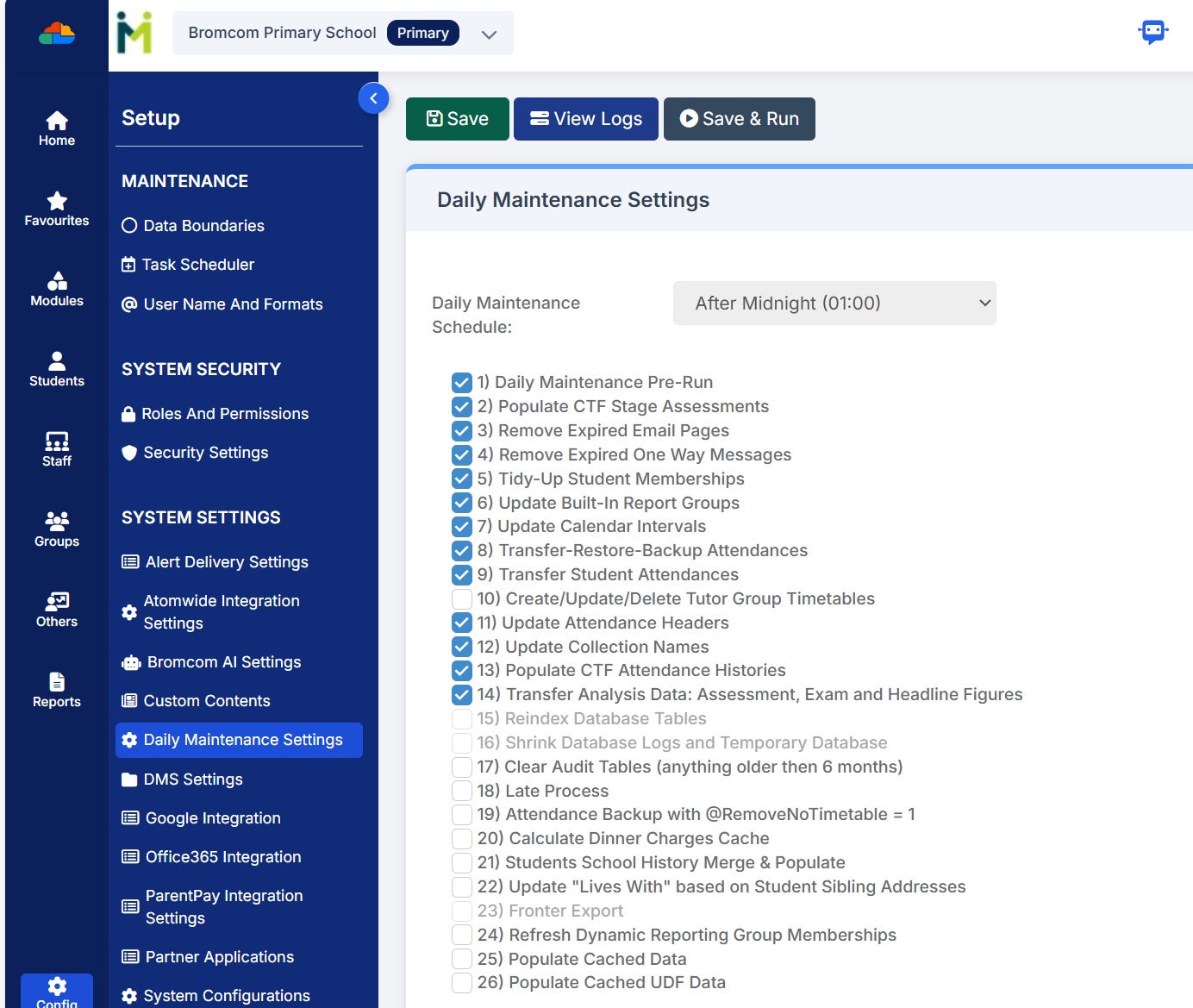
If you have more than one staff member with scheduled timetabled registers e.g Mr Smith is timetabled for Mon-Wed and Mrs Brown is scheduled Thur- Fri then you might want to remove tick box ten from the Daily Maintenance Settings.

The Daily Maintenance Settings are a group of processes that are performed automatically on a daily basis.
Tick box 10 ensures that all active tutor groups have timetabled sessions for every AM and PM. If you have tutor groups that are shared between Staff Members, with each Staff Member having their own specific sessions you may wish to turn this off as it will automatically create sessions for each linked Staff Member for every AM and PM session.

You can turn this of from Config>Setup>Daily Maintenance settings
How useful was this article?

Click on a star to rate it!

Average rating / 5. Vote count:

No votes so far! Be the first to rate this post.

Similar Posts

  • Bromcom: How do I add a comment to an attendance mark in the register?

    There may be occasions where you need to add a comment to an attendance mark within the register. To do this you will need to go to Modules > Attendance > Manage Attendance. From here you can select the parameters for the register that you would like view. The register will then load. Click into…

  • Bromcom: Pre-Admissions

    Pre-Admissions in Bromcom Attached is a brief guide on how to carry out the following tasks with regards to Pre-Admissions; Creating a Pre-Admission Group Adding Students Manually Adding a student Via CTF/ATF Communication Using MCAS to share/collect information Sending Messages to parents Managing Admissions Finalise Admissions/Admitting Students Bromcom Pre-Admission documentation How useful was this article?…

  • Bromcom: Transferring Assessment data to Insight

    To transfer assessment data from Bromcom to Insight, you’ll typically export the data from Bromcom as a CSV file, edit it as needed, and then import it into Insight. ! We would recommend downloading one year group at a time as running by whole school may create some errors ! Steps to Transfer Assessment Data: Export…

  • BROMCOM: Key Stage reports

    There are a number of reports that can be run for Key Stage. These can be used for analysis or to send to Parents/Guardians You can find all of these reports from Reports>Assessment>Stage Assessment Comparative Report– This report can be used to analyse Test Scores and Outcomes in Percentages to compare against National Figures Pupil…