Bromcom Finance and DTSApps: How to process your invoice file through DTSAPPS – DEVON SCHOOLS
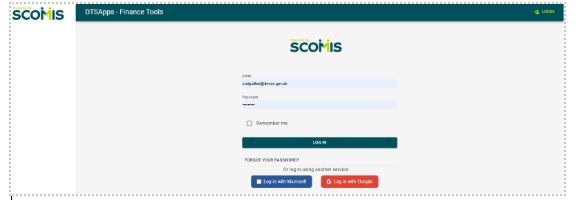
Once you have clicked “Print and Export” in Bromcom, you will need to process your “Text file ” through DTSApps
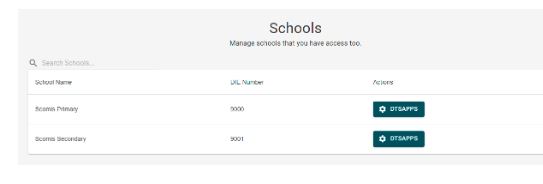
2) If you work in more than one school, please ensure you select the DTSApps for the school you are process the file for.
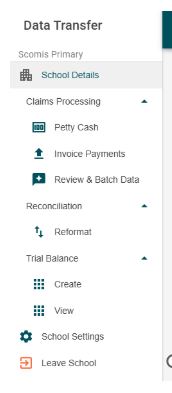
3) In the left-hand panel select Invoice payments – see screen shot below.
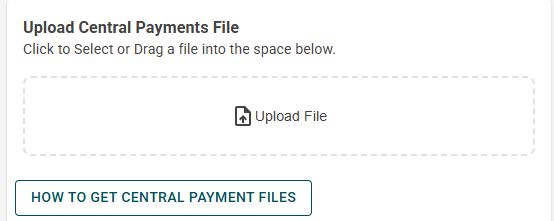
4) You will then need to locate the text file produced from Bromcom, this could be in your downloads or in a saved location of your choice. Click the upload file link as per below example:
Select the text file and open to upload.
5) A green success message should appear as per below :
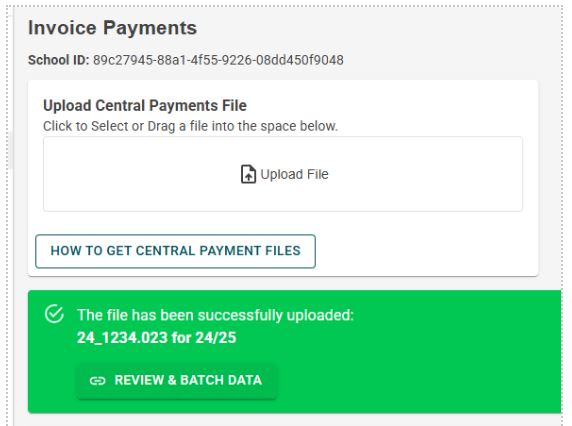
6) Click the “Review and Batch Data ”
You will see the invoices contained and can now select them ready to batch.
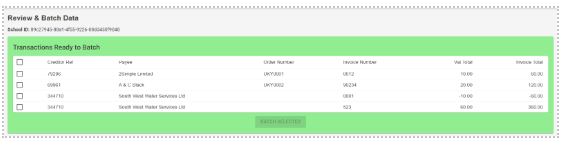
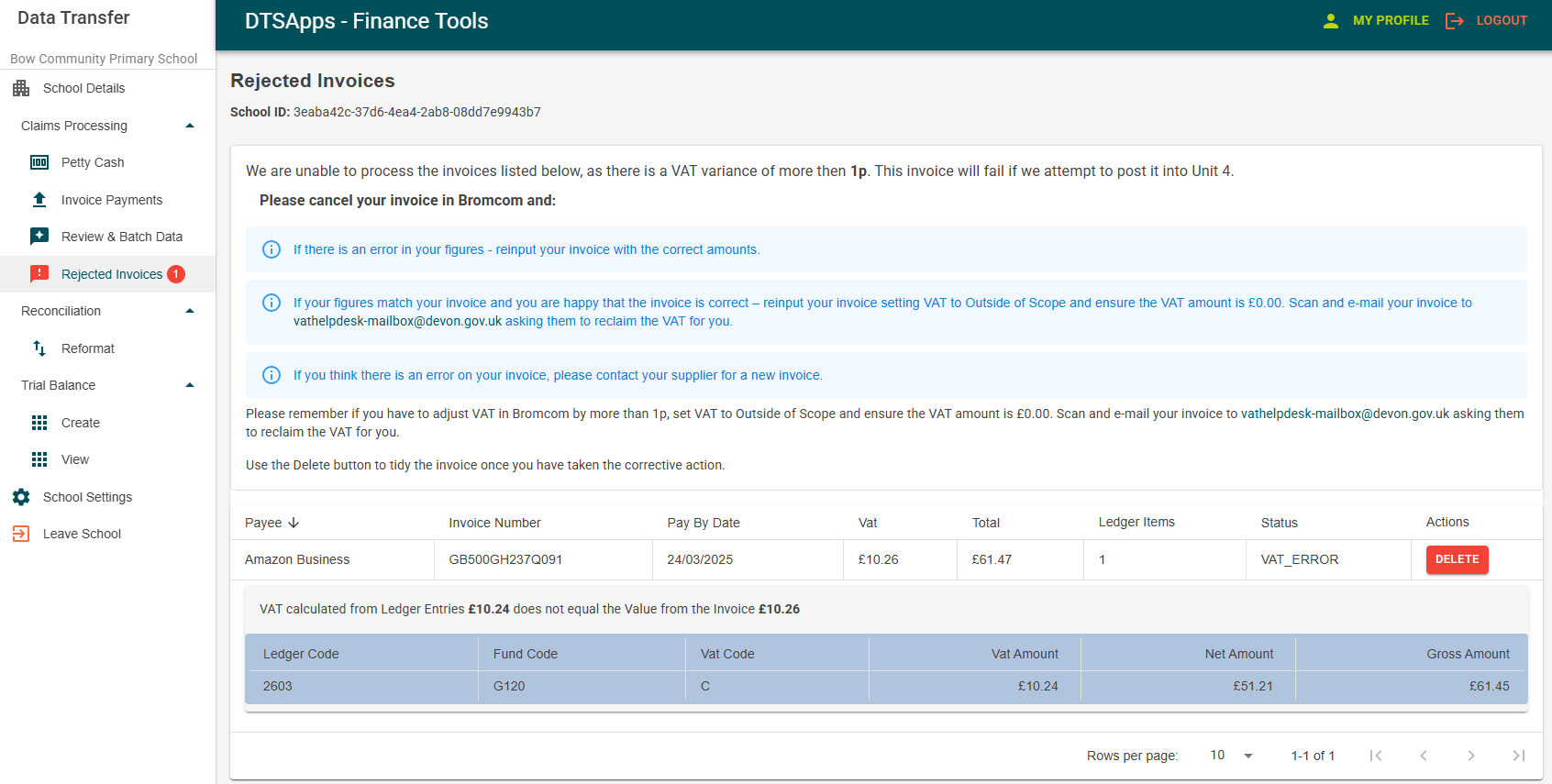
You may also have some rejected invoices as seen in the screenshot below. This is due to an issue with a VAT variance of more than 1p which will cause the invoice to be rejected by Unit 4.
Please cancel your invoice in Bromcom and:
1. If there is an error in your figures – reinput your invoice with the correct amounts.
2. If your figures match your invoice and you are happy that the invoice is correct – reinput your invoice setting VAT to Outside of Scope and ensure the VAT amount is £0.00. Scan and e-mail your invoice to vathelpdesk-mailbox@devon.gov.uk asking them to reclaim the VAT for you.
3. If you think there is an error on your invoice, please contact your supplier for a new invoice.
Please remember if you have to adjust VAT in Bromcom by more than 1p, please set your VAT to Outside of Scope and ensure the VAT amount is £0.00. Scan and e-mail your invoice to vathelpdesk-mailbox@devon.gov.uk asking them to reclaim the VAT for you.
Once this has been done you will then need to delete the invoice from within DTSApps.
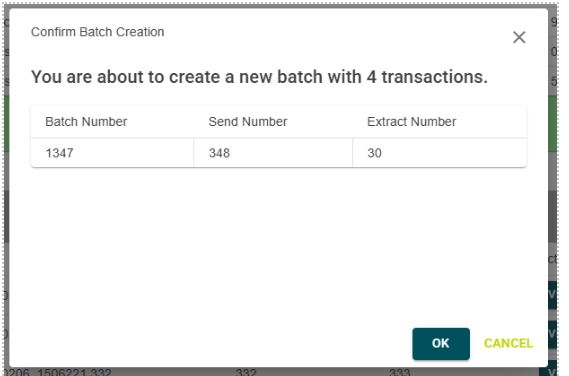
Once any rejected invoices have been dealt with you can select all and click Batch selected within Invoice Payments.
On the Pop-up note the batch number and sending and click OK
7) Once batched the new file is ready and will automatically be uploaded to Unit 4. You can view the file but you DO NOT need to download. Download is automatic, downloaded files will go from the green area to the grey area when the file has been transferred to UNIT4. These files will still have a send number.

Should you need to download for any reason the following message will appear: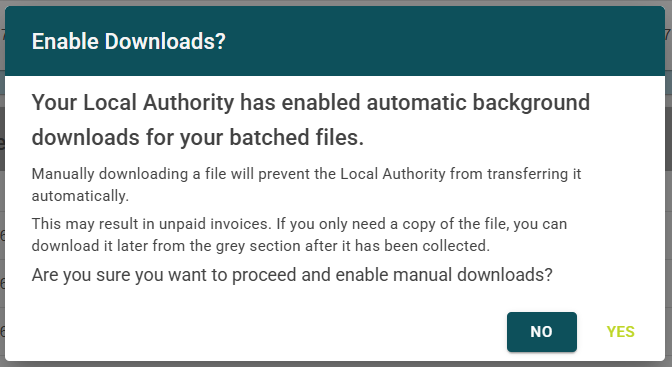
Clicking Yes to this message will then download the file.