Bromcom Finance and DTSApps: How to process your invoice file PLYMOUTH SCHOOLS

Once you have clicked “Print and Export” in Central Authorisation in Bromcom, you will need to process your TXT file through DTSApps
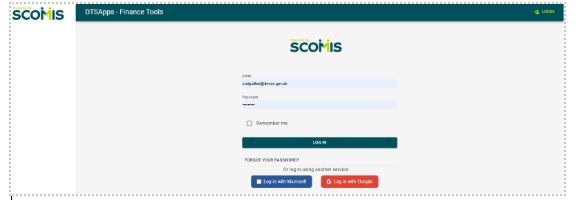
  1. Click here to log into DTSApps

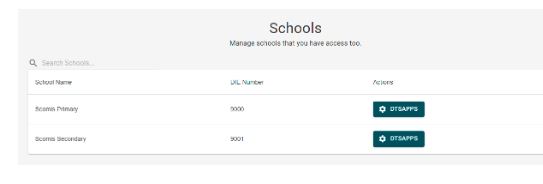
2) If you work in more than one school, please ensure you select the DTSApps for the school you are processing the file for.
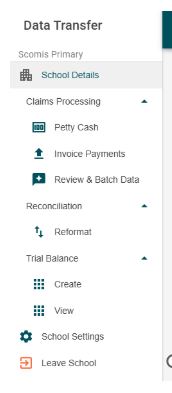
3) In the left-hand panel select Invoice payments – see screen shot below.
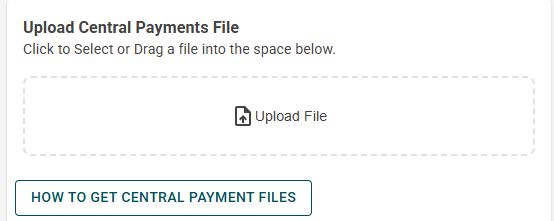
4)  You will then need to locate the text file produced from Bromcom, this could be in your downloads or in a saved location of your choice. Click the upload file link as per below example:

Select the text file and open to upload.
5) A green success message should appear as per below :
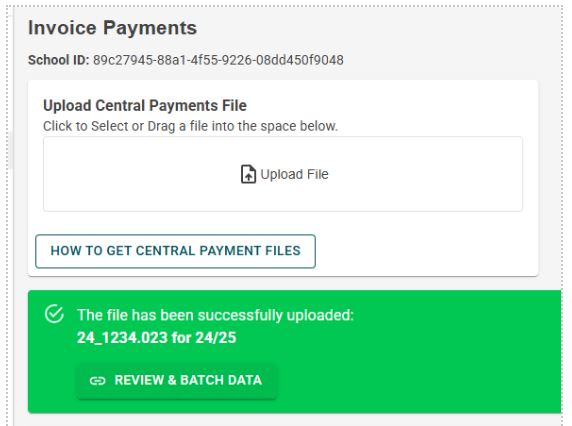
6) Click the “Review and Batch Data ”

You will see the invoices contained and can now select them ready to batch.
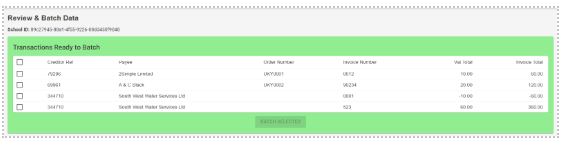
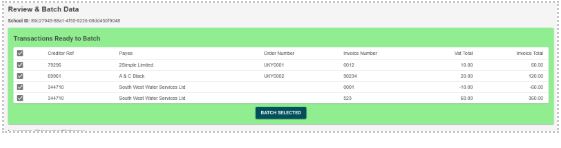
Select all and click Batch selected
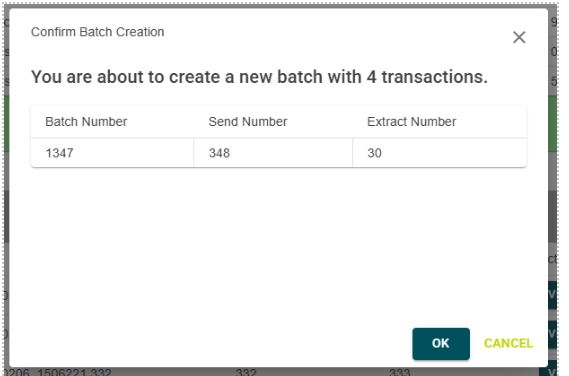
On the Pop-up note the batch number and send number and click OK
7) Your file will now be showing in the blue ‘Review and Send’ area. You can now select ‘Download Zip’ to download your zipped file which is password protected with your Plymouth password. You can also select ‘View Details’ to print off an authorisation report (If you need to change your Plymouth password you can do this via School Details > Prefix/Suffix)
 

10) You will need to rename your zipped file in line with Plymouth instructions and then upload via DfE S2S


How useful was this article?

Click on a star to rate it!

Average rating / 5. Vote count:

No votes so far! Be the first to rate this post.

Similar Posts

  • Bromcom Finance: Why can’t I post my Petty Cash?

    My petty cash saves but does not post and has a “No” in the posting column. This is likely to be due to your Petty Cash book running our of folio numbers. Go to Modules> Finance>Homepage> Maintenance> Books. Ensure you have enough folio numbers for each line of expenditure record. If not, you will need…

  • Bromcom Finance and DTSApps : How do I process my Petty cash file PLYMOUTH SCHOOLS

    In Bromcom navigate to Modules> Finance> Homepage> General ledger> Petty Cash Processing. 1) Click the yellow button to add an expenditure or green button to add a reimbursement 2) Add your expense lines on the right hand side 3) Once you have added your expense lines, save and post. Once this has been done you…

  • Bromcom Finance: How do I add a Fund code?

    Modules> Finance> Homepage> Maintenance>Fund Codes Click New as shown in the below screen shot to create your chosen fund code Please also see guidance on Fund allocation How to allocate Funds How useful was this article? Click on a star to rate it! Submit Rating Average rating / 5. Vote count: No votes so far! Be…

  • Bromcom Finance: Configuring Bromcom to send purchase orders by email

    Prerequisites – Please ensure you have configured email for the Bromcom MIS system as per instructions in the following guide. Sending emails from your school email address in Bromcom – Frequently Asked Questions To enable Bromcom Finance module to send emails for BACS and purchase orders, you need to complete the following steps: Browse to…

  • Bromcom Finance and DTSApps – Download and Reformat process PLYMOUTH SCHOOLS

    This FAQ is for Plymouth Schools and explains how to reformat your reconciliation file downloaded from DfE S2S to ensure it can be imported into Bromcom Finance. Download your relevant reconciliation files from DfE School to School Unzip your file using 7 zip and your Plymouth credentials (Please ensure that the file size is above…