Bromcom: Attendance – What is the “Projector Mode” when taking a register?

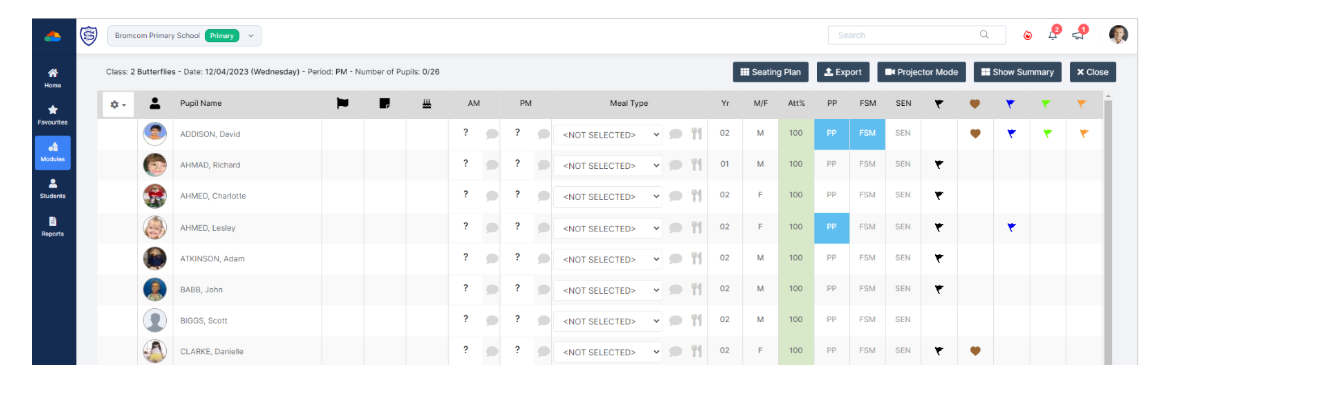
Projector mode, which when turned on, will hide potentially sensitive information on registers from being shown on the Teacher’s screen.  This could be sensitive information such as a students SEN, PP or FSM. 

 In the example below the Projector Mode is Off. 
In the example below the Projector Mode is On. 
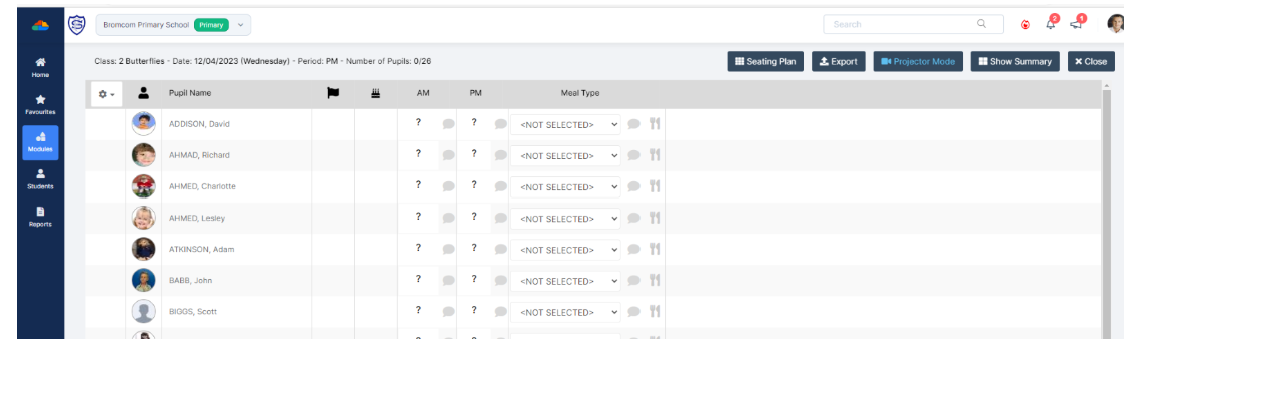
To reenable the Projector Mode, you will need to enter your Password.  This is the password that you use to log into the Bromcom MIS system. 

How useful was this article?

Click on a star to rate it!

Average rating / 5. Vote count:

No votes so far! Be the first to rate this post.

Similar Posts

  • Bromcom Finance: Error posting Individual salary payment

    When posting the Individual salary payment an error is generated as below : This is most likely due to the “Base Pay” associated with the ledger codes being used, having missing information e.g Missing Financial subgroup. Please browse to: Modules> Finance> Homepage>Staffing> Base Pay Mapping, locate the Base pay being used for the individual salary…

  • Bromcom: Updating Staff Current Job Title

    To update the staff current job title in bulk go to Staff > Selection > Select All and then Actions > Manual Data Export. From here select “Basic Details” and tick “Include empty records where data does not exist” and click Export Open the spreadsheet that has been downloaded and enter all required information. After…

  • BROMCOM: Key Stage Year 6 CTF

    How to create a Year 6 KS2 TA CTF Once you have entered in all your marks you need to create a CTF file to send to the National Assessment Agency Please check with your LA to confirm the destination. To create a CTF in Bromcom click Students  from the left hand side menu Select…

  • How do I delete equipment in Equipment Register?

    Follow the below to remove equipment from Equipment Register. Focus > Equipment > Highlight the item > Click View/Edit. To delete the Item click the – icon on the focus bar and enter the reason for deletion. Click Save. How useful was this article? Click on a star to rate it! Submit Rating Average rating…