BROMCOM: How to View Marksheets as a Teacher or Admin

How to view the Marksheets for Key Stage Assessments in Bromcom, once the configurations has been complete: BROMCOM: How to add ‘Configurations’ to a Role for Key Stage – Frequently Asked Questions

There are a few ways the Marksheets can be viewed in Bromcom for a Teacher:

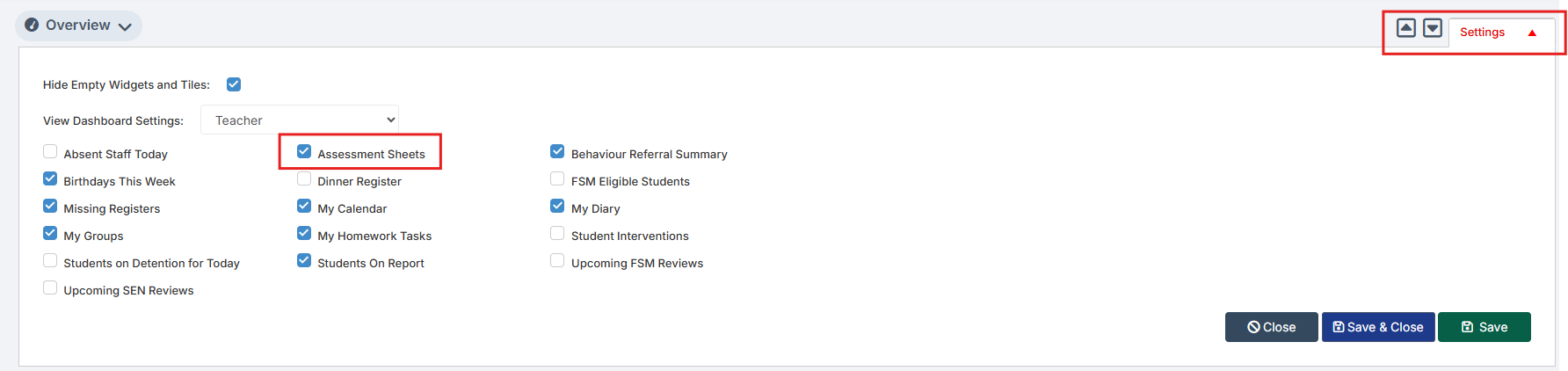
From the Homepage, go to Settings on the Right Hand side and open up these tick options, and tick Assessment Sheets and Save 


The Assessment Sheet will now show as a tile:
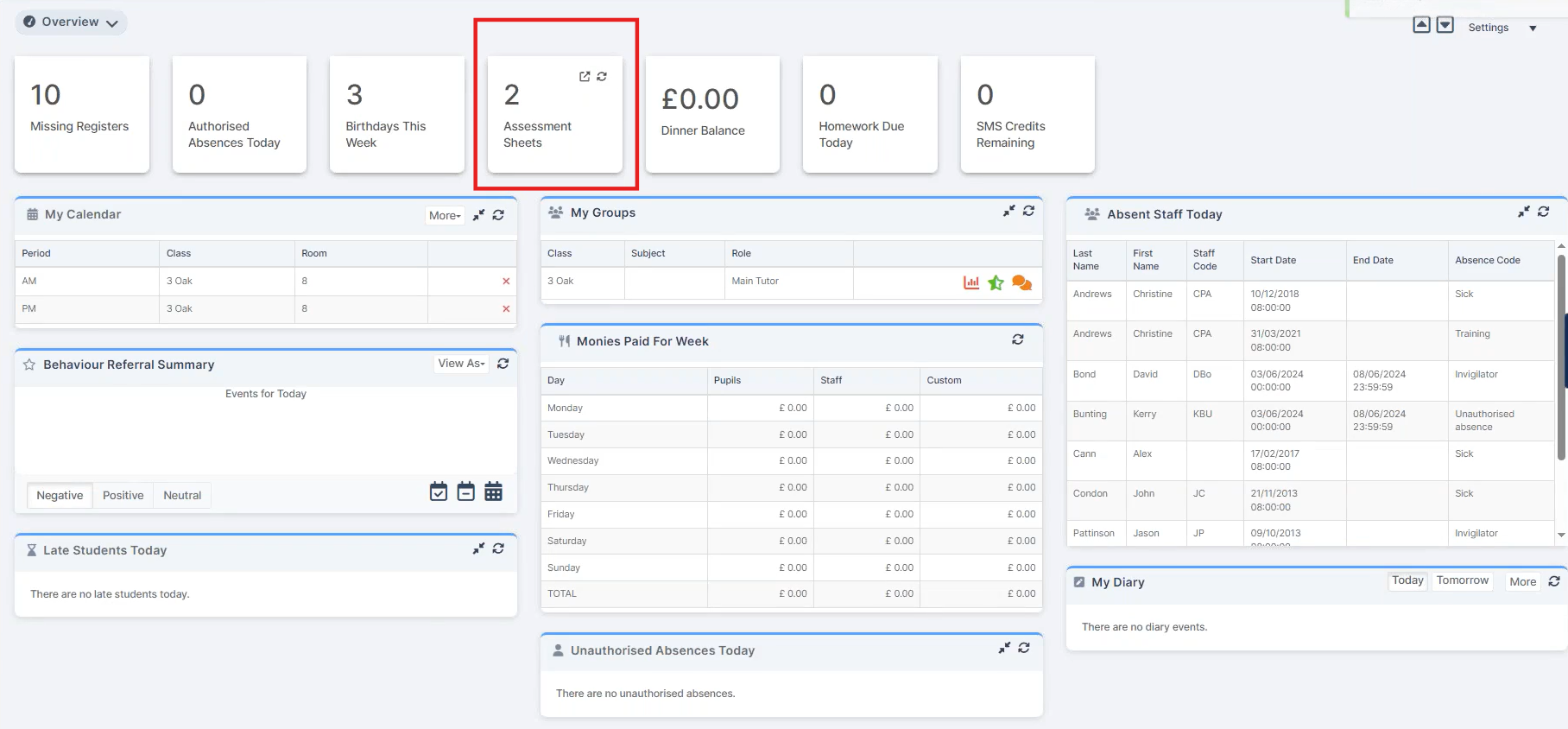
If you double click on the tile it opens
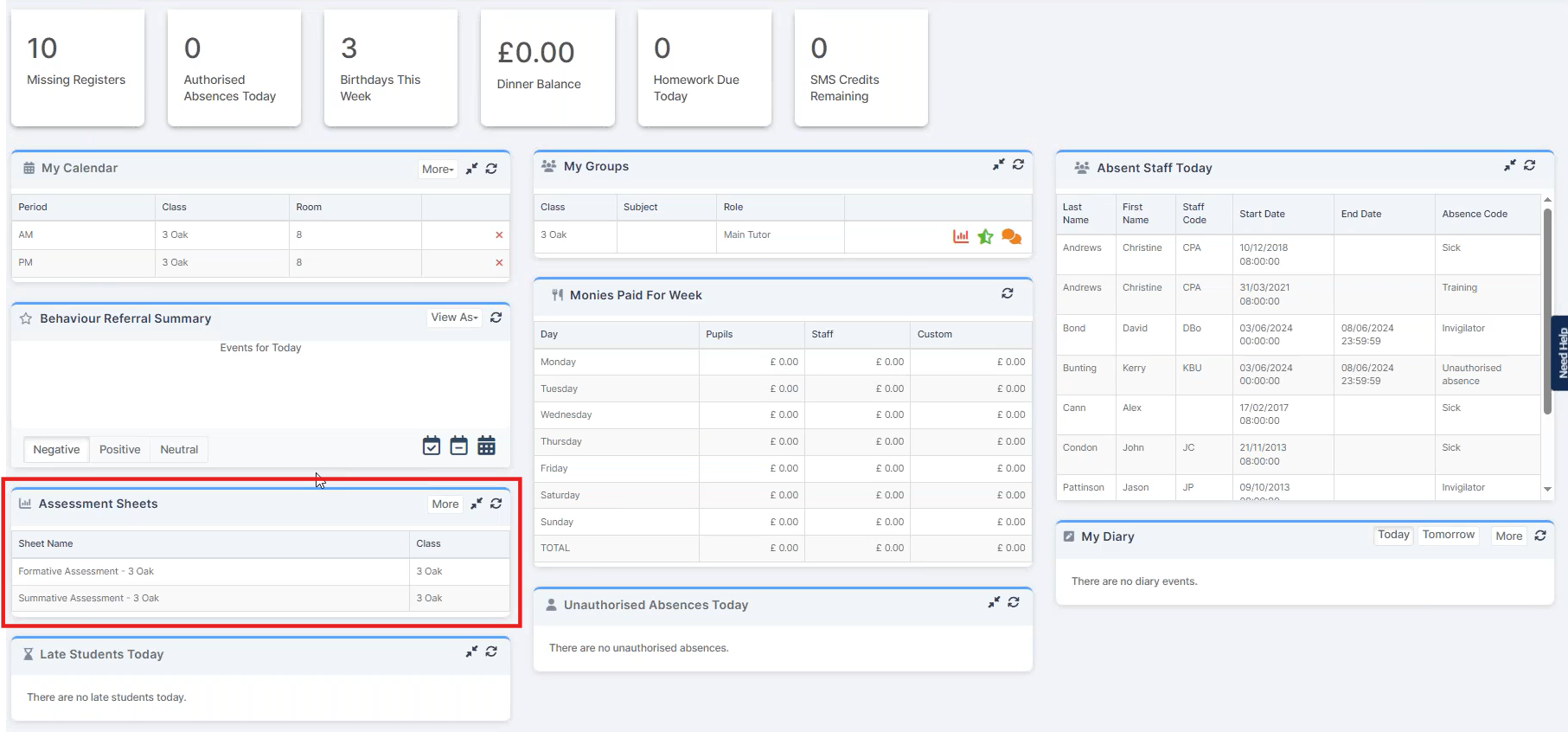
You can left click on the listed marksheets to open them.

Marksheets can also be viewed via Modules > Assessment > Marksheet View List
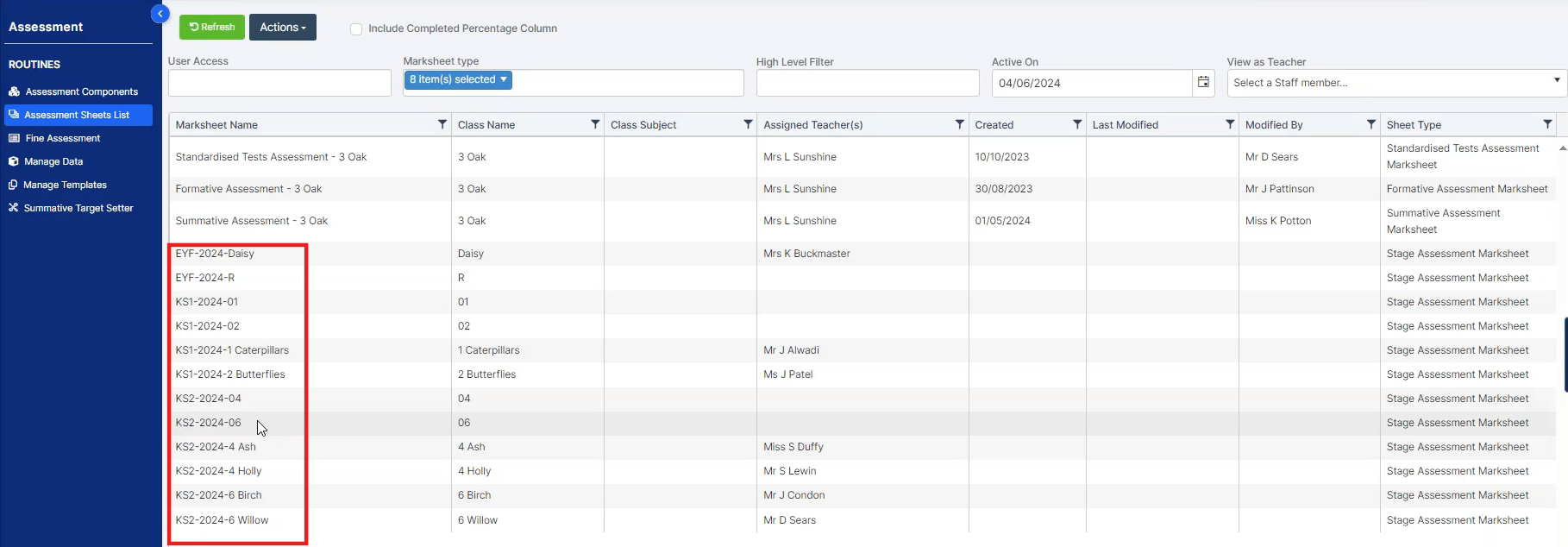
For Key Stage Assessments they are listed for the year groups and classes setup in the Configurations step.

Click on the required marksheet to open.

If you’re unsure if a Teacher can view the marksheet you can see what they can view following this FAQ: Bromcom: Admin – Login as Another Staff Member (often referred to “Green” eye or “View as Other” ) – Frequently Asked Questions


How useful was this article?

Click on a star to rate it!

Average rating / 5. Vote count:

No votes so far! Be the first to rate this post.

Similar Posts

  • BROMCOM: Key Stage Year 6 CTF

    How to create a Year 6 KS2 TA CTF Once you have entered in all your marks you need to create a CTF file to send to the National Assessment Agency Please check with your LA to confirm the destination. To create a CTF in Bromcom click Students  from the left hand side menu Select…

  • Resetting Scomis Self Service Portal passwords for non Hosted App schools

    Please see below how to reset a user’s Self Service Portal password for Non Hosted Application Service School only. 1) Login to Terminal Server. 2) Double Click on the icon Supportworks – Reset Password. 3) Read the warning and click Yes to proceed. 4) Select the school 5) Select the username 6) E-mail new password…

  • Bromcom Staff Data Collection Report

    This report can be found via Reports – Administration – Staff data check report. You can export, print, and hand-out to teachers to check.  Alternatively you could create a quick report with the information you want to check, include staff email, and then mailmerge it to staff. Also, staff should (permissions allowing) be able to…

  • Adding Pupil Premium to your MIS

    Arbor ‘Pupil Premium Eligible’ in Arbor is an indicator of whether a student may be eligible for Pupil Premium based on their background, such as being in receipt of Free School Meals. The Pupil Premium tag may not be a true representation of who actually receives Pupil Premium funding in the school (shown by the…

  • Autumn School Census 2025 – Bulletin

    This FAQ lists the latest information regarding the School Census.  For Schools wanting the latest documentation for Census and using Bromcom – Click here  to jump to the relevant section. For Schools wanting the latest documentation for Census and using Arbor –  Click here  to jump to the relevant section. For Schools wanting the latest documentation for…

  • Bromcom Finance: How do I add a Fund code?

    Modules> Finance> Homepage> Maintenance>Fund Codes Click New as shown in the below screen shot to create your chosen fund code Please also see guidance on Fund allocation How to allocate Funds How useful was this article? Click on a star to rate it! Submit Rating Average rating / 5. Vote count: No votes so far! Be…