|

BROMCOM: How To Setup Marksheets for KeyStage

For Key Stage Assessments after you have access via BROMCOM: How to add ‘Configurations’ to a Role for Key Stage – Frequently Asked Questions

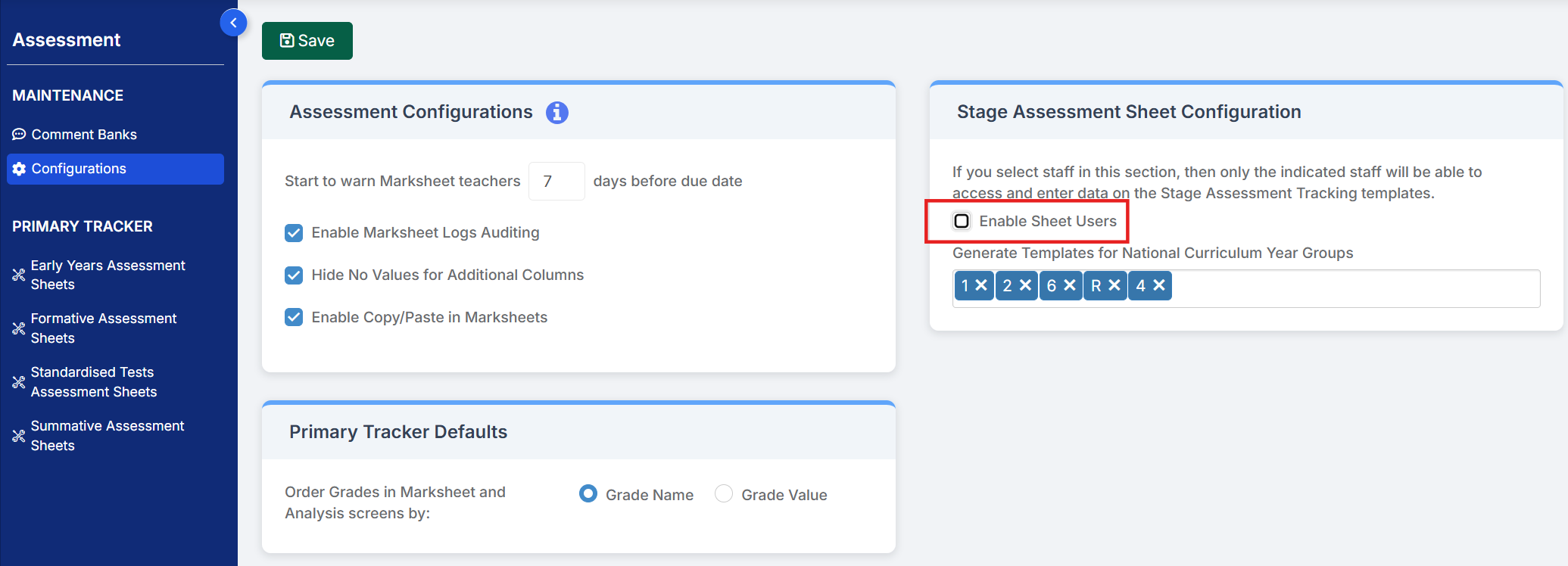
Go to Config > Assessment > Configurations and put the tick in Enable Sheet Users.


You can then tick which Staff Roles will require access to the marksheets (this will need to be decided in school) or use the staff search to individually select the staff to have access. This will need to be any users who need to input or view the data.
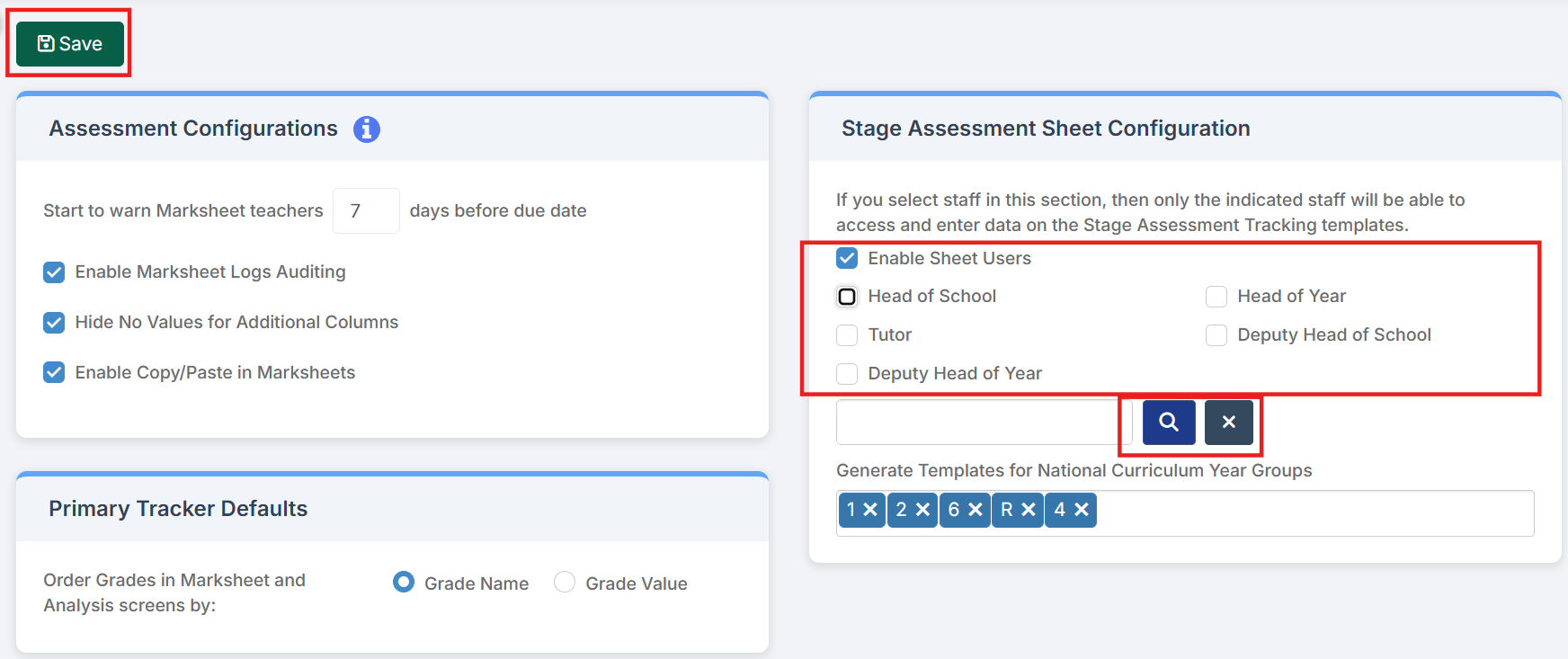
  • Enable Sheet Users – selecting this option will only allow the selected Roles and selected Staff in the Selection List to access and input data in the Stage Assessment Sheets.
  • Select individual users – use the blue magnifying glass to open the Staff selector page and select the members of Staff who are not defined in the Roles who also need access to the Stage Assessment Sheets. Alternatively type the Staff name into the box, if selecting a single member of Staff. The selected Staff will appear in the Selection List

Generate Templates for National Curriculum Year Groups Select all the NC Year groups for Key Stage are from the Drop Down, Reception, Year 1,2,4 and 6.

Then press Save.

This will now set up the marksheets for Key Stage to be viewed by those staff via Modules > Assessment > Assessment Sheets List – BROMCOM: How to View Marksheets as a Teacher or Admin – Frequently Asked Questions

How useful was this article?

Click on a star to rate it!

Average rating / 5. Vote count:

No votes so far! Be the first to rate this post.

Similar Posts

  • Bromcom Finance: How do I add a pay award ?

    Please note: This method is recommended for confirmed pay awards, if adding a projected pay award, please follow step 5  Browse to Config>Administration>Base Pay Structures>double click the required Base Pay structure, e.g JK – Job Evaluation Hours Per Annum, JE – Job Evaluation All Year Round,  JL – Job Evaluation > HPA 5 yrs, Teachers…

  • Bromcom Finance: What do the different status’s mean when processing invoices

    Authorised – This means the Invoice has been “Authorised” and the user would have clicked “Authorise” within the invoice, ready to centrally authorised. Passed for Pay – This means the Invoice has been processed through “Central Authorisation” and print and exported the batch to create a file to upload to the “Local Authority” Paid – This…

  • Bromcom: Attendance – What is the “Projector Mode” when taking a register?

    Projector mode, which when turned on, will hide potentially sensitive information on registers from being shown on the Teacher’s screen.  This could be sensitive information such as a students SEN, PP or FSM.   In the example below the Projector Mode is Off.  In the example below the Projector Mode is On.  To reenable the Projector…

  • Recording Club Attendance in Bromcom

    In Bromcom it’s possible to record attendance for Clubs, in this KB we’ll show you how this is done. Navigating to the Clubs Homepage In Bromcom, click the Groups button, this will default either to Tutor or Class. In the top right corner of the screen change the Group Type to Clubs Recording Attendance Select…