Bromcom Finance – How to hide and unhide cost centre ledger links

In Bromcom Finance it is possible to hide cost centre-ledger links that you do not want to use.

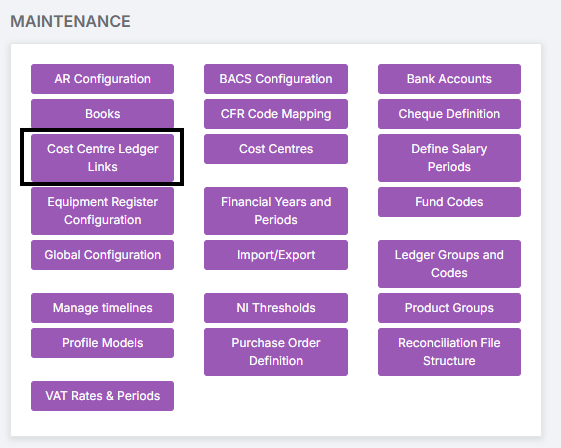
From the finance home page in the Maintenance area please select the ‘Cost Centre Ledger Links’ box
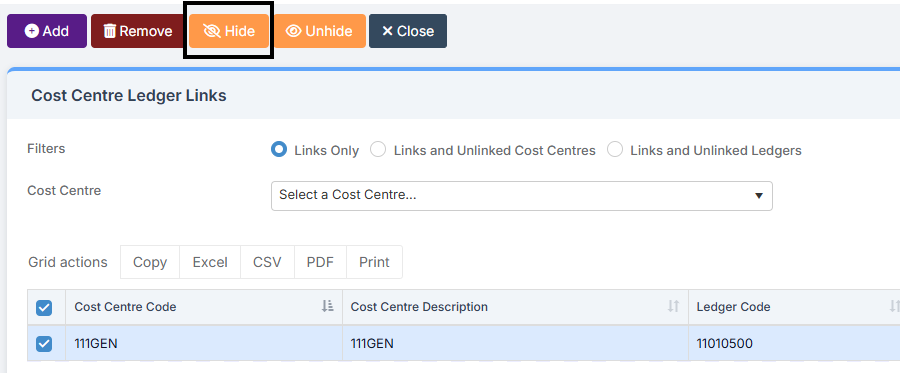
You can then manually select the links you would like to hide by clicking on the tick box to the left of each link and then select ‘Hide’
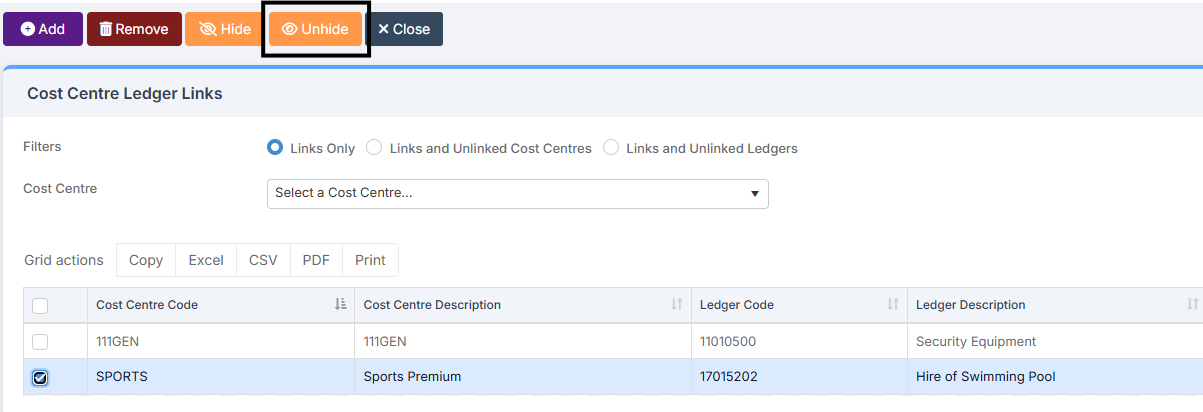
If you wish to unhide or view your hidden links you can click on the ‘Hidden’ tick box in the top right of the screen

This will display your hidden links, you can then tick the required links and ‘Unhide’
How useful was this article?

Click on a star to rate it!

Average rating / 5. Vote count:

No votes so far! Be the first to rate this post.

Similar Posts

  • Bromcom Finance & Budgeting : How do I enter a Variance reason in Budget Variances

    Modules> Finance> Homepage> Budgeting> Budget Variances In the budget variances you can add a budget variance reason against e.g a Cost centre as shown in this example below: Note: Any Variance reason needs to be added before you sort your columns – see sorting columns FAQ – Bromcom Finance & Budgets: How do I sort…

  • Bromcom Finance: How do I add a Petty Cash into the new year

    If you have not run preliminary close in the old year and need money in Petty cash  “Cash In hand” you can add a temporary reimbursement as follows: Modules> Finance> Homepage>General ledger> Petty cash processing Click “Add Reimbursement” as show below and add your details on the right of the example screen shot. Please note:…

  • What’s new on Bromcom Finance

    You can view what is new in Finance by clicking on the megaphone icon as seen below. We will also update this FAQ with the latest changes, new features and improvements each time they are released. Sprint Release 17th October 2025     URL for further information MIS Route Information Finance – Clone Invoices and…

  • Bromcom Finance: How do I enter my budget into the new year ?

    Modules> Finance> Homepage>Budgeting> Cost Centre allocation. Top tip: When in Cost centre allocation, you can click “Edit Mode” located top right of screen, which opens all cost centres and ledger codes in one area for you to add your budget allocations. Please also see the following guide:Bromcom Finance guide – How to Enter Budgets  …

  • Bromcom Finance : How do I clear a salary commitment ?

    You will need to clear a salary commitment if you have reconciled manually via Individual salary payments or central payments as follows: Browse to Modules> Finance> Homepage> Staffing> Salary Projections. Click the “Actions” button top left > Click “Amend Commitments” Select the staff member & posting period. Click “Clear Commitments” How useful was this article?…

  • Bromcom Finance & DTSApps – DEVON SCHOOLS

    Bromcom Finance: How to process your invoices, in Central Authorisation and “Print & Export” Bromcom Finance: Raising orders on suppliers websites for example: YPO & Amazon Bromcom Finance: How to cancel “Passed for Pay” Invoices Bromcom Finance: I have clicked print and not print and export Bromcom Finance and DTSApps: How to process your invoice…