Bromcom: Managing Spine Points for Staff

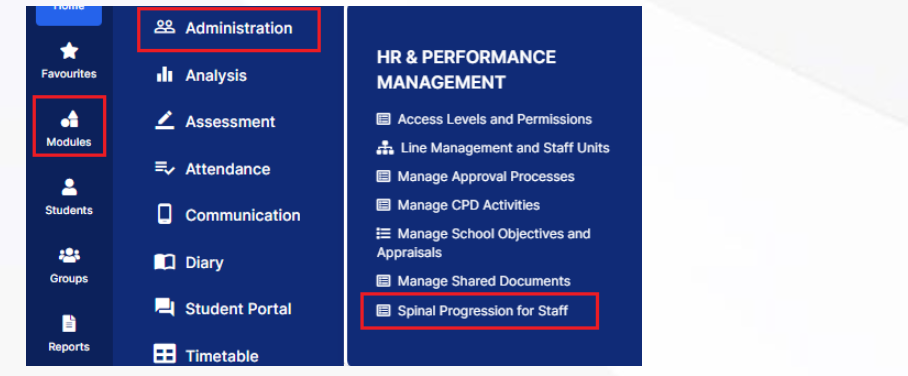
Full details on how to manage spine points in Bromcom can be found below, however please note, even though the spinal progression month is recorded in the contract you will still need to go to Modules > Administration > Spinal Progression for Staff and set the effective date for the increment so this is automatically updated for staff.
The spinal progression month is recorded in the contract for reporting purposes and because not everyone will have salary increments at the same time. EG support staff April, Teachers September.

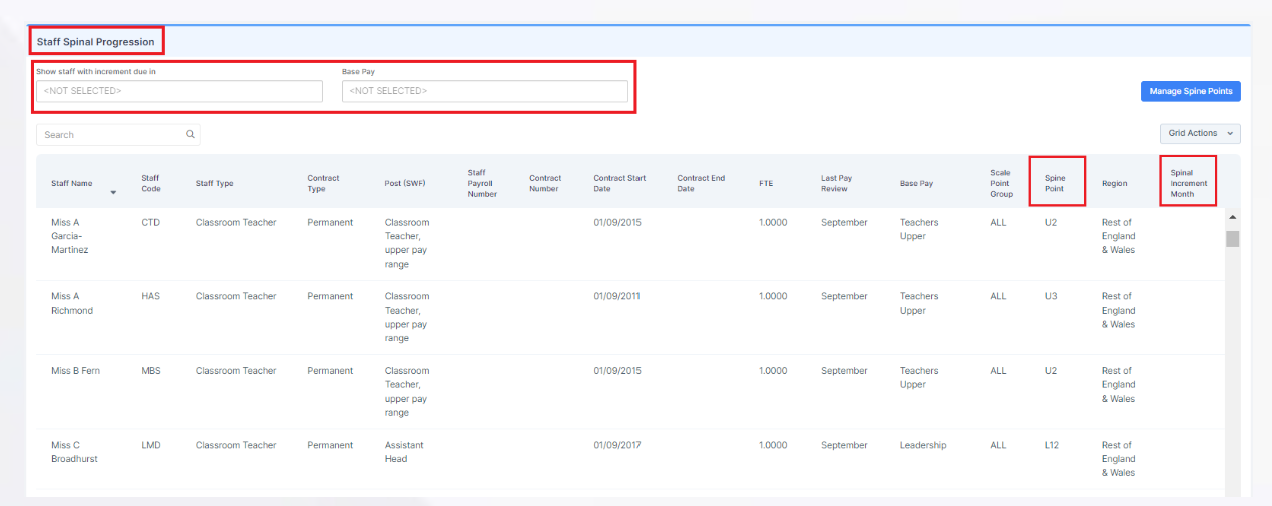
When you are in the spinal progression area you can select the increment month at the top and then multi select staff and then ‘Manage Spine Points’ to add the effective date in bulk.
How to Manage Spine Points in HR & Performance Management – Bromcom – Documentation Centre


How useful was this article?

Click on a star to rate it!

Average rating / 5. Vote count:

No votes so far! Be the first to rate this post.

Similar Posts

  • Bromcom Finance: How do I add a pay award ?

    Please note: This method is recommended for confirmed pay awards, if adding a projected pay award, please follow step 5  Browse to Config>Administration>Base Pay Structures>double click the required Base Pay structure, e.g JK – Job Evaluation Hours Per Annum, JE – Job Evaluation All Year Round,  JL – Job Evaluation > HPA 5 yrs, Teachers…

  • Configuring Data Collection Sheets in MyChildAtSchool

    MyChildAtSchool (MCAS) can be used to give parents/guardians access to data collection sheets. In this KB we’ll show you how to configure data collection sheets both for current students, and preadmissions. Navigating To The Settings You can configure data collection sheets under Config>MyChildAtSchool>Students And Contact Details Settings Form Permissions In the Students And Contact Details…

  • Recording Club Attendance in Bromcom

    In Bromcom it’s possible to record attendance for Clubs, in this KB we’ll show you how this is done. Navigating to the Clubs Homepage In Bromcom, click the Groups button, this will default either to Tutor or Class. In the top right corner of the screen change the Group Type to Clubs Recording Attendance Select…

  • Bromcom: Unable to change staff absence end times

    Staff List Page>Choose Staff>Actions>Add Absence (and creating absence via Staff Profile page) How to Record Staff Absence – Bromcom – Documentation Centre You may find, when entering a Staff Absence, whether you select specific time (eg half day, 3/4 day) the time changes to a default time. In order to rectify this, you need to…

  • Third Party Application integration with Bromcom

    When looking to integrate a third party application, it’s best to liaise with the third party for more detailed instructions. The purpose of this guide is to explain how a new User Account can be created to give Third Party Supplier’s access to data in your MIS system through Bromcom’s API interface, which is required for all…

  • Bromcom Finance: Year End Procedures 2025

    Please find the following guides for Bromcom Finance Year End Procedures: 1)   Part 1 Guide  Preparing for the year end 2) Part 2 Guide Setting up the new year 3)   Part 3 Guide – Closing the Financial year   How useful was this article? Click on a star to rate it! Submit Rating Average rating /…